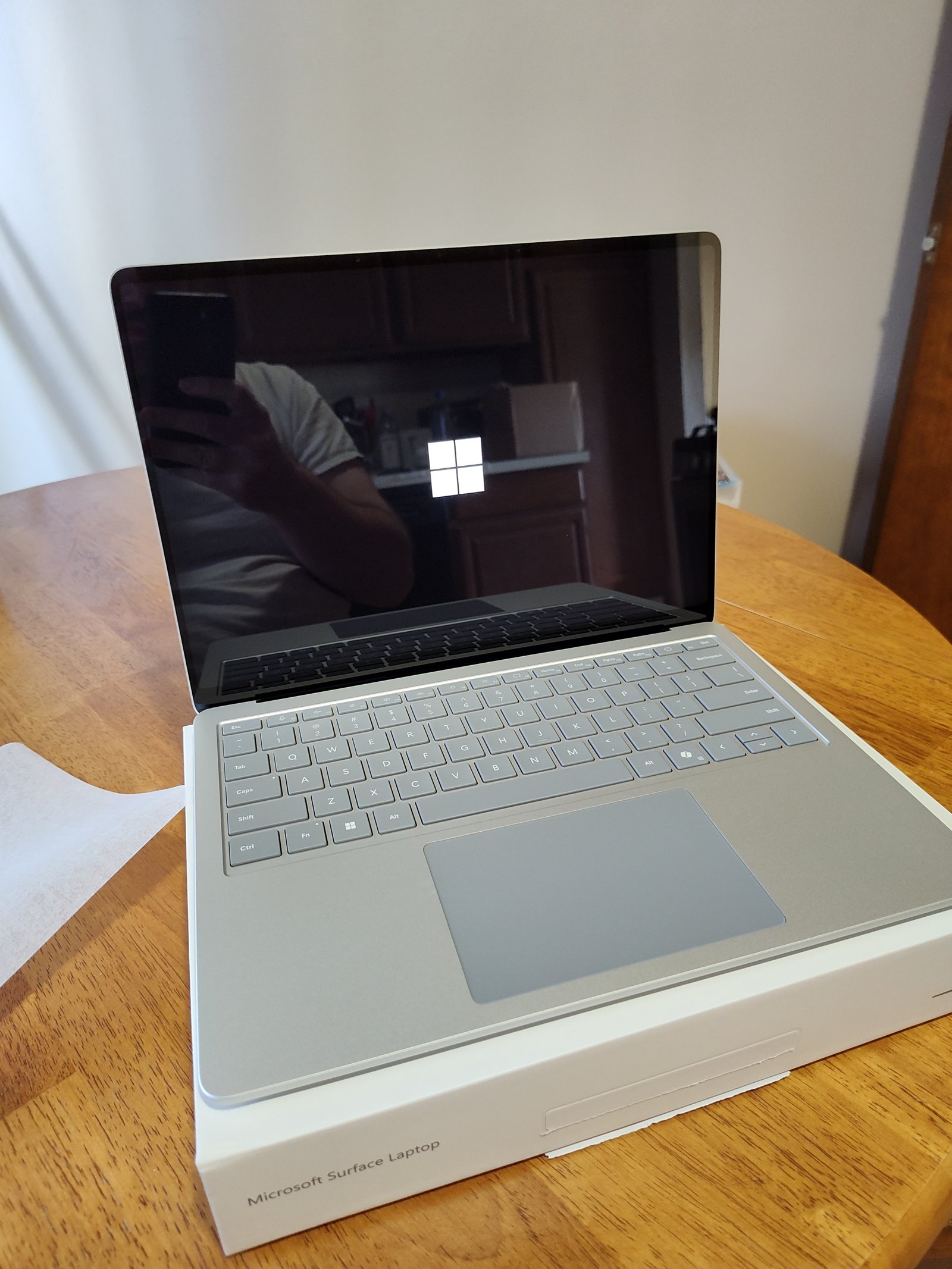
USB-C made one connector capable of charging laptops, moving files, connecting displays, attaching docks, and powering accessories. The connector became simpler while the standards behind it became harder to understand. Two USB-C cables can look identical and support completely different speeds, charging limits, and display features.
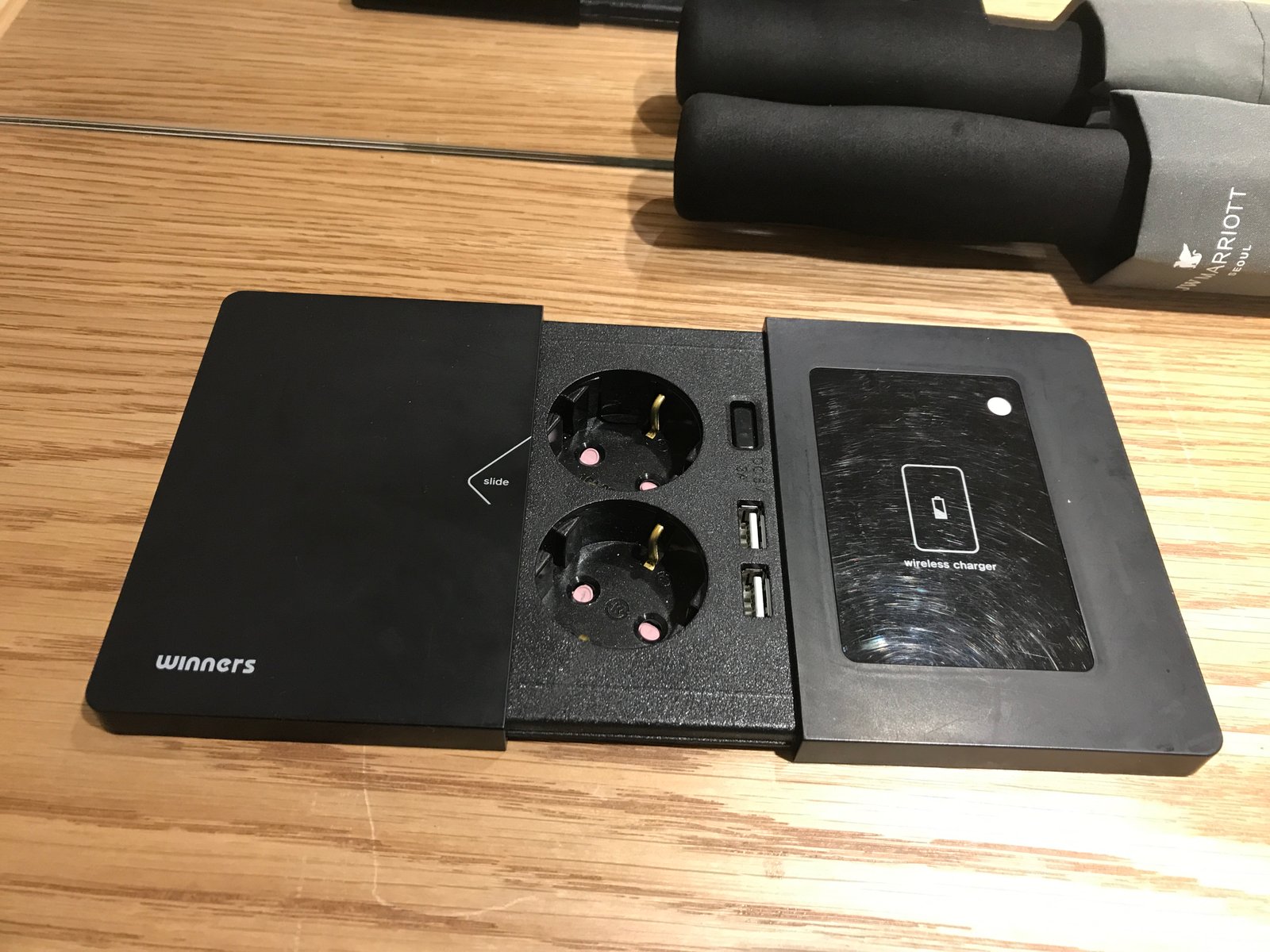
This guide explains USB4 and Thunderbolt 5 in practical terms. You will learn what the connector can and cannot tell you, how bandwidth is shared, why cables matter, what docks need, how display support works, and how to avoid paying for specifications your devices cannot use.
USB-C is the connector, not the speed
USB-C describes the physical plug shape. It does not guarantee a specific transfer speed, charging level, display output, or protocol.
A USB-C port may support basic USB data only, high-speed USB4, Thunderbolt, DisplayPort Alt Mode, USB Power Delivery, or several of these together.
Never judge a port only by shape
Read the device specification or look for clear port labels.
What USB4 is
USB4 is a modern USB architecture that can carry multiple types of data over a USB-C connection. It builds on ideas from Thunderbolt and can dynamically allocate bandwidth between data and display traffic.
The USB Implementers Forum publishes the standards and certification information.
USB4 products can support different performance levels
Do not assume every USB4 port has the same maximum bandwidth.
What Thunderbolt 5 is
Thunderbolt 5 is Intel’s newer high-performance connectivity standard using the USB-C connector.
It is designed for fast storage, multiple high-resolution displays, docks, creative workflows, and demanding external devices.
Certification creates a more defined feature set
Thunderbolt-branded products must meet specific requirements, which can make compatibility easier to understand than generic USB-C marketing.
Thunderbolt and USB4 overlap
Modern Thunderbolt builds on USB-C and USB standards, and many Thunderbolt systems work with USB devices.
However, optional USB4 features can make two non-Thunderbolt USB4 devices behave differently.
Compatibility does not always mean full performance
A Thunderbolt dock may work on a USB-C port but lose display, charging, or high-speed features if that port lacks the required protocol.
Understand bandwidth numbers
Manufacturers may advertise 20 Gbps, 40 Gbps, 80 Gbps, or higher directional bandwidth depending on the standard and mode.
These are signaling rates, not guaranteed file-copy speeds.
Real transfers are lower
Protocol overhead, SSD speed, enclosure controller, file size, operating system, and thermal limits all affect results.
Thunderbolt 5 can use Bandwidth Boost
Thunderbolt 5 can allocate additional bandwidth in one direction for display-heavy workloads.
This is useful when driving high-resolution or high-refresh-rate displays.
Not every workload needs it
Ordinary office use rarely requires extreme display bandwidth.
External SSD speed
A fast NVMe SSD in a capable USB4 or Thunderbolt enclosure can achieve much higher speeds than a basic USB portable drive.
The drive, enclosure, cable, and host port all need to support the intended performance.
The slowest part wins
A 40 Gbps enclosure connected with a slow cable may fall back to a much lower speed.
Small file transfers behave differently
Copying thousands of small files is slower than moving one large video file, even on the same hardware.
File-system overhead and metadata operations become more important.
Cables are one of the biggest sources of confusion
Some USB-C cables are designed mainly for charging. Others support high-speed data. Some support video. Some support very high power.
Look for certified logos and clear specifications.
Keep high-performance cables labeled
If you own several identical-looking USB-C cables, mark the fast ones or store them separately.
Passive versus active cables
At high speeds and longer lengths, active electronics may be required to maintain signal quality.
Active cables can have different compatibility behavior from passive cables.
Use the dock or device vendor’s guidance
For critical setups, choose a recommended certified cable length.
Charging uses USB Power Delivery
USB Power Delivery, often called USB PD, allows devices and chargers to negotiate power over USB-C.
The charger, cable, and device all affect the final charging rate.
A higher-watt charger does not force excess power
Compatible USB PD devices negotiate what they can accept.
E-Marker chips in cables
High-power or high-speed USB-C cables may contain an electronic marker that reports capabilities.
This helps devices negotiate safe operation.
Use properly rated cables for laptop charging
A low-rated cable can limit charging even with a powerful charger.
Docks combine several connections
A dock may provide Ethernet, USB ports, audio, SD cards, displays, and laptop charging through one cable.
All of these functions share the upstream connection.
Dock bandwidth is shared
Heavy SSD transfers can compete with displays and Ethernet depending on the design.
Check dock power delivery
A dock may advertise a large power adapter but provide less power to the laptop because some power is reserved for the dock and attached devices.
Check the actual host charging output.
Check the laptop’s required wattage
A thin laptop may charge well at 65 W. A high-performance workstation may need 100 W or more.
If the dock supplies less than the laptop expects, charging can be slow or the battery may drain during heavy work.
Display support is complicated
The number of displays a port can drive depends on the laptop GPU, operating system, dock technology, bandwidth, resolution, refresh rate, and color depth.
A dock that supports three monitors on one Windows laptop may support fewer on another device.
Read the host compatibility table
Do not buy only from the dock’s maximum display claim.
DisplayPort Alt Mode
Many USB-C ports can send DisplayPort video without supporting full USB4 or Thunderbolt.
This is why a simple USB-C-to-HDMI adapter can work on some laptops but not others.
DisplayLink docks
Some docks use DisplayLink software to send compressed display data over USB.
This can add monitor support on systems with limited native display outputs.
DisplayLink is not the same as native GPU output
It can be useful for office work but may add latency or overhead for gaming and color-sensitive creative tasks.
High-refresh monitors need bandwidth
Resolution, refresh rate, HDR, and color depth all consume display bandwidth.
A 4K 144 Hz monitor needs far more than a basic 1080p office screen.
Gaming with docks
For a gaming laptop, direct display connection can reduce uncertainty and latency.
Docks are convenient, but verify adaptive sync, refresh rate, HDR, and GPU routing.
External GPUs
Older Thunderbolt generations made external GPU enclosures possible on supported systems.
Modern platform support varies, and many laptops do not support eGPU workflows in the same way.
Check current platform documentation
Do not assume a Thunderbolt logo guarantees eGPU support.
Networking through docks
A dock can provide 1 GbE, 2.5 GbE, or faster Ethernet.
The dock controller and upstream bandwidth affect real performance.
SD card readers
Photographers should check UHS-I, UHS-II, or other card-reader specifications.
A fast card in a slow reader will transfer at the reader’s limit.
Audio interfaces
Professional audio hardware can be sensitive to latency, drivers, and power.
Check whether the manufacturer supports operation through a dock.
Wake and sleep behavior
Some docks have issues with sleep, wake, display reconnection, or Ethernet after resume.
Firmware updates can improve these problems.
Dock firmware matters
Use the manufacturer’s update utility when available.
Windows compatibility
Windows laptops vary widely in USB-C capabilities.
Check the exact model manual for USB4, Thunderbolt, charging, and display output.
Mac compatibility
Mac models differ in the number of native external displays they support.
A dock cannot bypass every hardware or software limit without additional display technology.
Linux compatibility
USB4 and Thunderbolt support depends on kernel, distribution, security settings, and hardware.
Advanced dock features may require additional configuration.
Security authorization
Thunderbolt historically raised concerns about high-speed device access to memory.
Modern systems include improved security and authorization controls.
Keep firmware and operating systems current
Platform security is part of safe high-speed peripheral use.
Public charging and data
A charging cable can also carry data unless the device or cable limits it.
Use trusted chargers and choose charge-only options when available on public infrastructure.
USB-C hubs versus Thunderbolt docks
A simple USB-C hub is cheaper and sufficient for keyboard, mouse, HDMI, and basic storage.
A Thunderbolt or high-end USB4 dock is useful when you need faster storage, more display bandwidth, or complex workstation connectivity.
Do not overbuy
Office users with one 1080p monitor rarely need the most expensive dock.
Portable dock use
Travel hubs should prioritize compact size, reliable HDMI, card reading, charging pass-through, and a short integrated cable.
Desktop docks can prioritize more ports and stronger power delivery.
Check cable replacement options
A dock with a removable upstream cable is easier to repair or adapt than one with a permanently attached cable.
Heat is normal within limits
High-speed controllers and power-delivery circuits can make docks warm.
Excessive heat, disconnects, or burning smells are not normal.
How to diagnose slow transfers
Check the host port specification. Check cable rating. Check enclosure interface. Check SSD speed and temperature. Test another port. Copy one large file. Update firmware and drivers.
How to diagnose display problems
Reduce resolution or refresh rate. Disconnect other devices. Update dock firmware. Try a certified cable. Test a direct display connection. Check the laptop’s maximum external display support.
How to buy the right cable
Identify required charging wattage and data speed. Choose a certified cable with those ratings. Keep the cable length reasonable. Buy from a reputable manufacturer.
How to buy the right dock
List the monitors, Ethernet speed, USB devices, card reader, audio needs, and laptop charging requirement. Then choose a dock tested with your host platform.
Practical checklist
Check the port protocol. Check cable certification. Confirm charging wattage. Confirm display support on the exact laptop. Review dock host power. Count shared bandwidth. Update firmware. Use direct connections for troubleshooting. Keep high-speed cables labeled.
Conclusion
USB4 and Thunderbolt 5 make USB-C more capable, but the connector alone does not tell you what a port or cable can do.
Think of the setup as a chain: host port, cable, dock or enclosure, peripheral, and software. The slowest or least capable part defines the result.
Buy for the workload you actually have. A certified cable and compatible midrange dock are more useful than an expensive specification that your laptop cannot use.