Tag: Online Security

Online account, privacy, and security best practices.

  • USB4 and Thunderbolt 5 Explained: Cables, Docks, Displays, Charging, and Speed Without the Confusion

    USB4 and Thunderbolt 5 Explained: Cables, Docks, Displays, Charging, and Speed Without the Confusion

    USB-C made one connector capable of charging laptops, moving files, connecting displays, attaching docks, and powering accessories. The connector became simpler while the standards behind it became harder to understand. Two USB-C cables can look identical and support completely different speeds, charging limits, and display features.
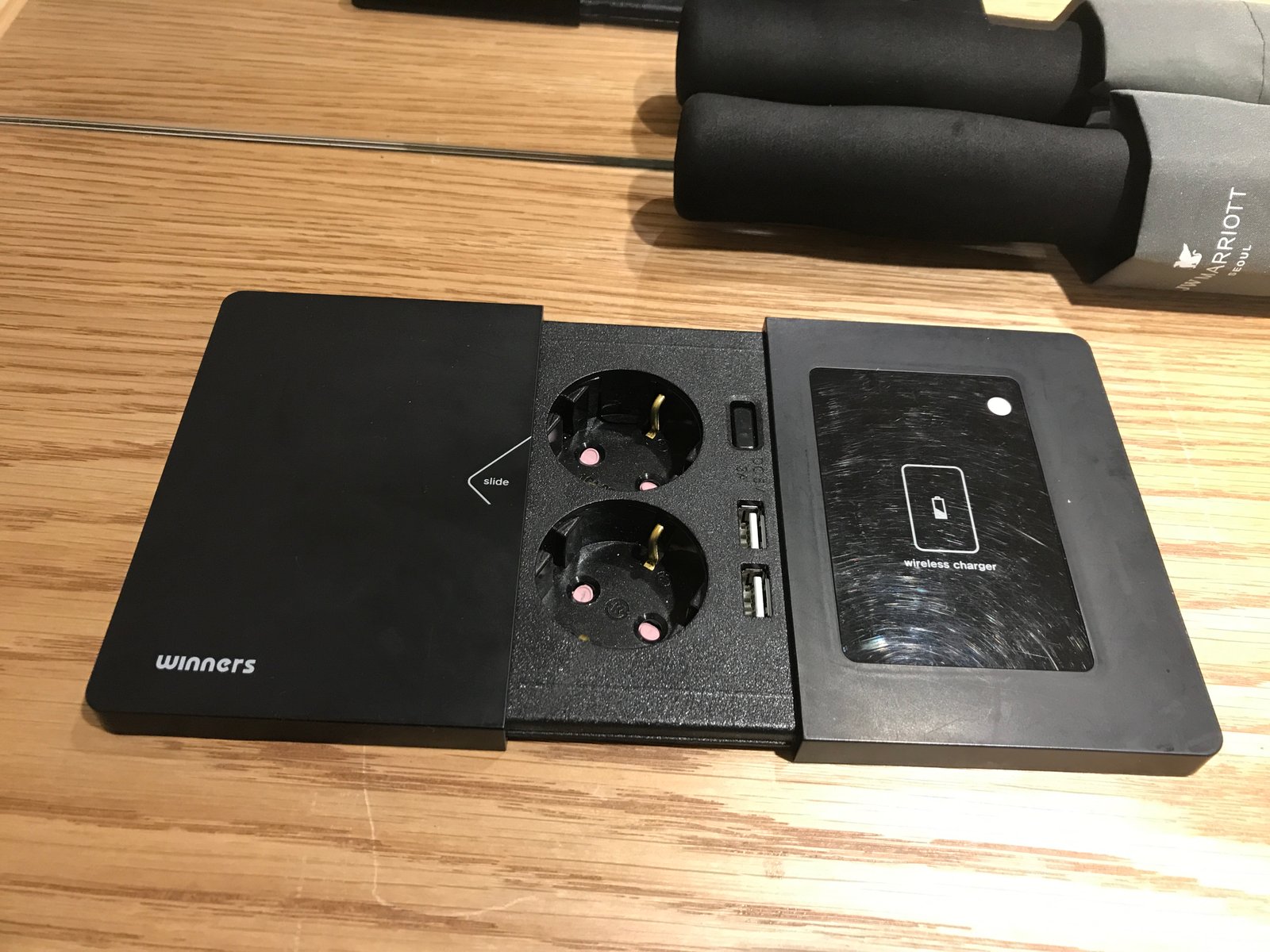
    Modern charging setup used to explain USB-C Power Delivery and cable ratings
    Check charging as a complete chain. The laptop or phone requests power, the charger provides a supported USB Power Delivery profile, and the cable must be rated for the current it carries. A powerful charger cannot deliver its full output through every cable, and a dock may reserve part of its power for attached devices. Before buying, compare the host’s required wattage with the dock’s actual host output rather than the larger number printed on the dock’s power adapter.

    This guide explains USB4 and Thunderbolt 5 in practical terms. You will learn what the connector can and cannot tell you, how bandwidth is shared, why cables matter, what docks need, how display support works, and how to avoid paying for specifications your devices cannot use.

    USB-C is the connector, not the speed

    USB-C describes the physical plug shape. It does not guarantee a specific transfer speed, charging level, display output, or protocol.

    A USB-C port may support basic USB data only, high-speed USB4, Thunderbolt, DisplayPort Alt Mode, USB Power Delivery, or several of these together.

    Never judge a port only by shape

    Read the device specification or look for clear port labels.

    What USB4 is

    USB4 is a modern USB architecture that can carry multiple types of data over a USB-C connection. It builds on ideas from Thunderbolt and can dynamically allocate bandwidth between data and display traffic.

    The USB Implementers Forum publishes the standards and certification information.

    USB4 products can support different performance levels

    Do not assume every USB4 port has the same maximum bandwidth.

    What Thunderbolt 5 is

    Thunderbolt 5 is Intel’s newer high-performance connectivity standard using the USB-C connector.

    It is designed for fast storage, multiple high-resolution displays, docks, creative workflows, and demanding external devices.

    Certification creates a more defined feature set

    Thunderbolt-branded products must meet specific requirements, which can make compatibility easier to understand than generic USB-C marketing.

    Thunderbolt and USB4 overlap

    Modern Thunderbolt builds on USB-C and USB standards, and many Thunderbolt systems work with USB devices.

    However, optional USB4 features can make two non-Thunderbolt USB4 devices behave differently.

    Compatibility does not always mean full performance

    A Thunderbolt dock may work on a USB-C port but lose display, charging, or high-speed features if that port lacks the required protocol.

    Understand bandwidth numbers

    Manufacturers may advertise 20 Gbps, 40 Gbps, 80 Gbps, or higher directional bandwidth depending on the standard and mode.

    These are signaling rates, not guaranteed file-copy speeds.

    Real transfers are lower

    Protocol overhead, SSD speed, enclosure controller, file size, operating system, and thermal limits all affect results.

    Thunderbolt 5 can use Bandwidth Boost

    Thunderbolt 5 can allocate additional bandwidth in one direction for display-heavy workloads.

    This is useful when driving high-resolution or high-refresh-rate displays.

    Not every workload needs it

    Ordinary office use rarely requires extreme display bandwidth.

    External SSD speed

    A fast NVMe SSD in a capable USB4 or Thunderbolt enclosure can achieve much higher speeds than a basic USB portable drive.

    The drive, enclosure, cable, and host port all need to support the intended performance.

    The slowest part wins

    A 40 Gbps enclosure connected with a slow cable may fall back to a much lower speed.

    Small file transfers behave differently

    Copying thousands of small files is slower than moving one large video file, even on the same hardware.

    File-system overhead and metadata operations become more important.

    Cables are one of the biggest sources of confusion

    Some USB-C cables are designed mainly for charging. Others support high-speed data. Some support video. Some support very high power.

    Look for certified logos and clear specifications.

    Keep high-performance cables labeled

    If you own several identical-looking USB-C cables, mark the fast ones or store them separately.

    Passive versus active cables

    At high speeds and longer lengths, active electronics may be required to maintain signal quality.

    Active cables can have different compatibility behavior from passive cables.

    Use the dock or device vendor’s guidance

    For critical setups, choose a recommended certified cable length.

    Charging uses USB Power Delivery

    USB Power Delivery, often called USB PD, allows devices and chargers to negotiate power over USB-C.

    The charger, cable, and device all affect the final charging rate.

    A higher-watt charger does not force excess power

    Compatible USB PD devices negotiate what they can accept.

    E-Marker chips in cables

    High-power or high-speed USB-C cables may contain an electronic marker that reports capabilities.

    This helps devices negotiate safe operation.

    Use properly rated cables for laptop charging

    A low-rated cable can limit charging even with a powerful charger.

    Docks combine several connections

    A dock may provide Ethernet, USB ports, audio, SD cards, displays, and laptop charging through one cable.

    All of these functions share the upstream connection.

    Dock bandwidth is shared

    Heavy SSD transfers can compete with displays and Ethernet depending on the design.

    Check dock power delivery

    A dock may advertise a large power adapter but provide less power to the laptop because some power is reserved for the dock and attached devices.

    Check the actual host charging output.

    Check the laptop’s required wattage

    A thin laptop may charge well at 65 W. A high-performance workstation may need 100 W or more.

    If the dock supplies less than the laptop expects, charging can be slow or the battery may drain during heavy work.

    Display support is complicated

    The number of displays a port can drive depends on the laptop GPU, operating system, dock technology, bandwidth, resolution, refresh rate, and color depth.

    A dock that supports three monitors on one Windows laptop may support fewer on another device.

    Read the host compatibility table

    Do not buy only from the dock’s maximum display claim.

    DisplayPort Alt Mode

    Many USB-C ports can send DisplayPort video without supporting full USB4 or Thunderbolt.

    This is why a simple USB-C-to-HDMI adapter can work on some laptops but not others.

    DisplayLink docks

    Some docks use DisplayLink software to send compressed display data over USB.

    This can add monitor support on systems with limited native display outputs.

    DisplayLink is not the same as native GPU output

    It can be useful for office work but may add latency or overhead for gaming and color-sensitive creative tasks.

    High-refresh monitors need bandwidth

    Resolution, refresh rate, HDR, and color depth all consume display bandwidth.

    A 4K 144 Hz monitor needs far more than a basic 1080p office screen.

    Gaming with docks

    For a gaming laptop, direct display connection can reduce uncertainty and latency.

    Docks are convenient, but verify adaptive sync, refresh rate, HDR, and GPU routing.

    External GPUs

    Older Thunderbolt generations made external GPU enclosures possible on supported systems.

    Modern platform support varies, and many laptops do not support eGPU workflows in the same way.

    Check current platform documentation

    Do not assume a Thunderbolt logo guarantees eGPU support.

    Networking through docks

    A dock can provide 1 GbE, 2.5 GbE, or faster Ethernet.

    The dock controller and upstream bandwidth affect real performance.

    SD card readers

    Photographers should check UHS-I, UHS-II, or other card-reader specifications.

    A fast card in a slow reader will transfer at the reader’s limit.

    Audio interfaces

    Professional audio hardware can be sensitive to latency, drivers, and power.

    Check whether the manufacturer supports operation through a dock.

    Wake and sleep behavior

    Some docks have issues with sleep, wake, display reconnection, or Ethernet after resume.

    Firmware updates can improve these problems.

    Dock firmware matters

    Use the manufacturer’s update utility when available.

    Windows compatibility

    Windows laptops vary widely in USB-C capabilities.

    Check the exact model manual for USB4, Thunderbolt, charging, and display output.

    Mac compatibility

    Mac models differ in the number of native external displays they support.

    A dock cannot bypass every hardware or software limit without additional display technology.

    Linux compatibility

    USB4 and Thunderbolt support depends on kernel, distribution, security settings, and hardware.

    Advanced dock features may require additional configuration.

    Security authorization

    Thunderbolt historically raised concerns about high-speed device access to memory.

    Modern systems include improved security and authorization controls.

    Keep firmware and operating systems current

    Platform security is part of safe high-speed peripheral use.

    Public charging and data

    A charging cable can also carry data unless the device or cable limits it.

    Use trusted chargers and choose charge-only options when available on public infrastructure.

    USB-C hubs versus Thunderbolt docks

    A simple USB-C hub is cheaper and sufficient for keyboard, mouse, HDMI, and basic storage.

    A Thunderbolt or high-end USB4 dock is useful when you need faster storage, more display bandwidth, or complex workstation connectivity.

    Do not overbuy

    Office users with one 1080p monitor rarely need the most expensive dock.

    Portable dock use

    Travel hubs should prioritize compact size, reliable HDMI, card reading, charging pass-through, and a short integrated cable.

    Desktop docks can prioritize more ports and stronger power delivery.

    Check cable replacement options

    A dock with a removable upstream cable is easier to repair or adapt than one with a permanently attached cable.

    Heat is normal within limits

    High-speed controllers and power-delivery circuits can make docks warm.

    Excessive heat, disconnects, or burning smells are not normal.

    How to diagnose slow transfers

    Check the host port specification. Check cable rating. Check enclosure interface. Check SSD speed and temperature. Test another port. Copy one large file. Update firmware and drivers.

    How to diagnose display problems

    Reduce resolution or refresh rate. Disconnect other devices. Update dock firmware. Try a certified cable. Test a direct display connection. Check the laptop’s maximum external display support.

    How to buy the right cable

    Identify required charging wattage and data speed. Choose a certified cable with those ratings. Keep the cable length reasonable. Buy from a reputable manufacturer.

    How to buy the right dock

    List the monitors, Ethernet speed, USB devices, card reader, audio needs, and laptop charging requirement. Then choose a dock tested with your host platform.

    Practical checklist

    Check the port protocol. Check cable certification. Confirm charging wattage. Confirm display support on the exact laptop. Review dock host power. Count shared bandwidth. Update firmware. Use direct connections for troubleshooting. Keep high-speed cables labeled.

    Conclusion

    USB4 and Thunderbolt 5 make USB-C more capable, but the connector alone does not tell you what a port or cable can do.

    Think of the setup as a chain: host port, cable, dock or enclosure, peripheral, and software. The slowest or least capable part defines the result.

    Buy for the workload you actually have. A certified cable and compatible midrange dock are more useful than an expensive specification that your laptop cannot use.


    Compatibility checklist used to compare USB4 Thunderbolt docks cables and displays
    Make a port checklist before choosing a dock. Write down the number and resolution of displays, refresh rates, Ethernet speed, storage devices, card reader needs, audio hardware, and laptop charging requirement. Then confirm those features on the exact computer model, not only on the dock box. Display support depends on the GPU, operating system, bandwidth, and dock design. A dock that drives several monitors on one laptop may provide fewer native displays on another system.
    Firmware and device security considerations for USB4 and Thunderbolt accessories
    Keep dock firmware, computer firmware, and operating-system updates current. High-speed external devices can interact closely with the host, and modern systems include security controls for Thunderbolt and similar connections. Use trusted accessories for work with sensitive data, avoid unknown public docks, and review device authorization prompts instead of approving them automatically. If a dock begins disconnecting after sleep or resume, check vendor firmware and driver updates before replacing cables or hardware.
    Laptop used to test USB4 and Thunderbolt transfer speed display output and charging
    Troubleshoot one layer at a time. Connect the accessory directly to the laptop, use a short certified cable, and temporarily disconnect other high-bandwidth devices. Test one large file for storage speed, check display resolution and refresh rate, verify Ethernet, and confirm charging power. If the direct connection works but the full dock setup fails, the problem is likely shared bandwidth, cable capability, firmware, or power distribution. Label reliable high-speed cables so they do not get mixed with charge-only or low-speed USB-C cables. For a permanent desk setup, record which upstream port, cable, and dock firmware version you tested. Also note the display resolution, refresh rate, and charging result. If a later firmware or operating-system update changes behavior, you can compare against a known working configuration instead of rebuilding the setup from memory. When buying a replacement cable, match both data rate and charging requirement. A cable that can deliver high power may still support only basic USB data, while a high-speed cable may have a lower power rating. Certified markings and a clear specification are more useful than appearance because USB-C cables can look identical.
  • How to Edit, Merge, Sign, and Share PDFs Safely Without Exposing Sensitive Files

    How to Edit, Merge, Sign, and Share PDFs Safely Without Exposing Sensitive Files

    PDF files are everywhere: contracts, invoices, forms, manuals, resumes, reports, scans, and official records. The format is useful because it usually preserves layout across devices. The problem begins when you need to edit, merge, sign, compress, redact, or share a PDF and the first solution you find is an unknown online tool asking you to upload the file.

    Data protection controls for handling sensitive PDF files

    For harmless documents, that may be fine. For private or business documents, it can create unnecessary risk. This guide explains how to work with PDFs safely, when to use desktop software, when an online service is reasonable, how digital signatures differ from typed signatures, and how to prevent accidental data exposure.

    Start by classifying the PDF

    Before choosing a tool, decide how sensitive the document is. A public brochure and a payroll report should not be handled the same way.

    Low-risk files include public manuals, blank forms, school handouts, and marketing documents. Medium-risk files may include resumes, invoices, internal reports, and business proposals. High-risk files include identity documents, medical records, tax forms, banking data, legal agreements, employee records, customer information, and confidential contracts.

    The tool should match the sensitivity

    The more sensitive the file, the stronger the reason to process it locally with trusted software instead of uploading it to an unknown website.

    Understand what “edit PDF” means

    PDF editing can mean several different things. You may only need to add text to a form. You may need to rearrange pages. You may need to change text already embedded in the file. You may need to add a signature or redact private information.

    Choose the smallest tool for the job. A simple form fill does not require a full PDF editor.

    Editing scanned PDFs is different

    A scanned PDF may contain images of pages rather than selectable text. Editing the words often requires OCR, or optical character recognition. OCR can make mistakes, especially with small text, tables, handwriting, or poor scans.

    Use built-in tools when they are enough

    Modern operating systems and browsers can handle many basic PDF tasks. You may be able to open a file, print to PDF, add notes, fill forms, or sign without installing another application.

    On macOS, Apple Preview includes useful PDF features. Windows users can view and annotate PDFs in Microsoft Edge, while other built-in and third-party options handle more advanced editing.

    Built-in software reduces extra data sharing

    If the document never leaves your computer, you avoid one entire privacy risk: uploading the file to another company.

    When a desktop PDF editor makes sense

    A trusted desktop editor is useful when you regularly change text, reorder pages, create forms, apply redaction, compare documents, or manage signatures.

    Adobe Acrobat is a widely used commercial option. Other reputable editors exist, including open-source and platform-specific tools.

    Download from the official source

    PDF utilities are a common target for bundled software and fake downloads. Use the official vendor website or a trusted app store. Avoid random “free PDF editor” installers from download mirrors.

    Online PDF tools can be convenient

    Online services are useful when you are on a device without installed software or need a one-time conversion. The file is uploaded to a server, processed, and then downloaded.

    That workflow is convenient, but it means the service temporarily receives the document.

    Check the privacy policy before uploading sensitive data

    Look for information about encryption, retention time, deletion, geographic processing, account requirements, and whether uploaded content is used for training or analytics.

    Use local processing for confidential PDFs

    If the file contains personal, legal, financial, health, or customer data, local processing is usually the safer default.

    For a business, use company-approved software that meets internal security and compliance requirements.

    Do not assume a familiar-looking website is trustworthy

    A polished design and HTTPS padlock only show that the connection is encrypted. They do not tell you how the company stores or uses the uploaded file.

    How to merge PDFs safely

    Merging combines several PDF files into one document. Before merging, rename the files clearly so you can place them in the correct order.

    Check each file for accidental pages, comments, hidden attachments, or personal information that should not be included.

    Review the final page order

    A common mistake is merging a signed page into the wrong version of a contract or sending an internal cover page to an external recipient.

    How to split a PDF

    Splitting is useful when you need only a few pages from a larger document. Instead of sending a 100-page report, extract the required pages.

    This also supports data minimization. If a client needs one invoice page, do not automatically send an entire monthly statement.

    Check page headers and footers

    An extracted page may still show customer names, account numbers, or document IDs in the header or footer.

    How to compress PDFs without ruining them

    Compression reduces file size for email or website upload. The best method depends on what the PDF contains.

    Text-heavy PDFs usually compress well with little visible difference. Scanned documents and image-heavy reports may lose readability if compressed too aggressively.

    Test small text after compression

    Zoom in on fine print, signatures, QR codes, barcodes, charts, and scanned text. A smaller file is not useful if important details become unreadable.

    Understand typed signatures

    Many PDF tools let you type your name in a script font, draw a signature, or place an image of a handwritten signature.

    This can be acceptable for some workflows, but it is not the same as a cryptographic digital signature.

    Legal acceptance depends on context

    Signature requirements vary by country, document type, organization, and transaction. Use the method required by the receiving party and applicable law.

    What a digital signature adds

    A digital signature uses cryptography to link a signer to a document and can help show whether the file changed after signing.

    Digital signature systems may use certificates issued by trusted authorities or enterprise systems.

    A visible signature image alone does not prove integrity

    A pasted signature picture can be copied. A cryptographic signature can provide stronger technical evidence about the signed file.

    Verify a signed PDF before trusting it

    When you receive a digitally signed document, use a trusted PDF reader to check the signature status.

    Look for warnings about invalid certificates, changed content, unknown issuers, or signatures added after modifications.

    Do not email reusable signature images casually

    A transparent image of your handwritten signature can be copied and reused.

    If you keep a signature image for convenience, store it securely and avoid sending the raw image file unless necessary.

    Redaction is not the same as drawing a black box

    This is one of the most important PDF safety lessons. Covering text with a black rectangle can leave the original text underneath. Someone may be able to select, copy, search, or remove the rectangle.

    True redaction removes the underlying content from the document.

    Use a dedicated redaction feature

    After applying redaction, save a new copy and test it. Try selecting text in the redacted area. Search for the hidden name or number. Inspect the file in another viewer.

    Remove metadata when appropriate

    PDFs can include metadata such as author name, software used, creation date, modification date, title, comments, embedded files, and document properties.

    For public or external documents, review metadata before sharing.

    Metadata can reveal internal details

    A proposal may unintentionally show an employee name, internal filename, or software version that was never meant for the recipient.

    Watch for comments and annotations

    Review comments are useful during collaboration, but they can become embarrassing or harmful if sent outside the team.

    Before final distribution, remove internal notes, sticky comments, highlighted discussions, and draft annotations unless they are intended for the recipient.

    Flatten only when you understand the result

    Flattening can turn editable form fields or annotations into fixed page content. This can make a final document harder to alter casually.

    However, flattening may also reduce accessibility or make future editing difficult.

    Keep an editable master copy

    Store the original working file separately. Send the flattened copy only when it fits the workflow.

    Protect PDFs with passwords carefully

    PDF software may allow an open password, permissions password, or restrictions on printing and editing.

    Use a strong unique password when the file contains sensitive information.

    Do not send the password in the same message

    If possible, send the file and password through separate channels. For example, email the file and send the password through an approved secure messaging method.

    Know the limits of PDF password protection

    Some permission restrictions can be bypassed by software. Password protection is useful, but it is not a replacement for secure file sharing and access controls.

    Highly sensitive documents should be protected by the storage or sharing platform as well.

    Use secure links instead of attachments when appropriate

    A cloud link can provide better control than an email attachment because you may be able to revoke access, set an expiration date, require sign-in, or restrict download.

    Services such as OneDrive, Google Drive, and Dropbox provide different sharing controls.

    Check link permissions before sending

    “Anyone with the link” is very different from “specific people only.” Use the narrowest setting that works.

    Set expiration dates for temporary sharing

    If the document is needed for only a week, an expiring link reduces long-term exposure.

    This is especially useful for proposals, review drafts, application documents, and temporary client access.

    Do not put sensitive PDFs in public folders

    A public website directory, shared team link, or misconfigured cloud folder can expose files to search engines or unintended users.

    Check the access setting from a logged-out browser window before assuming a link is private.

    Scan PDF attachments for malware

    PDFs can contain links, embedded files, scripts, or exploit content. Keep your PDF reader and operating system updated.

    Be cautious with unexpected PDF attachments, especially files that ask you to click a login link or enable additional content.

    Verify the sender through another channel when necessary

    If an invoice or legal document arrives unexpectedly and asks for urgent payment or credential entry, confirm the request independently.

    Be careful with PDF-to-Word conversion

    Conversion can help edit a document, but formatting may change. Tables, columns, headers, footnotes, images, and page breaks may shift.

    After editing, compare the converted result with the original PDF.

    Do not trust OCR numbers without checking

    A scanned invoice can turn 8 into 3 or 0 into 6. Verify amounts, dates, account numbers, and reference codes manually.

    Use OCR for accessibility and search

    OCR can make scanned documents searchable and selectable. This improves usability and can support screen-reader workflows when combined with proper document tagging.

    For important documents, review OCR output before relying on it.

    Think about accessibility

    A PDF that looks perfect may be difficult for a screen reader. Proper headings, reading order, alt text, form labels, and searchable text matter.

    Organizations publishing public documents should include accessibility checks in the workflow.

    Keep original and final versions separate

    Use clear filenames such as contract-draft-v3.pdf, contract-signed.pdf, and contract-redacted-public.pdf.

    Do not overwrite the only original when applying redaction, compression, or conversion.

    Version names reduce mistakes

    Clear naming helps prevent sending an unsigned draft instead of the approved final file.

    Back up important PDFs

    Signed contracts, tax records, business licenses, and official documents should exist in more than one protected location.

    Keep a local backup and a secure off-site or cloud backup depending on the importance of the file.

    A safe workflow for a signed contract

    Receive the document from a trusted source. Save the original. Review the full text. Verify the other party and required signature method. Sign using the approved tool. Save the signed copy separately. Verify the signature status. Share through a restricted link or approved channel. Archive the final version.

    A safe workflow for a scanned identity document

    Scan only the pages required. Crop unnecessary background. Use local tools where possible. Redact information the recipient does not need if allowed. Add a visible purpose note if appropriate. Share through a specific-person link. Remove temporary copies from shared devices.

    A safe workflow for a public PDF

    Remove internal comments. Check metadata. Verify links. Compress the file. Confirm accessibility. Open it on a phone and desktop. Upload the public version, not the editable internal source.

    PDF safety checklist

    Classify the document. Prefer local tools for sensitive files. Use official software sources. Verify OCR. Use true redaction. Check metadata and comments. Keep an original copy. Use strong passwords when needed. Send passwords separately. Prefer restricted sharing links. Verify digital signatures. Keep readers updated. Scan suspicious attachments. Confirm the final file before sending.

    Conclusion

    PDF tools are convenient, but the document often matters more than the tool. A public brochure can be handled differently from a passport scan or signed contract.

    Use built-in or trusted desktop software when possible for sensitive files. Treat online converters as data-sharing services, not just buttons. Use true redaction, verify signatures, review metadata, and share through controlled links.

    The safest PDF workflow is usually the simplest one: process the file with a trusted tool, keep the original, remove information the recipient does not need, and verify the final copy before it leaves your device.

    Laptop used to verify trusted PDF tools and official software sources
    Phone camera used to scan documents into PDF files
    Network connection used when sharing PDF files through secure cloud links
  • AI Search vs Traditional Search Engines: When to Use Each and How to Verify the Answer

    AI Search vs Traditional Search Engines: When to Use Each and How to Verify the Answer

    Search is changing. Traditional search engines return pages, maps, videos, products, and other sources. AI search tools can read several sources and produce a direct answer. Both approaches can save time, but they solve different problems and create different risks.

    Research notes used to compare AI answers with original sources
    A simple verification habit is to keep a short research note beside the answer. Write down the important claim, the source that supports it, the date of that source, and any number that changes your decision. This prevents a smooth AI summary from becoming the only record of the research. It also makes it easy to revisit the decision later if prices, policies, software versions, or product details change.

    An AI answer may be faster when you want a summary. A traditional search engine may be better when you need the original source, local information, exact product pages, or several viewpoints. The strongest workflow often uses both.

    This guide explains when to use AI search, when to use traditional search, and how to verify an answer before it affects a decision.

    What traditional search does well

    A traditional search engine is designed to help you discover pages and resources that match a query. You usually see several options and decide which result deserves trust.

    Services such as Google, Bing, and DuckDuckGo organize huge parts of the public web and provide specialized results for images, maps, news, shopping, and local businesses.

    Search gives you direct access to the source

    If you need a company’s warranty terms, an official government rule, or a product manual, search can take you directly to the page that owns the information.

    What AI search does well

    AI search can combine information from several pages, explain unfamiliar terms, compare viewpoints, and turn a long research trail into a readable summary.

    It is especially useful when your question is broad, such as “What should I compare before buying a mesh Wi-Fi system?” or “Summarize the main differences between these three software plans.”

    AI reduces the work of opening many pages

    Instead of reading ten articles from beginning to end, you can use AI to identify the important themes and then open the sources that support the claims you care about.

    Direct answers are convenient but can hide uncertainty

    A search-results page makes it obvious that information comes from different websites. An AI answer can blend those sources into one confident paragraph.

    That smooth presentation can make weak evidence look stronger than it is.

    Fluency is not proof

    A clear answer may still contain an outdated date, a misunderstood source, or a recommendation based on incomplete information. Treat important claims as items to verify.

    Use traditional search for primary-source facts

    If one organization controls the correct answer, go to that organization.

    For an Apple device specification, use Apple. For an Android security bulletin, use Android Security Bulletins. For U.S. consumer guidance, use the relevant government agency such as the Federal Trade Commission.

    Search for the official domain

    Add the organization name or use a site-specific search when many reseller or commentary pages appear above the primary source.

    Use AI search for orientation

    If you are new to a topic, AI can create a map of what you need to learn.

    Ask for key terms, major decisions, common mistakes, and a checklist of facts that require verification. Then use search to confirm those facts.

    Example: buying a home router

    An AI tool can explain Wi-Fi generations, mesh systems, Ethernet backhaul, channel width, and device compatibility. Once you shortlist products, verify exact ports, supported standards, warranty, and update policy on manufacturer pages.

    Use traditional search when freshness is critical

    Prices, product availability, laws, leadership roles, release dates, sports results, weather, software versions, and event schedules change quickly.

    AI tools with live search can handle current information, but you should still look at the publication date and original source.

    Watch relative time words

    Words such as today, latest, current, recently, and this week require fresh evidence. A correct answer from last month may be wrong today.

    Use AI when you need a comparison framework

    AI is good at turning a vague decision into criteria.

    For example, if you are comparing password managers, ask AI to build a checklist covering platform support, encryption design, MFA, passkeys, export options, family sharing, recovery, price, and security audits.

    Then fill the table from sources

    Do not let the model invent the values. Use official provider pages for each row that matters.

    Traditional search is better for exact navigation

    If you know what you want, a direct search can be faster than a conversation. Searching “Mozilla Firefox download” or “Microsoft Windows recovery options” can take you directly to the needed page.

    AI adds little value when the task is simply finding a known destination.

    AI is better for explaining unfamiliar language

    Technical pages can be difficult to understand. AI can translate jargon into plain English, explain prerequisites, and show a simple example.

    Keep the original source open while you read the explanation.

    Ask for a source-grounded explanation

    Paste or provide the authoritative text and ask the model to explain only that material. This reduces the chance that it mixes in unrelated knowledge.

    Search snippets are not full sources

    Traditional search has its own reliability problem. A snippet may remove context, combine text from different parts of a page, or reflect an older cached version.

    Open the result before relying on the claim.

    Do not cite a snippet as if you read the page

    Read enough surrounding content to understand what the source actually says.

    AI citations must be opened

    If an AI answer provides citations, check them. Confirm that the page exists, that it is the source claimed, and that it supports the sentence next to the citation.

    AI systems can sometimes attach a relevant-looking source that does not actually prove the specific claim.

    Check the exact supporting passage

    For important numbers or rules, find the wording on the source page instead of assuming the citation is enough.

    Use a source hierarchy

    When several sources disagree, rank them by authority.

    Primary sources include government agencies, official product documentation, standards organizations, original research, court documents, and the company responsible for a policy.

    Strong secondary sources include established publications, universities, independent testing organizations, and respected technical sites.

    Community sources have a different role

    Forums and social media are useful for real-world experiences, common problems, and edge cases. They are weaker for proving exact policy, specification, or scientific claims.

    Separate facts from recommendations

    A product can have a factual 5000 mAh battery and still receive different recommendations from different reviewers.

    Facts can often be verified directly. Recommendations depend on priorities, experience, and opinion.

    Ask why a recommendation was made

    Good AI search should show which facts support a recommendation. If the reasons do not match your needs, choose differently.

    Use search for local businesses and services

    Restaurant hours, store inventory, local service areas, ratings, and addresses change frequently. Local search tools and maps often provide more useful structured data than a general AI answer.

    AI can still help compare options or build a shortlist once current local data is available.

    Use AI to improve the next search query

    If search results are poor, ask AI to generate more precise terms.

    For example, instead of searching “laptop slow,” AI may suggest checking SSD health, thermal throttling, startup apps, memory pressure, and Windows power settings. Those terms produce more targeted searches.

    Use quote search for exact phrases

    When verifying a quote, policy sentence, error message, or unusual technical phrase, put the exact wording in quotation marks in a traditional search engine.

    This helps you locate the original source or discover that a quote has been repeated without context.

    Use date filters for fast-changing topics

    Search engines often let you limit results to the past day, week, month, or year. Use these filters for software changes, news, current product comparisons, and evolving technical guidance.

    Publication date is not always event date

    An article published today may describe an event that happened months ago. Read the timeline inside the source.

    Use multiple search queries for disputed topics

    Your first wording can bias the results. Search the topic with neutral terms and alternative phrasing.

    Instead of “why product X is bad,” search “product X independent review,” “product X known issues,” and “product X official specifications.”

    Ask AI for counterevidence

    After an AI recommendation, ask what evidence could support the opposite conclusion. This can reveal assumptions and missing factors.

    Use AI for long-document triage

    If you have a long report, AI can identify the sections likely to answer your question.

    Then read the relevant pages directly, especially when the conclusion affects money, compliance, security, health, or legal rights.

    Use traditional search for downloads

    Software downloads are a security-sensitive case. Search for the official vendor and download from the official site or trusted app store.

    Do not download an executable just because an AI answer linked to a third-party mirror.

    Verify publisher signatures where appropriate

    For important software, check the publisher and digital signature before installation.

    AI can help detect missing questions

    When researching a purchase or technical decision, ask AI: “What important questions have I not asked?”

    This can reveal warranty, repairability, update support, privacy, compatibility, migration, or total-cost issues.

    Do not use only one AI answer for high-stakes work

    Health, legal, financial, safety, and security questions need stronger evidence.

    Use official sources and qualified professionals. AI can help you organize questions and understand terms, but it should not become the sole authority.

    Check numbers independently

    If an AI search answer calculates a percentage, total cost, conversion, or comparison, recalculate it with a calculator or spreadsheet.

    A correct source can still be combined with incorrect arithmetic.

    Keep a research note for important decisions

    Save the key source links, dates, and facts that led to your decision.

    This is useful when prices change, policies are updated, or you need to explain the decision later.

    A fast verification workflow

    First, read the AI answer and highlight claims that affect the decision. Second, open the cited source. Third, prefer the primary source when available. Fourth, check the date. Fifth, verify numbers. Sixth, search for credible disagreement. Seventh, separate facts from opinions. Eighth, make the decision using your own priorities.

    You do not need to verify every sentence

    Focus on the claims that would change what you do.

    Example: researching a software subscription

    Ask AI to compare features and identify differences. Then open each vendor’s pricing, privacy, export, and cancellation pages. Calculate the annual cost yourself. Search for current user reports about issues that official pages will not describe, such as support delays.

    The AI organizes the research. The sources prove the facts.

    Example: troubleshooting a phone problem

    AI can help translate symptoms into possible causes. If a phone suddenly overheats, it may suggest checking battery usage, recent apps, charging equipment, and software updates.

    Use the manufacturer’s support page for model-specific warnings and repair guidance.

    Example: researching a current tech trend

    Ask AI for a summary of the topic and the names of primary sources. Then search those organizations directly. Check dates and compare at least two independent sources if the topic is disputed.

    Common mistakes with AI search

    Trusting citations without opening them, ignoring dates, treating opinion as fact, assuming a source is primary because it looks professional, and accepting a neat comparison table without checking the values are common mistakes.

    Common mistakes with traditional search

    Reading only snippets, clicking sponsored downloads without checking the domain, trusting the first result, using one biased query, and relying on old pages for current facts can also lead to wrong answers.

    A practical rule for choosing the tool

    Use AI when you need synthesis, explanation, comparison criteria, or help finding the right questions. Use traditional search when you need the original source, exact navigation, current local data, direct downloads, or broad source discovery.

    Use both when the answer matters.

    Conclusion

    AI search and traditional search are not replacements for each other. They are different layers of the same research process. Traditional search gives you direct access to sources. AI search helps you understand and combine information faster.

    The most reliable workflow uses AI for orientation and synthesis, then verifies decision-critical claims on authoritative pages. Open citations. Check dates. Recalculate numbers. Look for credible disagreement. Keep the original source closer to your decision than the AI summary.

    That approach gives you the speed of AI without giving up the transparency that made search useful in the first place.

    Cybersecurity reminder for checking sensitive AI search results
    Use a stronger verification standard for security, financial, legal, health, and account-related questions. Open the cited page, confirm that the wording supports the claim, and prefer the organization that owns the rule or data. Do not download software, enter credentials, or change security settings only because an AI answer sounds confident. The faster workflow is to use AI for explanation, then confirm the few facts that would change what you actually do.
    Laptop used to compare search results across several reliable sources
    When sources disagree, do not average them blindly. Check whether one source is newer, whether one is primary, and whether they are answering the same question. A manufacturer page may be strongest for exact specifications, while an independent test can be better for real-world performance. Community reports are useful for common problems but weaker for proving official policy. Matching the source type to the question improves both speed and accuracy.
    Connected device used as an example of verifying current technical specifications
    Current technology research needs dates. Router features, software support, prices, and compatibility can change after an article is published. When a question includes words such as latest, current, today, supported, or available, check the date on the source and look for a newer official update. AI can organize the research, but freshness should be proven by the source itself rather than assumed from the wording of the answer.
  • AI Coding Assistants: How to Use Generated Code Safely Without Breaking Your Project

    AI Coding Assistants: How to Use Generated Code Safely Without Breaking Your Project

    AI coding assistants can explain unfamiliar code, write functions, generate tests, fix syntax errors, create documentation, and help developers move through routine tasks faster. They can also produce code that looks convincing but uses the wrong API, introduces a security flaw, changes more files than necessary, or fails on an edge case.

    Source code reviewed on a computer before accepting AI changes

    The safest way to use an AI coding assistant is to treat it like a fast junior collaborator whose work must be reviewed. This guide explains a practical workflow for using generated code in real projects without giving speed more importance than correctness.

    Start with a small, testable task

    Do not begin by asking an unfamiliar coding agent to rebuild your entire application. Start with a bounded problem such as adding validation to one form, writing tests for one function, explaining a failing stack trace, or refactoring a small module.

    Small tasks are easier to review because you know which files should change and what behavior should remain the same.

    Define the expected behavior first

    Write down what the feature should do before asking AI to code it. Include inputs, outputs, error cases, and any important constraints. If the expected behavior is vague, the generated implementation can be technically correct but still solve the wrong problem.

    Give the assistant only the context it needs

    A model may need the relevant function, interface, test, configuration, or error log. It usually does not need your entire private repository for a small fix.

    Share the smallest useful set of files. Remove credentials, customer data, secrets, internal tokens, and private keys before sending code to a cloud service.

    Never paste secrets into a prompt

    API keys, database passwords, SSH keys, signing certificates, access tokens, and private environment variables should stay out of prompts. Replace them with placeholders such as YOUR_API_KEY.

    Ask for a plan before a large edit

    For multi-file changes, ask the assistant to describe which files it intends to modify and why. A short plan can reveal misunderstandings before the tool starts writing code.

    A useful request is: “Explain the minimal change, list affected files, identify risks, and describe how you will test it. Do not edit anything yet.”

    Prefer minimal diffs

    If a bug can be fixed in ten lines, a 500-line refactor creates unnecessary risk. Ask the model to keep unrelated code unchanged unless refactoring is part of the task.

    Work on a branch or test environment

    AI-generated code should not be the first change applied directly to production. Use a Git branch, staging site, local environment, container, or disposable test project.

    Version control gives you a clear diff and a safe way to discard unwanted changes.

    Create a checkpoint before agentic edits

    If an AI agent can modify many files automatically, commit your current clean state first. A checkpoint makes rollback simple if the agent takes the project in the wrong direction.

    Review the diff, not just the summary

    An assistant may say “fixed authentication issue” while also changing logging, dependencies, or configuration. Read the actual diff.

    Look for deleted validation, changed permission checks, new network calls, hard-coded values, modified defaults, and edits outside the requested scope.

    Ask why each file changed

    If the tool edited a file you did not expect, stop and understand why. Unexpected changes are not automatically wrong, but they deserve review.

    Run existing tests before and after

    Software testing environment used to verify AI-generated code

    Run the test suite before the change if possible. This tells you whether failures already existed. Then run it again after the change.

    A green test suite is not proof that the code is perfect, but a new failure is a clear warning.

    Do not let the assistant silently weaken tests

    Sometimes generated code “fixes” a failing test by changing the test expectation instead of fixing the bug. Review test changes carefully. Ask whether the behavior specification changed or the implementation changed.

    Add tests for the new behavior

    If the assistant adds a feature, ask for tests that cover the normal case, invalid input, empty input, boundary conditions, and expected failure behavior.

    For an API endpoint, test authentication, authorization, malformed data, missing fields, and rate limits where relevant.

    Test the bug that caused the task

    A regression test should reproduce the original problem before the fix and pass after the fix. This prevents the same bug from returning later.

    Check for invented APIs and packages

    AI models can produce plausible function names that do not exist or use an old library interface. Verify unfamiliar methods against official documentation.

    For languages and frameworks, use primary sources such as Python documentation, MDN Web Docs, Microsoft Learn, or the official framework site.

    Check the installed version

    A correct example for the latest release may fail in your project if you use an older version. Compare generated code with your package lockfile or dependency manifest.

    Do not install dependencies casually

    An AI assistant may solve a small problem by adding a large package. Every dependency adds maintenance and supply-chain risk.

    Ask whether the project already has a library that can do the job or whether a few lines of standard-library code are enough.

    Review package reputation

    Check the package owner, download source, recent maintenance, security advisories, license, and whether the name could be a typo-squatted copy of a popular project.

    Scan for security-sensitive changes

    Computer security review for AI-generated code changes

    Generated code deserves extra review when it touches authentication, authorization, file uploads, database queries, HTML rendering, command execution, encryption, payments, or user-controlled input.

    Watch input validation

    Do not assume data is safe because it came from your own frontend. Validate on the server. Check length, type, allowed values, and dangerous characters where relevant.

    Check database queries

    Generated SQL should use parameterized queries or the safe query mechanism provided by your framework. Avoid building queries by concatenating untrusted strings.

    Also review transactions, indexes, migrations, and rollback behavior.

    Migrations need a recovery plan

    A schema change can work in development and still create downtime or data loss in production. Back up important data and test migration and rollback paths.

    Review file operations carefully

    A coding agent may create, move, rename, or delete files. Pay close attention to recursive delete commands, path handling, archive extraction, and user-supplied filenames.

    Use safe temporary directories

    Temporary files should use the operating system or framework’s secure temporary-file tools rather than predictable names in public directories.

    Be cautious with shell commands

    Never run a command only because the AI says it is required. Read it first. Understand flags that delete, overwrite, change permissions, reset repositories, or operate recursively.

    Commands such as force resets, recursive deletion, database drops, or mass permission changes can destroy work quickly.

    Ask for a non-destructive preview

    When a tool supports a dry run, use it. For file operations, list matching files before deleting them. For database changes, inspect the target rows before updating them.

    Check error handling

    Generated happy-path code may ignore network failure, timeouts, empty responses, permission errors, or partial writes.

    Ask what happens when the external service is unavailable or returns malformed data.

    Fail safely

    A payment error should not mark an order as paid. A failed file upload should not create a broken database record. A missing permission should deny access rather than silently continue.

    Review logging for sensitive data

    AI may add debugging logs that print full request bodies, tokens, passwords, personal data, or headers.

    Logs often live longer than expected and may be visible to more people than the application database.

    Log identifiers, not secrets

    Record enough information to debug a problem without copying confidential content into logs.

    Check performance assumptions

    Generated code may work on ten records and become slow on ten million. Look for loops that make repeated database or API calls, unnecessary file reads, large in-memory operations, and missing pagination.

    Measure instead of guessing

    Use profiling, query plans, timing, and realistic datasets before optimizing. AI can suggest performance improvements, but real measurements should guide the decision.

    Use static analysis and linters

    Linters, type checkers, formatters, and static security tools catch problems that are easy to miss during manual review.

    Integrate these tools into your normal workflow so AI-generated code must meet the same quality gate as human-written code.

    Do not trust comments more than code

    An AI may write a comment saying a function “sanitizes input” when the code does not actually sanitize it. Verify behavior, not descriptions.

    Remove misleading comments and update documentation to match the final implementation.

    Ask the assistant to critique its own change

    After the code is generated, start a second review pass. Ask: “What could be wrong with this implementation? List security, performance, compatibility, and edge-case risks.”

    This does not replace human review, but it can surface issues missed during generation.

    Use a separate model or reviewer for important work

    Independent review is stronger than asking the same prompt again. A second developer, security tool, or different AI model may notice a different class of problem.

    Keep architecture decisions human-owned

    AI can propose architecture, but long-term design involves business constraints, team skill, operating cost, deployment environment, and maintenance plans.

    Do not adopt a complicated microservice, queue, framework, or database only because an assistant generated an impressive design.

    Prefer the simplest system that meets the requirement

    Simple systems are easier to test, secure, monitor, and hand over.

    Use AI for code explanation

    One of the safest uses is asking the assistant to explain unfamiliar code before changing it.

    Ask for data flow, dependencies, side effects, error paths, and tests that cover the module.

    Verify explanations against the code

    A model can misunderstand a large codebase. Use its explanation as a map, then inspect important functions yourself.

    Use AI for test generation

    AI is good at proposing edge cases. Give it the function contract and ask for cases that a developer might miss.

    Review the tests to ensure they verify meaningful behavior rather than simply matching the current implementation.

    Use AI for refactoring with strong boundaries

    Refactoring is useful when behavior should remain unchanged. Tell the assistant explicitly: “Do not change public behavior. Keep function signatures stable. Add tests before refactoring.”

    Compare before-and-after behavior

    Snapshot tests, contract tests, and integration tests can help show that the refactor preserved expected behavior.

    Use AI for documentation after code is stable

    Once a feature is working, ask the assistant to draft README changes, API examples, comments, or migration notes.

    Documentation generation is lower risk than implementation, but examples still need to be tested.

    Protect proprietary code and licenses

    Follow your organization’s policy for sending source code to external AI services. Check provider data controls and retention settings.

    Also review the license of generated or suggested dependencies. A technically useful library may not fit your project’s distribution model.

    Monitor agentic coding tools

    Some modern assistants can run commands, edit files, browse documentation, and iterate until tests pass. This saves time, but it also increases the number of actions the system can take.

    Use scoped permissions, branches, approval gates, and command logs. Providers such as OpenAI, Anthropic, and GitHub Copilot offer coding-focused workflows, but tool capabilities and controls differ.

    Do not give broad production credentials

    An agent that needs to edit a test repository should not also have access to production databases or cloud billing.

    Create a team rule for AI-generated code

    A simple policy can state that generated code must use a branch, pass tests, pass normal code review, avoid secrets in prompts, and follow existing security requirements.

    Marking code as AI-generated is less important than reviewing it well

    The final code belongs to the team that ships it. The same quality standard should apply regardless of who or what wrote the first draft.

    A practical AI coding workflow

    Define the expected behavior. Share only relevant code. Ask for a minimal plan. Work on a branch. Generate the change. Review the diff. Check new dependencies. Run existing tests. Add regression tests. Run static analysis. Review security-sensitive paths. Test manually. Ask for a risk review. Get human approval. Then merge through the normal process.

    Conclusion

    AI coding assistants can make software work faster, especially for routine implementation, explanation, tests, and debugging. The value comes from reducing mechanical work, not from removing engineering judgment.

    Keep tasks small, protect secrets, use version control, review every diff, verify unfamiliar APIs, test edge cases, and treat security-sensitive code with extra care. For agentic tools, limit permissions and keep production behind deliberate approval.

    The best use of AI in coding is not “generate and trust.” It is “generate, inspect, test, and improve.” That workflow gives you the speed of automation without giving up responsibility for the software you ship.

    Software development workflow using version control and review
  • How to Compare AI Models for Real Work: Accuracy, Speed, Cost, Privacy, and Context

    How to Compare AI Models for Real Work: Accuracy, Speed, Cost, Privacy, and Context

    Choosing an AI model has become harder because the market changes quickly and every provider highlights different strengths. One model may be fast, another may be better at coding, another may handle long documents well, and another may offer lower cost or stronger privacy controls.

    Multiple computers used to compare AI models across real tasks

    The best model is not always the one with the highest public benchmark score. A model can perform well on a test and still be a poor fit for your actual workflow. This guide shows how to compare AI models using repeatable real-world tasks, measurable criteria, and practical tradeoffs.

    Start with the task, not the model name

    Before comparing providers, define the work you want done. Examples include summarizing legal documents, writing product descriptions, analyzing spreadsheets, generating code, answering customer questions, extracting information from PDFs, or researching current topics.

    Each task stresses different capabilities. A model that is excellent at creative writing may not be the best choice for structured extraction. A coding model may be unnecessary for short customer replies.

    Create three representative test tasks

    Choose one easy task, one normal task, and one difficult task from your real workload. Use the same input and evaluation rules for every model. This gives you a fair baseline.

    Define what a correct answer looks like

    If you cannot describe success, it is difficult to compare output. Write a small scoring guide before testing.

    For a document summary, you might score factual accuracy, missing facts, unsupported claims, clarity, and structure. For code, you might score whether it runs, whether tests pass, whether it follows the requested API, and whether it introduces security issues.

    Separate factual quality from writing quality

    A polished answer can still be wrong. Score correctness and presentation separately so fluent language does not hide factual mistakes.

    Measure accuracy with known answers

    Whenever possible, use tasks where you already know the correct result. This is especially useful for extraction, calculations, classification, and code tests.

    If the model must read a contract, choose a document where you can manually verify the dates, names, obligations, and numbers.

    Use blind review when possible

    If several people are evaluating results, hide the model name. Brand expectations can affect judgment. Review the output first, then reveal which model produced it.

    Test hallucination behavior

    Some models are more willing than others to say they do not know. Create a test where the answer is intentionally missing from the source.

    Ask the model to find a clause that does not exist or a number that was removed. A reliable system should state that the information is unavailable rather than inventing it.

    Prompt all models with the same uncertainty rule

    Use an instruction such as: “If the source does not contain the answer, say not found. Do not infer or invent details.” Then compare how consistently each model follows it.

    Compare consistency across repeated runs

    One excellent answer does not prove a model is reliable. Run the same test several times or use several similar examples.

    Look for unstable facts, changing recommendations, missing sections, or different formatting.

    Consistency matters for automation

    If output feeds another system, small format changes can break the workflow. A slightly less creative model may be better if it follows a schema reliably.

    Measure speed where it affects the user

    Latency matters in chat, customer support, live coding, voice, and interactive applications. It matters less for a report that runs overnight.

    Record the time to first useful response and the time to complete the task.

    Do not optimize milliseconds that nobody notices

    If a model takes five seconds instead of three but produces a much better result, the slower model may still improve the overall workflow by reducing editing time.

    Count total work time, not model response time

    The fastest answer can become the slowest workflow if a human must rewrite half of it.

    Measure how long it takes from prompt to approved final output. Include fact checking, formatting, reruns, and corrections.

    Editing time is a hidden cost

    A model that costs more per request may still be cheaper if it consistently needs less human review.

    Understand context windows

    The context window is the amount of information a model can consider in a request or conversation. Large context can be useful for books, contracts, codebases, and research collections.

    Do not assume that fitting a document into the context means the model will use every detail equally well.

    Test retrieval from the beginning, middle, and end

    Place known facts in different parts of a long document and ask the model to find them. This reveals whether performance drops as the input grows.

    Compare structured output support

    Many business workflows need JSON, tables, forms, or fixed fields. Test whether the model follows the exact schema.

    Check missing keys, invented fields, invalid formatting, and whether the model puts explanations outside the requested structure.

    Validation should be automatic

    If possible, run the output through a parser or schema validator. Human visual inspection can miss small syntax problems.

    Test tool use separately from text generation

    Modern models may search the web, run code, use a browser, query a database, or work with connected apps. Tool performance can matter more than raw language quality.

    Give each system the same goal and observe whether it chooses the correct tool, passes the right arguments, handles errors, and verifies the result.

    Strong reasoning does not guarantee safe tool use

    A capable model may still take unnecessary actions. For agent workflows, evaluate permission handling, approval steps, and recovery from mistakes.

    Check current-information behavior

    Some tasks require live information. Compare how each system searches, cites, and distinguishes current data from memory.

    Ask a question with a clearly dated answer, such as a current product release or updated policy. Verify against the primary source.

    Look for source quality

    A model that returns ten links is not automatically better. Check whether it uses official documentation, respected research, or primary sources when those are available.

    Evaluate coding with tests, not screenshots

    Programming test environment used to evaluate an AI coding model

    For coding models, use a real repository or small project with automated tests. Ask each model to make the same change.

    Then run linting, unit tests, integration tests, and security checks.

    Review the diff

    A model may make the feature work while changing unrelated files. Count unnecessary edits, new dependencies, and complexity.

    Compare how models handle ambiguity

    Real prompts are often incomplete. Give a task with one missing requirement and see what the model does.

    A strong model may make a reasonable assumption and label it, or ask for clarification when the missing detail changes the result significantly.

    Unnecessary questions can also slow work

    Some systems ask for clarification even when a safe default is obvious. The best behavior depends on the risk of the task.

    Measure instruction following

    Create constraints that are easy to check. For example: use fewer than 200 words, include exactly five fields, avoid certain data, or cite only supplied sources.

    Score whether the model follows every important instruction.

    Prioritize critical constraints

    A missing heading is minor. Exposing private data or ignoring a “do not send” instruction is major. Weight failures based on impact.

    Compare privacy and data controls

    Computer privacy and security controls reviewed before choosing an AI model

    Model quality is only one part of a business decision. Review how the provider handles prompts, files, retention, training, administrator controls, encryption, regional storage, and account access.

    Use official documentation from providers such as OpenAI, Anthropic, Google AI, and Microsoft.

    Consumer and business plans may differ

    Do not assume a free personal account has the same data controls as an enterprise product. Compare the plan you will actually use.

    Consider local or on-device options

    For sensitive or offline tasks, a smaller local model may be useful even if it is less capable than a cloud model.

    Test whether the local model is good enough for classification, summarization, private document search, or simple coding.

    Hardware cost belongs in the comparison

    Local inference can avoid API charges but may require more RAM, storage, power, and device management.

    Understand API pricing carefully

    Providers may charge for input tokens, output tokens, cached tokens, tools, images, audio, or premium reasoning modes.

    Estimate cost with your real average prompt and output length instead of using the smallest number on a pricing page.

    Include retries

    If one model often needs two attempts, its effective cost is higher. Track failed responses, corrections, and extra review.

    Calculate cost per accepted result

    A useful metric is total model cost divided by the number of outputs that pass your quality threshold.

    Suppose Model A costs half as much but only 60 percent of outputs are accepted. Model B costs more but 95 percent are accepted. The second model may have a lower cost per usable result.

    Check rate limits and availability

    An API can be excellent in testing and frustrating in production if limits are too low or service availability is inconsistent.

    Review rate limits, regional availability, timeout behavior, and provider status history.

    Design for fallback

    For important services, consider a backup model or a graceful way to queue requests when the primary provider is unavailable.

    Compare multilingual performance

    If your users speak several languages, test each important language separately. Good English performance does not guarantee equally strong Hindi, Spanish, Arabic, or other language output.

    Use native speakers to review tone and meaning where possible.

    Translation accuracy is not the only issue

    Check whether instructions, formatting, brand terms, dates, currencies, and cultural context remain correct.

    Test image understanding if you need it

    For visual models, use screenshots, charts, receipts, product photos, and documents that match your use case.

    Ask the system to identify details you can verify manually. Test small text and complex layouts.

    Do not rely on OCR-like tasks without checking

    A model can misread one digit in an invoice or graph. High-impact extraction needs validation.

    Test file handling

    If your workflow uses PDFs, spreadsheets, presentations, or code archives, test those exact formats.

    Large files may be truncated, parsed differently, or handled through separate tools.

    Measure safety behavior for your domain

    A customer support model should not reveal private account information. A coding model should not silently expose credentials. A research model should distinguish evidence from speculation.

    Create realistic safety tests based on your business, not only generic prompts.

    Watch for model updates

    Cloud models change. A provider may improve quality, adjust limits, change pricing, or release a new default model.

    Keep a small evaluation set and rerun it after major updates.

    Do not assume newer is automatically better for your task

    A newer model may be smarter but slower or more expensive. Test before switching production workflows.

    Build a simple scorecard

    Computer and spreadsheet used to score AI models on accuracy, speed, and cost

    Create rows for accuracy, hallucination rate, instruction following, latency, editing time, context handling, structured output, tools, privacy, cost, and availability.

    Give each category a weight based on your use. A legal-document workflow may weight accuracy and privacy heavily. A live chat tool may weight speed and cost more.

    Example weighting

    You might assign accuracy 30 percent, instruction following 20 percent, speed 10 percent, privacy 15 percent, cost 15 percent, and tool reliability 10 percent. Your numbers should reflect your actual risk.

    Use one model for everything only if the data supports it

    Many teams can simplify operations by choosing one general model. Others benefit from routing tasks.

    A cheap fast model can classify messages. A stronger model can handle complex reasoning. A local model can process sensitive text.

    Routing adds complexity

    Do not create a multi-model system unless the quality or cost benefit is meaningful. More providers mean more monitoring, billing, credentials, and failure modes.

    Run a small pilot before full adoption

    Test the model with a limited group of real users. Collect failure examples, not only satisfaction scores.

    Ask where people had to rewrite output, where the model refused useful work, and where it made confident mistakes.

    A practical AI model evaluation workflow

    Define the use case. Build ten to fifty representative tasks. Write a scoring guide. Test models with the same prompts and settings. Validate facts and code. Measure latency and editing time. Estimate real cost. Review privacy controls. Score results. Pilot the top option. Reevaluate after major model updates.



    Conclusion

    Comparing AI models is not about finding one universal winner. It is about finding the model that produces the best accepted results for your specific work at an acceptable cost and risk.

    Use real tasks. Measure accuracy separately from polish. Test hallucinations, long context, tools, structured output, privacy, speed, and total editing time. Calculate cost per usable result instead of cost per request.

    A small repeatable evaluation is more useful than a long argument about benchmark rankings. The right model is the one that performs reliably in the workflow you actually need.

  • Wi-Fi 7 Explained: Multi-Link Operation, 6 GHz, Wider Channels, and When an Upgrade Makes Sense

    Wi-Fi 7 Explained: Multi-Link Operation, 6 GHz, Wider Channels, and When an Upgrade Makes Sense

    Wi-Fi 7 is the newest major generation of mainstream Wi-Fi hardware, and the marketing around it can make older routers look obsolete overnight. In reality, an upgrade is useful only when your devices, home layout, internet connection, and local network traffic can benefit from the new features.

    Laptop used to compare Wi-Fi generations device support and router specifications
    Before buying a new router, check the exact Wi-Fi standard supported by the devices you use most. A Wi-Fi 7 router can still serve older hardware, but those clients will not gain Multi-Link Operation, 320 MHz channels, or other Wi-Fi 7 features. Also check whether your laptop or desktop has 2.5 GbE or faster Ethernet if you expect multi-gig local transfers. This prevents a fast wireless purchase from being limited by an older client or a one-gigabit wired link.

    This guide explains Wi-Fi 7 in plain English. You will learn what Multi-Link Operation does, why 6 GHz matters, what wider channels change, which devices can connect, and how to decide whether a new router or mesh system is worth the cost.

    Wi-Fi 7 is an evolution, not a complete replacement

    Wi-Fi 7 builds on ideas introduced in Wi-Fi 6 and Wi-Fi 6E. It improves how devices use available spectrum, increases maximum channel width, and allows compatible devices to combine or coordinate multiple links.

    The standard is based on IEEE 802.11be. The Wi-Fi Alliance certifies products for interoperability under the Wi-Fi CERTIFIED 7 program.

    Older devices still work

    A Wi-Fi 7 router is backward compatible with many Wi-Fi 6, Wi-Fi 5, and older devices. Those older devices do not gain every Wi-Fi 7 feature, but they can usually connect on supported bands.

    The biggest feature is Multi-Link Operation

    Traditional Wi-Fi clients generally communicate over one band or channel at a time. Multi-Link Operation, often shortened to MLO, lets compatible Wi-Fi 7 devices use more than one link in a coordinated way.

    Depending on the implementation, this can improve throughput, reduce latency, or provide a more resilient path when one band becomes busy.

    Think of MLO as coordinated lanes

    Instead of forcing all traffic through one lane, a compatible device may use multiple available lanes more intelligently.

    MLO requires support on both sides

    A Wi-Fi 7 router alone does not give an older phone MLO. The client device must also support the feature.

    This is why upgrading only the router may produce modest results if most of your phones, laptops, TVs, and smart devices are older.

    Wi-Fi 7 can use 2.4 GHz, 5 GHz, and 6 GHz

    The 2.4 GHz band offers longer range but more congestion and lower practical speeds. The 5 GHz band balances range and speed. The 6 GHz band offers more clean spectrum but shorter range through walls.

    Wi-Fi 6E introduced consumer use of 6 GHz in supported regions. Wi-Fi 7 expands what compatible devices can do with it.

    6 GHz is excellent at short range

    In the same room or nearby, 6 GHz can provide fast, low-congestion connections. Across several walls, 5 GHz may be more reliable.

    320 MHz channels can increase capacity

    Wi-Fi 7 can support 320 MHz channels in the 6 GHz band where regulations and available spectrum allow it.

    A wider channel can carry more data, similar to widening a road.

    Wider is not always better

    Very wide channels need clean spectrum and compatible devices. In a busy apartment building, narrower channels can sometimes provide more consistent performance.

    4K-QAM increases data density

    Wi-Fi 7 can use 4096-QAM, often called 4K-QAM, under strong signal conditions.

    This allows more data to be encoded into each transmission compared with earlier modulation modes.

    Signal quality matters

    The highest modulation rates are most useful near the access point. At longer range, the connection falls back to more robust modes.

    Preamble puncturing can avoid interference

    A wide Wi-Fi channel may contain a small section affected by interference. Older approaches could force the system to avoid the entire channel width.

    Preamble puncturing can allow compatible equipment to use the clean parts while avoiding the affected portion.

    This helps in real environments

    Homes and offices rarely have perfectly clean spectrum. Flexible use can improve efficiency.

    Wi-Fi 7 does not make your internet plan faster

    If your internet connection is 300 Mbps, a Wi-Fi link capable of several gigabits does not turn that plan into multi-gigabit internet.

    The faster local network can still help with file transfers, backups, media servers, and communication between devices inside the home.

    Separate internet speed from Wi-Fi speed

    Run a wired test near the router to understand the internet connection before blaming Wi-Fi.

    Multi-gig internet needs multi-gig Ethernet

    If you buy a 2 Gbps, 5 Gbps, or faster internet plan, the router needs a WAN port that can accept that speed.

    Your local Ethernet ports, switches, and wired devices may also need 2.5 GbE, 5 GbE, or 10 GbE to avoid bottlenecks.

    Check every link in the chain

    A 10 Gbps router connected to a 1 Gbps switch will still limit devices behind that switch to around gigabit speeds.

    Mesh Wi-Fi benefits from better backhaul

    Mesh systems need a connection between nodes, called backhaul.

    Wi-Fi 7 mesh products may use multiple bands and MLO to improve wireless backhaul, while wired Ethernet backhaul can still provide excellent consistency.

    Wired backhaul remains valuable

    If your home already has Ethernet, using it between mesh nodes can free wireless capacity for client devices.

    Do not add too many mesh nodes

    More access points do not always improve coverage. Nodes that are too close can create unnecessary interference and roaming confusion.

    Place nodes where they still receive a strong upstream connection.

    Router placement still matters more than the logo

    A Wi-Fi 7 router hidden in a metal cabinet in one corner of a large house can perform worse than a well-placed older system.

    Put the main access point in an open, central position where practical.

    Avoid obvious obstacles

    Metal, concrete, large mirrors, appliances, and dense walls can reduce signal quality.

    Check your device support before buying

    Look at the exact wireless chipset or manufacturer specification for phones, laptops, tablets, and desktops.

    A product released recently is not automatically Wi-Fi 7 compatible.

    Operating-system support also matters

    Drivers and platform software must support the hardware correctly.

    Wi-Fi 7 on phones

    High-end phones increasingly include Wi-Fi 7 radios, but regional features can vary.

    Phone use rarely needs multi-gigabit speed for ordinary browsing. The benefit may be lower latency and better performance in crowded networks.

    Wi-Fi 7 on laptops

    Laptops can benefit more when moving large files, using fast network storage, or connecting to high-speed local services.

    Some laptops can be upgraded with compatible wireless cards, but antenna, BIOS, driver, and platform support must be checked.

    Gaming and latency

    Wi-Fi 7 can reduce latency in good conditions, especially with MLO and clean spectrum.

    Ethernet remains the most predictable option for competitive gaming and latency-sensitive desktop setups.

    Internet routing still matters

    A better wireless link cannot fix a congested ISP route or distant game server.

    VR and wireless streaming

    Local high-bandwidth wireless applications such as PC-to-headset streaming can benefit from clean 6 GHz spectrum and low latency.

    Keep the access point close and reduce competing traffic.

    NAS and local file transfers

    If you have a fast NAS, Wi-Fi 7 can make wireless local transfers more useful.

    The NAS, switch, and router ports need enough wired bandwidth to feed the wireless connection.

    Smart home devices do not need Wi-Fi 7

    Many smart plugs, bulbs, and sensors use very little bandwidth and remain on 2.4 GHz Wi-Fi or other protocols.

    Do not replace working smart devices just to match the newest router.

    Security support

    Modern Wi-Fi equipment supports WPA3 and current security features.

    Use a strong unique Wi-Fi password and keep router firmware updated.

    Avoid outdated security modes

    Do not enable weak legacy encryption merely to support an obsolete device if you can replace or isolate that device.

    Create an IoT network if useful

    Many routers provide guest or IoT network options.

    Separating simple smart-home devices can reduce unnecessary access to personal computers and storage.

    Router updates matter

    A new Wi-Fi standard does not guarantee long-term security support.

    Check the manufacturer’s update policy and history.

    Support lifetime can matter more than peak speed

    A router that receives updates for years may be a better purchase than a faster model abandoned quickly.

    Look at CPU and software quality

    Routers handle firewall rules, NAT, VPNs, parental controls, QoS, storage, and traffic analysis.

    A powerful radio cannot compensate for unstable firmware.

    QoS can help slower connections

    Quality of Service can prioritize latency-sensitive traffic when the internet connection is saturated.

    On very fast connections, QoS may be less noticeable.

    Do not judge by theoretical speed numbers

    Router boxes often add the maximum rates of several bands into one large marketing number.

    A single device does not normally achieve the full combined number.

    Look for realistic tests

    Independent reviews should show same-room, one-room-away, and longer-distance performance.

    Apartment users should prioritize interference handling

    In dense buildings, dozens of nearby networks share 2.4 and 5 GHz spectrum.

    6 GHz can offer cleaner space, but range is shorter.

    Large homes should prioritize coverage

    A single high-end router may not cover several floors.

    A well-designed mesh or wired access-point system can be more useful than one premium router.

    Should a Wi-Fi 5 user upgrade?

    If your router is old, unstable, unsupported, or unable to handle modern device counts, upgrading can provide a meaningful improvement.

    You do not have to jump directly to the most expensive Wi-Fi 7 system. Wi-Fi 6 or 6E may still be cost-effective.

    Should a Wi-Fi 6 user upgrade?

    If Wi-Fi 6 already covers your home and your internet plan is under 1 Gbps, the practical benefit may be small.

    Upgrade when you have Wi-Fi 7 clients, multi-gig internet, fast local networking, or a coverage reason.

    Should a Wi-Fi 6E user upgrade?

    Wi-Fi 6E already provides 6 GHz access.

    Wi-Fi 7 adds MLO, wider channels, and other efficiency improvements, but a good 6E system can remain excellent.

    When to wait

    Wait if most devices are old, your current router is stable, your internet speed is modest, or Wi-Fi 7 hardware is still expensive in your market.

    Networking standards remain backward compatible, so there is little reason to upgrade purely for the label.

    When to upgrade now

    Upgrade when your router is unsupported, coverage is poor, device load is high, you have several Wi-Fi 7 clients, or you are building a multi-gig home network.

    A practical buying checklist

    Check Wi-Fi 7 certification. Count 2.5 GbE or faster ports. Check 6 GHz support in your region. Review mesh backhaul options. Look at firmware update policy. Verify device compatibility. Read independent range tests. Check security features. Plan router placement.

    Conclusion

    Wi-Fi 7 brings useful improvements, especially Multi-Link Operation, wider 6 GHz channels, and better spectrum efficiency. Those features matter most when the whole network can take advantage of them.

    Do not upgrade because the theoretical speed number is larger. Check your devices, internet plan, wired network, coverage, and real workloads.

    A well-placed, well-supported router that matches your home is more valuable than the newest standard used in the wrong setup.

    Network security controls used when configuring a new Wi-Fi 7 router
    Treat security and support lifetime as buying criteria. Use WPA2 or WPA3 as appropriate for your devices, set a strong administrator password, and keep router firmware current. Avoid enabling old encryption modes only to support one obsolete device if that device can be isolated or replaced. Check the manufacturer’s update history before buying. A router can remain physically functional for many years, so reliable firmware support often matters more than a small difference in theoretical peak speed.
    Home network planning notes used to map Wi-Fi coverage and mesh placement
    Plan coverage before adding mesh nodes. Mark where the internet connection enters the home, where Ethernet is available, and which rooms contain high-bandwidth devices. Put the main access point in an open central location where practical. Add a mesh node only where it can still receive a strong upstream signal. Too many nodes can create extra interference and roaming problems. If Ethernet already reaches another floor, wired backhaul can improve consistency and leave more wireless capacity for phones, laptops, and streaming devices.
    Laptop used to test Wi-Fi 7 speed coverage latency and compatibility
    After installation, test real use rather than one speed test beside the router. Measure a wired baseline, then check 5 GHz and 6 GHz performance in the rooms where you normally work or stream. Watch latency, stability, and reconnect behavior as well as download speed. Confirm that older devices and smart-home products still connect. If performance falls sharply behind a wall or on another floor, repositioning the router or mesh node can improve the network more than changing advanced settings. Repeat the test at busy times of day because neighboring networks can change the result. Save a simple note of router placement, channel settings, firmware version, and speed at key locations. If a later update or configuration change reduces performance, that record gives you a known-good baseline to compare against.
  • AI Image Editing in 2026: A Practical Workflow for Better Photos, Product Shots, and Social Graphics

    AI Image Editing in 2026: A Practical Workflow for Better Photos, Product Shots, and Social Graphics

    AI image editing can remove distractions, extend backgrounds, change lighting, replace objects, create variations, and help turn a rough photo into a cleaner final image. The difficult part is not finding an AI button. The difficult part is getting a result that still looks believable, keeps important details correct, and works for the place where you plan to use it.

    Camera and laptop used in a digital image editing workflow

    A good workflow treats AI as one editing tool, not as a replacement for basic visual judgment. This guide shows how to plan an edit, choose the right source image, write useful instructions, review common AI errors, preserve brand or product accuracy, and export the final image at the right size.

    Start with a clear editing goal

    Do not begin with “make this better.” Decide what problem the image has. Maybe the background is cluttered. Maybe the product is too small in the frame. Maybe a social post needs more empty space for text. Maybe a portrait needs cleaner lighting without changing the person’s face.

    A specific goal helps you make smaller edits. Smaller edits are easier to review and usually look more natural.

    Write the goal in one sentence

    For example: “Remove the cables from the desk, keep the laptop unchanged, and extend the wall on the right for headline space.” That instruction is much easier to judge than a vague request for a professional result.

    Use the best source image you have

    AI cannot recover every detail from a tiny, blurry, heavily compressed image. Start with the highest-quality original available.

    For a product photo, use a sharp image with clear edges and realistic color. For a portrait, use a file where the eyes, hair, and skin detail are visible. For a room, use an image with straight lines and enough context around the area you want to change.

    Avoid editing screenshots when the original exists

    A screenshot may already be resized and compressed. Editing the original camera file or exported design gives the model more detail to work with and gives you a cleaner final image.

    Fix composition before adding effects

    Composition often matters more than a dramatic AI effect. Decide where the subject should sit in the frame, where text may appear, and which distractions should disappear.

    Use crop, rotate, and perspective correction first. Then use AI for the parts that would be slow to repair manually.

    Leave space for the final format

    A website hero image, YouTube thumbnail, Instagram post, and article featured image use different shapes. If you know the output will be 16:9, compose for that ratio before spending time on detailed edits.

    Make one major change at a time

    Asking the model to change the background, clothing, lighting, camera angle, facial expression, and color palette in one prompt makes errors harder to identify.

    A better sequence is background cleanup, then framing, then lighting, then minor detail repair. Save a good version after each stage.

    Versioning protects good work

    If the fourth edit damages a logo or changes a face, you can return to the third version instead of starting again.

    Describe what must stay unchanged

    AI editors often focus on what to change and accidentally modify nearby details. Tell the tool what must remain the same.

    For a product image, mention the exact product shape, color, logo position, button layout, and packaging text. For a portrait, state that identity, facial structure, skin tone, and clothing must remain unchanged unless one of those is the target of the edit.

    Use preservation instructions

    A useful prompt might say: “Replace only the background with a clean light-gray studio wall. Keep the watch, wrist, skin tone, reflections, and watch-face text unchanged.”

    Use selection tools when available

    If the editor lets you brush or select the area to change, use it. A selection tells the model where it has permission to modify pixels.

    This is especially useful for object removal, background replacement, sky changes, clothing cleanup, or repairing a small damaged area.

    Keep the selection slightly larger than the object

    If you select only the exact edge of an object, the tool may leave shadows or fragments. Include a small area around it so the model can rebuild the background naturally.

    Write visual prompts, not marketing prompts

    “Make this premium” is subjective. Describe visible qualities instead: soft window light, neutral background, realistic shadow, clean desk, shallow depth of field, warm wood surface, or matte product lighting.

    The more your instruction describes the image itself, the easier it is to evaluate.

    Avoid stacking style words

    Words such as cinematic, luxury, viral, epic, ultra-premium, and futuristic can pull the image in conflicting directions. Use a few concrete visual details.

    Keep product claims visually accurate

    Studio lighting used for accurate product photography

    When editing a real product, do not let AI create features that do not exist. A phone should not gain an extra camera. A laptop should not change its keyboard layout. Packaging should not display invented certifications.

    Compare the final image with official product material from the manufacturer.

    Logos and small text need special review

    Generative tools often distort tiny text. If a logo or label must be exact, use the original graphic layer rather than asking AI to regenerate it.

    Use AI background removal carefully

    Background removal works well when the subject has a clean outline. Hair, glass, smoke, fur, and transparent objects are harder.

    Zoom in around edges after removal. Look for missing hair strands, rough halos, transparent gaps, or background color left between small details.

    Glass and reflective products need manual checking

    A transparent bottle or glossy device depends on reflections from its environment. Replacing the background can make the reflections look physically wrong. Keep some realistic reflection and shadow information.

    Match lighting when adding or replacing objects

    An inserted object must match the direction, softness, and color of the existing light. If the room is lit from the left, a new object should not have a strong shadow pointing left.

    Check highlights, shadows, and contact with the surface.

    Contact shadows make objects feel grounded

    A product that has no shadow may look as if it is floating. Ask for a soft realistic contact shadow that matches the scene rather than a dramatic artificial drop shadow.

    Use generative expand for layout problems

    Generative expand can extend a background beyond the original frame. It is useful when a photo is vertical but you need a wide website banner, or when a subject is centered but you need text space on one side.

    Keep important subjects inside the original area where possible. Let AI create low-detail background around them.

    Background extension is safer than subject invention

    Extending a wall, sky, floor, or blurred environment is usually easier than inventing a new hand, product, or face.

    Check faces at full size

    AI can make subtle changes to eyes, teeth, ears, hairline, jewelry, or skin texture. A small preview can hide these problems.

    Zoom to 100 percent and compare the edited face with the original.

    Do not over-smooth skin

    Natural skin has texture. Removing every line and pore can make a portrait look synthetic. Aim for balanced cleanup rather than plastic skin.

    Hands still deserve close inspection

    Modern image models have improved, but fingers, rings, watches, and object grip can still look wrong after large edits.

    Count fingers, check joints, and see whether the hand actually touches the object correctly.

    Watch reflections and mirrors

    A mirror may show an object that was removed from the main scene. A glossy table may reflect an older version of the product. Windows may contain inconsistent lighting.

    Review reflective surfaces after every major scene edit.

    Use a reflection checklist

    Look at mirrors, glass, polished metal, water, screens, and shiny floors. These areas often reveal an AI edit even when the main subject looks correct.

    Use AI for cleanup before complete regeneration

    If the original photo is good, preserve it. Remove distractions, improve framing, and repair small problems instead of replacing the entire scene.

    This keeps more real detail and reduces the chance of invented features.

    Build social graphics in layers

    Do not ask an image model to create the final headline, logo, call-to-action, and photograph in one step. Generate or edit the visual first. Add text and brand elements in a design tool afterward.

    Tools such as Adobe, Canva, and modern AI image editors can work together in this layered process.

    Text should remain editable

    Editable text is sharper, easier to correct, and more accessible than text baked into a generated image.

    Keep a safe area around important text

    Social platforms may crop previews differently on mobile and desktop. Keep key text and logos away from the edges.

    Use platform templates when available and preview the final graphic at phone size.

    Choose the correct image size

    Do not upload a 6000-pixel image when the website displays it at 800 pixels. Large files waste bandwidth and can slow pages.

    For many article featured images, a 1280 by 720 landscape file is a practical target. The correct size depends on the theme and layout.

    Export for the real display size

    If a design needs retina-quality detail, export around twice the CSS display width when practical, then let your CMS create responsive versions.

    Use modern formats where supported

    WebP and AVIF can reduce file size compared with older formats while keeping good visual quality. JPEG remains useful for photos, and PNG is helpful for transparency or graphics with sharp edges.

    Check browser and CMS support before choosing a format.

    Compress after editing

    AI tools may export large files. Compress the final image before uploading to a website.

    Compare the compressed image at normal viewing size. Stop compressing when detail, gradients, or text edges visibly degrade.

    Do not optimize by dimensions alone

    A 1280 by 720 image can still be several megabytes. File size and dimensions both matter.

    Write useful ALT text

    ALT text should describe what the image shows and why it matters in the article. Do not stuff keywords.

    For example, “Laptop on a clean desk with an extended neutral background for website headline space” is more useful than “best AI image editing 2026 image photo graphic.”

    Keep original files

    Save the unedited source separately. AI editing is easier when you can return to the original instead of editing an already edited version repeatedly.

    Use clear filenames such as product-name-original.jpg, product-name-edit-v1.jpg, and product-name-final.webp.

    Review authenticity for news and factual content

    Do not use an AI-altered image in a way that suggests a real event happened differently. If an image is illustrative or substantially generated, label it when context requires transparency.

    For journalism, safety, or documentary use, preserve the original and follow the publication’s editorial policy.

    Check rights before using source images

    AI editing does not automatically give you rights to someone else’s photograph. Use images you created, licensed stock, public-domain material, or files whose license allows your use.

    Sites such as Wikimedia Commons provide license information for many images, but you still need to follow the specific attribution and reuse terms shown on each file.

    A practical product-image workflow

    Start with a sharp original product photo. Correct crop and perspective. Remove dust and background distractions. Replace or extend the background only if needed. Keep product geometry and branding unchanged. Match shadows and reflections. Review small text. Export at the required dimensions. Compress the file. Add accurate ALT text.

    Example: online store hero image

    Suppose you have a clean photo of headphones but need a wider banner. Keep the headphones unchanged. Extend the background to the right. Add a soft shadow if needed. Export the visual. Then add the headline and button in your website builder so the text stays responsive and accessible.

    A practical portrait workflow

    Portrait lighting setup used for natural photo editing

    Start with exposure and crop. Remove temporary distractions such as a background object. Keep identity unchanged. Use subtle lighting correction. Review eyes, teeth, hair, hands, and jewelry at full size. Avoid aggressive skin smoothing.

    A practical social-post workflow

    Choose the platform ratio. Create or edit the background visual. Leave safe space. Add text in a design tool. Check contrast. Preview on a phone. Export at a reasonable size and compression level.

    Common AI image editing mistakes

    Changing too many things in one prompt, trusting tiny previews, regenerating logos, ignoring reflections, uploading oversized files, using unclear licenses, and applying too much skin smoothing are common problems.

    Most of them are prevented by smaller edits and a final quality check.

    Final quality-control checklist

    Compare the final with the original. Check faces and hands. Check product shape and text. Review shadows and reflections. Zoom into edges. Make sure the crop fits the target format. Verify image rights. Export at the correct dimensions. Compress for the web. Add a clear title and ALT text. Keep the original source file.

    Conclusion

    AI image editing is most useful when it removes slow manual work while you remain responsible for visual accuracy. Start with a clear goal and a strong source image. Make one major change at a time. Tell the editor what must stay unchanged. Review the details that AI commonly gets wrong.

    For websites and social media, finish the process with good layout, editable text, correct dimensions, compression, and useful ALT text. A successful AI edit should not call attention to the tool. It should simply solve the visual problem without creating new ones.

    Digital photo prepared for final web export
  • Browser Profiles vs Private Mode vs Containers: Which One Actually Separates Your Online Activity?

    Browser Profiles vs Private Mode vs Containers: Which One Actually Separates Your Online Activity?

    Modern browsers can keep work accounts, personal logins, shopping sessions, testing accounts, and private browsing sessions separate in several different ways. The confusing part is that features such as browser profiles, private mode, guest mode, and containers can look similar while solving very different problems.

    Privacy and security controls relevant to browser profile separation

    If you choose the wrong tool, you may think two accounts are isolated when they still share cookies, history, extensions, or local files. This guide explains what each separation method actually does, what it does not do, and how to build a simple browser setup for everyday work without creating unnecessary complexity.

    Start with the problem you are trying to solve

    Before choosing a browser feature, decide what kind of separation you need. You may want to keep a work Gmail account away from a personal Gmail account. You may want a clean session for testing a website. You may want to browse without keeping local history. Or you may want different extensions and bookmarks for different jobs.

    Each goal points to a different tool. Private mode is good for temporary local privacy. Profiles are good for long-term separation. Containers are useful for isolating specific sites inside one browser. A second browser can create an even clearer boundary.

    Do not treat every privacy feature as the same thing

    A browser feature can hide local history without hiding your IP address. It can separate cookies without separating downloads. It can block one tracker while still allowing account-level identification. Understanding the boundary is more useful than trusting the feature name.

    What a browser profile is

    A browser profile is a long-term user space inside a browser. It usually has its own bookmarks, history, cookies, saved passwords, extensions, autofill data, and sign-in state.

    Google Chrome, Microsoft Edge, and other major browsers support profile-style separation. The exact settings differ, but the core idea is the same: each profile behaves like a different user inside the browser.

    Profiles are useful for repeated identities

    If you use one set of accounts every day for work and another set for personal life, profiles are a practical solution. You can keep different bookmarks, extensions, and login sessions without constantly signing out.

    What private browsing actually does

    Private browsing, often called Incognito or Private Window, creates a temporary session that discards some local browsing data when you close it. The browser normally avoids saving history from that private session and removes most cookies created during it after the window closes.

    That is useful on a shared computer, for temporary sign-ins, or when you want to test a site without using your normal cookies.

    Private mode is not anonymous mode

    Your internet provider, employer network, school network, websites you visit, and services you log into may still see activity. Private mode does not automatically hide your IP address or make you invisible to a website.

    What guest mode changes

    Guest mode is designed for a temporary user who should not see your normal browser profile data. It is useful when you let another person use your computer for a short time.

    The guest session usually starts without your bookmarks, history, and existing account cookies. When the guest session ends, local browsing data from that session is generally cleared.

    Guest mode protects your profile from the guest

    It is mainly a local separation tool. It helps stop another person from opening your saved accounts or browser history. It does not provide special network anonymity.

    What browser containers do

    Container-style browsing keeps selected sites in separate cookie jars while allowing you to stay inside one main browser profile. Mozilla Firefox is well known for container-based workflows through supported extensions and account-isolation features.

    A container can keep one social account separate from another site or keep a business account from sharing the same cookies as personal browsing.

    Containers are lighter than full profiles

    They can be convenient when you want cookie separation without maintaining several full sets of bookmarks, extensions, and settings.

    Profiles and containers solve different problems

    A profile separates a large part of the browser environment. A container usually separates site storage and sign-in context inside one broader browser profile.

    If you need different extension sets, bookmarks, passwords, and browser themes for work and personal use, profiles are stronger. If you want one Firefox setup but separate cookies for two accounts, containers can be simpler.

    When a second browser is better than another profile

    Sometimes a separate browser creates a clearer boundary than another profile in the same browser. For example, you might use Firefox for personal browsing and Edge for company systems.

    This can reduce mistakes such as opening a client account in the wrong profile or allowing a work extension to run in a personal profile.

    Visual separation reduces human error

    Different browser icons, themes, and window styles can make it obvious which environment you are using. That matters when the risk is not technical isolation but clicking the wrong account.

    How cookies behave across these modes

    Cookies keep login state, preferences, shopping carts, and tracking identifiers. Normal tabs in the same profile often share cookies. Private windows share a separate temporary cookie space in many browsers. Different profiles use different cookie stores. Containers can keep cookies separated by container.

    This is why you can stay logged into two accounts from the same provider when each account is opened in a different profile or container.

    Do not rely on tabs alone

    Two normal tabs in the same browser profile are not isolated just because they are separate tabs. They normally share the same account cookies.

    How history differs

    A normal profile keeps browsing history unless you clear it or change the settings. Private mode is designed not to retain that session in normal history after you close it.

    Profiles keep separate history databases, so your work history can remain separate from your personal history.

    History can still exist elsewhere

    If you sign into a search engine or web service, that service may keep account activity even when your local browser history is empty. Local history and account history are different things.

    How extensions affect separation

    Browser extensions can read or modify web pages depending on their permissions. A work profile may need password-manager, VPN, security, or development extensions that you do not want active during personal browsing.

    Profiles are useful because they let you install different extension sets.

    Review extension permissions

    Do not install the same large collection of extensions in every profile by default. Keep only what each profile needs. An extension with broad site access increases the amount of browsing data it can potentially see.

    Saved passwords and autofill

    Profiles often keep separate password and autofill databases. That helps prevent a personal address or payment detail from appearing inside a work form.

    If you use a cloud-synced password manager, however, the manager itself may provide access to the same vault across profiles. Browser separation does not override the permissions of an external password-manager extension.

    Choose deliberate password-manager scope

    You can use separate vaults, collections, or identities where the password manager supports them. This creates a stronger workflow than relying only on browser autofill.

    Downloads are a common weak point

    Profiles may separate browser data, but downloaded files often go to the same Downloads folder unless you change the default path.

    If work and personal files must stay separate, configure different download folders or use operating-system user accounts.

    Check where files are saved

    A browser can show perfect account separation while all downloaded documents land in one shared folder. File-system separation is a different layer.

    Bookmarks and reading lists

    Profiles are ideal if you want different bookmarks for different roles. Keep company dashboards, documentation, and client tools in the work profile. Keep shopping, hobbies, and personal services in the personal profile.

    This reduces clutter and lowers the chance of opening the wrong page while screen sharing.

    What happens when browser sync is enabled

    Browser sync can copy bookmarks, passwords, history, extensions, settings, and open tabs between devices. A profile that is locally separate can still sync its data to a cloud account.

    Review which categories are enabled before signing a work profile into personal sync or a personal profile into a company-managed account.

    Sync scope matters

    If a company browser account is managed by an organization, administrators may apply policies or control extension settings. Keep that environment separate from personal browsing where appropriate.

    Use operating-system accounts for stronger local separation

    If several people share one computer, separate Windows, macOS, ChromeOS, or Linux user accounts provide stronger local boundaries than browser profiles alone.

    Operating-system accounts can separate desktop files, application settings, browser data, and permissions.

    Browser profiles are not a replacement for user accounts

    If one person should not be able to access another person’s files, use the operating system’s user separation and strong account passwords.

    A practical work and personal setup

    For many people, two browser profiles are enough. Create a Personal profile and a Work profile. Give them different colors. Install only the necessary extensions in each. Use different bookmark folders and separate cloud-sync accounts.

    Set the work profile to open company dashboards and tools. Keep personal email, social accounts, shopping, and entertainment in the personal profile.

    Add containers only when you need extra account separation

    If you must use two accounts from the same service inside one profile, a container can be useful. Otherwise, keeping the system simple is easier to maintain.

    A setup for developers and website testers

    Developers often need a clean browser state. Keep one dedicated testing profile with no personal logins. Install developer tools and testing extensions there. Use private windows inside that profile for clean temporary sessions.

    For cross-browser testing, use several browsers rather than only several profiles. Browser engines can behave differently.

    Keep production credentials away from test profiles

    A testing environment should not automatically receive every production password or administrator cookie.

    A setup for social media managers

    If you manage several brands, create one profile per major client or use containers for lower-risk accounts. Use strong visual naming and colors.

    Do not rely on remembering which tab is which. Wrong-account posting is a human-error problem that browser separation can help reduce.

    A setup for shared family computers

    Use separate operating-system user accounts first. Inside each account, users can create their own browser profiles.

    Guest mode is useful for a visitor who needs a temporary session but should not access saved family accounts.

    Private mode for shopping and price testing

    Private mode can help you view a site without your normal cookies. It can be useful for testing logged-out pages or seeing a store as a new visitor.

    Do not assume it guarantees a different price or hides your identity. Websites can use account data, IP address, location, device signals, and other information.

    Private mode for public computers

    If you must use a shared computer, private mode can reduce leftover local browser data, but it should not be your only protection.

    Avoid signing into highly sensitive accounts on an unknown computer. The device could contain malware, screen recording, or keylogging software.

    Containers for social tracking control

    Container-style isolation can reduce the ability of one logged-in service to reuse the same site cookies across unrelated browsing sessions.

    This does not stop every tracking method. Browser fingerprinting, account logins, IP addresses, and embedded content can still provide signals.

    Think of containers as one privacy layer

    Use them with normal tracking protection, careful extension choices, browser updates, and sensible account separation.

    Separate browsers for banking or sensitive administration

    Some users keep a clean browser only for banking, financial accounts, or website administration. It has very few extensions and is not used for casual browsing.

    This can reduce exposure to risky extensions and malicious websites.

    Keep the sensitive browser boring

    Do not fill it with experimental extensions, downloaded themes, and random web apps. Simplicity is part of the security benefit.

    What profiles cannot protect you from

    Profiles do not protect against malware running on the computer. They do not hide your IP address. They do not stop an operating-system administrator from accessing local data. They do not isolate downloads by default.

    They also do not create legal or organizational separation if the same person still has access to every profile.

    What private mode cannot protect you from

    Private mode does not make you anonymous to websites, employers, internet providers, schools, or network administrators. It does not delete files you download. It does not remove bookmarks you intentionally save.

    Use it for temporary local session privacy, not as a complete anonymity tool.

    How to choose the right method

    Use a profile when you need long-term separation of accounts, history, extensions, bookmarks, and passwords. Use private mode when you need a temporary clean session. Use guest mode when another person needs temporary access to your browser without seeing your data. Use containers when you want cookie isolation inside one main profile. Use a separate browser when you want a strong visual and software boundary.

    Simple security checklist

    Keep browsers updated. Use separate profiles for repeated identities. Give profiles different colors and names. Install only necessary extensions. Review sync settings. Use separate operating-system accounts on shared computers. Use a password manager. Keep downloads organized. Do not treat private mode as anonymity. Use strong account authentication for important services.

    Conclusion

    Browser profiles, private mode, guest mode, and containers are useful because they separate different layers of online activity. The key is choosing the feature that matches the problem.

    Profiles are the best general choice for long-term work and personal separation. Private mode is temporary. Guest mode protects your normal profile from short-term users. Containers isolate selected site sessions. A second browser can create an even clearer boundary.

    Keep the setup simple enough that you will actually use it. Good separation is not about running five browsers and twenty profiles. It is about creating clear boundaries where mistakes are most likely to happen.

    Network connection shared by browser profiles and private browsing sessions
    User planning separate browser profiles for work and personal accounts
    Mobile device showing that account separation also matters across browsers and devices
  • On-Device AI Explained: What Runs Locally on Your Phone or PC and Why It Matters

    On-Device AI Explained: What Runs Locally on Your Phone or PC and Why It Matters

    Artificial intelligence does not always need to send every task to a remote data center. Many phones, laptops, tablets, and other devices can now run certain AI features locally. This is often called on-device AI or local AI.

    Laptop hardware used to run local AI models

    The term can sound more dramatic than the reality. Your device may not run the same large model used by a cloud service, but it can still handle useful jobs such as photo enhancement, speech recognition, text prediction, noise reduction, translation, image classification, and smaller language-model tasks.

    This guide explains what on-device AI really means, when local processing is useful, where its limits appear, and how to decide whether a feature should run on your device or in the cloud.

    What on-device AI means

    On-device AI means the AI model or part of the AI workload runs directly on your phone, computer, tablet, wearable, car, or another local device. The data does not have to travel to a remote server for every step.

    Modern hardware often includes specialized processors for AI workloads. Apple uses its Neural Engine across many products. Qualcomm, Google, Intel, AMD, and other chip makers also build hardware features designed to accelerate machine-learning tasks.

    Local AI does not mean every feature is fully offline

    A device may process one stage locally and use the cloud for another stage. For example, a phone may detect a person in a photo locally but send a complex generative request to a server. Some products use a hybrid approach to balance speed, privacy, and model capability.

    How cloud AI works by comparison

    Cloud AI sends a request to remote servers that run larger models or more powerful processing. This is how many advanced chatbots, image generators, coding assistants, and research tools work.

    Cloud systems can use more memory and computing power than a phone or laptop. They can also be updated centrally without waiting for a device software update.

    The tradeoff is network dependence

    Cloud AI needs a connection. The request must travel to a server and the answer must travel back. That can add delay, use mobile data, and create extra privacy questions depending on the service and the information being processed.

    Why companies are moving more AI onto devices

    There are several practical reasons. Local processing can reduce latency, work offline, lower cloud costs, improve privacy for some tasks, and make features feel more immediate.

    It also allows software to react to sensor data without constantly uploading that data. A wearable can classify motion. A phone can reduce call noise. A camera can improve a photo before it is saved.

    Small repeated tasks are a good fit for local AI

    A phone may perform thousands of tiny AI operations every day. Sending each one to the cloud would be inefficient. Local processing is useful when the model is small enough and the job needs a fast response.

    Privacy is one of the biggest benefits

    If a task can be completed locally, sensitive input may never need to leave the device. This can be useful for keyboard prediction, personal photos, biometric matching, health signals, or private voice processing.

    That does not automatically make every local feature private. The app may still collect analytics, sync results, or upload related data for another purpose. Read the privacy settings and documentation for the product you use.

    Local processing reduces one privacy exposure point

    If the raw input never reaches a server, there is one less copy moving across a network or being handled by a remote service. That is useful, but device security still matters. A stolen or compromised device can expose local data.

    Speed can improve when the network is removed

    Some AI tasks need a response in milliseconds. Camera processing, live captions, voice commands, gesture recognition, and background noise suppression can feel much better when they run on the device.

    Local processing avoids network round trips. Even a fast internet connection has delay, and mobile coverage can change from one room to another.

    Fast does not always mean more powerful

    A smaller local model may answer more quickly but with less depth than a larger cloud model. The better choice depends on the job. Speed is useful only if the result is good enough.

    Offline access is another major advantage

    On-device AI can keep working when a plane has no internet, a rural area has weak coverage, or a company network blocks external services.

    Offline translation, transcription, image organization, and accessibility features can be especially useful during travel.

    Check whether the model must be downloaded first

    Some local features require a language pack, model file, or software component before they work offline. Download those files over Wi-Fi before a trip if you expect to need them.

    What kinds of AI commonly run locally

    Phones and computers already use local AI for many jobs that people do not think of as artificial intelligence.

    Photography

    Smartphone camera using local AI image processing

    Smartphones combine several frames, reduce noise, detect faces, improve color, sharpen detail, and separate a subject from the background. Much of this can happen on the device.

    Speech and audio

    Devices may perform wake-word detection, noise reduction, live captions, dictation, and some transcription locally.

    Security

    Biometric matching for fingerprints or face unlock is designed to happen in protected hardware on many devices instead of sending biometric templates to a remote server.

    Text features

    Keyboard prediction, autocorrect, smart replies, short summaries, and some rewriting features can use local models depending on the platform.

    Local language models are getting more useful

    Smaller language models can now run on modern laptops and high-end phones. They may summarize short documents, rewrite text, classify information, answer questions from local files, or assist with coding.

    They usually have less capability than the biggest cloud models, but they can be valuable for private or offline tasks.

    Model size matters

    A larger model needs more memory and processing power. Running it locally can increase battery use, heat, and storage requirements. This is why local AI products often use smaller or optimized models.

    Hardware determines what your device can run

    On-device AI depends on the processor, graphics hardware, dedicated neural accelerator, memory, storage, and cooling of the device.

    A recent laptop with a modern NPU may handle local models that an older machine cannot run efficiently. A flagship phone may support features that a low-cost phone does not.

    Do not buy only by an “AI PC” or “AI phone” label

    Marketing names do not tell you how useful the feature will be. Check the exact software features, supported languages, hardware requirements, and whether the feature runs locally or still needs a cloud connection.

    Memory is often the real limit

    Computer memory hardware that affects local AI model capacity

    AI models can use large amounts of RAM. A device with a fast chip but limited memory may still struggle with a larger local model.

    If you want to run local language models or image tools, check both system memory and graphics memory where relevant.

    Shared memory can help some systems

    Some modern computers use unified memory that can be shared between the CPU and GPU. This can make larger local AI workloads easier to run, although performance still depends on the model and software.

    Battery life can be affected

    Local processing avoids network use, but heavy AI workloads still consume power. Repeated image generation, transcription, or large-model inference can drain a laptop or phone faster than simple background AI tasks.

    Efficiency matters more than raw performance for mobile devices

    A dedicated neural processor can complete some tasks with less power than a CPU or GPU. This is one reason chip makers add specialized AI hardware.

    Heat is another practical limit

    Laptop cooling hardware for managing heat during local AI tasks

    Phones and thin laptops have limited cooling. A demanding local AI task can cause the device to warm up and reduce performance to control temperature.

    If a feature makes your device unusually hot, reduce the workload, plug in only if the device remains within normal temperature, and avoid using it in direct sun.

    Local AI can reduce cloud costs for businesses

    A company that processes thousands of small requests may pay less if some tasks run on employee devices instead of a paid cloud API.

    This works best for predictable tasks such as classification, local document search, transcription, or basic automation.

    Local deployment still has management costs

    Businesses must update models, manage devices, protect data, test performance, and support different hardware. Moving a task off the cloud does not make operations free.

    Local AI can be useful for confidential documents

    A local model can summarize a private document without sending the text to an external AI provider, if the entire workflow truly stays local.

    This can be valuable for internal notes, unpublished research, source code, or sensitive business material.

    Verify the application behavior

    Do not assume an app is local simply because the model runs on your computer. The software may still send analytics, crash reports, prompts, or metadata to external servers. Check network behavior and privacy documentation if confidentiality matters.

    Cloud AI still wins for many complex tasks

    Large cloud models are useful when you need strong reasoning, large context windows, current information, powerful image generation, complex coding, or access to large external tools.

    A phone cannot match the compute available in a modern data center for every task.

    Use local AI where it is good enough

    The best system is often hybrid. Use local AI for fast, private, repeated work and cloud AI for jobs that need more capability or fresh external information.

    How to tell whether a feature runs locally

    Turn off the network and test it, if doing so is safe. Check the vendor’s support documentation. Look for terms such as on-device processing, local model, offline mode, or cloud processing.

    Apple publishes privacy and platform information at Apple Privacy. Google documents Android and Pixel features through Google Support. Microsoft explains Windows AI and security features through Microsoft Support.

    Do not assume “offline” means secure

    A local model can still be risky if the device has malware, weak login security, unencrypted storage, or unsafe apps.

    Use a strong device lock, keep software current, enable disk encryption, and protect important local files.

    Local data still needs backup

    If a model stores important work only on one device, hardware failure can cause data loss. Local privacy and reliable backup should work together.

    How to choose between local and cloud AI

    Ask five questions. Does the task contain sensitive data? Does it need current internet information? Does it need the strongest available model? Does it have to work offline? Is fast response more important than maximum capability?

    If privacy, offline access, and quick response are the priority, local AI is attractive. If the job needs large models, live research, or complex tool use, cloud AI may be the better fit.

    Example: meeting transcription

    If you only need a transcript and your device can process speech locally, on-device transcription may keep the audio more private. If you need advanced meeting analysis across many hours of recordings, a cloud service may provide stronger organization and search.

    Example: photo editing

    A phone can often remove noise, adjust exposure, detect a subject, and blur a background locally. A complex request to rebuild an entire scene may require a larger cloud model.

    Use the simplest tool that can produce the result you need.

    Example: writing assistance

    A local model can rewrite a sentence or summarize a short note without sending the text away. A cloud model may be better for deep research, long documents, or complex reasoning.

    What to check before buying hardware for local AI

    Look at RAM, processor generation, NPU support, GPU capability, battery size, cooling, and software compatibility. Then check whether the applications you actually use can take advantage of that hardware.

    Do not pay for unused capability

    If your only AI use is photo cleanup and smart replies, a normal modern phone may already be enough. If you plan to run local coding models or image generation, stronger hardware becomes more important.

    A practical local AI checklist

    Identify the task. Confirm whether it works offline. Check what data stays on the device. Review app privacy settings. Keep enough free storage and memory. Watch battery and heat during heavy use. Protect the device with encryption and a strong lock. Back up important local data. Use cloud AI only when the task needs more capability or current external information.

    Conclusion

    On-device AI is useful because it brings artificial intelligence closer to the data and the user. It can improve privacy, reduce delay, work without a connection, and make repeated tasks more efficient.

    It also has real limits. Local models are usually smaller. Hardware matters. Heavy workloads can affect battery life and heat. Some features that appear local still use cloud services for part of the process.

    The right question is not whether local AI is better than cloud AI. The right question is which place is better for the task you are doing. Use local processing when privacy, speed, and offline access matter. Use the cloud when you need more power, larger models, or current information.

  • AI Agents for Everyday Work in 2026: How to Delegate Tasks Without Losing Control

    AI Agents for Everyday Work in 2026: How to Delegate Tasks Without Losing Control

    AI agents are changing how people use artificial intelligence at work. A normal chatbot waits for a question and returns an answer. An agent can take a goal, use tools, work through several steps, and keep moving until it reaches a result. That can save time, but it also changes the risk. The more an agent can do, the more carefully you should define what it is allowed to do.

    Project planning workspace for defining an AI agent task

    This guide explains how to use AI agents for everyday work in a practical way. The goal is not to automate everything. The goal is to delegate repetitive work while keeping important decisions, sensitive data, and irreversible actions under human control.

    What an AI agent actually does

    An AI agent combines a language model with tools and a process for taking several actions. Depending on the product, an agent may search the web, read files, write documents, run code, update project systems, or interact with software on your behalf.

    Companies such as OpenAI, Anthropic, Google Cloud, and Microsoft now build agent-style capabilities into work products and developer platforms.

    Agents are useful because they can continue a task

    If you ask a chatbot to compare five vendors, it may produce one answer. If you give an agent the same goal, it may search each vendor, gather pricing, organize the information, create a comparison sheet, and flag missing details. The agent is useful because it can continue through a workflow instead of stopping after one response.

    Start with tasks that are easy to review

    The safest first agent tasks are tasks where the result can be checked quickly. Examples include organizing meeting notes, collecting public product information, drafting a project brief, summarizing a folder of documents, or preparing a checklist from a known policy.

    A useful rule is simple: if the agent makes a mistake, can you notice it before the mistake affects a customer, account, payment, or production system? If the answer is yes, the task is a good starting point.

    Avoid high-impact automation at the beginning

    Do not start by letting an agent send payments, delete data, change security rules, approve contracts, or publish customer-facing claims without review. Those tasks can be automated later only after you have clear controls and strong testing.

    Define the goal in one sentence

    Agents perform better when the goal is specific. “Help with marketing” is vague. “Review our last ten support tickets and produce five recurring customer problems with one example for each” is clear.

    A strong goal tells the agent what success looks like. It should describe the result, the source material, and any limits.

    Use an outcome, not a long list of random instructions

    For example, write: “Create a weekly project update from these approved notes. Include completed work, blockers, owners, deadlines, and unanswered questions. Do not invent missing dates.” This gives the agent a clear target and a clear boundary.

    Limit what tools the agent can use

    Computer access controls used to limit AI agent permissions

    An agent should not automatically receive access to every connected app. Give it only the tools required for the task.

    If the job is to summarize Google Drive documents, it does not need permission to send email or modify billing settings. If the job is to create draft support replies, it may need read access to tickets and draft access to replies, but not permission to close accounts.

    Least privilege makes mistakes smaller

    This is the same principle used in cybersecurity. A tool should have the minimum access needed. If the agent behaves unexpectedly, limited permissions reduce the possible damage.

    Separate read actions from write actions

    Reading information is usually lower risk than changing information. Build workflows where the agent gathers and prepares first, then asks for approval before writing or sending.

    For example, an agent can read a calendar, draft a proposed schedule, and show the result. A human can then approve the final changes. This is safer than allowing automatic calendar edits from the beginning.

    Use approval gates for irreversible actions

    Require human confirmation before actions such as publishing, sending money, deleting files, changing permissions, emailing large groups, or updating production systems.

    Give the agent a trusted source set

    Agents can work faster when they know which sources are approved. For an internal policy task, give the agent the actual policy documents. For product specifications, tell it to use manufacturer documentation. For legal or regulatory information, use the relevant official authority.

    This reduces the chance that the agent mixes reliable information with a random blog post or an outdated page.

    Ask it to label missing information

    Tell the agent to write “not found” or “not provided” when the source does not contain an answer. This is much better than allowing it to fill gaps with a guess.

    Protect sensitive information before delegation

    An agent can only be as safe as the information you give it. Do not send passwords, API keys, private customer records, unreleased financial information, or confidential contracts unless the tool and use case are approved for that data.

    Remove details the agent does not need. Replace names and account numbers with placeholders when possible.

    Use data minimization

    If the task is to improve the tone of a support reply, the agent probably does not need the customer’s payment history. If the task is to classify survey comments, it may not need email addresses or phone numbers. Give the minimum useful data.

    Break long tasks into checkpoints

    An agent can drift when a task has many stages. Checkpoints make the process easier to inspect.

    Suppose you want an agent to research competitors and build a presentation. A better workflow is: first collect sources, then summarize each competitor, then create a comparison table, then draft the presentation. Review after each major stage.

    Check intermediate outputs, not only the final file

    A polished final document can hide an early research mistake. Reviewing the source list and comparison table makes it easier to catch problems before they spread into the final output.

    Require source links for factual claims

    When an agent performs research, ask it to provide the source for important facts. Open those sources yourself before you rely on numbers, dates, quotes, or product claims.

    For current product information, use official pages from companies such as Apple, Google, or the relevant manufacturer. For U.S. cybersecurity guidance, CISA is a strong primary source.

    Source quality matters more than source count

    Ten weak pages do not beat one authoritative source. Ask the agent to prefer primary documentation and use secondary sources for context.

    Make the agent show assumptions

    Agents often need to make choices when information is incomplete. Ask them to list assumptions before taking action.

    For example, if an agent creates a travel plan, it should state which airport, budget, and travel dates it assumed. If an agent prepares a project schedule, it should identify which deadlines were missing.

    Assumptions become review items

    Once assumptions are visible, you can correct them quickly. Hidden assumptions are much harder to detect.

    Use a test environment for technical agents

    Laptop used to test AI agent changes safely

    AI coding agents can create files, run tests, and fix bugs. They can also make a wrong change quickly. Use a development branch, staging site, test account, or disposable environment.

    Do not give a new coding agent direct production access until you understand how it behaves.

    Review diffs before merging code

    Ask the agent to explain what changed, why it changed, and which tests were run. Read the code difference instead of trusting a successful-looking summary. Test security-sensitive changes such as authentication, permissions, file uploads, and database writes carefully.

    Give agents stopping rules

    A good agent workflow should include conditions where the agent stops and asks for help. Examples include missing credentials, conflicting instructions, unusual costs, unsupported file types, unexpected account access, or uncertainty about a high-impact decision.

    Do not reward endless persistence

    An agent that keeps trying different methods can eventually create new problems. If three attempts fail, it may be better to stop and report the error than to keep changing settings.

    Set limits on cost and time

    Long-running agents may use paid APIs, cloud resources, or large numbers of tool calls. Give them a budget or maximum number of steps.

    For example, tell a research agent to use no more than ten sources. Tell a cloud agent not to create paid resources. Tell a code agent not to install new dependencies without approval.

    Cost controls are part of safety

    An automation that works technically but creates an unexpected bill is not a successful automation.

    Keep a record of important actions

    For business workflows, logging helps you understand what the agent did. Save major actions, source references, approvals, and final outputs.

    Logs are especially useful when multiple team members use the same agent or when the agent can modify shared systems.

    Audit trails make improvement easier

    If something goes wrong, you can identify the step that caused the problem. If the workflow works well, you can see which instructions made it reliable.

    Use agents for preparation before execution

    One of the most useful patterns is to let the agent prepare everything while a human makes the final move.

    An email agent can research the account, draft a reply, and suggest attachments. A human sends it. A purchasing agent can compare vendors and prepare an order. A manager approves payment.

    This pattern saves time without removing accountability

    The human does not need to do every repetitive step, but still controls the point where the action affects another person or system.

    Example: using an agent for weekly reporting

    Imagine a small team spends an hour every Friday collecting updates. An agent can read approved project notes, pull task status from a project board, and create a draft report.

    The workflow could be: gather data, list missing updates, create the report, highlight risks, and wait for approval. A team lead reviews the report before it is shared.

    What the agent should not do

    It should not invent progress, change deadlines, or blame a person for a delay without evidence. It should flag missing data instead.

    Example: using an agent for research

    A research agent can compare three software products. Give it the criteria first: price, supported platforms, export options, security documentation, and customer support.

    Require official product pages for core facts. Ask the agent to separate facts from opinions. Then review the comparison before making a purchase.

    Example: using an agent for content planning

    An agent can scan your existing article titles, identify content gaps, group ideas by reader problem, and prepare a content calendar.

    Keep publishing as a separate step. Human review should check accuracy, originality, tone, and whether the article actually solves a user problem.

    Watch for automation bias

    People tend to trust output that looks organized. Agent output often looks especially polished because the system has had several steps to refine it.

    Do not confuse polish with correctness. Verify the facts that change a decision.

    Ask what would make the result wrong

    Before accepting the output, ask the agent to list weaknesses, missing information, and possible alternative conclusions. This can reveal problems that a normal summary hides.

    Create a simple agent policy for your team

    A small business does not need a fifty-page AI policy. Start with a short rule set. Define approved tools, allowed data, prohibited data, approval-required actions, and who is responsible for final review.

    Review the policy as tools change

    Agent products gain new capabilities quickly. A tool that could only draft text last month may now be able to connect to files or send messages. Review permissions when new features appear.

    A practical AI agent checklist

    Define one clear goal. Give only the required tools. Use trusted sources. Remove unnecessary sensitive data. Separate reading from writing. Add approval gates. Require source links. Show assumptions. Set cost and step limits. Test technical work away from production. Keep logs for important actions. Stop when the agent reaches an uncertain or high-impact decision.

    Conclusion

    AI agents are most useful when they remove repetitive work without removing human responsibility. Start with tasks that are easy to review. Give the agent narrow permissions and clear sources. Add checkpoints and stopping rules. Keep irreversible actions behind an approval step.

    The best agent workflow is not the one that runs with the fewest humans. It is the one that saves meaningful time while making errors visible before they matter.

    Planning checklist for reviewing an AI agent workflow