Tag: Technology Guide

  • How to Use Generative AI Safely for Everyday Work: A Practical Guide

    How to Use Generative AI Safely for Everyday Work: A Practical Guide

    Generative AI can save time on writing, planning, research, brainstorming, data cleanup, and routine communication. It can also make mistakes with confidence. That mix of speed and uncertainty is why the best way to use AI at work is not to treat it as an automatic answer machine. Use it as a fast assistant whose output still needs judgment.

    Professional using generative AI tools for everyday work

    This guide shows a practical way to use generative AI safely in everyday work. You will learn what information is safe to share, how to write prompts that produce better results, how to check important claims, when human review is essential, and how to build a simple workflow that keeps AI useful without giving it more trust than it has earned.

    What generative AI is good at in everyday work

    Generative AI is strongest when a task has clear instructions, a known goal, and room for human review. It can summarize long notes, turn rough ideas into structured drafts, compare options, rewrite text for a different audience, suggest questions for a meeting, and create checklists from messy information.

    Tools from OpenAI, Anthropic, Google Gemini, and Microsoft Copilot can all support common knowledge-work tasks. The exact features differ, but the same safe-use habits apply across platforms.

    Good tasks to delegate first

    Start with low-risk work where an error is easy to spot and easy to fix. Examples include creating an outline for a blog post, rewriting a meeting summary, generating ten headline ideas, turning a long email into a short reply, or grouping a list of customer comments into themes.

    A useful test is simple: if the AI gives a wrong answer, can you notice the error before it causes harm? If the answer is yes, the task is often a good starting point. If the answer is no, the task needs stronger checks or should stay with a qualified person.

    Separate low-risk tasks from high-risk decisions

    Not every AI task deserves the same level of trust. A headline suggestion is different from a legal interpretation. A rough travel checklist is different from medical advice. A summary of public information is different from a decision that affects a person’s job, credit, health, or safety.

    For routine work, AI can often produce the first draft. For high-impact work, treat AI as one input among several. Important decisions should use reliable source material and qualified human review.

    A simple three-level risk test

    Low risk: brainstorming, formatting, tone changes, non-sensitive checklists, and first drafts. These usually need normal review.

    Medium risk: research summaries, customer-facing claims, technical instructions, financial calculations, and policy explanations. These need source checks and a second review.

    High risk: legal conclusions, medical decisions, employment decisions, safety-critical instructions, confidential strategy, or actions that move money or change access. These should not rely on AI alone.

    Do not paste sensitive information by default

    Laptop security and data privacy concept for safe AI use

    One of the easiest mistakes is to copy private material into an AI tool because it makes the task faster. Before sharing anything, remove information that is not needed for the task. Names, customer records, passwords, private contracts, unpublished financial data, authentication codes, API keys, and internal credentials should stay out unless your organization has explicitly approved the tool and the use case.

    Use the minimum-data rule

    Ask yourself: what is the smallest amount of information the AI needs to help me? If you want help improving the tone of a customer email, replace the customer’s name, account number, and order ID with placeholders. If you want help analyzing a spreadsheet pattern, use a small anonymized sample instead of the full customer database.

    For workplace use, follow your employer’s policy and the privacy controls of the service you use. The NIST AI Risk Management Framework is also a useful reference for organizations building more formal AI governance.

    Write prompts that make mistakes easier to detect

    A good prompt does more than ask for an answer. It defines the task, limits, output format, and evidence standard. This helps the AI produce something that is easier to review.

    Use a four-part prompt structure

    1. Goal: state what you want to achieve. For example, “Summarize these notes for a project manager who missed the meeting.”

    2. Context: give only the background that changes the answer. For example, “The project is two weeks behind and the client asked for a revised launch date.”

    3. Constraints: state what the AI must not invent. You can say, “Use only the facts in the notes. If a date is missing, say it is missing.”

    4. Format: request a structure that is easy to check. For example, “Return decisions, owners, deadlines, open questions, and risks in separate sections.”

    This method reduces vague output and makes missing facts more visible.

    Ask the AI to show uncertainty

    AI systems often produce smooth sentences even when the underlying answer is uncertain. You can reduce this problem by explicitly asking the model to separate known facts from assumptions.

    Try instructions such as “Label every assumption,” “Do not guess missing figures,” “List the claims that need verification,” or “Tell me which parts depend on information that is not provided.” These instructions do not make AI perfect, but they make review faster.

    Use confidence labels carefully

    Do not treat a model’s self-reported confidence as proof. A confident-sounding answer can still be wrong. Confidence labels are useful only as a reminder to check uncertain areas. The real test is whether the claim can be supported by trustworthy evidence.

    Verify facts with primary or authoritative sources

    Fact checking and source verification during AI research

    Verification is the most important habit in safe AI use. When an answer contains facts that matter, check them outside the model. The best source depends on the claim. Product specifications should come from the manufacturer. Laws should come from official government or legal sources. Scientific claims should be checked against reputable research or recognized institutions. Company policies should come from the company itself.

    Use a claim-by-claim check

    Instead of rereading an entire answer and thinking “this looks right,” identify the claims that could change a decision. Verify dates, prices, statistics, legal requirements, technical steps, names, product limits, and quotations. If a claim is not important, you may not need a deep check. If it could cause a wrong decision, verify it.

    For public information, the U.S. Federal Trade Commission, government agencies, official documentation, and manufacturer support pages are often better sources than unsourced summaries.

    Do not use AI-generated citations without checking them

    AI can sometimes produce a title, author name, publication, or web link that looks real but is not. This is especially risky in academic, legal, technical, and business research.

    Whenever AI gives you a citation, open the source yourself. Confirm that the page exists, that the author and title match, and that the source actually supports the claim. If you cannot find the source, do not include the citation.

    A safer research workflow

    First, ask AI to help identify the questions you need to research. Second, gather reliable sources yourself or through trusted search tools. Third, give the verified source material to the AI for summarization or comparison. Finally, check the finished output against the sources before you share it.

    This source-first approach is safer than asking the model to invent a research trail from memory.

    Use AI for drafts, not automatic publishing

    AI can produce a strong first draft quickly. It can also miss context, repeat ideas, overstate certainty, or use a tone that does not fit your audience. A short human editing pass can fix many of these problems.

    Use a five-minute review checklist

    Check whether the answer is factually correct. Remove repetitive language. Confirm names and numbers. Rewrite sentences that sound generic. Add context only you know. Make sure the tone matches the reader. Then check whether any private information is still present.

    For public content, also check whether the article adds original value. A useful post should solve a real problem, explain the steps clearly, and offer examples that a reader can apply.

    Be careful with generated code and technical instructions

    AI can help explain code, draft functions, find possible bugs, and create test cases. But generated code may contain security problems or use outdated methods. Never run unfamiliar code in production just because it looks clean.

    Test in a safe environment

    Use a development environment, staging site, test account, or sample data. Read the code before running it. Check dependencies. Confirm that destructive commands are not hidden inside a longer script. For security-sensitive changes, use peer review or a qualified developer.

    If AI suggests a command that deletes files, resets a database, changes permissions, rotates keys, or alters firewall rules, stop and verify every part before execution.

    Watch for automation bias

    Automation bias happens when people trust a computer-generated recommendation because it is fast, detailed, or presented neatly. A long answer can feel more reliable than a short one even when both are wrong.

    To avoid this, compare important AI output with your own knowledge, another source, or a second method. If an AI-generated calculation matters, recalculate it independently. If an AI summary changes a business decision, read the key original material yourself.

    Use the “challenge the answer” step

    After receiving an answer, ask: “What could make this wrong?” Then ask the model to identify weak assumptions, missing information, and alternative explanations. This turns the AI from a single-answer generator into a tool for examining the problem from more than one angle.

    Create repeatable AI workflows instead of random prompting
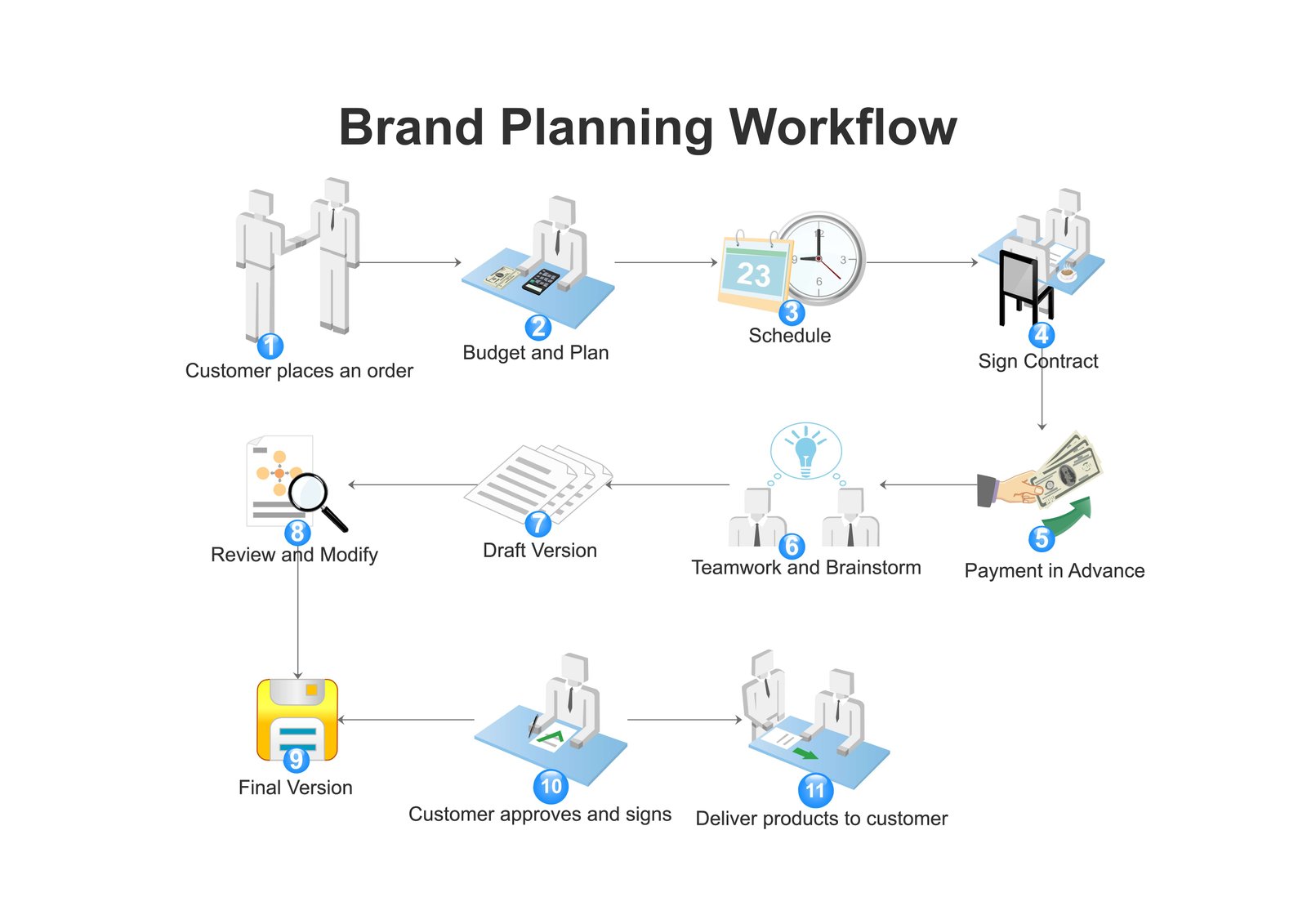
    Structured workflow planning for reliable AI-assisted work

    A repeatable workflow is easier to audit than a series of ad-hoc prompts. For example, a marketing team could use AI to turn call notes into a draft brief. The process might be: remove personal data, upload only approved notes, request a structured summary, verify numbers, add human context, and then publish the final brief.

    Example: preparing a client update

    Imagine you have messy notes from a weekly project meeting. First, delete account credentials and unrelated personal details. Next, ask the AI to create sections for completed work, blockers, next steps, owners, and deadlines. Then compare each deadline with the original notes. Finally, rewrite any vague sentence and send the update only after human review.

    The AI saves time, but the human still owns accuracy.

    Keep an audit trail for important work

    For low-risk personal tasks, you may not need a formal record. For important business work, it helps to keep the original source, the final approved output, and notes about major changes. This makes it easier to understand where a mistake came from and to improve the workflow later.

    Document the role of AI

    In a team, clarify whether AI was used for drafting, summarizing, translation, coding, or decision support. This is especially useful when multiple people review the same work. The goal is not paperwork for its own sake. It is accountability.

    Know when to stop using AI

    Sometimes the fastest safe choice is to stop prompting and use a human expert or primary source. Do this when the task involves high stakes, the model keeps contradicting itself, the source material is missing, the answer depends on private context you cannot share, or you cannot independently verify the result.

    AI is most useful when it reduces effort without removing responsibility.

    A practical generative AI safety checklist

    Before you use AI, define the task and its risk level. Remove information the model does not need. Give clear instructions and tell it not to guess. Ask it to identify assumptions. Verify important facts with authoritative sources. Review all public or customer-facing content. Test code away from production. Keep humans responsible for high-impact decisions.

    If you follow those steps consistently, AI becomes easier to use well because you are building checks into the process rather than trying to spot every possible mistake afterward.

    Conclusion

    Safe generative AI use is not about avoiding the technology. It is about using it for the right tasks, with the right amount of data, and with the right review process. Start with low-risk work. Keep sensitive information out unless the environment is approved. Ask for structured outputs. Verify important claims. Treat AI-generated citations and code as untrusted until checked. Most importantly, keep a human responsible for the final decision.

    A practical rule is enough for most everyday work: let AI increase your speed, but never let speed replace verification.


  • AI Hallucinations Explained: How to Verify AI Answers Before You Trust Them

    AI Hallucinations Explained: How to Verify AI Answers Before You Trust Them

    AI tools can write a clear answer in seconds. The problem is that a clear answer is not always a correct answer. A model may invent a source, mix up two people, use an outdated fact, misread a question, or produce a number that looks reasonable but is wrong. These errors are commonly called AI hallucinations.

    Person checking information on a laptop before trusting an AI answer

    You do not need to be an AI researcher to protect yourself from them. What matters is learning which claims deserve checking, where to verify them, and how to design your workflow so one wrong sentence does not become a wrong decision.

    This guide explains AI hallucinations in plain English and gives you a practical system for checking AI-generated information before you rely on it.

    What is an AI hallucination?

    An AI hallucination is an output that sounds plausible but is not supported by reliable facts or by the material the model was given. It may be fully invented, partly wrong, outdated, or created by combining separate facts in the wrong way.

    For example, an AI assistant might give you the title of a research paper that does not exist. It might describe a product feature that belongs to another model. It might quote a law using wording that is not in the law. It might calculate a percentage incorrectly while explaining the calculation in a confident tone.

    The important point is that the language can look polished even when the claim is weak. Fluency is not proof.

    Hallucination does not always mean “completely made up”

    Some errors are obvious inventions. Others are subtle. A model may correctly identify a company but use the wrong launch date. It may summarize an article accurately except for one statistic. It may produce code that works in most cases but fails on an important edge case.

    That is why verification should focus on the claims that affect your decision, not only on answers that look suspicious.

    Why AI systems can produce confident mistakes

    Generative AI systems are designed to produce useful language based on patterns in data and the context of a prompt. They are not human witnesses, live databases, or automatic fact-checkers. Unless a system is connected to reliable current sources and those sources are actually used, it may answer from patterns rather than verified evidence.

    Organizations such as NIST publish guidance about managing AI risk, including the need to evaluate reliability and monitor failures. Major AI providers such as OpenAI, Anthropic, and Google AI also describe limitations and evaluation as part of responsible AI use.

    The model may fill a gap instead of leaving it blank

    If you ask for a detail that is missing, some models may try to produce a likely answer rather than saying “I do not know.” You can reduce this behavior by writing prompts that explicitly allow uncertainty.

    For example, say: “If the source does not contain the answer, state that the information is missing. Do not infer a value.” This creates a clear rule for the model and makes gaps easier to see.

    Learn the five common forms of AI hallucination

    Hallucinations appear in different forms. Knowing the pattern makes them easier to catch.

    1. Invented facts

    The model states something that has no reliable basis. This can include fake dates, product features, company announcements, statistics, or historical details.

    2. Invented citations

    The model gives a convincing-looking paper title, journal, author, court case, report, or web link that does not exist or does not support the claim.

    3. Mixed facts

    The model combines correct details from different people, products, laws, or events. Each piece may look familiar, which makes the final error harder to notice.

    4. Wrong calculations

    The explanation may be reasonable while the arithmetic is wrong. This is common when the task includes several percentages, date calculations, unit conversions, or conditional steps.

    5. Unsupported certainty

    The model gives a definite recommendation when the available information is incomplete. The answer may not contain one obvious false statement, but it may still be unreliable because the conclusion goes beyond the evidence.

    Start by identifying which claims actually matter

    Checking every word in a long AI response can waste time. A better method is to identify decision-critical claims.

    Ask yourself: which statements would cause a problem if they were wrong? Usually these include dates, prices, numbers, requirements, product specifications, names, quotations, legal rules, medical claims, security instructions, code behavior, and source citations.

    Example: checking a product comparison

    Suppose an AI assistant compares three laptops and recommends one because it has the longest battery life, two Thunderbolt ports, and a three-year warranty. Do not verify every adjective in the answer. Check the battery claim, port configuration, and warranty on the manufacturers’ official pages. Those facts directly support the recommendation.

    If one of them is wrong, the conclusion may need to change.

    Use a source ladder for verification

    Not all sources deserve equal trust. A simple source ladder helps you choose where to check an AI claim.

    Level 1: primary sources

    Use the organization responsible for the information. For an Apple feature, check Apple. For Android documentation, check Android or official developer documentation. For a U.S. consumer rule, check the relevant government agency such as the Federal Trade Commission.

    Level 2: strong independent sources

    Use respected publications, standards bodies, universities, peer-reviewed research, or established technical documentation when a primary source is unavailable or needs independent context.

    Level 3: community discussion

    Forums, social posts, and user comments can reveal real-world experiences, but they should not be your only source for important factual claims. They are better for discovering issues to investigate than for proving a fact.

    Check AI citations one by one

    Never assume a citation is real because it looks academic or includes a plausible author name. Open the source yourself.

    Use this citation check

    First, confirm that the source exists. Second, confirm the author, title, and publication details. Third, find the passage that supports the claim. Fourth, check whether the source is current enough for the question. Fifth, make sure the AI has not reversed or overstated the source’s conclusion.

    If you cannot locate the supporting passage, remove the citation from your work until you can verify it.

    Verify numbers independently

    Numbers deserve special attention because a small arithmetic mistake can change a business or financial decision.

    Recalculate instead of rereading

    If the AI says that revenue rose from 80,000 to 100,000, calculate the percentage change yourself rather than asking the model whether its first answer was correct. Independent recalculation breaks the loop where the same system repeats the same mistake.

    You can also use a spreadsheet or calculator for important arithmetic. If several formulas depend on each other, check a small sample manually and compare results.

    Verify dates and time-sensitive facts

    AI answers can become outdated quickly. Product availability, software features, company leadership, prices, laws, schedules, and policies can change after training data was collected.

    Look for a date on the source

    When the question is time-sensitive, check when the source was published or updated. A technically correct article from three years ago may no longer answer a current question.

    If the AI says “currently,” “latest,” “today,” or “now,” demand current evidence rather than accepting a memory-based answer.

    Ask the model to separate facts from assumptions

    A useful prompt can make the model show where it is reasoning beyond the evidence.

    Try: “Create two sections: facts supported by the provided material and assumptions that require verification.” You can also ask: “For every recommendation, state which facts it depends on.”

    Why this works

    It turns hidden assumptions into visible review items. You still need to check the answer, but you know where to focus first.

    Give the AI a closed source set when accuracy matters

    For important summarization tasks, do not ask the model to answer from general knowledge if you already have authoritative documents. Give it the approved source material and tell it to use only that material.

    Example: internal policy summary

    Imagine a company has a 30-page travel policy. Instead of asking, “What expenses can employees claim?” provide the policy and ask the AI to summarize allowed expenses with page or section references. Tell it to mark any question that the policy does not answer.

    This reduces the chance that the model mixes your company’s rules with common practices from elsewhere.

    Use a second method, not just a second prompt

    When the answer matters, asking the same model the same question twice is not strong verification. It may repeat the same error.

    A stronger check uses a different method: consult the original document, use an official website, run the calculation yourself, test the code, or ask a qualified person.

    Cross-checking with another AI

    A second AI system can be useful for spotting disagreements, but agreement between two models is still not proof. Two systems can repeat the same widely circulated error. Use disagreement as a signal to investigate, not agreement as a substitute for evidence.

    Test AI-generated code before you trust it

    Code hallucinations can include nonexistent functions, outdated packages, insecure defaults, wrong API parameters, or logic that fails on edge cases.

    A practical code verification workflow

    Read the code. Check the official documentation for unfamiliar functions. Run it in a test environment. Add unit tests for normal and edge cases. Review authentication, file access, database operations, and error handling. Scan dependencies for known issues. Only then move the change toward production.

    Never run a command you do not understand just because an AI says it is required.

    Watch for fabricated quotes

    Quotations are easy to misuse. An AI may paraphrase an idea and place it inside quotation marks, or attach a real quote to the wrong person.

    Search for the exact wording

    If a quote matters, find it in a reliable original or authoritative transcript. If you cannot confirm the exact words, use a paraphrase and cite the source instead of presenting uncertain wording as a direct quote.

    Be stricter with health, legal, financial, and safety information

    Some errors are more costly than others. When AI output could affect health, legal rights, money, physical safety, or another high-impact area, verification should be stronger.

    Use official sources and qualified professionals. Treat AI as a way to organize questions, understand terminology, or prepare for a discussion. Do not make it the final authority.

    Example: preparing questions for a professional

    If you receive a complicated insurance letter, AI can help you list unfamiliar terms and create questions to ask the insurer or adviser. That is a useful support role. It is different from asking AI to make the final legal or financial judgment for you.

    Use a “stop rule” for uncertain answers

    People often keep prompting until they get an answer that sounds satisfying. That can create false confidence. A stop rule prevents this.

    Stop and switch to a reliable source when the model contradicts itself, cannot provide evidence, changes key facts between answers, or keeps inventing details. The same applies when the cost of a mistake is high.

    A seven-step AI verification workflow

    Step 1: identify the decision you are trying to make. Step 2: highlight the claims that affect that decision. Step 3: separate facts from assumptions. Step 4: check primary sources. Step 5: independently recalculate important numbers. Step 6: test technical instructions in a safe environment. Step 7: get human review for high-impact decisions.

    How this looks in real life

    Suppose you ask AI whether a new software plan is cheaper than your current setup. The model gives a polished comparison. You identify the important claims: monthly price, included users, storage limit, cancellation terms, and tax. You verify each item on the vendor’s pricing and policy pages. You calculate the annual total yourself. Only after those checks do you use the AI’s summary to support the decision.

    The AI still saves time because it helps structure the comparison. Verification protects the decision.

    How to prompt for safer answers

    You can improve review quality with simple instructions. Ask the model to say when it lacks information. Tell it not to invent sources. Request a list of claims that need external verification. Ask it to quote only from material you supplied. Require it to distinguish direct evidence from inference.

    A reusable prompt pattern

    You can write: “Answer using only the information I provide. If a fact is missing, label it ‘not provided.’ List any assumptions separately. Do not create citations. At the end, give me a verification checklist for the claims that would affect a decision.”

    This prompt does not guarantee correctness, but it creates a much better review surface.

    Common mistakes people make when fact-checking AI

    One mistake is checking only the first claim and assuming the rest is fine. Another is using a search snippet without opening the source. A third is asking the same AI to validate itself. People also overlook dates, accept citations without reading them, or confuse a brand’s marketing claim with independent evidence.

    Avoid those shortcuts when the answer matters.

    Build verification into your normal workflow

    The best protection is not a one-time fact check. It is a repeatable habit. For example, a content team can require source links for statistics, a finance team can independently check calculations, and a development team can require testing before AI-generated code is merged.

    When verification is part of the process, people do not have to remember it only after something looks wrong.

    Conclusion

    AI hallucinations are a practical limitation, not a reason to avoid AI completely. The safest approach is to use AI for speed, structure, and first drafts while keeping evidence and human judgment in control.

    Identify the claims that matter. Verify them with primary or authoritative sources. Recalculate numbers. Check citations. Test code. Be stricter with high-stakes topics. And when the model cannot show a reliable basis for an important answer, stop prompting and switch to a source you can trust.

    The goal is not to prove that every AI sentence is wrong. It is to make sure one confident mistake does not become your mistake.

    Calculator and spreadsheet used to verify AI-generated calculations
    Developer reviewing code on a laptop to test AI-generated software
    Cybersecurity research workflow for verifying sensitive AI claims
  • How to Make Your Smartphone Battery Last Longer Without Hurting Performance

    How to Make Your Smartphone Battery Last Longer Without Hurting Performance

    A phone that needs charging before the day is over can become a daily annoyance. The usual advice is to turn off everything, lower the screen until it is hard to read, and keep Battery Saver on all day. That can extend battery life, but it can also make a modern smartphone feel slow and inconvenient.

    Smartphone display settings used to improve battery life

    A better approach is to reduce the power your phone wastes while keeping the features you actually use. This guide explains how to make a smartphone battery last longer on both Android and iPhone, how to improve long-term battery health, which settings make the biggest difference, and which popular battery tips are mostly myths.

    Start by finding what is actually draining the battery

    Before changing settings, check the battery-usage screen. It tells you which apps and system features used the most power since the last charge.

    On an iPhone, open Settings, choose Battery, and review activity by app. On most Android phones, open Settings, Battery, and Battery usage. Menu names vary slightly by manufacturer.

    Look for an app using much more battery than expected. A navigation app may legitimately use a lot during a road trip. A shopping app that you opened once should not dominate the list.

    Check screen-on time before blaming the battery

    The display is one of the biggest power users on a phone. If you spent six hours watching video, gaming, or using navigation, the battery may be behaving normally. Compare heavy days with light days before deciding something is wrong.

    Use automatic brightness instead of extremely low brightness

    Keeping the screen at maximum brightness all day can drain the battery quickly. But forcing it to a very low level is not practical. Automatic or adaptive brightness is a better balance because the phone lowers brightness indoors and raises it when needed outside.

    If adaptive brightness feels too aggressive, adjust the slider after the phone sets it. Most devices learn your preferred range over time.

    Shorten the screen timeout

    A screen that stays on for five minutes after every interaction wastes power. Set auto-lock or screen timeout to around 30 seconds or one minute unless you have a reason to keep it longer.

    This small change often saves more battery than disabling a group of minor features.

    Use dark mode when your phone has an OLED display

    Many current phones use OLED displays. On OLED, black pixels can use less power than bright white pixels because individual pixels emit their own light.

    Dark mode can therefore help, especially if you spend a lot of time in apps with large bright backgrounds. The benefit depends on screen brightness and the apps you use, so do not expect a dramatic change by itself.

    Do not choose a phone theme only for battery savings

    Use dark mode if you prefer it. If you find light mode easier to read, keep it. Screen brightness, cellular signal quality, gaming, camera use, and background activity usually matter more.

    Control background activity for apps that do not need it

    Some apps refresh, sync, track location, or request network access when you are not actively using them. That background work can add up.

    Do not block background activity for everything. Messaging, email, navigation, security, and health apps may need it. Focus on apps you rarely use or apps that appear unusually high in battery usage.

    Android approach

    On Android, open the app’s battery settings and choose an optimized or restricted mode when appropriate. Phone makers use different names, but the idea is the same: stop low-priority apps from running freely in the background.

    iPhone approach

    On iPhone, review Background App Refresh under Settings. Disable it for apps that do not need fresh information before you open them.

    Limit location access instead of turning location off completely

    GPS and location services can use significant power, especially when an app requests frequent high-accuracy updates. Turning location off for the entire phone can break maps, weather alerts, ride services, camera geotagging, and device-finding features.

    A smarter option is to change permissions per app. Choose “While Using the App” for apps that do not need continuous access. Disable precise location when an approximate location is enough.

    Example: a shopping app

    A shopping app may ask for location to show nearby stores. It rarely needs continuous background tracking. Allow location only while the app is open. Navigation apps are different because they may need continuous updates during a trip.

    Watch weak cellular signal

    A phone uses more power when it struggles to maintain a cellular connection. If you spend hours in a building with very weak reception, the phone may repeatedly search for a stronger signal.

    When reliable Wi-Fi is available, connect to it. If you are somewhere with no usable signal at all and do not need calls or mobile data, Airplane Mode can save power. Remember that it also disconnects normal cellular service until you turn it off.

    5G is not automatically a battery problem

    Modern phones manage 5G more efficiently than early 5G devices did. However, unstable 5G coverage can still use more power because the phone may switch between networks. If your phone offers an automatic 5G mode, that is usually a good default.

    Turn off unnecessary always-on features

    Always-on displays, frequent wake notifications, live widgets, and animated lock screens can use extra energy. The impact varies by phone.

    Keep the features you value. If you are trying to gain an extra hour or two, start with an always-on display or overly active widgets rather than disabling core phone functions.

    Reduce notification wake-ups

    Every notification can light the screen, vibrate the phone, and trigger background work. Disable promotional and low-value notifications. Keep important alerts such as calls, banking alerts, delivery updates, calendar reminders, and messages.

    Use Battery Saver as a tool, not a permanent lifestyle

    Low Power Mode on iPhone and Battery Saver on Android reduce background activity and may limit some performance or visual effects.

    They are useful when you know you will be away from a charger for a long time. You do not need to keep them enabled every day if your phone already lasts comfortably.

    When Battery Saver makes sense

    Use it during travel, long outdoor events, power outages, hiking, airport delays, or any day when you expect unusual phone use. Turning it on at 30 or 40 percent can stretch the remaining charge without making the phone unusable.

    Keep apps and the operating system updated

    Updates often include fixes for battery drain, background crashes, radio behavior, and performance issues. Keeping the operating system and major apps current can solve battery problems that settings cannot.

    Use official update channels from your device maker. Apple publishes iPhone software through Apple Support, while Android updates come through the device manufacturer and Google services.

    After a major update, temporary drain can happen

    Right after a large operating-system update, a phone may spend time indexing files, optimizing apps, processing photos, and resyncing data. Battery use can be higher for a short period. If the problem continues for several days, investigate further.

    Remove apps that constantly misbehave

    If one app repeatedly appears at the top of the battery list even when you barely use it, update it first. If the issue remains, clear its cache on Android where appropriate, restart the phone, or reinstall the app.

    If you do not need the app, uninstall it. An unused app should not get a permanent place on your phone just because you might use it someday.

    Use Wi-Fi, Bluetooth, and NFC sensibly

    Modern Wi-Fi and Bluetooth are designed to stay enabled. Turning them off every few minutes usually saves less battery than people expect.

    The better approach is to avoid unnecessary active connections. Do not leave a hotspot running when nobody is using it. Disconnect from a poor Wi-Fi network that repeatedly drops. Turn off Bluetooth scanning only if you have a specific issue and understand what feature may stop working.

    Personal hotspot can drain a battery quickly

    Hotspot use combines cellular data, Wi-Fi transmission, and processing. If you share your connection for hours, keep the phone cool and plug it in when possible.

    Understand heat: the biggest long-term battery enemy

    Lithium-ion batteries age faster when exposed to high heat. A hot car dashboard, direct summer sun, heavy gaming while charging, or an insulating case during sustained high load can raise battery temperature.

    You do not need to keep the phone cold. Normal warmth is expected. The goal is to avoid repeated high heat.

    What to do when the phone becomes very hot

    Stop intensive tasks. Move the phone out of direct sunlight. Remove it from a hot car. Pause charging until the temperature returns to normal. If a thick case traps heat during gaming or fast charging, remove the case temporarily.

    Do not obsess over charging from exactly 20 to 80 percent

    You may have heard that a phone must never go below 20 percent or above 80 percent. Partial charging can reduce battery stress, but strict rules can make normal use inconvenient.

    Modern phones include battery-management systems. Many also provide optimized charging features that reduce time spent at full charge. Use those features and avoid extreme heat. That is more useful than constantly monitoring the percentage.

    Charge when it fits your routine

    If your day requires 100 percent, charge to 100 percent. If you work next to a charger and only need 70 or 80 percent, using a charge limit can support long-term battery health on phones that offer the feature.

    Use a good charger and cable

    Smartphone on a wireless charger during normal charging

    A reputable charger that follows the device’s supported standards is safer and more reliable than an unknown cheap adapter. You do not always need the fastest charger available.

    Brands such as Anker, Apple, Google, and major phone manufacturers publish compatible charging products and specifications. Check your phone’s documentation before buying a high-wattage charger.

    Fast charging is useful, but heat matters

    Fast charging itself is not automatically harmful because the phone manages charging speed. Heat is the part to watch. If the phone becomes unusually hot during every charge, try another certified charger, cable, outlet, or charging location.

    Turn off features you genuinely never use

    Some phones ship with motion gestures, nearby-device scanning, edge lighting, voice wake features, or always-listening assistants. If you never use a feature, disabling it can reduce small amounts of background activity.

    Do not spend an hour disabling dozens of tiny settings. Start with major drains and stop when the phone comfortably lasts your normal day.

    Use offline downloads when you know coverage will be poor

    Smartphone used for navigation during travel

    Streaming music, maps, and video over a weak mobile connection can use more power than playing downloaded content. Before a flight, train trip, remote drive, or hiking day, download what you need over Wi-Fi.

    Offline maps are especially useful

    Apps such as Google Maps support offline areas in many regions. Downloading a route area can reduce dependence on an unstable signal, although GPS itself may still be used.

    Restart a phone that suddenly begins draining fast

    If battery life changes sharply overnight, a stuck process may be responsible. A normal restart can clear temporary problems.

    If drain returns, check recently installed apps, recent updates, battery usage, network changes, and device temperature. Do not jump straight to a factory reset.

    Check battery health when the phone is older

    Smartphone repair and battery health inspection

    Batteries are consumable parts. Their capacity decreases with age and charge cycles. If a phone that once lasted all day now dies by lunch despite the same usage, the battery may simply be worn.

    When replacement makes sense

    Consider professional battery service if the phone shuts down unexpectedly, battery health is significantly reduced, the battery swells, or daily life is limited by very short runtime. A swollen battery is a safety issue. Stop using the device and contact the manufacturer or a qualified repair provider.

    Build a practical battery routine

    A good battery routine should be simple enough to follow every day. Use adaptive brightness. Keep screen timeout reasonable. Restrict only troublesome background apps. Use location permissions carefully. Stay on Wi-Fi when cellular coverage is poor. Keep software updated. Avoid repeated heat. Use Battery Saver when you actually need extra runtime.

    Example: a long travel day

    Before leaving, charge fully, download maps and entertainment, reduce nonessential notifications, and carry a quality power bank. During the day, use automatic brightness and Battery Saver once the charge drops. Avoid leaving navigation running after you reach your destination. These steps save power without turning the phone into a basic device.

    Battery-saving myths worth ignoring

    You do not need to close every app after using it. Modern operating systems manage inactive apps, and repeatedly reopening apps can sometimes use more resources. You do not need to drain a lithium-ion battery to zero before charging. You also do not need to disable Wi-Fi and Bluetooth permanently.

    Focus on measurable drains rather than old habits carried over from older battery technology.

    Conclusion

    The best way to make your smartphone battery last longer is to remove waste, not useful features. Start with the battery-usage screen. Control the display, background activity, weak network connections, location permissions, and unnecessary notifications. Protect the phone from heat and keep software current.

    If battery life remains poor after those changes, check battery health instead of endlessly changing settings. A worn battery cannot be repaired by turning off more features. The right goal is a phone that comfortably lasts your day while still working the way you need it to.

  • How to Choose the Right Smartphone: A Practical Buying Guide That Avoids Spec Traps

    How to Choose the Right Smartphone: A Practical Buying Guide That Avoids Spec Traps

    Buying a smartphone can be harder than it should be. Product pages are full of camera megapixels, processor names, charging speeds, AI features, refresh rates, and storage tiers. Many of those numbers matter, but not in the way marketing pages often suggest.

    Smartphone camera hardware used to compare mobile photography features

    The right phone is the one that fits how you actually use it for the next few years. A photographer may care more about camera consistency and storage. A commuter may value battery life, signal reliability, and a bright display. A business user may care about update support, security, and dependable calls.

    This guide shows how to choose the right smartphone without getting lost in specifications. It focuses on the factors that affect daily use, long-term cost, and ownership satisfaction.

    Start with your real use, not a brand or specification sheet

    Before comparing phones, write down your five most common activities. Examples might include messaging, video calls, social media, photography, navigation, gaming, banking, document work, or streaming.

    Then identify the two things that frustrate you most about your current phone. Maybe the battery dies early. Maybe indoor photos look poor. Maybe storage is always full. Maybe the screen is difficult to see outside.

    This simple exercise gives you a buying filter. Features that solve those problems deserve more weight than features you will rarely use.

    Example: a normal everyday user

    Imagine you mostly use WhatsApp, YouTube, maps, banking apps, email, and casual photos. You probably do not need the fastest gaming processor. You may get more value from strong battery life, a good main camera, long software support, enough storage, and a reliable display.

    Set a total budget before you start comparing models

    Your budget should include more than the phone. Add the cost of a charger if one is not included, a protective case, screen protection, extra cloud storage if needed, and any financing interest.

    A phone that costs slightly more but receives software updates for longer can offer better value than a cheaper device you replace sooner.

    Do not let monthly financing hide the real price

    A small monthly payment can make an expensive phone feel affordable. Calculate the full cost over the contract period. Also check early-upgrade conditions, device-return requirements, and insurance charges.

    Choose the operating system based on your ecosystem

    The main decision for most buyers is between Apple iPhone and Android.

    If you already use a Mac, Apple Watch, AirPods, and iCloud heavily, an iPhone can fit naturally into that setup. If you use Google services, Windows PCs, custom launchers, or want a wider range of hardware choices, Android may be more flexible.

    Switching is possible, but count the friction

    Moving between platforms is easier than it used to be, but some purchases, accessories, passwords, photo libraries, and app habits may need extra work. If you are considering a switch, make a list of the services you rely on before you buy.

    Do not judge a camera by megapixels alone

    A high megapixel count does not guarantee better photos. Camera quality depends on the sensor, lens, image processing, stabilization, autofocus, low-light performance, and how consistently the phone handles difficult scenes.

    Look for real sample photos from independent reviewers. Pay attention to skin tones, moving subjects, indoor shots, nighttime photos, zoom quality, and video stabilization.

    Prioritize the cameras you will actually use

    A strong main camera is more useful to most people than several weak secondary cameras. If you take family photos, pets, or children, fast autofocus and reliable motion handling may matter more than extreme zoom. If you travel often, a useful ultrawide and telephoto lens may be worth paying for.

    Battery life matters more than battery capacity alone

    A larger battery does not automatically mean longer runtime. Screen efficiency, processor design, modem behavior, software optimization, and usage patterns all affect battery life.

    Independent endurance tests are often more useful than comparing milliamp-hour numbers. Look for tests that include web browsing, video playback, camera use, cellular data, and standby time.

    Think about your worst normal day

    Do not buy for an ideal day spent near a charger. Think about a busy day with navigation, mobile data, camera use, calls, and streaming. A phone that survives that day without anxiety is a better fit.

    Charging speed should match your routine

    Fast charging is useful if you often need to add power quickly before leaving home. It matters less if you charge overnight or sit near a charger during work.

    Check whether the required charger is included and whether the advertised speed needs a specific adapter. Manufacturers such as Samsung, Google, and Apple publish charging compatibility information for their devices.

    Wireless charging is convenience, not a necessity

    Wireless charging is useful on a desk or bedside table, but it is not essential for everyone. If you rarely use it, do not pay more just to check a feature box.

    Choose enough storage for the way you create content

    Storage fills faster than many buyers expect. Photos, 4K video, offline music, games, messaging media, and app caches can consume large amounts of space.

    If your current 128 GB phone is already close to full, buying another 128 GB model may recreate the same problem. Review your current storage screen before deciding.

    Cloud storage does not replace local storage in every case

    Services such as iCloud, Google One, and Microsoft OneDrive can reduce pressure on local storage, but apps and offline files still need space. Slow or limited internet can also make cloud-only access inconvenient.

    RAM matters, but software management matters too

    More RAM can help with multitasking, gaming, and keeping apps active in memory. However, different operating systems manage memory differently. Comparing RAM numbers across platforms can be misleading.

    Instead of chasing the highest number, check how the phone performs with your typical apps. Reviews that test app switching and sustained performance are more useful than a raw specification.

    Processor performance should fit your workload

    Flagship processors are useful for demanding games, high-resolution video editing, advanced camera processing, and heavy multitasking. For messaging, browsing, streaming, navigation, and normal apps, a good mid-range processor can feel fast for years.

    Watch sustained performance, not only benchmarks

    A phone may score highly in a short benchmark and then slow down under heat. If you play games or edit video, look for sustained performance tests and thermal behavior.

    If your use is light, benchmark differences that look large on a chart may be difficult to notice in real life.

    Display quality is more than resolution

    Most modern phone displays are already sharp enough. Brightness, color accuracy, outdoor visibility, touch response, minimum brightness at night, and refresh rate often have a bigger effect on daily comfort.

    Refresh rate affects smoothness

    A 90 Hz or 120 Hz display can make scrolling and animations feel smoother than a traditional 60 Hz screen. The benefit is easy to notice for some people and unimportant to others. Try the phone in a store if possible.

    Choose a size you can comfortably hold

    Large phones offer bigger screens and often larger batteries, but they can be uncomfortable in one hand or difficult to fit in a pocket. Small phones are easier to handle but may trade some battery capacity or screen area.

    If you cannot try the exact phone, compare its dimensions and weight with your current device. A difference of a few millimeters can matter more than it sounds.

    Software update support should be a major buying factor

    Long-term updates protect security, maintain app compatibility, and extend the useful life of a phone. Before buying, check the manufacturer’s official update policy for the exact model.

    Google Pixel support, Apple support pages, and Samsung’s official security information are better places to verify update commitments than reseller listings.

    Do not confuse security updates with major OS updates

    A phone may receive security patches for longer than it receives new operating-system versions. Both matter. Check the exact wording of the support policy.

    Security and privacy deserve attention before purchase

    Biometric unlock, device encryption, lost-device protection, update speed, app-permission controls, and account recovery all affect practical security.

    Use the phone maker’s official security documentation to understand features. Do not rely on a seller’s generic “secure phone” label.

    Check how easy it is to recover from theft

    A good device ecosystem should let you locate, lock, or erase a lost phone. Make sure you can configure account recovery and two-factor authentication before you depend on the device for banking or work.

    Durability can save more money than a premium feature

    Check water resistance, screen protection, frame quality, repair options, and spare-part availability. If you keep phones for several years, repairability matters.

    Water-resistance ratings are useful but do not mean a device is waterproof forever. Seals can age, and liquid damage may not be covered by warranty.

    Buy a case based on your actual risk

    If you work outdoors or frequently drop your phone, a protective case is worth more than an ultra-thin design. If you use the phone at a desk all day, you may prefer a lighter case.

    Speakers, microphones, vibration, and call quality are easy to overlook

    Specification sheets rarely tell you how clear a microphone sounds on a busy street or whether the vibration motor is easy to notice in a pocket.

    Independent reviews and hands-on testing can reveal these details. They matter if you make many calls, record interviews, dictate notes, or rely on vibration alerts.

    Do not buy an “AI phone” only because of an AI label

    AI features can be useful for photo editing, transcription, translation, summarization, and search. But features may depend on an internet connection, an account, a subscription, specific languages, or regional availability.

    Ask four questions about any AI feature

    Does it work on the device or in the cloud? Is it free permanently or only during a trial? Does it support your language and region? Can you disable it if you do not want to use it?

    Judge each feature by whether it solves a real problem for you.

    Compare the full ownership cost

    Two phones with the same purchase price may cost different amounts over three years. Include cloud storage, repair costs, accessory prices, battery replacement, insurance, and resale value.

    Example: cheaper phone versus longer-supported phone

    Suppose Phone A costs less but has limited update support and a small storage tier. Phone B costs more but has longer software support and enough storage to avoid a paid upgrade. The better value depends on how long you plan to keep the device, not just the checkout price.

    Use a weighted score instead of choosing emotionally

    Create a simple scorecard with your priorities. Give each category a weight from one to five. For example: battery 5, camera 4, updates 5, gaming 1, charging 3, display 4, size 3, storage 4.

    Score each candidate phone against those priorities. This makes it harder for one flashy feature to dominate the decision.

    Keep the shortlist small

    Compare three phones, not twenty. Once a device clearly fails an important requirement, remove it from the list. More options do not always lead to a better decision.

    Check return rules and warranty before buying

    Read the seller’s return window, restocking policy, warranty coverage, and rules for opened devices. This is especially important when buying online.

    If you buy a used or refurbished phone, verify battery condition, activation status, network compatibility, repair history when available, and whether the device is still linked to another owner’s account.

    A practical smartphone buying checklist

    Define your top five uses. Set a full budget. Choose an ecosystem. Check real camera samples. Compare independent battery tests. Buy enough storage. Verify update support. Check display brightness and size. Review durability and repair options. Confirm network compatibility. Read the return policy. Then choose the phone that solves your real needs with the fewest compromises.

    Conclusion

    The best smartphone is not the model with the longest specification list. It is the phone that fits your daily habits, stays supported, has enough battery and storage, and remains comfortable to use for the time you plan to keep it.

    Start with your needs before looking at brands. Verify important claims on official pages. Use independent reviews for real-world camera, battery, heat, and call performance. Ignore features that do not solve a problem for you.

    That approach makes smartphone shopping simpler and usually leads to better value than buying the phone with the loudest marketing.

    Smartphone display used to compare screen quality and everyday visibility
    Mobile device security illustration for evaluating smartphone privacy and updates
    Smartphone being used for photography in a real-world setting
  • Software Updates Explained: When to Install Them, When to Wait, and How to Update Safely

    Software Updates Explained: When to Install Them, When to Wait, and How to Update Safely

    Software update notifications often arrive at inconvenient times. Your phone wants to restart before a trip. Your laptop asks for an update while you are working. A browser update appears just before an online meeting. It is tempting to keep pressing “later.” It is also reasonable to worry that a new update could introduce a bug.

    The right answer is not “install every update immediately” or “never update until other people test it.” Different updates carry different risks. Security patches should usually move quickly. Major feature upgrades may deserve more preparation. Critical work systems need backups and testing.

    This guide explains what software updates actually do, how to tell which updates are urgent, when a short delay is sensible, and how to update phones, computers, apps, browsers, routers, and websites with less risk.

    What a software update can contain

    An update can change many things at once. Some updates fix security vulnerabilities. Others repair bugs, improve compatibility, add features, update device drivers, change the user interface, or improve performance and battery behavior.

    Small updates often focus on fixes. Major version upgrades may change the operating system more deeply. The update notes from the software vendor are the best place to understand what is included.

    Do not judge importance by download size alone

    A small patch can fix a serious security problem. A large update may mostly contain new features and design changes. File size tells you how much data is being installed, not how urgent the update is.

    Security updates deserve the highest priority

    Security updates fix weaknesses that attackers may use to access a device, steal data, run unwanted code, or bypass protections. Once a vulnerability becomes public, delaying a fix can increase exposure.

    Major vendors publish security information through official channels. Microsoft Security Response Center, Apple Security Releases, and Android Security Bulletins are examples of primary sources for security-update details.

    When to install a security update

    For a normal personal device, install routine security updates soon after they are available from the official vendor. If the vendor describes an actively exploited vulnerability or an urgent security fix, give the update higher priority.

    For a business system, urgency still matters, but testing may be required before deployment. The goal is to shorten exposure without breaking a critical application.

    Feature updates are different from security patches

    A feature update may add a new interface, app, productivity tool, camera function, AI feature, or system behavior. These changes can be useful, but they are usually less urgent than a security fix.

    A short wait can make sense for major upgrades

    If your device is critical for work and the update is a large operating-system release, waiting a few days can allow early compatibility problems to become visible. During that time, read the vendor’s known-issues page and confirm that your essential software supports the new version.

    Do not turn a short testing window into months of delay. Major releases receive follow-up fixes, but staying indefinitely on an unsupported version creates a different risk.

    Understand automatic updates

    Automatic updates are useful because they reduce the chance that routine security fixes are forgotten. Phones, browsers, and many desktop apps can install updates automatically or schedule them outside active hours.

    Use automatic updates for low-risk routine software

    Browsers, security tools, mobile apps, and normal operating-system patches are often good candidates. Browsers are especially important because they process untrusted content from the web every day.

    For specialized business software, servers, development environments, or hardware-control systems, a managed update process may be more appropriate.

    Back up before major system changes

    Most updates finish without problems, but a backup gives you a recovery path if the installation fails, a disk develops a problem, or a compatibility issue appears.

    What to back up

    Protect documents, photos, project files, local email archives, browser profiles where needed, important settings, and anything that cannot be downloaded again. A full system image may be useful for some computers, while ordinary users may only need current personal files plus cloud sync and an independent backup.

    On Mac, Apple Time Machine can provide local backups. Windows users can review current backup and recovery options through Microsoft Support.

    Make sure the device has enough power and storage

    A phone that powers off during a system update can create problems. Charge the device or connect it to power before a major update. Laptops should normally remain plugged in.

    Also check free storage. Operating systems may need temporary space to download, unpack, and install files.

    Do not force an update onto a nearly full device

    If storage is low, remove unnecessary downloads, old installers, temporary video files, or unused apps first. Do not delete important system folders to make space.

    Use only official update sources

    Fake “update required” pop-ups are a common way to spread malware. A website may claim your browser, video player, antivirus, or driver is outdated and ask you to download an unfamiliar installer.

    Update from the app or vendor

    Use the operating system’s built-in update screen, the official app store, or the vendor’s known website. If a browser page unexpectedly tells you to install an executable file, close the page and check for updates from the browser menu instead.

    Browsers should stay current

    Browsers handle websites, downloads, scripts, account sessions, payment pages, and extensions. Security fixes arrive regularly.

    Google Chrome, Mozilla Firefox, Microsoft Edge, and Apple Safari all have official update paths.

    Restart the browser when an update is ready

    Some browsers download an update in the background but do not finish applying it until restart. If you keep hundreds of tabs open for weeks, the browser may remain on an older build longer than you expect.

    Mobile app updates matter too

    Apps can contain security issues, crashes, battery drain, broken notifications, and compatibility problems. App updates may also change privacy settings or add new features.

    Review permissions after major app changes

    If an app suddenly asks for microphone, contact, location, photo, or background access it never needed before, review the reason before granting permission. Updating an app does not mean every new permission request is necessary.

    Driver updates require a little more judgment

    Device drivers help the operating system communicate with graphics cards, printers, Wi-Fi adapters, audio devices, and other hardware.

    If everything works normally, you do not need to install every driver from random “driver update” utilities. Use the operating system, computer manufacturer, or hardware vendor.

    Update drivers when there is a reason

    Good reasons include a security fix, a known bug, support for a new game or application, hardware compatibility, or a manufacturer recommendation. Create a restore point or backup before changing a critical driver on a work machine.

    Firmware updates are important but deserve preparation

    Firmware controls hardware such as routers, SSDs, cameras, motherboards, and smart devices. Firmware fixes can improve security and reliability, but an interrupted firmware update can be more serious than a normal app update.

    Read the vendor instructions first

    Keep the device on stable power. Do not disconnect it during the update. Confirm that the firmware matches the exact model and hardware revision.

    Router updates should not be forgotten

    Your router is exposed to network traffic all day and may run for years without much attention. Check whether it receives automatic firmware updates or requires manual action.

    Replace unsupported routers

    If a manufacturer no longer provides security updates for an old router, replacing it may be safer than keeping it indefinitely. The same principle applies to internet-connected cameras and other smart-home devices.

    Smart TVs and connected devices also need updates

    Smart TVs, streaming boxes, speakers, watches, and home appliances increasingly run complex software. Updates can fix streaming issues, security problems, and compatibility with services.

    Do not install firmware from unofficial forums unless you fully understand the risks. Use the manufacturer’s update mechanism.

    Business computers need a different balance

    A home user may install an update as soon as it appears. A business with hundreds of computers should usually test first.

    Use a small pilot group

    Deploy the update to a small group of representative devices. Test core applications, printers, VPN access, security tools, and workflows. If the pilot is stable, expand deployment.

    This reduces the chance that one incompatible update interrupts the entire organization.

    Check compatibility before major operating-system upgrades

    Before moving to a major new operating-system version, list the software and hardware you cannot work without.

    Verify the important items

    Check your accounting package, VPN, printer or scanner, audio interface, development tools, specialized plugins, and security software. Search the vendor’s official support pages for compatibility information.

    If one essential tool is not ready, delaying a non-urgent feature upgrade can be sensible.

    Website owners should stage risky updates

    WordPress and other content-management systems depend on a core platform, theme, plugins, PHP, and hosting configuration. Updating one part can expose a compatibility problem elsewhere.

    Use a staging site for major changes

    Make a backup, test updates on staging, check the homepage and important templates, test forms and checkout where applicable, and then update production. Security patches should still be handled promptly, but a controlled process reduces downtime.

    Do not run unsupported software indefinitely

    Eventually, older operating systems and applications stop receiving security fixes. A stable old version can feel safe because it does not change, but lack of change is not the same as protection.

    Plan upgrades before end of support

    When a vendor announces an end-of-support date, use it as a planning deadline. Check hardware requirements, application compatibility, budget, and data migration before the final day.

    How to decide whether to update now or later

    Ask four questions. Is this a security update? Is the issue being actively exploited? Is the device critical to work or safety? Is the update a major version change with known compatibility risk?

    A practical decision rule

    If it is a routine security patch from a trusted source, update soon. If it fixes an actively exploited vulnerability, prioritize it. If it is a large feature upgrade on a critical work machine, back up and check compatibility first. If the vendor reports a serious known issue affecting your hardware, wait for official guidance rather than forcing the update.

    What to do after an update

    Restart if required. Open the apps you use most. Check Wi-Fi, Bluetooth, sound, camera, printing, VPN, and any external devices. Confirm that security software is running.

    Watch for new defaults

    Major updates may change privacy options, default apps, notification behavior, startup programs, or cloud settings. Review important settings rather than assuming everything stayed the same.

    What if an update causes problems?

    Start with a normal restart. Then check the vendor’s support page for known issues. Update affected apps and drivers. If the problem is serious, use the official rollback or recovery option when available.

    Do not download random “fix tools”

    When a popular update causes trouble, search results quickly fill with unofficial repair utilities. Use vendor documentation and trusted support channels first.

    Keep a simple update routine

    For personal devices, enable automatic routine updates. Once a week, restart devices that stay on continuously. Once a month, check anything that does not update automatically, such as routers, specialty apps, and firmware.

    For small businesses

    Keep an inventory of important devices and software. Define who reviews security alerts. Maintain backups. Test major updates on a few systems. Record exceptions so an old machine is not forgotten.

    Common update myths

    “Updates always slow devices down” is too broad. Some updates increase requirements, but many fix performance and security problems. “If it works, never update it” ignores security support. “Automatic updates are always bad” ignores the risk of forgotten patches. “A bigger update is more dangerous” is also unreliable because size does not describe severity.

    A safe software update checklist

    Read what the update is for. Verify that it came from the official vendor. Back up important data before major changes. Charge the device. Make sure there is enough storage. Check compatibility on critical systems. Install security patches promptly. Test important functions after restart. Monitor official support information if a problem appears.

    Conclusion

    Software updates are part of keeping modern devices reliable and secure. The useful skill is not learning to say yes or no to every notification. It is learning to identify the type of update and match your response to the risk.

    Routine security patches should usually be installed quickly. Major feature upgrades deserve preparation when a device is important for work. Firmware updates need stable power and correct model information. Business systems benefit from staged testing.

    Back up, use official sources, keep supported software, and do not postpone security fixes without a good reason. That approach gives you the benefits of current software without treating every update as either harmless or dangerous.

  • How to Choose and Set Up a Password Manager Safely: A Step-by-Step Guide

    How to Choose and Set Up a Password Manager Safely: A Step-by-Step Guide

    Reusing the same password across websites is convenient until one service is breached. If that password is exposed, attackers can try it on your email, shopping accounts, social media, banking services, and work tools. The safer alternative is to use a different strong password for every account. A password manager makes that realistic.

    A good password manager stores your credentials in an encrypted vault, creates strong random passwords, fills them when you sign in, and can help you identify reused or weak passwords. The difficult part is not understanding the idea. It is choosing a trustworthy service and setting it up correctly.

    This guide walks through the process from selection to recovery planning so you can use a password manager without creating a new single point of failure.

    What a password manager actually does

    A password manager keeps login information in one encrypted vault protected by a master password or device-based authentication. Instead of remembering dozens of passwords, you remember one strong master password and let the manager generate unique credentials for individual accounts.

    Well-known options include 1Password, Bitwarden, Dashlane, and password tools built into ecosystems such as Apple Passwords and Google Password Manager.

    The best option depends on the devices you use, whether you need family sharing, how much control you want, and how comfortable you are with recovery procedures.

    Decide whether you need a cross-platform or ecosystem-based manager

    If you use only Apple devices, an Apple-based solution may be simple. If you use Android, Windows, macOS, Linux, multiple browsers, or share credentials with family or coworkers, a cross-platform manager may be easier.

    Ask these compatibility questions

    Does the manager work on your phone, computer, tablet, and browser? Can it fill passwords inside mobile apps? Does it support importing from your current browser? Can you access the vault when traveling? Is there an offline mode if the internet is unavailable?

    A password manager that works perfectly on one device but poorly on another will encourage you to create shortcuts. Compatibility is a security feature because convenience affects whether you keep good habits.

    Check the security model before choosing a service

    You do not need to become a cryptography expert, but you should understand the basics of how the service protects your vault.

    Look for clear documentation about encryption, account authentication, data handling, recovery, and security audits. A reputable provider should explain how vault data is protected and what information the company can and cannot access.

    Look for independent security review

    Security audits, bug bounty programs, published security architecture, and a history of transparent incident communication are useful signals. No provider can promise zero risk, but good security practices make risk easier to evaluate.

    The U.S. Cybersecurity and Infrastructure Security Agency recommends strong, unique passwords and the use of password managers as part of safer account security.

    Understand cloud-hosted versus self-hosted options

    Most people are better served by a reputable hosted password manager because the provider handles syncing, backups, updates, and availability. Some technically experienced users prefer self-hosting for more control.

    Self-hosting adds responsibility

    If you self-host, you are responsible for server security, backups, updates, certificates, availability, and recovery. A badly maintained self-hosted setup can be less secure than a well-run hosted service.

    Choose self-hosting because you understand and want the responsibility, not simply because “local” sounds safer.

    Create a master password you can actually remember

    Your master password protects access to the vault. It should be unique and never reused on another site.

    A long passphrase made from several unrelated words can be easier to remember than a short complex password. Avoid famous quotes, names, birthdays, keyboard patterns, and phrases someone could guess from your public information.

    Do not store the master password inside the same vault as the only copy

    If you forget the master password and the provider cannot recover it, you may lose access. Keep a secure recovery copy outside the vault. A written copy stored in a safe place can be more reliable than an insecure digital note.

    Enable multi-factor authentication on the password manager account

    Multi-factor authentication, or MFA, adds another step after the master password. Depending on the service, this may use an authenticator app, security key, passkey, or another supported method.

    A hardware security key from companies such as Yubico can provide strong protection for important accounts. If you use one, register a backup key and store it separately so one lost device does not lock you out.

    Avoid weak recovery paths

    Strong MFA is less useful if your account can be recovered through an insecure email account. Protect the email address linked to your password manager with a unique password and MFA as well.

    Save recovery codes before importing everything

    Many services provide emergency recovery codes. Save them before you move all your important credentials into the manager.

    Do not keep the only recovery code in the vault it is meant to recover. Store a printed copy in a secure location or use another protected method that remains available if you lose your phone and computer.

    Install the official app and browser extension

    Download the password manager from the provider’s official website or the official app store. Browser extensions should come from links published by the provider or a verified extension listing.

    Why extension safety matters

    A fake extension can capture credentials. Check the publisher, reviews, permissions, official documentation, and exact extension name before installing. Do not trust a sponsored search result simply because it appears at the top.

    Import passwords carefully

    Most managers can import passwords from browsers or other password managers. This saves time, but exported password files may be stored as plain text.

    Delete temporary export files after the import

    If your browser creates a CSV file containing usernames and passwords, that file may not be encrypted. After confirming the import worked, permanently delete the export from your Downloads folder and empty the recycle bin or trash where appropriate.

    Do not email the export to yourself or upload it to a general cloud folder for convenience.

    Start with your most important accounts

    You do not need to change every password in one night. Start with accounts that can unlock other accounts or cause the most damage if compromised.

    Use this priority order

    Begin with your primary email account. Then secure banking and payment accounts, cloud storage, Apple or Google accounts, work accounts, social media, shopping accounts, and finally lower-risk services.

    For each one, generate a unique long random password and save it in the manager before moving to the next account.

    Use generated passwords instead of inventing your own

    Humans tend to create predictable passwords. We reuse patterns, substitute numbers for letters, and add familiar dates or symbols. A password generator avoids those habits.

    For sites that support long passwords, use a random password generated by the manager. You do not need to memorize it.

    When a site has strange password limits

    Some older services restrict length or allowed symbols. Let the manager generate a password that fits the requirement. Do not reuse an old password just because the form is inconvenient.

    Use passkeys when they are available

    Passkeys are designed to reduce dependence on traditional passwords and are resistant to many common phishing attacks. Major platforms including FIDO Alliance members support the standard.

    Many password managers can store and sync passkeys. If an important service supports passkeys, review the provider’s instructions and consider enabling them.

    Keep account recovery updated

    Passkeys improve sign-in security, but recovery still matters. Make sure your trusted devices, backup methods, phone number where appropriate, and recovery information are current.

    Do not automatically fill passwords on every page

    Autofill is convenient and can protect against phishing because a good password manager checks the website domain before filling. Still, you should look at the address bar before entering credentials on an important site.

    Watch for lookalike domains

    A fake site may use a misspelled or similar-looking domain. If the password manager refuses to fill a login you expected it to recognize, treat that as a warning. Do not immediately copy and paste the password to bypass the protection.

    Use separate vaults or collections for shared credentials

    If you share streaming accounts with family or business credentials with coworkers, use the manager’s sharing feature instead of sending passwords in chat or email.

    Shared vaults let you update a password once and control who can access it.

    Do not share your master password

    Your master password is personal. Even in a family or team plan, each user should have their own account and authentication.

    Review old and reused passwords after setup

    Many password managers can flag duplicated, weak, or exposed passwords. Use that report as a cleanup list.

    Change reused passwords first. If five accounts share the same password and one is breached, all five are exposed to credential-stuffing attacks.

    Remove passwords from insecure notes and documents

    After the vault is working, search the places where you used to keep credentials. This may include browser notes, spreadsheets, text files, phone notes, screenshots, email drafts, and chat messages.

    Do not create duplicate insecure copies

    The value of a password manager is reduced if every password also remains in an unencrypted spreadsheet. Clean up old copies carefully and keep only secure recovery material outside the vault.

    Keep your devices protected

    A strong vault cannot compensate for an unlocked laptop or phone. Use a device PIN, password, fingerprint, or face authentication. Keep the operating system updated. Enable full-device encryption where supported.

    If your manager offers automatic vault locking, choose a timeout that fits your environment. A home computer may use a different setting from a shared office space.

    Plan for a lost phone

    Imagine your phone is lost while you are traveling. Can you still sign in to your email? Can you access the password manager from another device? Do you have your MFA backup method? Can you locate or wipe the missing phone?

    Run a recovery drill

    Before an emergency, open the password manager on a secondary device and confirm that your recovery information works. You do not need to log out of every device. The goal is to understand the steps while you are calm.

    Plan for family or emergency access

    Some password managers provide emergency-access features that let a trusted person request access after a waiting period. This can be useful for families, especially when one person manages important household accounts.

    Do not share everything with everyone. Decide which information someone would genuinely need during an emergency.

    Watch for phishing that targets the password manager itself

    Attackers may send fake emails claiming your vault is locked, your subscription failed, or your account needs urgent verification.

    Open the app directly instead of clicking urgent links

    If you receive a suspicious message, open the password manager app or type the provider’s known site address yourself. Check account notifications from there.

    Legitimate security alerts should still be taken seriously, but urgency should not bypass verification.

    Keep the password manager updated

    Update the desktop app, mobile app, and browser extension through official channels. Security software is not something to install once and forget.

    Review release notes when a security issue is announced

    If a provider reports a vulnerability or incident, read the provider’s official statement. Follow recommended actions such as updating the app, rotating credentials, or changing account settings.

    Do not confuse password storage with full account security

    A password manager solves one important problem: creating and storing unique credentials. You still need MFA, safe recovery, software updates, phishing awareness, and secure devices.

    Think of it as the foundation of an account-security system, not the entire system.

    A practical setup plan for one evening

    First, choose a reputable manager that supports all your devices. Create a unique master passphrase. Enable MFA and save recovery codes. Install official apps and extensions. Import existing passwords, then securely delete the export file. Change the password for your main email account and a few other high-value accounts. Turn on breach or reuse monitoring if the service offers it.

    Continue the cleanup over the next week

    Each time you sign in to an old account, replace a reused password with a generated one. Within a few days, most frequently used accounts will be unique without turning the process into a huge project.

    How to evaluate a password manager before paying

    Use a short trial period to test the real workflow. Add it to every device. Try filling passwords in browsers and apps. Create a test secure note. Check passkey support. Test sharing if you need it. Review export and recovery options.

    If the manager regularly fails to fill credentials or makes you bypass it, choose another option before moving all your accounts.

    Common password manager mistakes to avoid

    Do not reuse the master password. Do not skip MFA. Do not keep recovery codes only inside the vault. Do not leave password export files on your computer. Do not install unknown extensions. Do not send vault passwords through chat. Do not ignore account-recovery planning.

    Most of these mistakes are easy to avoid during setup, which is why the first hour matters.

    Conclusion

    A password manager can improve security and make daily sign-ins easier at the same time. The safest setup starts with a reputable service that fits all your devices, a unique master passphrase, strong multi-factor authentication, and a recovery plan that works even if you lose your phone.

    Import carefully, delete temporary password files, replace reused passwords in priority order, use passkeys where available, and keep the app updated. You do not need to fix every account immediately. Build the habit one login at a time.

    The goal is simple: every account gets a unique credential, while you keep one secure and recoverable system for managing them.

    Hardware security key used as a strong second authentication factor
    Computer sign-in screen used with a password manager
    Smartphone biometric authentication protecting access to saved passwords
    Laptop security setup for protecting password manager accounts
  • Passkeys Explained: How Passwordless Sign-In Works and How to Start Using It

    Passwords have been the normal way to sign in for decades, but they come with familiar problems. People reuse them, attackers steal them through phishing, data breaches expose them, and strong passwords are hard to remember without a password manager.

    Passkeys are designed to remove many of those problems. Instead of typing a password, you normally unlock a passkey with the same method you use to unlock your device, such as a fingerprint, face scan, PIN, or device password.

    This guide explains passkeys in practical terms. You will learn how they work, why they are harder to phish, where they are stored, how they compare with passwords and two-factor authentication, what happens when you lose a device, and how to start using them without locking yourself out.

    What is a passkey?

    A passkey is a digital credential used to sign in to a website or app without a traditional password. It is based on public-key cryptography and standards developed through the FIDO Alliance and the Web Authentication ecosystem.

    When you create a passkey, your device creates a pair of related cryptographic keys. One part, called the public key, can be stored by the website. The private part stays protected on your device or in your passkey provider.

    When you sign in, the website asks your device to prove it has the matching private key. Your device performs that operation after you unlock it. The private key itself is not sent to the website.

    Why this is different from a password

    A password is a secret shared with a website. The website needs a way to verify that secret, and users can be tricked into typing it on a fake page. A passkey uses a cryptographic challenge instead. The website does not need your private key, and you do not type a reusable secret into a form.

    Why passkeys are resistant to phishing

    Traditional phishing tries to copy the appearance of a legitimate sign-in page. If you type your password into the fake page, the attacker can capture it.

    Passkeys are bound to the real website or app identity. A passkey created for one site is not automatically usable on a lookalike domain. That makes common credential-stealing phishing attacks much harder.

    A fake page cannot simply ask you to reveal the passkey

    You do not know the private key and do not type it. The authentication happens through your device. This changes the attack from “convince the user to tell me the secret” to a much harder technical problem.

    Passkeys do not mean your fingerprint is sent to the website

    This is a common concern. When you unlock a passkey with a fingerprint or face scan, the biometric check normally happens on your device. The website receives proof that authentication succeeded, not a copy of your fingerprint or face image.

    Companies such as Apple, Google, and Microsoft support passkeys across major platforms, with device and account security controlling access to stored credentials.

    Where passkeys are stored

    Passkeys can be stored by an operating-system credential manager, a password manager, a security key, or another supported provider.

    Examples include Apple Passwords and iCloud Keychain, Google Password Manager, Windows credential systems, and third-party password managers that support passkeys.

    Synced passkeys versus device-bound credentials

    Some passkeys can sync across your trusted devices through an encrypted account system. Others may remain tied to one physical security key or device. The exact behavior depends on the provider and service.

    Before relying on passkeys for an important account, understand how your chosen provider handles syncing and recovery.

    What sign-in with a passkey looks like

    Suppose a website supports passkeys. You enter your username or choose your account. The site asks for a passkey. Your phone or computer shows a system prompt. You confirm with Face ID, Touch ID, a fingerprint, Windows Hello, a PIN, or another device unlock method. The sign-in completes without a password.

    Using a phone to sign in on a computer

    Some passkey systems allow you to use a phone to approve sign-in on a nearby computer. A QR code or proximity check may be used to connect the two devices securely. This can be useful when the passkey is stored on your phone but you are signing in elsewhere.

    Passkeys versus passwords

    Passwords are easy to copy. Passkeys are not designed to be typed, copied, or reused across unrelated sites.

    Passwords can be weak or repeated. Each passkey is created for a specific service. Passwords can be exposed in credential databases. A passkey service stores the public portion while the private portion remains protected by your provider or device.

    Passkeys remove many memory problems

    You no longer need to invent and remember a complex password for every supported account. That does not remove the need for account recovery, but it removes a major source of insecure behavior.

    Passkeys versus two-factor authentication

    Traditional two-factor authentication often combines something you know, such as a password, with something you have, such as a phone or security key.

    A passkey can provide strong authentication through possession of a cryptographic credential plus local device verification. Depending on the service, it may replace both the password and a separate second factor in the normal sign-in flow.

    Do not assume every service uses passkeys in the same way

    Some websites allow passkeys as a full password replacement. Others still keep a password as a fallback. Some require extra checks for sensitive actions. Read the account’s security settings so you understand the actual setup.

    Are passkeys safer than SMS codes?

    For phishing resistance, passkeys have important advantages over password-plus-SMS sign-in. SMS codes can sometimes be stolen through phishing, SIM-swap attacks, malware, or social engineering.

    That does not mean you should immediately delete every fallback method. Account recovery needs careful planning. Move toward stronger methods while making sure you still have a safe way back into the account.

    What happens if you lose your phone?

    Losing a device does not necessarily mean losing every synced passkey. If your passkeys are stored with a provider that securely syncs credentials across trusted devices, another device may still have access.

    If the passkey is device-bound, recovery may depend on another registered authenticator or the website’s recovery process.

    Plan recovery before you need it

    Keep more than one trusted device or authenticator for important accounts where supported. Maintain up-to-date recovery information. Protect your primary email account. Save recovery codes for services that provide them.

    A strong sign-in method is only useful if the recovery path is also secure and usable.

    What if someone steals an unlocked device?

    A stolen device is a broader security problem, not just a passkey problem. Use a strong screen lock and biometric protection. Configure automatic locking. Enable lost-device tracking and remote wipe where available.

    Protect the account that syncs your passkeys

    If your passkeys sync through an Apple, Google, Microsoft, or password-manager account, that account becomes important infrastructure. Use strong authentication, keep recovery information current, and review signed-in devices.

    Can passkeys be shared?

    Some ecosystems and password managers offer controlled ways to share credentials with family or team members. The available options differ by provider.

    Do not send screenshots, exported secrets, or recovery codes through ordinary chat simply because several people need access. Use the provider’s intended sharing features.

    Can you still use a password manager with passkeys?

    Yes. Password managers remain useful because many sites still require passwords, and modern managers can increasingly store passkeys as well.

    A password manager can therefore become a central place for traditional passwords, passkeys, secure notes, and recovery information, depending on the service.

    Choose one primary credential workflow

    If you use several passkey providers without understanding where each credential is stored, sign-in can become confusing. Decide whether your main provider will be the operating system, browser ecosystem, or a cross-platform password manager.

    How to create your first passkey

    Start with a familiar account that clearly supports passkeys. Open the account’s security settings from the official app or website. Look for a section called Passkeys, Security Keys, Sign-in Methods, or Passwordless Sign-in.

    Step 1: secure the device first

    Enable a device PIN, password, fingerprint, face authentication, or another secure unlock method. Passkey access normally depends on local device security.

    Step 2: create the passkey

    Choose the option to create a passkey. The operating system or credential manager should display a native confirmation prompt.

    Step 3: test sign-in

    Sign out only after you have confirmed a recovery method. Then sign in again using the passkey. Learn what the normal prompt looks like so unexpected prompts are easier to notice later.

    Keep the password during the transition if recovery is unclear

    Some services let you keep a password and add a passkey. That can be useful while you learn the system.

    Once you understand the service’s recovery options, you can decide whether removing weaker fallback methods improves security. Do not disable a fallback blindly and discover later that your only passkey lived on a lost device.

    Use multiple authenticators for important accounts

    For a critical email, business account, or developer account, one authenticator can become a single point of failure. Register a backup security key, second trusted device, or another supported passkey where appropriate.

    Store backup hardware separately

    If you use physical security keys, keeping both keys on the same keyring defeats part of the recovery benefit. Store the backup in a secure separate place.

    Yubico and other FIDO-compatible vendors provide hardware authenticators that can be used with supported accounts.

    Passkeys can reduce credential stuffing

    Credential stuffing happens when attackers take passwords leaked from one service and try them on other services. Passkeys are not reused as a shared secret across unrelated websites, so that specific attack model becomes much less effective.

    This helps users who struggled with password reuse

    People often know they should use unique passwords but choose convenience. Passkeys can make the safer behavior the easier behavior because there is no password to invent.

    Passkeys can also reduce help-desk password resets

    In organizations, forgotten passwords create support work. Passkeys can reduce some password-reset requests, although businesses still need device enrollment, recovery, offboarding, and access-management procedures.

    Businesses should pilot before broad deployment

    Test passkeys with a small group. Confirm support across browsers, devices, remote access, shared workstations, account recovery, and employee offboarding. A secure technology still needs an operational plan.

    Watch for confusing fallback flows

    A service may advertise passkeys but still allow a weak password or SMS recovery method. Attackers often target the easiest path.

    Review all sign-in and recovery methods

    After enabling a passkey, inspect the account’s full security page. Remove old phone numbers, unused devices, outdated app passwords, and weak recovery methods when it is safe to do so.

    Do not approve passkey prompts you did not start

    Passkeys resist phishing, but users still need good habits. If a sign-in prompt appears unexpectedly, cancel it and check your account activity.

    Never approve an authentication request simply because someone on the phone, in chat, or by email tells you to do it.

    How passkeys work across Apple, Google, and Microsoft devices

    Major operating-system providers have built passkey support into their platforms. Apple integrates passkeys with its credential ecosystem. Google supports passkeys through Android, Chrome, and Google accounts. Microsoft supports passwordless authentication and passkeys across Windows and its services.

    The exact menus and cross-device behavior change over time, so use current official support instructions when setting up an important account.

    What about older devices and browsers?

    Older operating systems and browsers may not support every passkey feature. A service may offer a QR-code flow, security key, password fallback, or another method.

    Check compatibility before removing passwords

    If you use an old work PC, a shared tablet, or a specialized browser, test that device first. Do not remove your existing sign-in method until your normal devices can all access the account.

    Passkeys do not replace every security practice

    Passkeys solve important authentication problems, but they do not stop malware on an unlocked device, fraudulent account recovery, malicious browser extensions, or social engineering that convinces you to approve an action.

    Keep software updated, secure your devices, protect recovery accounts, and remain cautious with unexpected sign-in requests.

    A practical passkey migration plan

    Start with your primary email account if it supports passkeys and you have strong recovery options. Then add passkeys to your Apple, Google, or Microsoft account, password manager, financial services where supported, social networks, and other important accounts.

    Move in stages

    Enable a passkey. Confirm a backup authenticator. Test sign-in on your normal devices. Review recovery methods. Only then move to the next account.

    This takes longer than turning on every passkey at once, but it reduces the chance of lockout.

    How to explain passkeys to a non-technical family member

    You do not need to explain public-key cryptography. Say: “Instead of typing a password, your phone or computer proves it has the right secure credential. You unlock that credential with your normal device lock.”

    Then show them one real sign-in and one recovery method. Practical demonstration is more useful than technical detail.

    Common passkey mistakes to avoid

    Do not create a passkey on a device you do not control. Do not remove every fallback before testing recovery. Do not leave your phone without a strong screen lock. Do not approve unexpected prompts. Do not assume every service syncs passkeys the same way. Do not forget to protect the account that stores or syncs your credentials.

    A passkey security checklist

    Use a secure device lock. Choose a trusted credential provider. Create passkeys from the official site or app. Keep at least one safe recovery method. Register a backup authenticator for critical accounts where possible. Review signed-in devices. Remove old recovery methods. Keep your operating system and browser updated. Test recovery before an emergency.

    Conclusion

    Passkeys make secure sign-in easier by removing the reusable password from the normal login process. They are designed to resist phishing, reduce password reuse, and work with the device security people already use every day.

    The main thing to get right is recovery. Understand where your passkeys are stored, protect the account or device that manages them, and keep a backup authentication path for important accounts.

    You do not have to move everything at once. Start with one well-supported account, test the full sign-in and recovery process, and expand from there. Passkeys are most useful when stronger security also becomes simpler to use.

  • Cloud Storage vs Backup: How to Protect Your Files Without Losing Them

    Cloud Storage vs Backup: How to Protect Your Files Without Losing Them

    Saving a file in the cloud feels like a backup, but the two are not always the same thing. If a synced file is deleted, corrupted, encrypted by ransomware, or overwritten, that change can sometimes sync to every connected device. Cloud storage is useful, but relying on one synced folder as your only protection can leave you exposed.

    A safer system combines convenient cloud access with independent backups. This guide explains cloud storage vs backup in plain English, how syncing differs from backup, when external drives still matter, and how to build a practical file-protection plan without turning your home or office into a data center.

    What cloud storage is designed to do

    Cloud storage keeps files on remote servers and makes them available across devices. Services such as Google Drive, Microsoft OneDrive, iCloud, and Dropbox are built around access, synchronization, sharing, and collaboration.

    That makes cloud storage excellent for documents you edit on several devices, files you share with coworkers, and photos you want available from anywhere.

    Sync is the key word

    When a folder is synchronized, changes on one device can be copied to the cloud and then to other devices. If you rename a file, the new name appears elsewhere. If you edit the file, the edited version may replace the old one. If you delete it, the deletion may also sync.

    This behavior is convenient, but it explains why sync alone is not the same as a separate backup.

    What a backup is designed to do

    A backup creates another copy of your data so you can recover after something goes wrong. A good backup system keeps copies separate enough that one mistake or failure does not destroy every version at once.

    Backups are useful after hardware failure, accidental deletion, malware, theft, file corruption, failed software updates, and human error.

    Version history is a major advantage

    Many backup systems keep older versions. If a spreadsheet becomes corrupted today, you may be able to restore yesterday’s copy. Cloud-storage services also offer version history and trash recovery in many cases, but the rules and retention periods vary.

    Do not assume a service keeps deleted or older files forever. Check its official policy.

    Why one cloud account is not enough protection

    Imagine your laptop automatically syncs its Documents folder to a cloud service. One day, malware encrypts the local files. If the encrypted versions sync, the cloud copy may also be affected. Version history could save you, but only if the service retained a clean version and you know how to restore it.

    Another risk is account loss. If you lose access to the cloud account because of a compromised email address, failed recovery, or an account policy issue, your only copy may become difficult to reach.

    Use independent failure paths

    The goal is to avoid a situation where one password, one device, one sync action, or one provider controls every copy of an important file.

    Understand the 3-2-1 backup strategy

    A widely used backup principle is called 3-2-1. Keep three copies of important data, on two different types of storage, with one copy stored separately from the main location.

    For a home user, that could mean the working copy on a laptop, a backup on an external drive, and another protected copy in a cloud backup service. For a small business, it could mean local production data, a network or external backup, and an off-site backup.

    You do not need three expensive systems

    The idea is resilience, not complexity. A simple external drive plus a reputable cloud backup can provide far more protection than keeping every file only on a laptop and one sync folder.

    Decide which files are truly important

    Backing up everything may be unnecessary. Start with files that would be difficult, expensive, or impossible to replace.

    High-priority personal files

    Family photos and videos, tax records, identity documents, school work, creative projects, important email archives, password recovery information, and personal financial records are common priorities.

    High-priority work files

    Client documents, contracts, accounting records, source files, project assets, website backups, customer data where legally allowed, internal procedures, and original research may need stronger protection and access controls.

    Keep confidential material encrypted and follow your organization’s retention and privacy requirements.

    Separate working files from archive files

    Working files change often. Archive files change rarely but may need to be kept for years. Treating both the same can waste storage and make recovery harder.

    For example, a video editor may keep current project files on fast local storage with frequent backup, while finished projects are moved to lower-cost archival storage with additional copies.

    Use cloud sync for convenience

    Cloud sync is ideal when you want the same documents on a phone, laptop, and desktop. It also supports easy collaboration.

    Best uses for sync

    Current documents, shared team folders, travel files, notes, presentations, and files that need frequent access are good candidates.

    Before sharing folders, check permissions. A link set to “anyone with the link” is very different from access limited to specific people.

    Use a true backup system for recovery

    A dedicated backup tool normally runs on a schedule and copies selected data to another destination. It may keep historical versions and allow full-device recovery.

    On Windows, Microsoft Support documents built-in recovery and backup features. Apple provides Time Machine for Mac backups. Third-party backup services can add off-site protection.

    Automate the routine

    A backup that depends on remembering to drag folders onto a drive every Friday will eventually be forgotten. Schedule automatic backups wherever possible.

    External drives still have an important role

    External SSDs and hard drives provide fast local recovery and do not require internet access. They can also be cost-effective for large photo and video libraries.

    Do not leave the only backup drive connected forever

    If ransomware can access an always-connected drive, the backup may also be damaged. Consider rotating drives or disconnecting a backup drive after a completed backup if your workflow allows it.

    For critical data, one local backup and one off-site backup are stronger than two drives sitting next to the same computer.

    Choose SSD or hard drive based on the job

    SSDs are fast, quiet, and resistant to mechanical shock. Traditional hard drives can provide more capacity per unit of cost for large archives.

    For a frequently carried portable backup, an SSD may be convenient. For a large stationary archive, a hard drive can be practical. Either type can fail, which is why a single external drive should never be the only copy of irreplaceable data.

    Protect backups with encryption

    A backup can contain more sensitive data than your normal working folders because it may include years of documents. Encrypt portable drives and cloud backups when supported.

    Protect the encryption recovery key

    Encryption is only useful if you can recover access. Store recovery keys in a secure place separate from the encrypted device. Do not rely on memory alone.

    Use strong account security for cloud services

    Cloud storage depends on account security. Use a unique password or passkey, enable multi-factor authentication, and protect the email account used for recovery.

    Review active sessions and connected devices periodically. Remove devices you no longer own.

    Do not confuse “available offline” with “backed up”

    Some cloud apps let you mark files for offline access. This creates a local cached copy, but it is still part of the sync system. Changes may propagate between copies.

    An independent backup should be recoverable even if the sync state becomes wrong.

    Understand cloud version history

    Version history can rescue a document after an accidental edit or overwrite. Different services keep versions for different periods and may apply limits based on plan type.

    Test version recovery before you need it

    Create a test document, edit it several times, and practice restoring an older version. Also check how deleted files are recovered from trash.

    Knowing the process in advance is far easier than learning it during an emergency.

    Back up your smartphone photos deliberately

    Phones often contain the only copy of important family photos. Enable a trusted photo-backup or sync service, but understand whether deleting a photo from one device deletes it everywhere.

    Create a second photo archive for irreplaceable media

    For important photos and videos, periodically export a copy to a computer or external drive. This protects against account problems and accidental bulk deletion.

    Do not forget messaging and app data

    Not every app stores data in the same cloud folder. Messaging history, authentication apps, notes, game saves, and app-specific databases may need separate backup settings.

    Before replacing or resetting a phone, review the backup instructions for apps that contain important data.

    Back up websites before major changes

    Website owners should back up both files and databases before plugin updates, theme changes, migrations, or major edits.

    A complete website backup includes more than images

    For a WordPress site, a useful recovery copy normally includes the database, uploads, themes, plugins, and configuration. A backup stored only on the same hosting account may not protect against a hosting failure or account compromise.

    Use separate credentials for backup administration where practical

    In a business environment, an attacker who gains one administrator account should not automatically gain the ability to delete every backup.

    Where supported, separate backup administration from normal user access and enable alerts for suspicious backup deletion or account changes.

    Ransomware changes what “good backup” means

    Ransomware can encrypt files and sometimes target connected backups. A resilient system should keep at least one copy that cannot be immediately altered by the compromised computer.

    Consider immutable or protected backups for critical business data

    Some business backup platforms offer retention locks or immutable storage. These features can prevent normal accounts from immediately changing or deleting backup data. They are more important for organizations than for a typical home user, but the principle is useful: one clean copy should be isolated from the incident.

    Test restore, not just backup

    A backup is valuable only if you can restore from it. Failed backup jobs, missing folders, expired credentials, and corrupted archives can go unnoticed for months.

    Run a small restore test

    Every few months, restore a sample folder to a temporary location. Open several files. Confirm that dates, file names, and permissions look correct.

    For a business, document the restore process and identify who is responsible during an incident.

    Watch storage limits and failed jobs

    Backups can silently stop when an external drive fills up, a cloud subscription expires, a password changes, or software loses permission to a folder.

    Enable notifications for backup failures. Check status occasionally instead of assuming automation is working.

    Use a practical home backup setup

    External hard drive used in a practical home backup setup

    A simple home setup can be effective. Keep active files on the computer. Sync current documents and photos to a trusted cloud service. Run an automatic backup to an external drive. Keep another off-site copy for irreplaceable files.

    Example: family photo library

    Suppose your family photos are on a laptop and phone. Enable photo syncing to a cloud account, back up the laptop to an external drive each week, and keep another copy of the full photo archive on a second drive stored elsewhere. If the laptop fails, you have local recovery. If the house is affected by theft or fire, the off-site copy still exists.

    Use a practical small-business setup

    A small business may use Microsoft 365 or Google Workspace for collaboration, but it should still decide how business-critical data is backed up and retained.

    Map where data lives: user laptops, shared cloud drives, accounting platforms, websites, customer systems, and email. Then document which system protects each location and how long versions are kept.

    Assign responsibility

    Someone should own backup checks. If everyone assumes the cloud provider handles everything, gaps can remain unnoticed.

    What not to do

    Do not keep the only backup on the same computer. Do not assume sync is permanent history. Do not store every copy under one account with weak security. Do not leave confidential backups unencrypted on portable drives. Do not wait for a hard drive failure before testing recovery.

    A monthly backup checklist

    Check that scheduled jobs completed. Confirm the backup destination has free space. Review cloud-account security. Test one restore. Verify that new important folders are included. Check whether any old device still has access. Review retention settings after plan changes.

    How to decide what deserves more protection

    Ask two questions: how difficult would this file be to recreate, and how harmful would its loss be? A downloaded movie can be replaced. Ten years of family photos may not be replaceable. A public brochure is low risk. A customer database may require both protection and strict privacy controls.

    Spend the most backup effort on data with the highest replacement cost or business impact.

    Conclusion

    Cloud storage and backup solve related but different problems. Cloud storage gives you convenient access, sync, and collaboration. Backup gives you a recovery path when a device fails, a file is deleted, malware strikes, or a synced change goes wrong.

    Use both when the files matter. Keep more than one copy, use different storage locations, protect cloud accounts with strong authentication, encrypt sensitive backups, automate the process, and test restores.

    You do not need a complicated system. You need independent copies that still exist when the most convenient copy disappears.

  • What End of Support Means for Your Phone, PC, Router, and Apps—and How to Plan an Upgrade Safely

    What End of Support Means for Your Phone, PC, Router, and Apps—and How to Plan an Upgrade Safely

    Technology can keep working long after the manufacturer stops supporting it. A laptop may still boot, a phone may still make calls, and a router may still provide Wi-Fi. The problem is that “works” and “is safe to keep using” are not the same thing.

    Upgrade planning checklist for devices approaching end of support
    Create a simple upgrade plan before a support deadline arrives. Record the exact model, operating-system version, last patch date, critical apps, connected peripherals, backups, authentication methods, and any special files or licenses. Then rank devices by risk. Internet-facing systems, primary email devices, routers, password-manager devices, banking phones, and business computers should normally be addressed before low-risk offline equipment. This turns an emergency replacement into a controlled migration.

    End of support means the vendor has stopped providing some or all updates, fixes, or official help for a product. The exact impact depends on whether the unsupported item is an operating system, app, browser, phone, router, smart device, or cloud service. This guide explains how to check support status, decide how urgent an upgrade is, and move safely without losing data.

    What end of support actually means

    A product reaches end of support when the vendor stops maintaining it under the normal support policy.

    This may mean no security patches, no bug fixes, no compatibility updates, no customer support, or no replacement parts.

    Different support layers can end at different times

    A phone manufacturer may stop operating-system upgrades but continue security patches. An app may stop supporting an older OS even while the OS itself remains supported.

    End of sales is not end of support

    A device can disappear from stores and still receive years of updates.

    Do not use the retail availability date as a support indicator.

    End of mainstream support versus security support

    Some vendors split support into phases. Feature updates may stop first, followed later by security updates.

    Read the vendor lifecycle page for the exact product.

    Security support is the critical date

    Once important vulnerabilities stop being fixed, risk grows over time.

    Why unsupported software becomes riskier

    Researchers and attackers continue finding vulnerabilities after support ends.

    Supported products receive patches. Unsupported products may remain exposed permanently.

    Risk accumulates

    An unsupported device is not guaranteed to be compromised the next day, but the number of unpatched weaknesses can increase.

    Internet-facing devices deserve faster action

    Routers, browsers, servers, email clients, and remote-access tools communicate directly with untrusted networks.

    Unsupported internet-facing products are higher priority than an offline device used for one local task.

    Operating-system end of support

    When Windows, macOS, Android, iOS, or another operating system stops receiving security patches, the entire device environment is affected.

    Applications may also stop supporting the old system.

    Check the official lifecycle page

    Microsoft Lifecycle, Apple Support, and device manufacturers publish current support information.

    Windows PCs

    A Windows PC may remain physically capable long after its installed version reaches end of support.

    Check whether the hardware supports a newer Windows release and whether drivers are available.

    Do not force unsupported upgrades blindly

    Compatibility workarounds can leave a device in an unclear update state. Use documented upgrade paths for important systems.

    Mac computers

    Apple supports a range of macOS versions and hardware generations, but older Macs eventually stop receiving the latest system and security updates.

    Check which macOS versions your Mac can run.

    Android phones

    Android support depends heavily on the manufacturer and model.

    Look for both operating-system upgrade years and security-patch years.

    Monthly patch level is useful

    Android devices show a security update date in system settings.

    iPhones and iPads

    Apple provides long software support for many devices, but exact feature and security availability can vary.

    Use current Apple support pages rather than assuming every old device receives identical patches.

    Browsers can extend or reduce safety

    A supported browser protects against many web threats, but browser vendors eventually stop updating on old operating systems.

    Once the browser is unsupported too, web risk increases quickly.

    Check the browser version

    Chrome, Edge, Firefox, and Safari publish support requirements.

    Office and productivity apps

    An old operating system may prevent installation of current versions of office software, video-conference tools, and cloud sync clients.

    This can break workflows before the device hardware fails.

    Password managers

    Password-manager extensions and desktop apps rely on current browsers and operating systems.

    If your secure tools stop supporting the platform, that is a strong sign to upgrade.

    Banking apps

    Banks often raise minimum operating-system requirements to maintain security.

    An old phone may suddenly lose access to the current banking app.

    Do not install unofficial older APKs for sensitive apps

    Use official stores and supported devices for financial services.

    Router end of support

    Routers can run for many years without obvious problems, which makes support status easy to ignore.

    Check the manufacturer’s firmware page and end-of-life list.

    Unsupported routers are high-priority replacements

    They sit between your home devices and the internet.

    Mesh systems

    A mesh Wi-Fi system depends on software across every node.

    If the platform is abandoned, replacing one node may not solve the long-term issue.

    Modems and gateways

    ISP-provided gateways may receive updates automatically.

    If you own the device, check whether the model remains approved and supported.

    Smart TVs

    Smart TVs often outlive their software support.

    Streaming apps may stop working even when the screen remains excellent.

    Use an external streaming device

    A supported streaming box can extend the useful life of the TV without replacing the display.

    Smart-home products

    Cameras, locks, plugs, hubs, and speakers can depend on cloud servers.

    End of support can mean no security updates or complete loss of cloud functionality.

    Check whether local control remains

    Products that require a vendor cloud may become less useful if the company ends service.

    Printers and scanners

    Older hardware may keep working until a new operating system removes driver support.

    Before upgrading your computer, check critical peripherals.

    NAS devices

    Network storage contains valuable files and is often online continuously.

    Unsupported NAS software is a serious security concern.

    Plan migration before failure

    Move data while the old NAS is healthy.

    Security cameras

    Cameras are internet-connected and often installed for many years.

    Replace models that no longer receive security patches or use insecure cloud services.

    IoT devices with no visible update process

    Some low-cost smart devices provide little information about support.

    This makes long-term risk harder to evaluate.

    Use network isolation

    Keep simple IoT devices separated from sensitive computers when practical.

    Software libraries and frameworks

    Developers must track end-of-life dates for programming languages, frameworks, databases, and dependencies.

    Unsupported server software can expose an entire application.

    Upgrade before emergency deadlines

    Major framework migrations are easier when planned months ahead.

    Cloud-service deprecation

    An app can remain installed while the cloud API it depends on is retired.

    Watch provider announcements for export deadlines and migration tools.

    Hardware parts availability

    End of support can also affect repair.

    Batteries, screens, keyboards, and replacement boards may become difficult to find.

    Repair early when you plan to keep the device

    A battery replacement is easier while genuine or high-quality parts remain available.

    How to check support status

    Identify the exact model and software version. Visit the manufacturer’s official support or lifecycle page. Check release notes and latest patch date. Search for end-of-life notices.

    Do not rely only on forum guesses.

    Check update history

    A product may technically be supported but receive updates very slowly.

    Look at the date of the last several patches.

    Support quality matters, not only the promise

    A long support statement is more valuable when the vendor consistently delivers updates.

    Build a device inventory

    For a household or small business, list important phones, computers, routers, NAS devices, cameras, and software.

    Record model, purchase date, OS version, last update, support end date, and replacement priority.

    A spreadsheet is enough

    You do not need enterprise asset-management software for ten devices.

    Prioritize by exposure

    Replace or isolate internet-facing and security-sensitive devices first.

    A router and banking phone are higher priority than an offline music player.

    Prioritize by data value

    A computer holding business records, passwords, or customer files deserves faster action than a device used only for casual video.

    Prioritize by account access

    Devices that hold primary email, authentication apps, password managers, and financial accounts should remain supported.

    When you can keep an unsupported device offline

    An old computer used to control legacy equipment or run an offline application can sometimes remain useful if it is isolated from untrusted networks.

    Disable unnecessary networking and removable-media access where practical.

    Isolation must be real

    An unsupported device that still browses the web is not truly offline.

    Do not ignore backup because a device is old

    Older hardware has both software and physical failure risk.

    Back up important data before planning an upgrade.

    Create a migration checklist

    List files, apps, browser data, passwords, email, photos, licenses, encryption keys, 2FA, and special hardware.

    This reduces last-minute surprises.

    Check application compatibility before upgrading

    An operating-system upgrade can break old accounting software, plugins, drivers, or hardware tools.

    Verify critical apps first.

    Check peripherals

    Printers, scanners, audio interfaces, label printers, cameras, and industrial hardware may depend on old drivers.

    Budget for replacement if necessary.

    Export data from old apps

    If a discontinued app uses a proprietary format, export to a standard format while the old version still works.

    Keep the original database too.

    Move authentication carefully

    Before wiping an old phone, move authenticator apps, passkeys, security keys, banking approvals, and recovery methods.

    Test the new device

    Sign into critical accounts before erasing the old one.

    Move eSIM or physical SIM

    Verify cellular service, SMS, and account recovery codes on the new phone.

    Keep the old phone until activation is confirmed.

    Password-manager migration

    Install the official current app. Sign in. Confirm the vault. Test autofill. Keep recovery information available.

    Browser migration

    Move bookmarks and needed extensions. Do not automatically copy every old extension.

    Use the upgrade as a chance to remove unused add-ons.

    Email migration

    Cloud email normally syncs after sign-in. Local archives and POP mail may need manual export.

    Check before wiping the old computer.

    Photo migration

    Confirm cloud photo sync has completed or make a local copy.

    Do not assume thumbnails mean full-resolution originals are backed up.

    Software licenses

    Deactivate old device licenses where required.

    Save purchase records and license keys in a secure location.

    Encryption recovery keys

    Save BitLocker, FileVault, or other recovery keys before major changes.

    Store them somewhere separate from the encrypted device.

    Plan the upgrade date

    Do not wait until the final support day for a business-critical system.

    Leave time to fix compatibility issues.

    Budget in phases

    You may not need to replace every device at once.

    Replace high-risk items first and schedule lower-risk hardware later.

    Refurbished supported hardware

    A recent refurbished device can provide a supported platform at lower cost.

    Check battery health, warranty, and remaining update lifetime.

    Extended security updates

    Some vendors offer paid extended security programs after normal support ends.

    These can provide temporary time for migration.

    Extended support is a bridge

    Do not treat it as a reason to postpone planning indefinitely.

    Business testing

    Organizations should pilot new operating systems with a small group.

    Test VPN, printers, security software, line-of-business apps, and file access.

    Home testing

    A family can start with one non-critical device before upgrading every computer.

    Keep a backup and know how to roll back where supported.

    After the upgrade

    Run updates. Check security settings. Test backups. Reconnect printers. Review privacy permissions. Remove old devices from accounts.

    Recycle or reuse old hardware safely

    Back up data. Sign out. Remove device locks. Erase storage securely. Remove SIMs and memory cards.

    Use a reputable recycling or trade-in program.

    Keep old devices as emergency backups only when safe

    An old phone can be useful for offline media or emergency storage, but avoid using unsupported software for sensitive accounts.

    Common mistakes

    Waiting until apps stop working, assuming working hardware is safe, ignoring routers, wiping old phones before moving authentication, forgetting local email archives, and postponing business migrations until the deadline are common mistakes.

    Annual support review

    Once a year, check the support status of major devices and apps.

    This turns emergency replacements into planned upgrades.

    Practical checklist

    Identify exact model. Check official support date. Check latest patch. Prioritize internet-facing devices. Back up data. Verify app and peripheral compatibility. Move authentication carefully. Test new hardware. Keep old device until migration is complete. Erase before resale. Review again next year.

    Conclusion

    End of support is not a countdown to instant failure. It is the point where risk and compatibility begin moving in the wrong direction.

    The safest response is planning. Check vendor lifecycle information, prioritize internet-facing and account-sensitive devices, back up data, and move before the old system becomes an emergency.

    A controlled upgrade costs less time and creates less risk than waiting until a security problem, dead battery, or unsupported app forces the decision.

    Cybersecurity risk that increases when software no longer receives security updates
    End of support matters most because newly discovered weaknesses may stop receiving fixes. Risk is higher for browsers, routers, servers, remote-access tools, email clients, network storage, and devices holding important accounts. If an unsupported device must remain in use temporarily, reduce its exposure: remove unnecessary software, disable services you do not need, isolate it from sensitive systems where practical, and avoid using it for financial or administrator accounts. Extended security programs can help, but they should be a bridge to migration rather than a permanent plan.
    Home router representing internet-facing hardware that requires ongoing firmware support
    Routers deserve special attention because they remain connected to the internet for years and are easy to forget once installed. Check the manufacturer’s firmware page, supported-model list, and most recent update date. If the router has reached end of life, replacing it can be more important than replacing an older offline computer. After upgrading, install current firmware, use WPA2 or WPA3 as appropriate, change default administrator credentials, disable remote management if you do not need it, and review connected devices.
    Device maintenance and replacement planning for unsupported phones and computers
    Hardware condition and software support should be considered together. A battery replacement can extend the life of a supported device, but spending heavily on hardware that no longer receives security updates may not be sensible. Compare repair cost, remaining update lifetime, app compatibility, data value, and replacement price. When you do replace a device, keep the old one until backups, messages, authentication apps, eSIM or SIM service, files, and critical accounts have been tested successfully on the new hardware.
  • Tech Repairability Explained: Parts, Batteries, Manuals, Software Locks, and the Right-to-Repair Movement

    Tech Repairability Explained: Parts, Batteries, Manuals, Software Locks, and the Right-to-Repair Movement

    Buying a phone, laptop, tablet, or smart device is only the first cost. The longer-term cost depends on whether the battery can be replaced, spare parts remain available, repairs are documented, and software allows replacement components to work correctly.

    Repair checklist used to compare batteries parts manuals and service options
    Judge repairability before the device breaks. Check whether the battery, display, charging port, keyboard, cooling system, storage, and other common parts can be replaced. Look for official repair manuals and independent teardown reports. Confirm that replacement parts are sold for the exact model and ask how long the manufacturer plans to keep them available. A device that opens easily is still hard to repair if parts disappear quickly or important calibration tools are restricted to a small service network.

    Repairability has become a larger part of technology buying decisions as governments, manufacturers, independent repair shops, and consumers debate right-to-repair rules. This guide explains what repairability actually means, how software locks and parts pairing affect repairs, and what buyers can check before choosing a device.

    Repairability is more than opening the case

    A device can be easy to open and still difficult to repair if replacement parts are unavailable or software refuses to recognize them.

    A truly repairable product needs physical access, parts, tools, instructions, diagnostics, and software support.

    Think about the whole repair chain

    The question is not only “Can a technician reach the battery?” It is also “Can the technician buy a correct battery and make the device accept it?”

    Batteries are the most common long-term wear item

    Lithium-ion batteries lose capacity with age and use.

    A device that still performs well can feel unusable when battery life becomes too short.

    Replaceable batteries extend useful life

    A battery replacement can keep a phone or laptop useful for several more years.

    Battery replacement difficulty varies

    Some laptops use screws and accessible connectors. Others use heavy adhesive.

    Phones often require careful heating, display removal, adhesive replacement, and waterproof-seal restoration.

    DIY difficulty is not the same as professional repairability

    A product can be difficult for a beginner but still reasonably serviceable by trained technicians.

    Replacement part availability

    Repair depends on having the correct part.

    Check whether the manufacturer sells genuine batteries, screens, keyboards, cameras, fans, charging ports, or other common components.

    Availability over time matters

    A part sold during the launch year is less useful if it disappears after two years.

    Official repair programs

    Some manufacturers provide self-service repair stores, manuals, tool rentals, or authorized repair networks.

    Apple Self Service Repair and manufacturer programs from other companies show how official repair access is expanding.

    Official does not always mean economical

    Compare part cost, tool cost, time, and professional repair price.

    Independent repair shops

    Independent technicians can offer lower cost, faster turnaround, and repairs not offered through official channels.

    Quality varies widely.

    Choose shops by process, not only price

    Ask about part quality, warranty, data handling, water-resistance restoration, and diagnostic methods.

    Repair manuals matter

    A detailed service manual reduces guesswork.

    It should show disassembly order, screw locations, cable handling, adhesive steps, torque values where relevant, and reassembly checks.

    Video tutorials are useful but not a replacement for official data

    A creator may use a different device revision or skip safety warnings.

    Diagnostics matter too

    Modern devices contain many sensors and interconnected components.

    A repair shop needs diagnostic tools to identify whether a problem comes from hardware, software, power, firmware, or configuration.

    Without diagnostics, parts swapping becomes expensive

    Replacing a screen will not fix a motherboard display problem.

    What parts pairing is

    Parts pairing links a component’s identity to the device through software or firmware.

    After replacement, the device may require calibration or registration.

    Pairing can serve legitimate purposes

    Calibration, security, anti-theft design, and quality control can justify some pairing.

    Why parts pairing becomes controversial

    The problem appears when a genuine working component cannot provide full functionality because only the manufacturer or authorized network can complete software pairing.

    This can limit independent repair.

    Look at the practical outcome

    Does the repaired device work fully? Are warnings permanent? Are features disabled?

    Display replacement

    A replacement display affects image quality, touch response, brightness, color, fingerprint sensors, and water resistance.

    Cheap screens can look noticeably worse than the original.

    Ask which screen grade is being used

    Original, refurbished original, OEM-equivalent, and aftermarket parts are different categories.

    Camera replacement

    Modern phone cameras depend on calibration, autofocus, stabilization, and software processing.

    A physically compatible camera may need software calibration.

    Biometric components

    Fingerprint readers and face-authentication hardware are security-sensitive.

    Manufacturers may restrict replacement to protect the authentication chain.

    Security restrictions require careful design

    Repair systems should protect biometrics without unnecessarily blocking legitimate service.

    Storage and memory repair

    Many thin laptops and phones solder storage and memory to the motherboard.

    This saves space but reduces upgradeability and repair options.

    Buy enough capacity at purchase

    If RAM and storage cannot be upgraded, estimate future needs before buying.

    Modular laptops

    Some laptops are designed with replaceable ports, keyboards, displays, batteries, storage, and mainboards.

    This can make upgrades and repairs easier.

    Modularity has tradeoffs

    It can increase size, cost, connector complexity, or design constraints.

    Desktop PCs remain highly repairable

    Standardized components make desktop computers easier to diagnose and replace.

    Cases, power supplies, storage, memory, graphics cards, and cooling parts are often modular.

    Standards extend device life

    A failed power supply does not require replacing the whole computer.

    Smartphones are becoming more serviceable in some markets

    Regulation and consumer demand are pushing manufacturers toward longer software support, parts availability, and repair documentation.

    Progress is uneven across brands and regions.

    Right-to-repair laws and rules

    Right-to-repair policies generally aim to improve access to parts, tools, documentation, diagnostics, or fair repair options.

    Requirements differ by jurisdiction and product category.

    Check current local rules

    Technology regulation changes frequently.

    Repairability scores

    Some countries, reviewers, and organizations use repairability scores.

    These can consider disassembly, part price, documentation, and availability.

    A score is a starting point

    Read the criteria behind it.

    iFixit and independent teardowns

    iFixit publishes teardowns, repair guides, tools, and repairability commentary for many products.

    Teardowns help buyers see internal design before purchasing.

    Water resistance complicates repair

    Adhesive seals help protect phones from water but make disassembly harder.

    After repair, the seal must be replaced correctly.

    Do not assume original water resistance remains

    Ask the repair provider what sealing process they use.

    Adhesive versus screws

    Adhesive saves space and can improve structural design, but it makes battery and display replacement harder.

    Pull tabs and removable adhesives improve serviceability.

    Proprietary screws

    Unusual screw types can require special tools.

    Tool availability is one small part of repair access.

    Glue on batteries

    Strong adhesive around lithium batteries creates safety risk during removal.

    Good repair design includes safe removal methods.

    Charging-port repair

    A worn USB-C or Lightning port can make a device feel dead.

    Some products use a replaceable daughterboard. Others solder the port directly to the motherboard.

    Modular ports are easier to service

    This can turn a board-level repair into a simpler part replacement.

    Keyboard repair

    Laptop keyboards can be replaceable modules or built into the top case.

    A single failed key may require replacing a large assembly.

    Fans and cooling

    Dust and worn fans are common laptop problems.

    Accessible fans and replaceable thermal components make long-term maintenance easier.

    Software support is part of repairability

    A perfectly repairable phone is not very useful if the operating system stops receiving security updates.

    Hardware life and software life should be considered together.

    Long support reduces forced replacement

    A new battery has more value when the device still receives updates.

    Bootloader and firmware access

    Some enthusiasts extend device life through alternative operating systems.

    Locked bootloaders and missing drivers can limit this option.

    Alternative software has its own security risks

    Use maintained projects and understand lost features.

    Warranty concerns

    Warranty rules vary by country.

    Opening a device does not automatically remove every consumer right in all jurisdictions, but damage caused during repair may not be covered.

    Check local consumer law

    Do not rely only on a sticker or generic online advice.

    Data privacy during repair

    A phone or laptop can contain more valuable information than the hardware itself.

    Back up data before repair.

    Use repair mode where available

    Some phones provide a service mode that limits technician access to personal data.

    Remove sensitive data when possible

    If the device can be wiped without affecting diagnosis, back up and reset it before service.

    For data-recovery cases, this may not be possible.

    Choose a repair shop safely

    Read reviews, check business identity, ask about warranty, request a written estimate, and confirm part type.

    Do not give account passwords unless the repair genuinely requires access.

    Repair versus replace

    Compare repair cost, current device value, expected remaining support, battery health, performance, and environmental impact.

    A $200 repair can be sensible on a device that would cost $1,000 to replace.

    Do not compare repair cost only with resale value

    The relevant comparison may be replacement cost and useful life.

    Refurbished parts

    A refurbished original display may offer better quality than a cheap new aftermarket screen.

    Ask what was replaced during refurbishment.

    Used parts

    Used genuine parts can be useful for older devices, but remaining lifespan is unknown.

    Get a repair warranty.

    Environmental impact

    Extending device life reduces the need for new manufacturing and can reduce electronic waste.

    Repair is not always the lowest-impact choice if a very inefficient device consumes much more energy, but for phones and laptops, longer life is often beneficial.

    Buying a repairable phone

    Check battery replacement process, display cost, charging-port design, parts availability, update policy, repair manuals, and independent repair reports.

    Buying a repairable laptop

    Check RAM and storage upgradeability, battery replacement, keyboard design, fan access, display availability, USB-C board design, and firmware support.

    Buying smart-home devices

    Check whether batteries can be replaced and whether the manufacturer promises cloud or firmware support.

    A physically durable device can become useless if required servers shut down.

    Repairability checklist

    Check battery access. Check spare parts. Check official manuals. Check diagnostics. Check software pairing. Review teardown reports. Check update lifetime. Compare repair prices. Review warranty and local rights. Plan data protection during repair.

    Conclusion

    Repairability is a combination of design, parts, information, software, and policy. Screws alone do not make a product repairable, and sealed devices are not automatically impossible to maintain.

    Before buying expensive technology, check what happens after the battery wears out or the screen breaks. Long software support and available parts can matter more than a small performance difference at launch.

    A repairable device gives the owner more options: keep it, fix it, upgrade it, or pass it to someone else instead of replacing it early.

    Security controls that remain important after repairing modern technology
    Modern repair also includes software and security. Cameras, biometric sensors, batteries, displays, and other components may need calibration or registration after replacement. Some pairing can protect security or accuracy, but legitimate owners and repair shops should still have a workable path to restore full function. After a repair, install current firmware, test security features, and check for warnings or disabled functions. A successful repair should return both hardware performance and normal software behavior, not only make the device turn on.
    Smartphone charging used to test battery and power behavior after repair
    Battery and charging repairs deserve a real-world test. Use the phone through a normal day, test wired and wireless charging if supported, and watch for unusual heat or sudden percentage changes. Confirm that fast charging works with a known-good charger and cable. For water-resistant phones, ask how the adhesive seal was replaced and whether the shop tests the seal after reassembly. Keep the repair invoice and warranty details so a weak replacement part can be addressed before the service warranty ends.
    Laptop used to research spare parts repair manuals and long-term software support
    Include software lifetime in the repair decision. A new battery has much more value when the device will still receive operating-system and security updates for several years. Before spending heavily on a repair, compare the repair price, remaining update support, expected performance, data needs, and cost of a supported replacement. The same logic works in reverse when buying new technology: a slightly slower product with accessible parts, long updates, and clear service documentation can provide better value over its full useful life. Before choosing a repair shop, ask what part grade will be installed, what warranty applies, whether calibration is required, and how your personal data is protected during service. For a laptop, also ask whether the shop will test ports, battery health, cooling, keyboard, storage, and charging after reassembly. A written checklist makes it easier to compare repair quotes and reduces misunderstandings about what the service actually includes. Keep the old part or request a clear explanation of its failure when practical. That record can help if the same fault returns and gives you better information for future repair-versus-replace decisions.