
Technology can keep working long after the manufacturer stops supporting it. A laptop may still boot, a phone may still make calls, and a router may still provide Wi-Fi. The problem is that “works” and “is safe to keep using” are not the same thing.

End of support means the vendor has stopped providing some or all updates, fixes, or official help for a product. The exact impact depends on whether the unsupported item is an operating system, app, browser, phone, router, smart device, or cloud service. This guide explains how to check support status, decide how urgent an upgrade is, and move safely without losing data.
What end of support actually means
A product reaches end of support when the vendor stops maintaining it under the normal support policy.
This may mean no security patches, no bug fixes, no compatibility updates, no customer support, or no replacement parts.
Different support layers can end at different times
A phone manufacturer may stop operating-system upgrades but continue security patches. An app may stop supporting an older OS even while the OS itself remains supported.
End of sales is not end of support
A device can disappear from stores and still receive years of updates.
Do not use the retail availability date as a support indicator.
End of mainstream support versus security support
Some vendors split support into phases. Feature updates may stop first, followed later by security updates.
Read the vendor lifecycle page for the exact product.
Security support is the critical date
Once important vulnerabilities stop being fixed, risk grows over time.
Why unsupported software becomes riskier
Researchers and attackers continue finding vulnerabilities after support ends.
Supported products receive patches. Unsupported products may remain exposed permanently.
Risk accumulates
An unsupported device is not guaranteed to be compromised the next day, but the number of unpatched weaknesses can increase.
Internet-facing devices deserve faster action
Routers, browsers, servers, email clients, and remote-access tools communicate directly with untrusted networks.
Unsupported internet-facing products are higher priority than an offline device used for one local task.
Operating-system end of support
When Windows, macOS, Android, iOS, or another operating system stops receiving security patches, the entire device environment is affected.
Applications may also stop supporting the old system.
Check the official lifecycle page
Microsoft Lifecycle, Apple Support, and device manufacturers publish current support information.
Windows PCs
A Windows PC may remain physically capable long after its installed version reaches end of support.
Check whether the hardware supports a newer Windows release and whether drivers are available.
Do not force unsupported upgrades blindly
Compatibility workarounds can leave a device in an unclear update state. Use documented upgrade paths for important systems.
Mac computers
Apple supports a range of macOS versions and hardware generations, but older Macs eventually stop receiving the latest system and security updates.
Check which macOS versions your Mac can run.
Android phones
Android support depends heavily on the manufacturer and model.
Look for both operating-system upgrade years and security-patch years.
Monthly patch level is useful
Android devices show a security update date in system settings.
iPhones and iPads
Apple provides long software support for many devices, but exact feature and security availability can vary.
Use current Apple support pages rather than assuming every old device receives identical patches.
Browsers can extend or reduce safety
A supported browser protects against many web threats, but browser vendors eventually stop updating on old operating systems.
Once the browser is unsupported too, web risk increases quickly.
Check the browser version
Chrome, Edge, Firefox, and Safari publish support requirements.
Office and productivity apps
An old operating system may prevent installation of current versions of office software, video-conference tools, and cloud sync clients.
This can break workflows before the device hardware fails.
Password managers
Password-manager extensions and desktop apps rely on current browsers and operating systems.
If your secure tools stop supporting the platform, that is a strong sign to upgrade.
Banking apps
Banks often raise minimum operating-system requirements to maintain security.
An old phone may suddenly lose access to the current banking app.
Do not install unofficial older APKs for sensitive apps
Use official stores and supported devices for financial services.
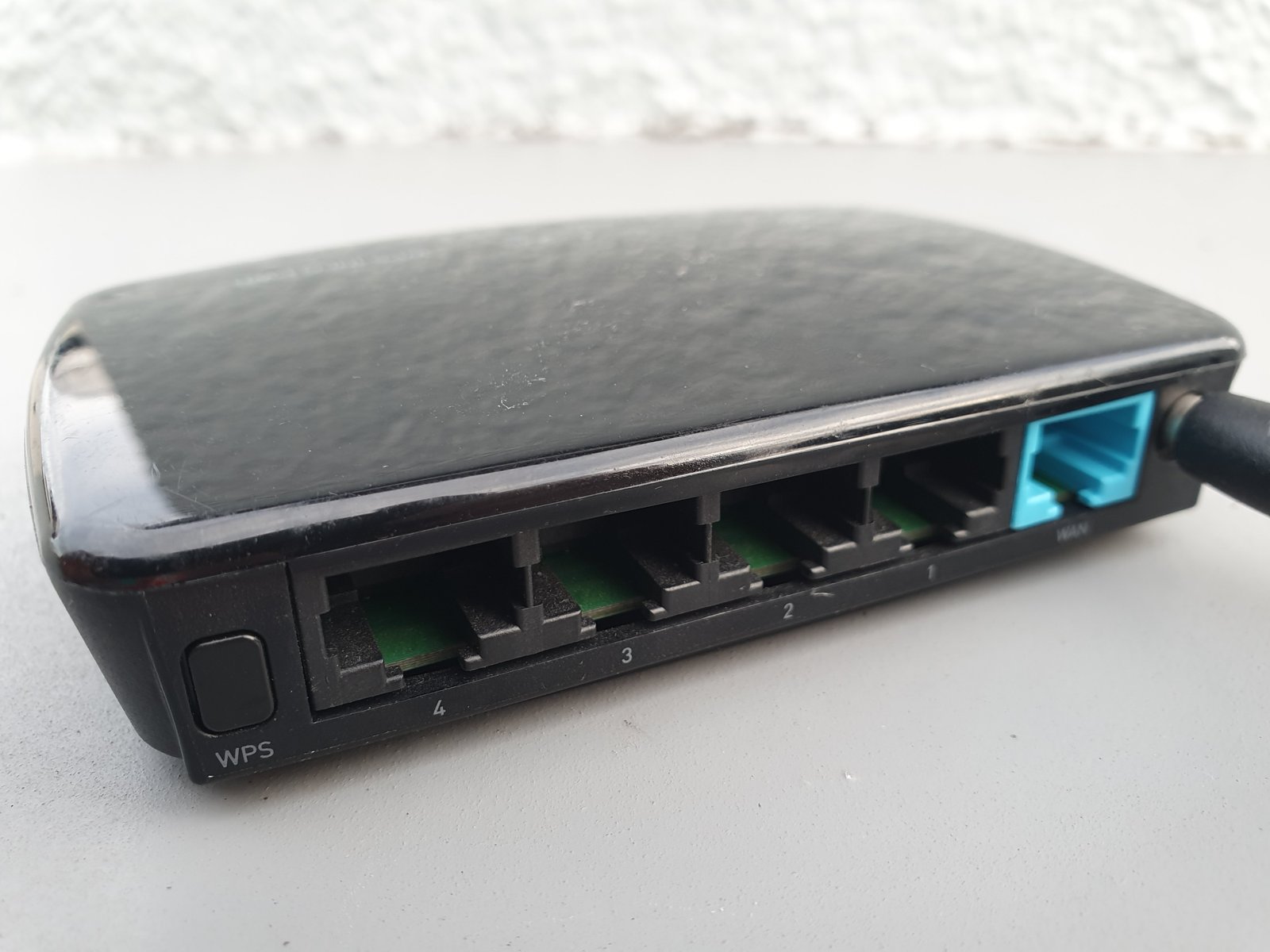
Router end of support
Routers can run for many years without obvious problems, which makes support status easy to ignore.
Check the manufacturer’s firmware page and end-of-life list.
Unsupported routers are high-priority replacements
They sit between your home devices and the internet.
Mesh systems
A mesh Wi-Fi system depends on software across every node.
If the platform is abandoned, replacing one node may not solve the long-term issue.
Modems and gateways
ISP-provided gateways may receive updates automatically.
If you own the device, check whether the model remains approved and supported.
Smart TVs
Smart TVs often outlive their software support.
Streaming apps may stop working even when the screen remains excellent.
Use an external streaming device
A supported streaming box can extend the useful life of the TV without replacing the display.
Smart-home products
Cameras, locks, plugs, hubs, and speakers can depend on cloud servers.
End of support can mean no security updates or complete loss of cloud functionality.
Check whether local control remains
Products that require a vendor cloud may become less useful if the company ends service.
Printers and scanners
Older hardware may keep working until a new operating system removes driver support.
Before upgrading your computer, check critical peripherals.
NAS devices
Network storage contains valuable files and is often online continuously.
Unsupported NAS software is a serious security concern.
Plan migration before failure
Move data while the old NAS is healthy.
Security cameras
Cameras are internet-connected and often installed for many years.
Replace models that no longer receive security patches or use insecure cloud services.
IoT devices with no visible update process
Some low-cost smart devices provide little information about support.
This makes long-term risk harder to evaluate.
Use network isolation
Keep simple IoT devices separated from sensitive computers when practical.
Software libraries and frameworks
Developers must track end-of-life dates for programming languages, frameworks, databases, and dependencies.
Unsupported server software can expose an entire application.
Upgrade before emergency deadlines
Major framework migrations are easier when planned months ahead.
Cloud-service deprecation
An app can remain installed while the cloud API it depends on is retired.
Watch provider announcements for export deadlines and migration tools.
Hardware parts availability
End of support can also affect repair.
Batteries, screens, keyboards, and replacement boards may become difficult to find.
Repair early when you plan to keep the device
A battery replacement is easier while genuine or high-quality parts remain available.
How to check support status
Identify the exact model and software version. Visit the manufacturer’s official support or lifecycle page. Check release notes and latest patch date. Search for end-of-life notices.
Do not rely only on forum guesses.
Check update history
A product may technically be supported but receive updates very slowly.
Look at the date of the last several patches.
Support quality matters, not only the promise
A long support statement is more valuable when the vendor consistently delivers updates.
Build a device inventory
For a household or small business, list important phones, computers, routers, NAS devices, cameras, and software.
Record model, purchase date, OS version, last update, support end date, and replacement priority.
A spreadsheet is enough
You do not need enterprise asset-management software for ten devices.
Prioritize by exposure
Replace or isolate internet-facing and security-sensitive devices first.
A router and banking phone are higher priority than an offline music player.
Prioritize by data value
A computer holding business records, passwords, or customer files deserves faster action than a device used only for casual video.
Prioritize by account access
Devices that hold primary email, authentication apps, password managers, and financial accounts should remain supported.
When you can keep an unsupported device offline
An old computer used to control legacy equipment or run an offline application can sometimes remain useful if it is isolated from untrusted networks.
Disable unnecessary networking and removable-media access where practical.
Isolation must be real
An unsupported device that still browses the web is not truly offline.
Do not ignore backup because a device is old
Older hardware has both software and physical failure risk.
Back up important data before planning an upgrade.
Create a migration checklist
List files, apps, browser data, passwords, email, photos, licenses, encryption keys, 2FA, and special hardware.
This reduces last-minute surprises.
Check application compatibility before upgrading
An operating-system upgrade can break old accounting software, plugins, drivers, or hardware tools.
Verify critical apps first.
Check peripherals
Printers, scanners, audio interfaces, label printers, cameras, and industrial hardware may depend on old drivers.
Budget for replacement if necessary.
Export data from old apps
If a discontinued app uses a proprietary format, export to a standard format while the old version still works.
Keep the original database too.
Move authentication carefully
Before wiping an old phone, move authenticator apps, passkeys, security keys, banking approvals, and recovery methods.
Test the new device
Sign into critical accounts before erasing the old one.
Move eSIM or physical SIM
Verify cellular service, SMS, and account recovery codes on the new phone.
Keep the old phone until activation is confirmed.
Password-manager migration
Install the official current app. Sign in. Confirm the vault. Test autofill. Keep recovery information available.
Browser migration
Move bookmarks and needed extensions. Do not automatically copy every old extension.
Use the upgrade as a chance to remove unused add-ons.
Email migration
Cloud email normally syncs after sign-in. Local archives and POP mail may need manual export.
Check before wiping the old computer.
Photo migration
Confirm cloud photo sync has completed or make a local copy.
Do not assume thumbnails mean full-resolution originals are backed up.
Software licenses
Deactivate old device licenses where required.
Save purchase records and license keys in a secure location.
Encryption recovery keys
Save BitLocker, FileVault, or other recovery keys before major changes.
Store them somewhere separate from the encrypted device.
Plan the upgrade date
Do not wait until the final support day for a business-critical system.
Leave time to fix compatibility issues.
Budget in phases
You may not need to replace every device at once.
Replace high-risk items first and schedule lower-risk hardware later.
Refurbished supported hardware
A recent refurbished device can provide a supported platform at lower cost.
Check battery health, warranty, and remaining update lifetime.
Extended security updates
Some vendors offer paid extended security programs after normal support ends.
These can provide temporary time for migration.
Extended support is a bridge
Do not treat it as a reason to postpone planning indefinitely.
Business testing
Organizations should pilot new operating systems with a small group.
Test VPN, printers, security software, line-of-business apps, and file access.
Home testing
A family can start with one non-critical device before upgrading every computer.
Keep a backup and know how to roll back where supported.
After the upgrade
Run updates. Check security settings. Test backups. Reconnect printers. Review privacy permissions. Remove old devices from accounts.
Recycle or reuse old hardware safely
Back up data. Sign out. Remove device locks. Erase storage securely. Remove SIMs and memory cards.
Use a reputable recycling or trade-in program.
Keep old devices as emergency backups only when safe
An old phone can be useful for offline media or emergency storage, but avoid using unsupported software for sensitive accounts.
Common mistakes
Waiting until apps stop working, assuming working hardware is safe, ignoring routers, wiping old phones before moving authentication, forgetting local email archives, and postponing business migrations until the deadline are common mistakes.
Annual support review
Once a year, check the support status of major devices and apps.
This turns emergency replacements into planned upgrades.
Practical checklist
Identify exact model. Check official support date. Check latest patch. Prioritize internet-facing devices. Back up data. Verify app and peripheral compatibility. Move authentication carefully. Test new hardware. Keep old device until migration is complete. Erase before resale. Review again next year.
Conclusion
End of support is not a countdown to instant failure. It is the point where risk and compatibility begin moving in the wrong direction.
The safest response is planning. Check vendor lifecycle information, prioritize internet-facing and account-sensitive devices, back up data, and move before the old system becomes an emergency.
A controlled upgrade costs less time and creates less risk than waiting until a security problem, dead battery, or unsupported app forces the decision.

Leave a Reply