Reusing the same password across websites is convenient until one service is breached. If that password is exposed, attackers can try it on your email, shopping accounts, social media, banking services, and work tools. The safer alternative is to use a different strong password for every account. A password manager makes that realistic.
A good password manager stores your credentials in an encrypted vault, creates strong random passwords, fills them when you sign in, and can help you identify reused or weak passwords. The difficult part is not understanding the idea. It is choosing a trustworthy service and setting it up correctly.
This guide walks through the process from selection to recovery planning so you can use a password manager without creating a new single point of failure.
What a password manager actually does
A password manager keeps login information in one encrypted vault protected by a master password or device-based authentication. Instead of remembering dozens of passwords, you remember one strong master password and let the manager generate unique credentials for individual accounts.
Well-known options include 1Password, Bitwarden, Dashlane, and password tools built into ecosystems such as Apple Passwords and Google Password Manager.
The best option depends on the devices you use, whether you need family sharing, how much control you want, and how comfortable you are with recovery procedures.
Decide whether you need a cross-platform or ecosystem-based manager
If you use only Apple devices, an Apple-based solution may be simple. If you use Android, Windows, macOS, Linux, multiple browsers, or share credentials with family or coworkers, a cross-platform manager may be easier.
Ask these compatibility questions
Does the manager work on your phone, computer, tablet, and browser? Can it fill passwords inside mobile apps? Does it support importing from your current browser? Can you access the vault when traveling? Is there an offline mode if the internet is unavailable?
A password manager that works perfectly on one device but poorly on another will encourage you to create shortcuts. Compatibility is a security feature because convenience affects whether you keep good habits.
Check the security model before choosing a service
You do not need to become a cryptography expert, but you should understand the basics of how the service protects your vault.
Look for clear documentation about encryption, account authentication, data handling, recovery, and security audits. A reputable provider should explain how vault data is protected and what information the company can and cannot access.
Look for independent security review
Security audits, bug bounty programs, published security architecture, and a history of transparent incident communication are useful signals. No provider can promise zero risk, but good security practices make risk easier to evaluate.
The U.S. Cybersecurity and Infrastructure Security Agency recommends strong, unique passwords and the use of password managers as part of safer account security.
Understand cloud-hosted versus self-hosted options
Most people are better served by a reputable hosted password manager because the provider handles syncing, backups, updates, and availability. Some technically experienced users prefer self-hosting for more control.
Self-hosting adds responsibility
If you self-host, you are responsible for server security, backups, updates, certificates, availability, and recovery. A badly maintained self-hosted setup can be less secure than a well-run hosted service.
Choose self-hosting because you understand and want the responsibility, not simply because “local” sounds safer.
Create a master password you can actually remember
Your master password protects access to the vault. It should be unique and never reused on another site.
A long passphrase made from several unrelated words can be easier to remember than a short complex password. Avoid famous quotes, names, birthdays, keyboard patterns, and phrases someone could guess from your public information.
Do not store the master password inside the same vault as the only copy
If you forget the master password and the provider cannot recover it, you may lose access. Keep a secure recovery copy outside the vault. A written copy stored in a safe place can be more reliable than an insecure digital note.
Enable multi-factor authentication on the password manager account
Multi-factor authentication, or MFA, adds another step after the master password. Depending on the service, this may use an authenticator app, security key, passkey, or another supported method.
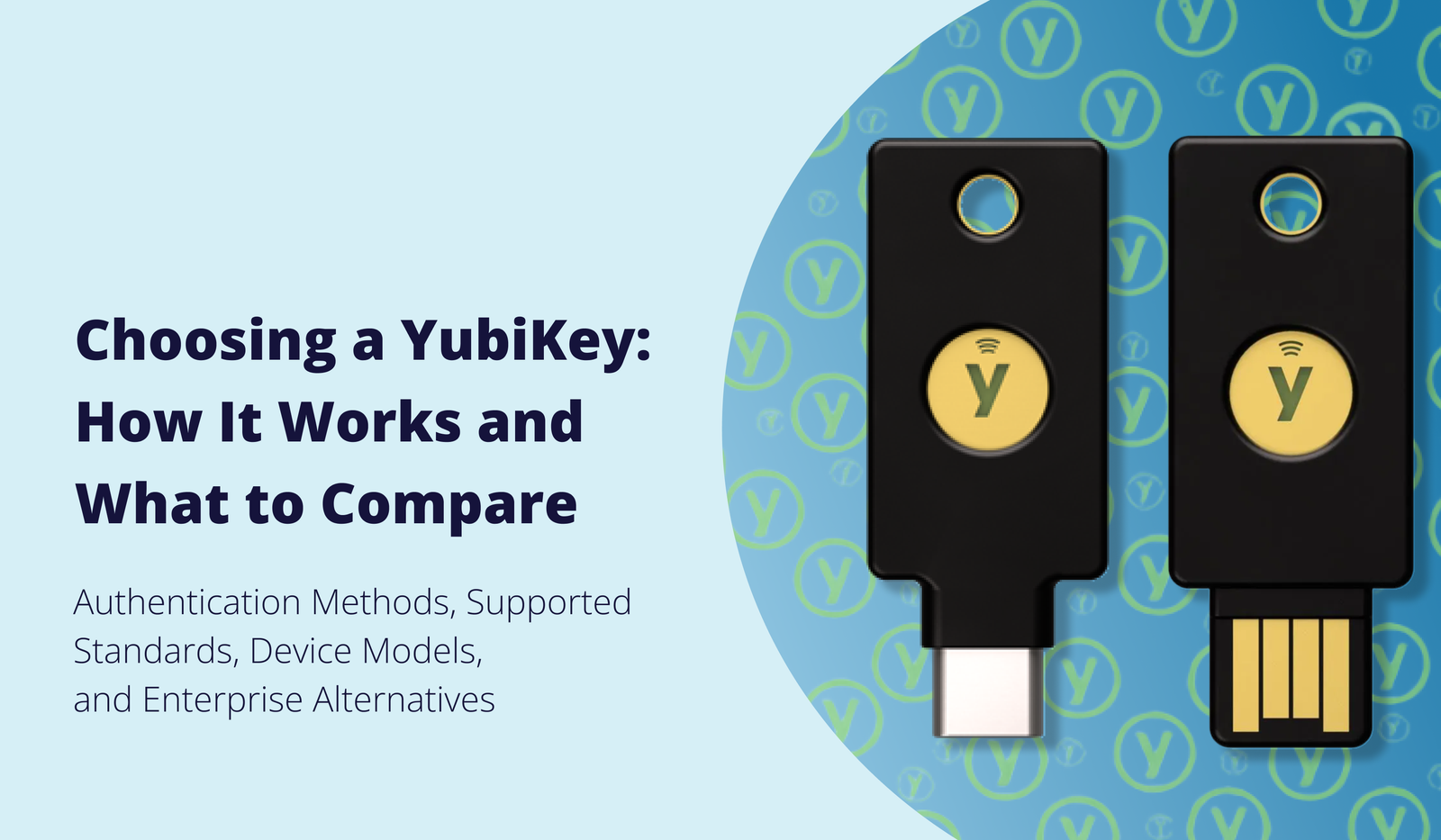
A hardware security key from companies such as Yubico can provide strong protection for important accounts. If you use one, register a backup key and store it separately so one lost device does not lock you out.
Avoid weak recovery paths
Strong MFA is less useful if your account can be recovered through an insecure email account. Protect the email address linked to your password manager with a unique password and MFA as well.
Save recovery codes before importing everything
Many services provide emergency recovery codes. Save them before you move all your important credentials into the manager.
Do not keep the only recovery code in the vault it is meant to recover. Store a printed copy in a secure location or use another protected method that remains available if you lose your phone and computer.
Install the official app and browser extension
Download the password manager from the provider’s official website or the official app store. Browser extensions should come from links published by the provider or a verified extension listing.
Why extension safety matters
A fake extension can capture credentials. Check the publisher, reviews, permissions, official documentation, and exact extension name before installing. Do not trust a sponsored search result simply because it appears at the top.
Import passwords carefully
Most managers can import passwords from browsers or other password managers. This saves time, but exported password files may be stored as plain text.
Delete temporary export files after the import
If your browser creates a CSV file containing usernames and passwords, that file may not be encrypted. After confirming the import worked, permanently delete the export from your Downloads folder and empty the recycle bin or trash where appropriate.
Do not email the export to yourself or upload it to a general cloud folder for convenience.
Start with your most important accounts
You do not need to change every password in one night. Start with accounts that can unlock other accounts or cause the most damage if compromised.
Use this priority order
Begin with your primary email account. Then secure banking and payment accounts, cloud storage, Apple or Google accounts, work accounts, social media, shopping accounts, and finally lower-risk services.
For each one, generate a unique long random password and save it in the manager before moving to the next account.
Use generated passwords instead of inventing your own
Humans tend to create predictable passwords. We reuse patterns, substitute numbers for letters, and add familiar dates or symbols. A password generator avoids those habits.
For sites that support long passwords, use a random password generated by the manager. You do not need to memorize it.
When a site has strange password limits
Some older services restrict length or allowed symbols. Let the manager generate a password that fits the requirement. Do not reuse an old password just because the form is inconvenient.
Use passkeys when they are available
Passkeys are designed to reduce dependence on traditional passwords and are resistant to many common phishing attacks. Major platforms including FIDO Alliance members support the standard.
Many password managers can store and sync passkeys. If an important service supports passkeys, review the provider’s instructions and consider enabling them.
Keep account recovery updated
Passkeys improve sign-in security, but recovery still matters. Make sure your trusted devices, backup methods, phone number where appropriate, and recovery information are current.
Do not automatically fill passwords on every page
Autofill is convenient and can protect against phishing because a good password manager checks the website domain before filling. Still, you should look at the address bar before entering credentials on an important site.
Watch for lookalike domains
A fake site may use a misspelled or similar-looking domain. If the password manager refuses to fill a login you expected it to recognize, treat that as a warning. Do not immediately copy and paste the password to bypass the protection.
Use separate vaults or collections for shared credentials
If you share streaming accounts with family or business credentials with coworkers, use the manager’s sharing feature instead of sending passwords in chat or email.
Shared vaults let you update a password once and control who can access it.
Do not share your master password
Your master password is personal. Even in a family or team plan, each user should have their own account and authentication.
Review old and reused passwords after setup
Many password managers can flag duplicated, weak, or exposed passwords. Use that report as a cleanup list.
Change reused passwords first. If five accounts share the same password and one is breached, all five are exposed to credential-stuffing attacks.
Remove passwords from insecure notes and documents
After the vault is working, search the places where you used to keep credentials. This may include browser notes, spreadsheets, text files, phone notes, screenshots, email drafts, and chat messages.
Do not create duplicate insecure copies
The value of a password manager is reduced if every password also remains in an unencrypted spreadsheet. Clean up old copies carefully and keep only secure recovery material outside the vault.
Keep your devices protected
A strong vault cannot compensate for an unlocked laptop or phone. Use a device PIN, password, fingerprint, or face authentication. Keep the operating system updated. Enable full-device encryption where supported.
If your manager offers automatic vault locking, choose a timeout that fits your environment. A home computer may use a different setting from a shared office space.
Plan for a lost phone
Imagine your phone is lost while you are traveling. Can you still sign in to your email? Can you access the password manager from another device? Do you have your MFA backup method? Can you locate or wipe the missing phone?
Run a recovery drill
Before an emergency, open the password manager on a secondary device and confirm that your recovery information works. You do not need to log out of every device. The goal is to understand the steps while you are calm.
Plan for family or emergency access
Some password managers provide emergency-access features that let a trusted person request access after a waiting period. This can be useful for families, especially when one person manages important household accounts.
Do not share everything with everyone. Decide which information someone would genuinely need during an emergency.
Watch for phishing that targets the password manager itself
Attackers may send fake emails claiming your vault is locked, your subscription failed, or your account needs urgent verification.
Open the app directly instead of clicking urgent links
If you receive a suspicious message, open the password manager app or type the provider’s known site address yourself. Check account notifications from there.
Legitimate security alerts should still be taken seriously, but urgency should not bypass verification.
Keep the password manager updated
Update the desktop app, mobile app, and browser extension through official channels. Security software is not something to install once and forget.
Review release notes when a security issue is announced
If a provider reports a vulnerability or incident, read the provider’s official statement. Follow recommended actions such as updating the app, rotating credentials, or changing account settings.
Do not confuse password storage with full account security
A password manager solves one important problem: creating and storing unique credentials. You still need MFA, safe recovery, software updates, phishing awareness, and secure devices.
Think of it as the foundation of an account-security system, not the entire system.
A practical setup plan for one evening
First, choose a reputable manager that supports all your devices. Create a unique master passphrase. Enable MFA and save recovery codes. Install official apps and extensions. Import existing passwords, then securely delete the export file. Change the password for your main email account and a few other high-value accounts. Turn on breach or reuse monitoring if the service offers it.
Continue the cleanup over the next week
Each time you sign in to an old account, replace a reused password with a generated one. Within a few days, most frequently used accounts will be unique without turning the process into a huge project.
How to evaluate a password manager before paying
Use a short trial period to test the real workflow. Add it to every device. Try filling passwords in browsers and apps. Create a test secure note. Check passkey support. Test sharing if you need it. Review export and recovery options.
If the manager regularly fails to fill credentials or makes you bypass it, choose another option before moving all your accounts.
Common password manager mistakes to avoid
Do not reuse the master password. Do not skip MFA. Do not keep recovery codes only inside the vault. Do not leave password export files on your computer. Do not install unknown extensions. Do not send vault passwords through chat. Do not ignore account-recovery planning.
Most of these mistakes are easy to avoid during setup, which is why the first hour matters.
Conclusion
A password manager can improve security and make daily sign-ins easier at the same time. The safest setup starts with a reputable service that fits all your devices, a unique master passphrase, strong multi-factor authentication, and a recovery plan that works even if you lose your phone.
Import carefully, delete temporary password files, replace reused passwords in priority order, use passkeys where available, and keep the app updated. You do not need to fix every account immediately. Build the habit one login at a time.
The goal is simple: every account gets a unique credential, while you keep one secure and recoverable system for managing them.


Leave a Reply