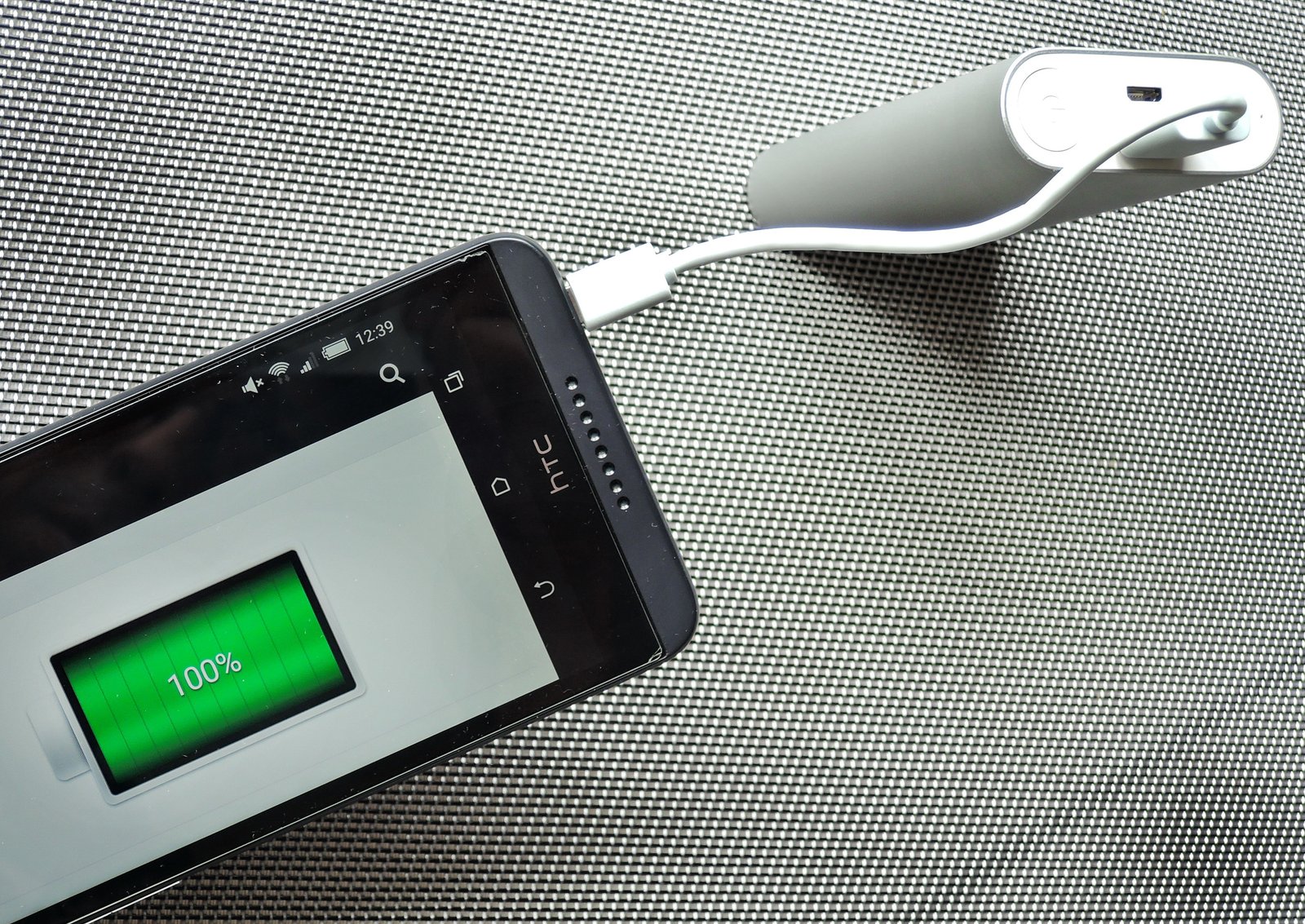
Category: Smartphones & Gadgets

  • How to Make Your Smartphone Battery Last Longer Without Hurting Performance

    How to Make Your Smartphone Battery Last Longer Without Hurting Performance

    A phone that needs charging before the day is over can become a daily annoyance. The usual advice is to turn off everything, lower the screen until it is hard to read, and keep Battery Saver on all day. That can extend battery life, but it can also make a modern smartphone feel slow and inconvenient.
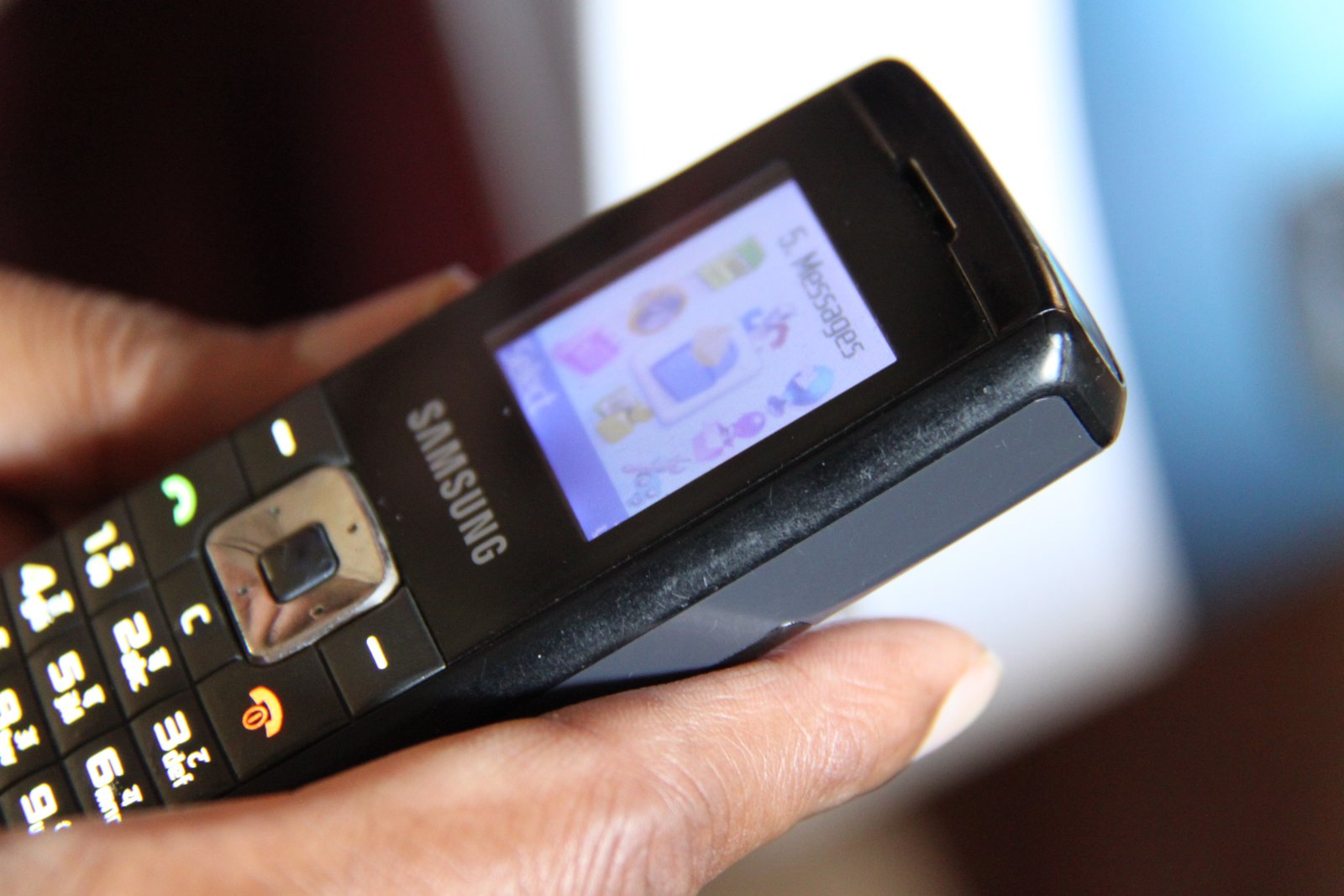
    Smartphone display settings used to improve battery life

    A better approach is to reduce the power your phone wastes while keeping the features you actually use. This guide explains how to make a smartphone battery last longer on both Android and iPhone, how to improve long-term battery health, which settings make the biggest difference, and which popular battery tips are mostly myths.

    Start by finding what is actually draining the battery

    Before changing settings, check the battery-usage screen. It tells you which apps and system features used the most power since the last charge.

    On an iPhone, open Settings, choose Battery, and review activity by app. On most Android phones, open Settings, Battery, and Battery usage. Menu names vary slightly by manufacturer.

    Look for an app using much more battery than expected. A navigation app may legitimately use a lot during a road trip. A shopping app that you opened once should not dominate the list.

    Check screen-on time before blaming the battery

    The display is one of the biggest power users on a phone. If you spent six hours watching video, gaming, or using navigation, the battery may be behaving normally. Compare heavy days with light days before deciding something is wrong.

    Use automatic brightness instead of extremely low brightness

    Keeping the screen at maximum brightness all day can drain the battery quickly. But forcing it to a very low level is not practical. Automatic or adaptive brightness is a better balance because the phone lowers brightness indoors and raises it when needed outside.

    If adaptive brightness feels too aggressive, adjust the slider after the phone sets it. Most devices learn your preferred range over time.

    Shorten the screen timeout

    A screen that stays on for five minutes after every interaction wastes power. Set auto-lock or screen timeout to around 30 seconds or one minute unless you have a reason to keep it longer.

    This small change often saves more battery than disabling a group of minor features.

    Use dark mode when your phone has an OLED display

    Many current phones use OLED displays. On OLED, black pixels can use less power than bright white pixels because individual pixels emit their own light.

    Dark mode can therefore help, especially if you spend a lot of time in apps with large bright backgrounds. The benefit depends on screen brightness and the apps you use, so do not expect a dramatic change by itself.

    Do not choose a phone theme only for battery savings

    Use dark mode if you prefer it. If you find light mode easier to read, keep it. Screen brightness, cellular signal quality, gaming, camera use, and background activity usually matter more.

    Control background activity for apps that do not need it

    Some apps refresh, sync, track location, or request network access when you are not actively using them. That background work can add up.

    Do not block background activity for everything. Messaging, email, navigation, security, and health apps may need it. Focus on apps you rarely use or apps that appear unusually high in battery usage.

    Android approach

    On Android, open the app’s battery settings and choose an optimized or restricted mode when appropriate. Phone makers use different names, but the idea is the same: stop low-priority apps from running freely in the background.

    iPhone approach

    On iPhone, review Background App Refresh under Settings. Disable it for apps that do not need fresh information before you open them.

    Limit location access instead of turning location off completely

    GPS and location services can use significant power, especially when an app requests frequent high-accuracy updates. Turning location off for the entire phone can break maps, weather alerts, ride services, camera geotagging, and device-finding features.

    A smarter option is to change permissions per app. Choose “While Using the App” for apps that do not need continuous access. Disable precise location when an approximate location is enough.

    Example: a shopping app

    A shopping app may ask for location to show nearby stores. It rarely needs continuous background tracking. Allow location only while the app is open. Navigation apps are different because they may need continuous updates during a trip.

    Watch weak cellular signal

    A phone uses more power when it struggles to maintain a cellular connection. If you spend hours in a building with very weak reception, the phone may repeatedly search for a stronger signal.

    When reliable Wi-Fi is available, connect to it. If you are somewhere with no usable signal at all and do not need calls or mobile data, Airplane Mode can save power. Remember that it also disconnects normal cellular service until you turn it off.

    5G is not automatically a battery problem

    Modern phones manage 5G more efficiently than early 5G devices did. However, unstable 5G coverage can still use more power because the phone may switch between networks. If your phone offers an automatic 5G mode, that is usually a good default.

    Turn off unnecessary always-on features

    Always-on displays, frequent wake notifications, live widgets, and animated lock screens can use extra energy. The impact varies by phone.

    Keep the features you value. If you are trying to gain an extra hour or two, start with an always-on display or overly active widgets rather than disabling core phone functions.

    Reduce notification wake-ups

    Every notification can light the screen, vibrate the phone, and trigger background work. Disable promotional and low-value notifications. Keep important alerts such as calls, banking alerts, delivery updates, calendar reminders, and messages.

    Use Battery Saver as a tool, not a permanent lifestyle

    Low Power Mode on iPhone and Battery Saver on Android reduce background activity and may limit some performance or visual effects.

    They are useful when you know you will be away from a charger for a long time. You do not need to keep them enabled every day if your phone already lasts comfortably.

    When Battery Saver makes sense

    Use it during travel, long outdoor events, power outages, hiking, airport delays, or any day when you expect unusual phone use. Turning it on at 30 or 40 percent can stretch the remaining charge without making the phone unusable.

    Keep apps and the operating system updated

    Updates often include fixes for battery drain, background crashes, radio behavior, and performance issues. Keeping the operating system and major apps current can solve battery problems that settings cannot.

    Use official update channels from your device maker. Apple publishes iPhone software through Apple Support, while Android updates come through the device manufacturer and Google services.

    After a major update, temporary drain can happen

    Right after a large operating-system update, a phone may spend time indexing files, optimizing apps, processing photos, and resyncing data. Battery use can be higher for a short period. If the problem continues for several days, investigate further.

    Remove apps that constantly misbehave

    If one app repeatedly appears at the top of the battery list even when you barely use it, update it first. If the issue remains, clear its cache on Android where appropriate, restart the phone, or reinstall the app.

    If you do not need the app, uninstall it. An unused app should not get a permanent place on your phone just because you might use it someday.

    Use Wi-Fi, Bluetooth, and NFC sensibly

    Modern Wi-Fi and Bluetooth are designed to stay enabled. Turning them off every few minutes usually saves less battery than people expect.

    The better approach is to avoid unnecessary active connections. Do not leave a hotspot running when nobody is using it. Disconnect from a poor Wi-Fi network that repeatedly drops. Turn off Bluetooth scanning only if you have a specific issue and understand what feature may stop working.

    Personal hotspot can drain a battery quickly

    Hotspot use combines cellular data, Wi-Fi transmission, and processing. If you share your connection for hours, keep the phone cool and plug it in when possible.

    Understand heat: the biggest long-term battery enemy

    Lithium-ion batteries age faster when exposed to high heat. A hot car dashboard, direct summer sun, heavy gaming while charging, or an insulating case during sustained high load can raise battery temperature.

    You do not need to keep the phone cold. Normal warmth is expected. The goal is to avoid repeated high heat.

    What to do when the phone becomes very hot

    Stop intensive tasks. Move the phone out of direct sunlight. Remove it from a hot car. Pause charging until the temperature returns to normal. If a thick case traps heat during gaming or fast charging, remove the case temporarily.

    Do not obsess over charging from exactly 20 to 80 percent

    You may have heard that a phone must never go below 20 percent or above 80 percent. Partial charging can reduce battery stress, but strict rules can make normal use inconvenient.

    Modern phones include battery-management systems. Many also provide optimized charging features that reduce time spent at full charge. Use those features and avoid extreme heat. That is more useful than constantly monitoring the percentage.

    Charge when it fits your routine

    If your day requires 100 percent, charge to 100 percent. If you work next to a charger and only need 70 or 80 percent, using a charge limit can support long-term battery health on phones that offer the feature.

    Use a good charger and cable
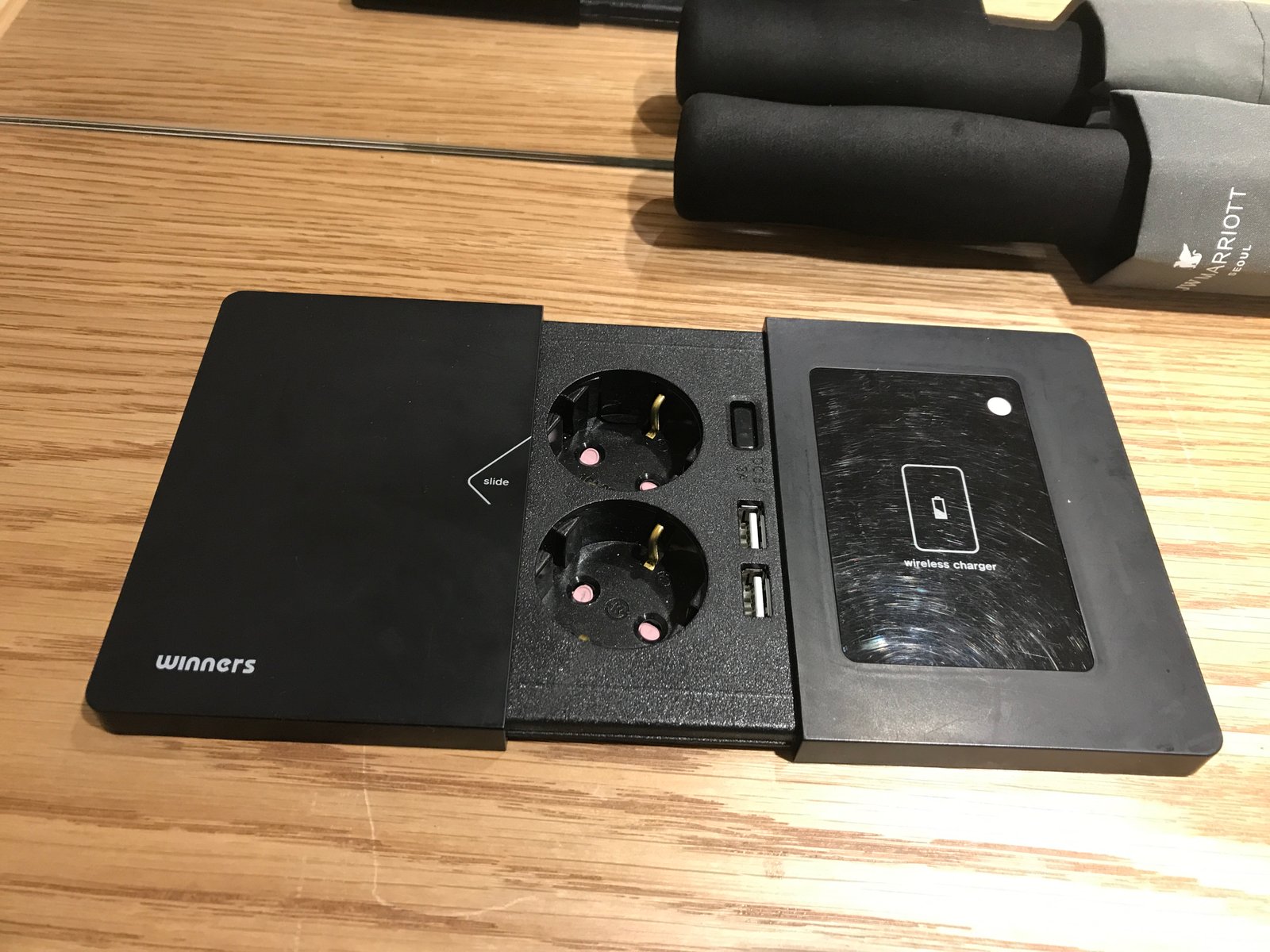
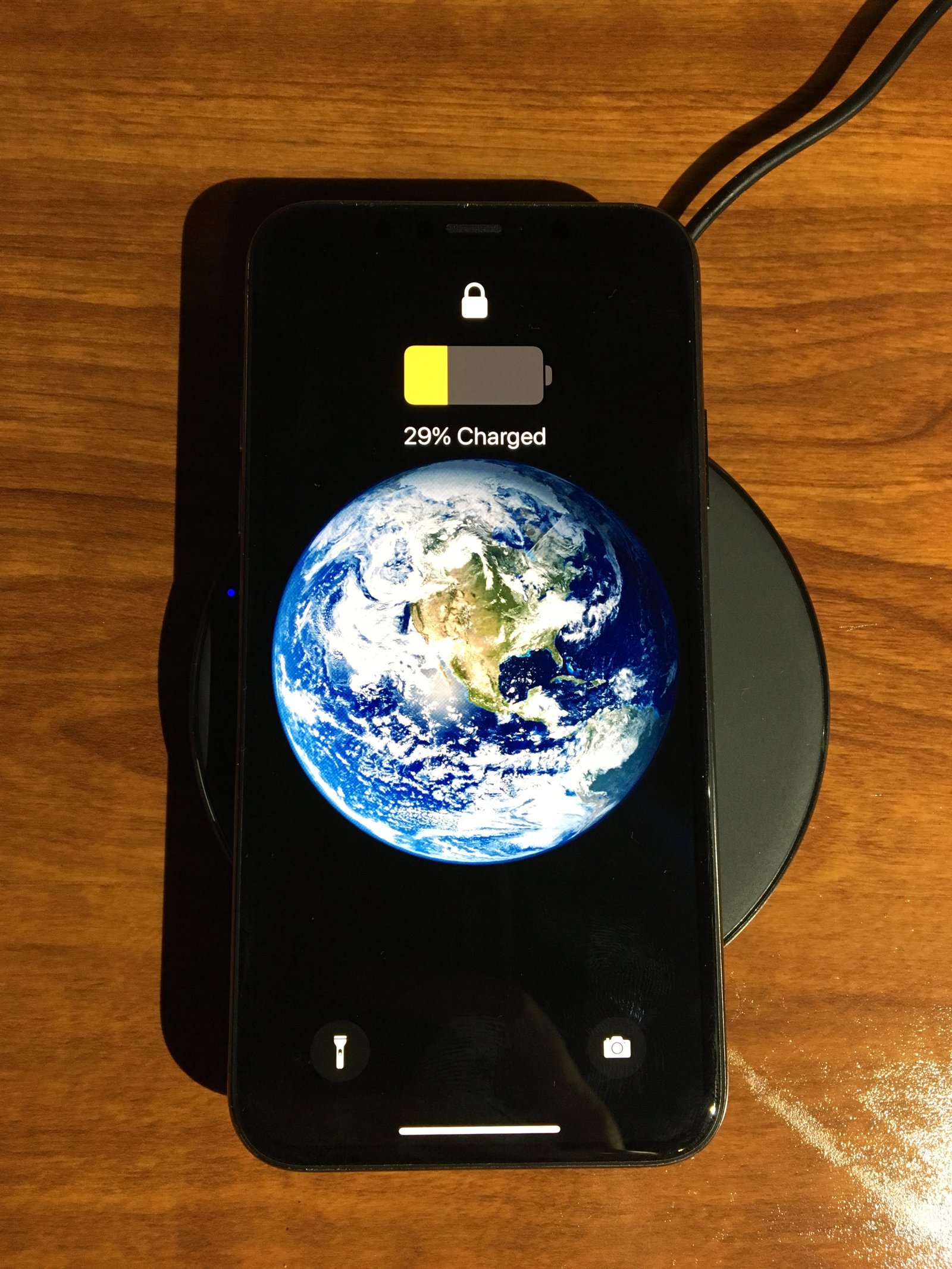
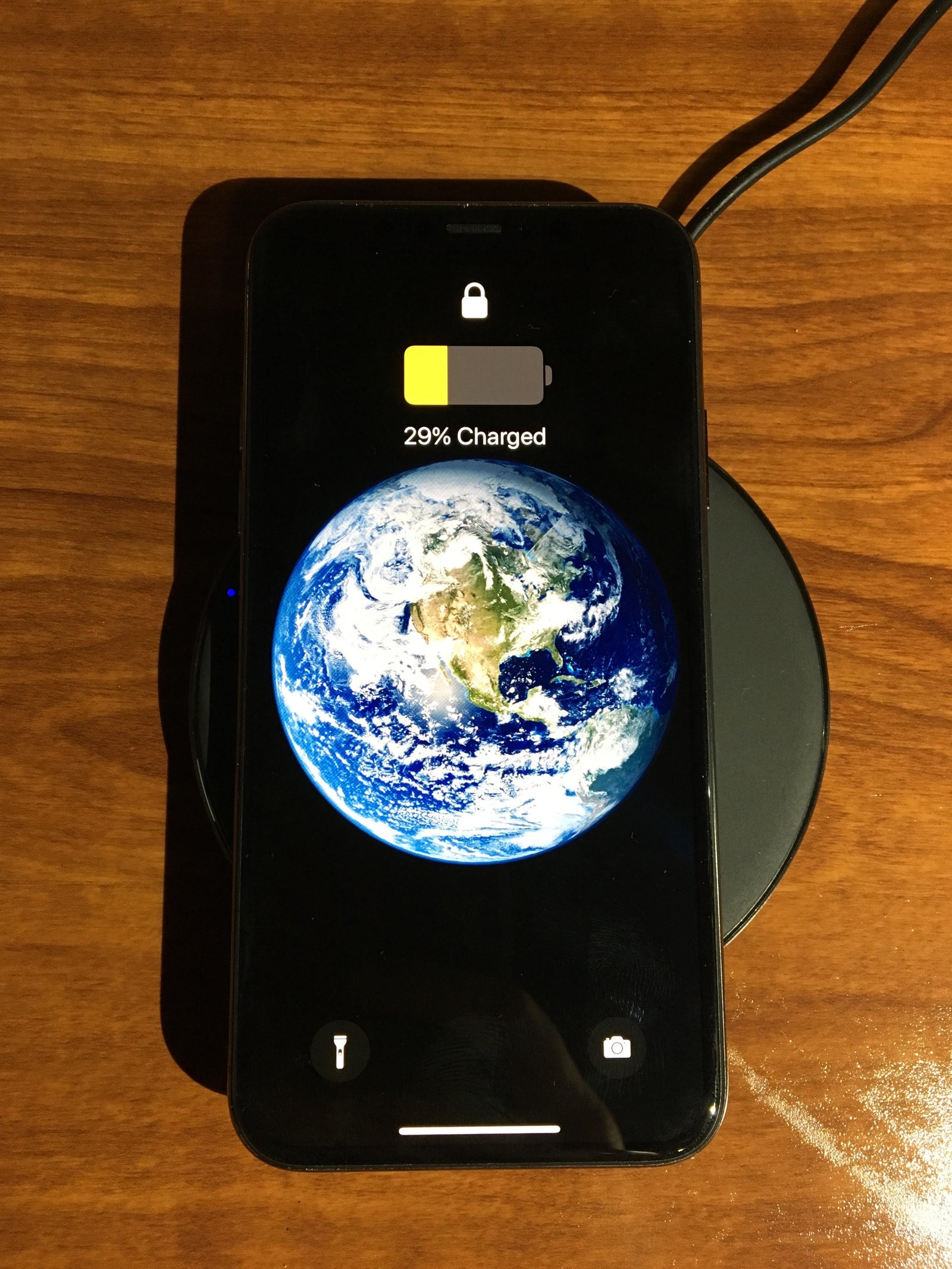
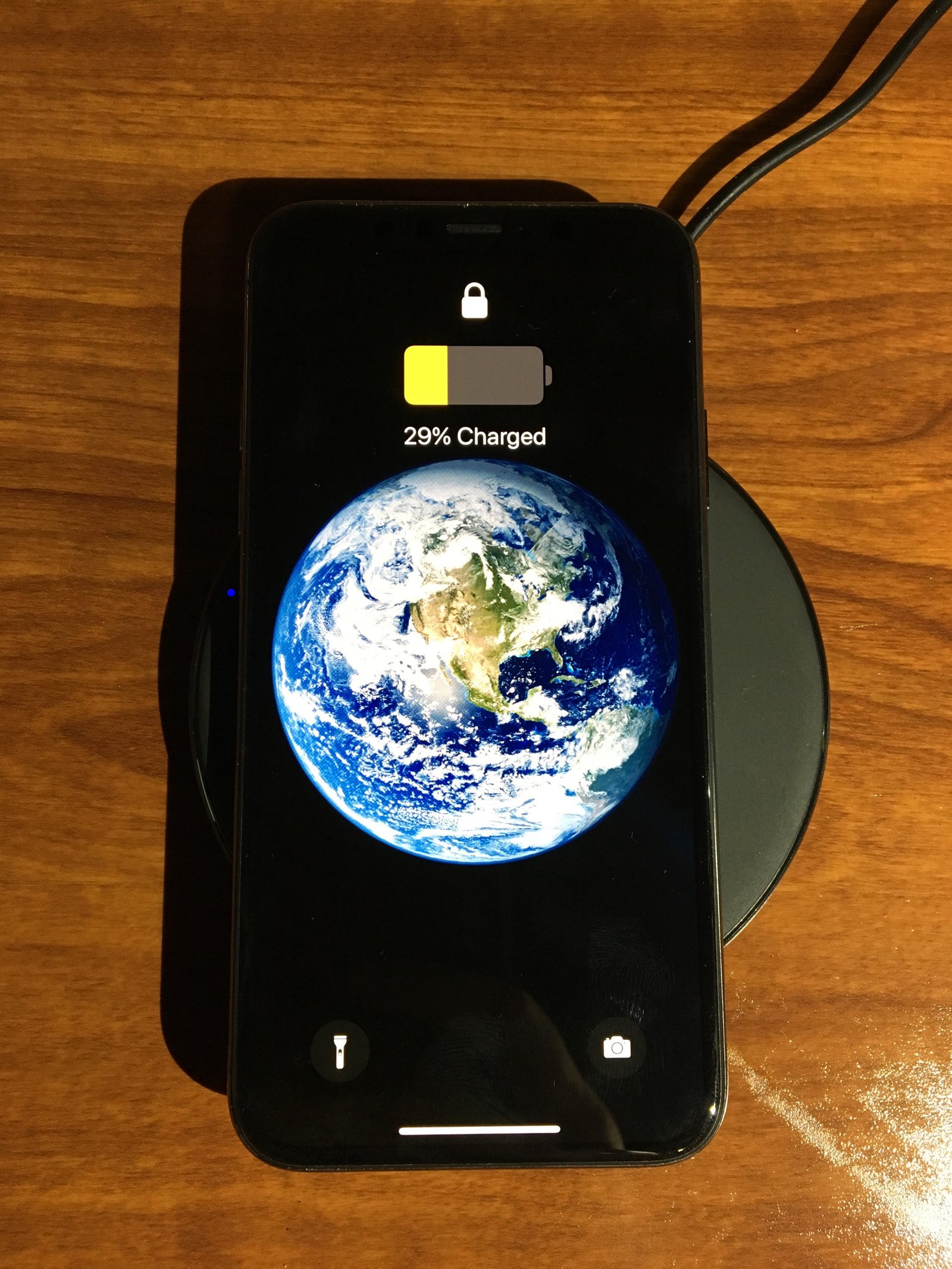
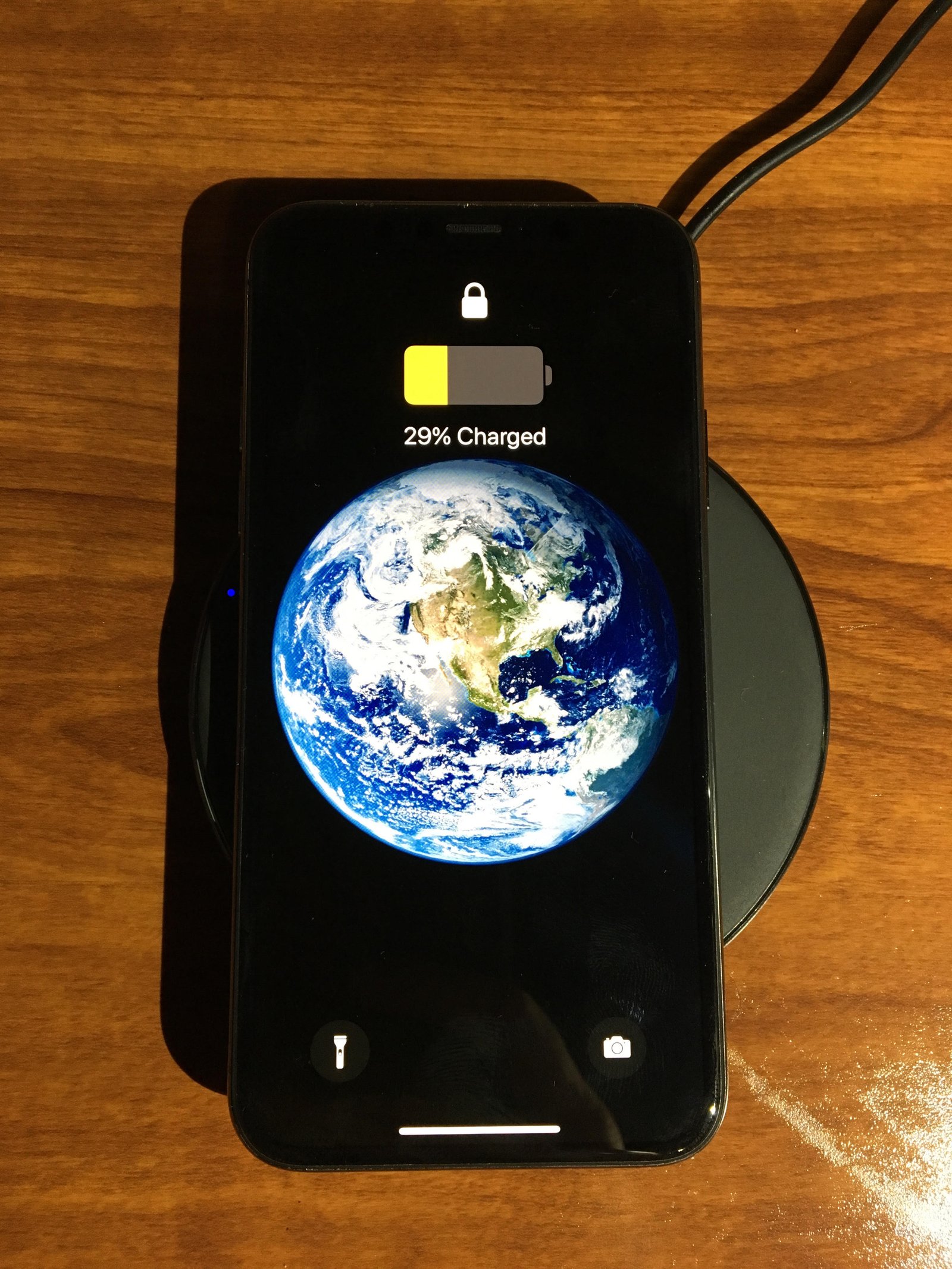
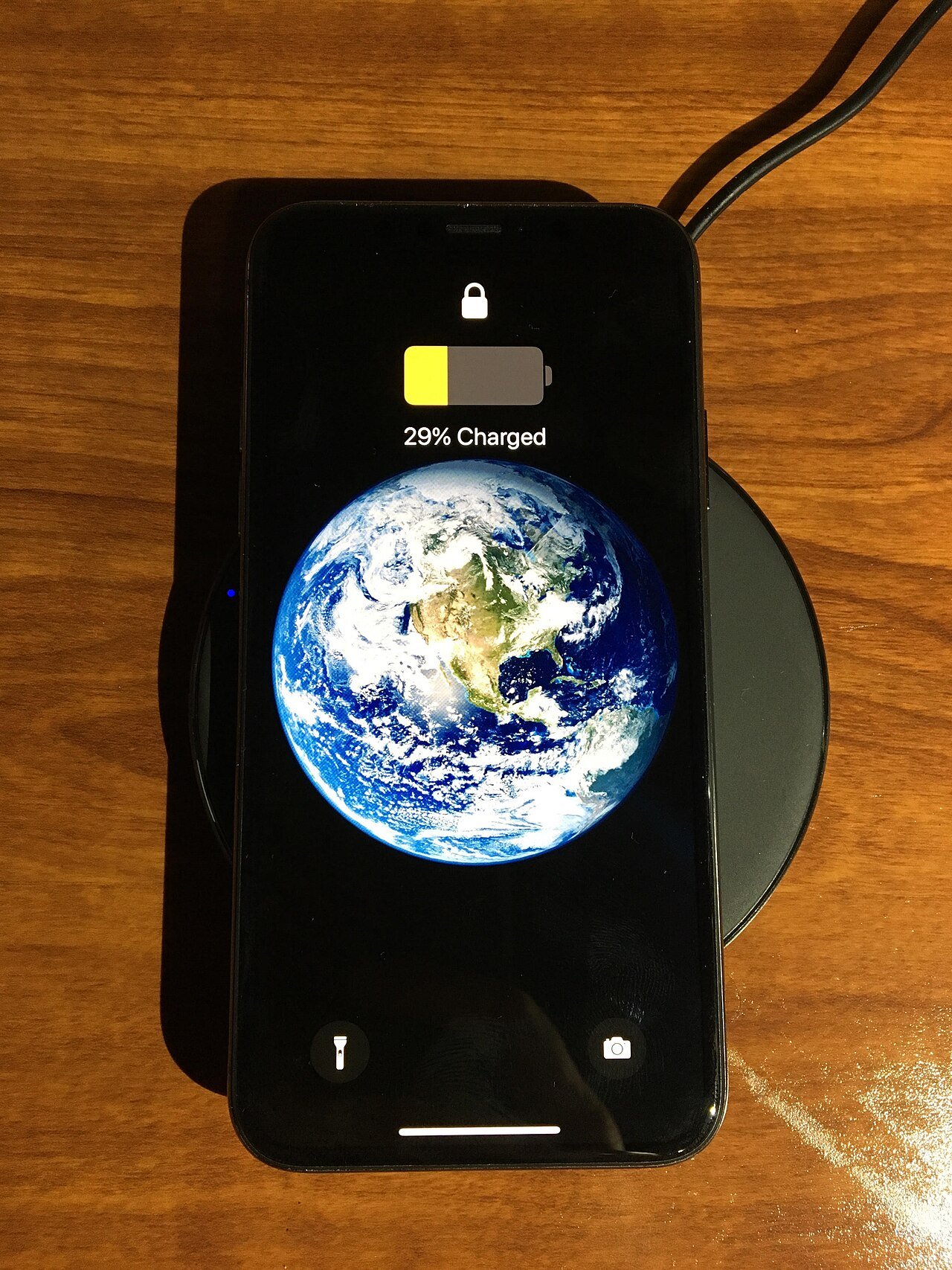
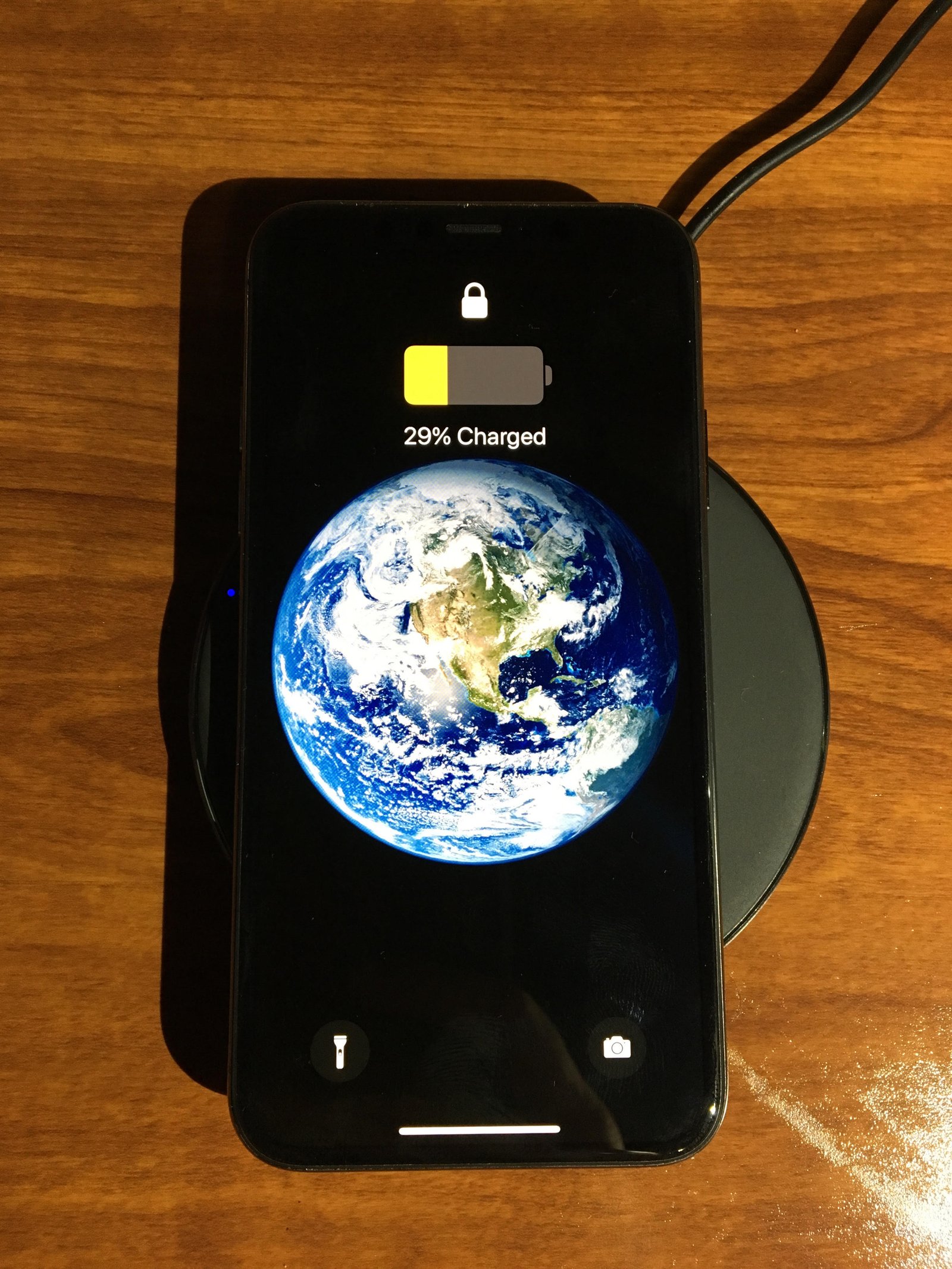
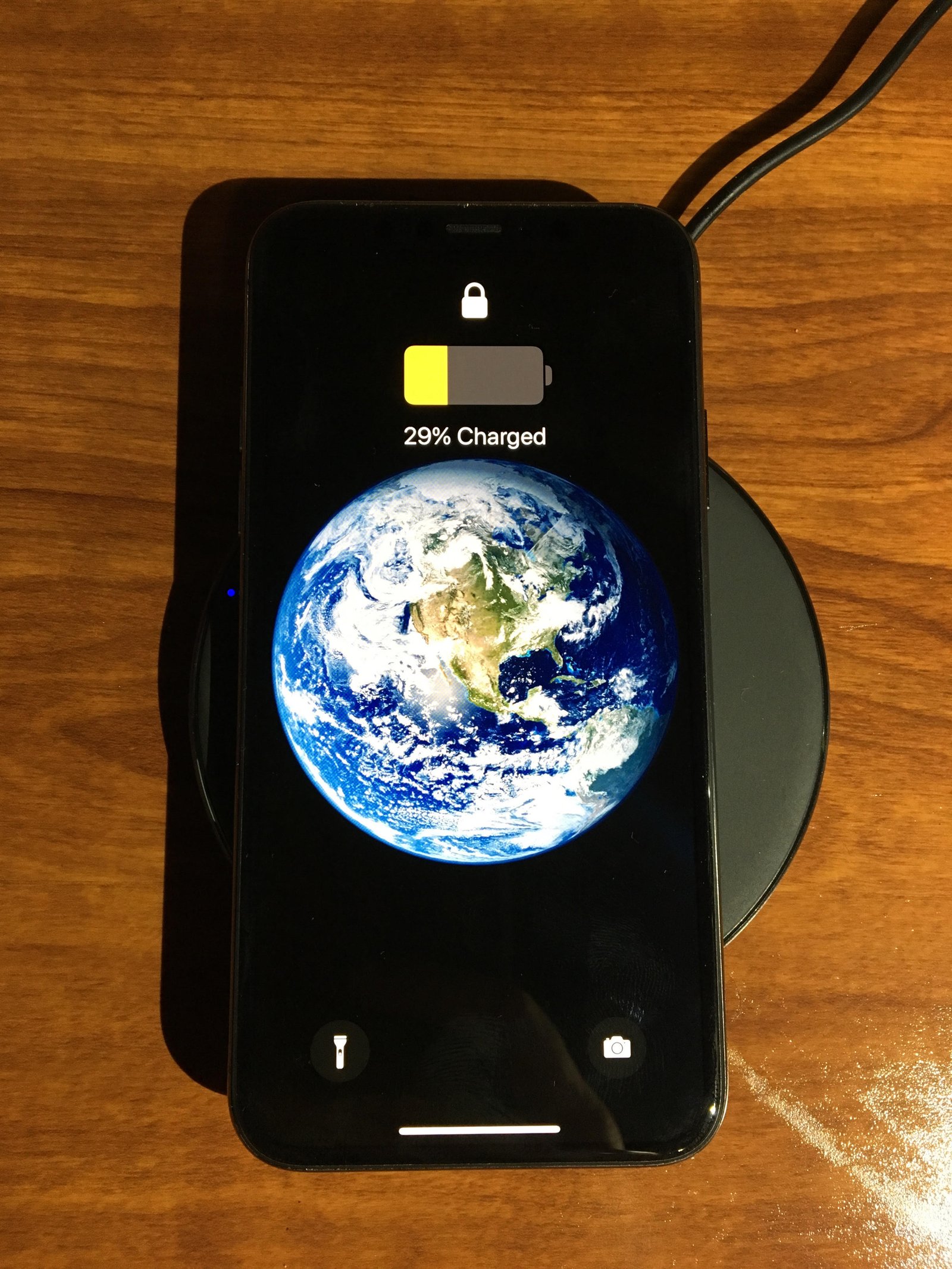
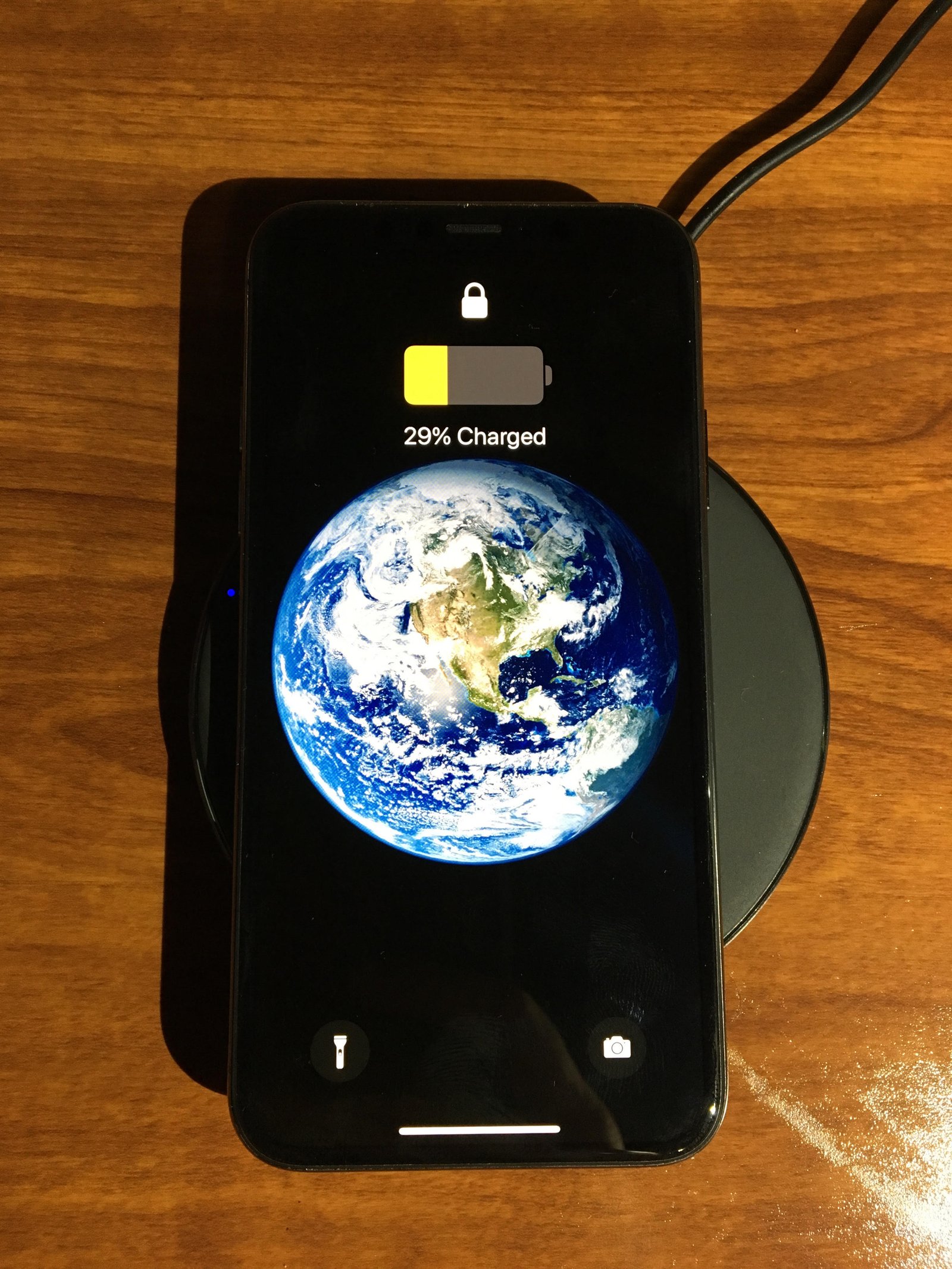
    Smartphone on a wireless charger during normal charging

    A reputable charger that follows the device’s supported standards is safer and more reliable than an unknown cheap adapter. You do not always need the fastest charger available.

    Brands such as Anker, Apple, Google, and major phone manufacturers publish compatible charging products and specifications. Check your phone’s documentation before buying a high-wattage charger.

    Fast charging is useful, but heat matters

    Fast charging itself is not automatically harmful because the phone manages charging speed. Heat is the part to watch. If the phone becomes unusually hot during every charge, try another certified charger, cable, outlet, or charging location.

    Turn off features you genuinely never use

    Some phones ship with motion gestures, nearby-device scanning, edge lighting, voice wake features, or always-listening assistants. If you never use a feature, disabling it can reduce small amounts of background activity.

    Do not spend an hour disabling dozens of tiny settings. Start with major drains and stop when the phone comfortably lasts your normal day.

    Use offline downloads when you know coverage will be poor
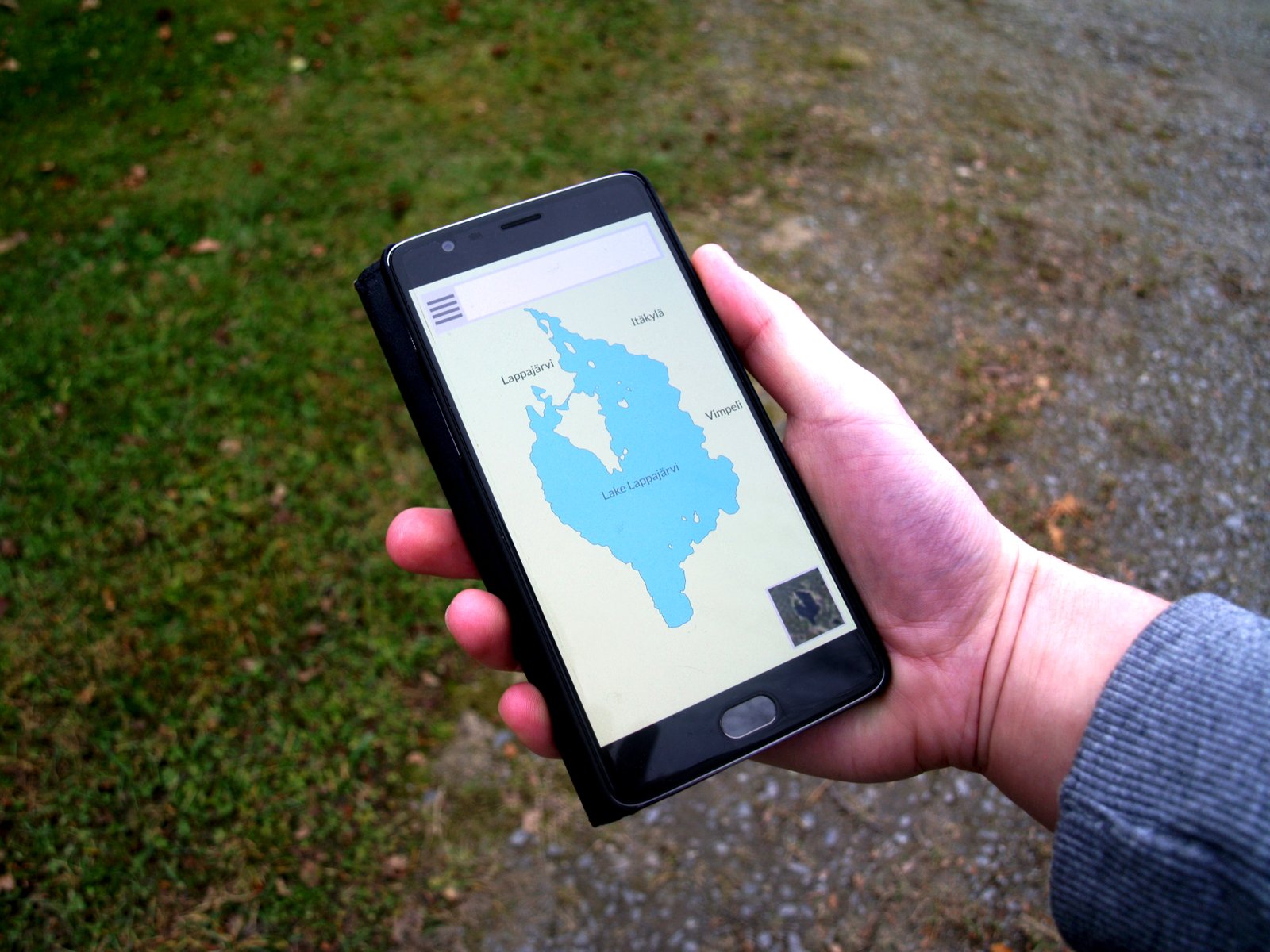
    Smartphone used for navigation during travel

    Streaming music, maps, and video over a weak mobile connection can use more power than playing downloaded content. Before a flight, train trip, remote drive, or hiking day, download what you need over Wi-Fi.

    Offline maps are especially useful

    Apps such as Google Maps support offline areas in many regions. Downloading a route area can reduce dependence on an unstable signal, although GPS itself may still be used.

    Restart a phone that suddenly begins draining fast

    If battery life changes sharply overnight, a stuck process may be responsible. A normal restart can clear temporary problems.

    If drain returns, check recently installed apps, recent updates, battery usage, network changes, and device temperature. Do not jump straight to a factory reset.

    Check battery health when the phone is older
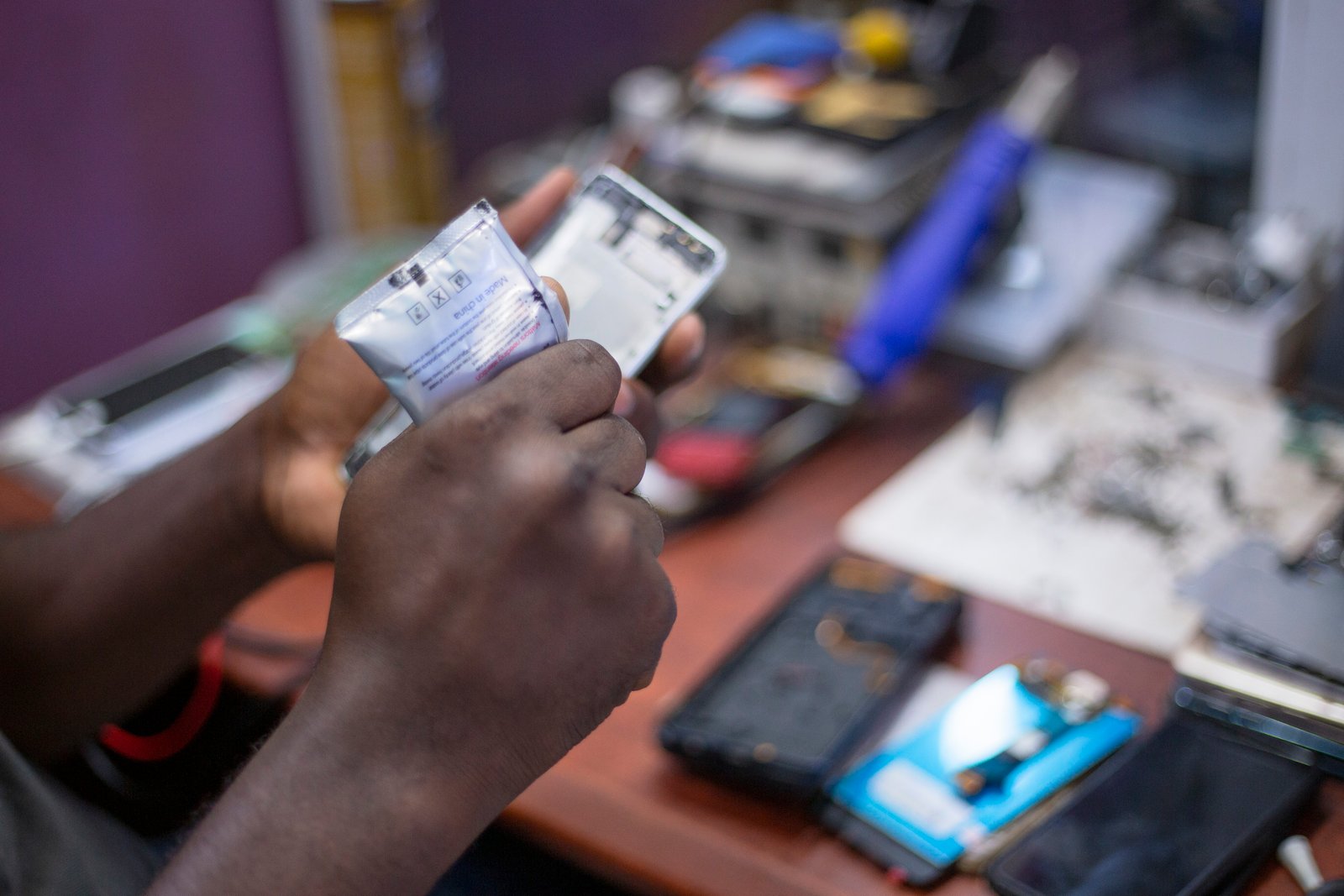
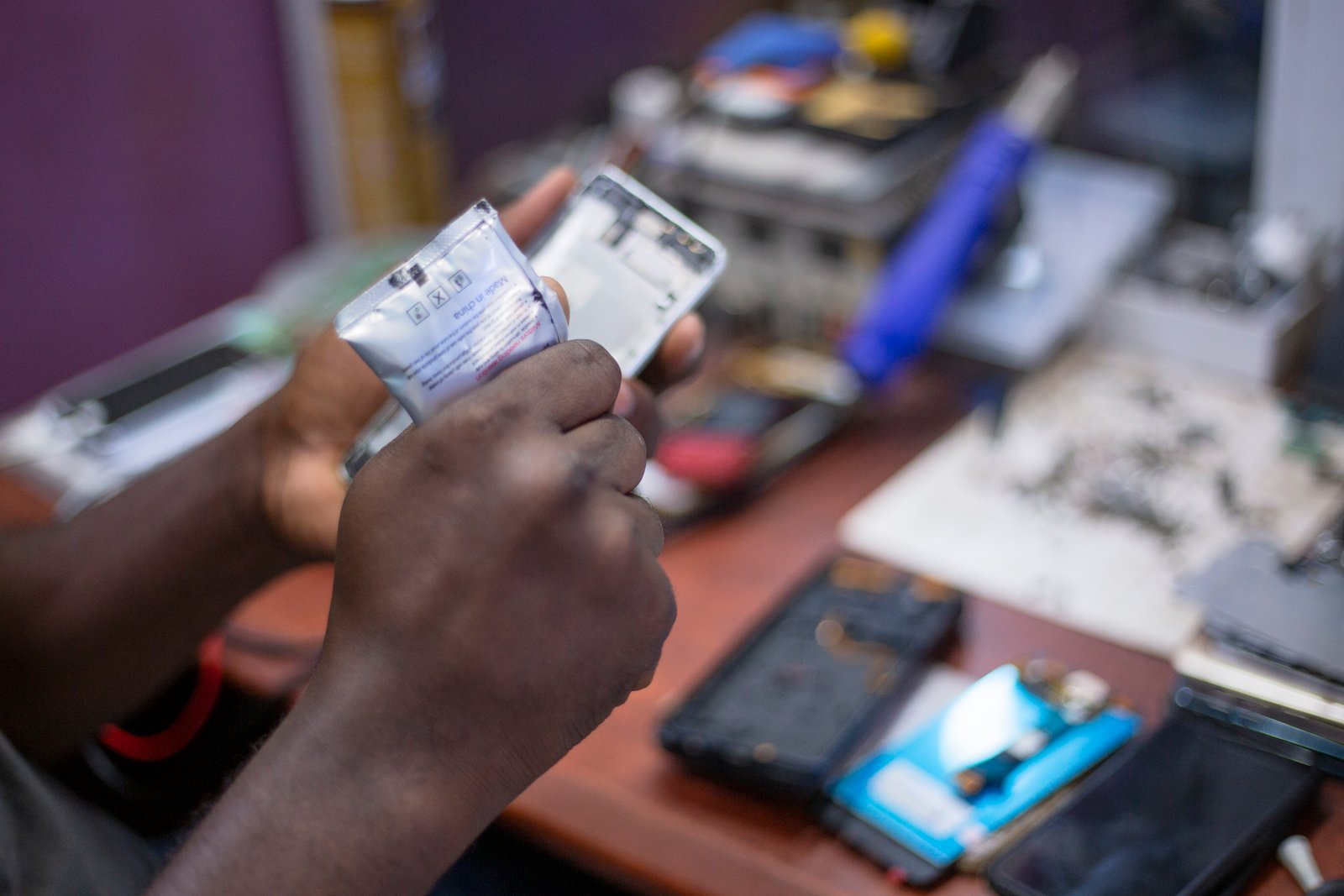
    Smartphone repair and battery health inspection

    Batteries are consumable parts. Their capacity decreases with age and charge cycles. If a phone that once lasted all day now dies by lunch despite the same usage, the battery may simply be worn.

    When replacement makes sense

    Consider professional battery service if the phone shuts down unexpectedly, battery health is significantly reduced, the battery swells, or daily life is limited by very short runtime. A swollen battery is a safety issue. Stop using the device and contact the manufacturer or a qualified repair provider.

    Build a practical battery routine

    A good battery routine should be simple enough to follow every day. Use adaptive brightness. Keep screen timeout reasonable. Restrict only troublesome background apps. Use location permissions carefully. Stay on Wi-Fi when cellular coverage is poor. Keep software updated. Avoid repeated heat. Use Battery Saver when you actually need extra runtime.

    Example: a long travel day

    Before leaving, charge fully, download maps and entertainment, reduce nonessential notifications, and carry a quality power bank. During the day, use automatic brightness and Battery Saver once the charge drops. Avoid leaving navigation running after you reach your destination. These steps save power without turning the phone into a basic device.

    Battery-saving myths worth ignoring

    You do not need to close every app after using it. Modern operating systems manage inactive apps, and repeatedly reopening apps can sometimes use more resources. You do not need to drain a lithium-ion battery to zero before charging. You also do not need to disable Wi-Fi and Bluetooth permanently.

    Focus on measurable drains rather than old habits carried over from older battery technology.

    Conclusion

    The best way to make your smartphone battery last longer is to remove waste, not useful features. Start with the battery-usage screen. Control the display, background activity, weak network connections, location permissions, and unnecessary notifications. Protect the phone from heat and keep software current.

    If battery life remains poor after those changes, check battery health instead of endlessly changing settings. A worn battery cannot be repaired by turning off more features. The right goal is a phone that comfortably lasts your day while still working the way you need it to.
  • How to Choose the Right Smartphone: A Practical Buying Guide That Avoids Spec Traps

    How to Choose the Right Smartphone: A Practical Buying Guide That Avoids Spec Traps

    Buying a smartphone can be harder than it should be. Product pages are full of camera megapixels, processor names, charging speeds, AI features, refresh rates, and storage tiers. Many of those numbers matter, but not in the way marketing pages often suggest.

    Smartphone camera hardware used to compare mobile photography features

    The right phone is the one that fits how you actually use it for the next few years. A photographer may care more about camera consistency and storage. A commuter may value battery life, signal reliability, and a bright display. A business user may care about update support, security, and dependable calls.

    This guide shows how to choose the right smartphone without getting lost in specifications. It focuses on the factors that affect daily use, long-term cost, and ownership satisfaction.

    Start with your real use, not a brand or specification sheet

    Before comparing phones, write down your five most common activities. Examples might include messaging, video calls, social media, photography, navigation, gaming, banking, document work, or streaming.

    Then identify the two things that frustrate you most about your current phone. Maybe the battery dies early. Maybe indoor photos look poor. Maybe storage is always full. Maybe the screen is difficult to see outside.

    This simple exercise gives you a buying filter. Features that solve those problems deserve more weight than features you will rarely use.

    Example: a normal everyday user

    Imagine you mostly use WhatsApp, YouTube, maps, banking apps, email, and casual photos. You probably do not need the fastest gaming processor. You may get more value from strong battery life, a good main camera, long software support, enough storage, and a reliable display.

    Set a total budget before you start comparing models

    Your budget should include more than the phone. Add the cost of a charger if one is not included, a protective case, screen protection, extra cloud storage if needed, and any financing interest.

    A phone that costs slightly more but receives software updates for longer can offer better value than a cheaper device you replace sooner.

    Do not let monthly financing hide the real price

    A small monthly payment can make an expensive phone feel affordable. Calculate the full cost over the contract period. Also check early-upgrade conditions, device-return requirements, and insurance charges.

    Choose the operating system based on your ecosystem

    The main decision for most buyers is between Apple iPhone and Android.

    If you already use a Mac, Apple Watch, AirPods, and iCloud heavily, an iPhone can fit naturally into that setup. If you use Google services, Windows PCs, custom launchers, or want a wider range of hardware choices, Android may be more flexible.

    Switching is possible, but count the friction

    Moving between platforms is easier than it used to be, but some purchases, accessories, passwords, photo libraries, and app habits may need extra work. If you are considering a switch, make a list of the services you rely on before you buy.

    Do not judge a camera by megapixels alone

    A high megapixel count does not guarantee better photos. Camera quality depends on the sensor, lens, image processing, stabilization, autofocus, low-light performance, and how consistently the phone handles difficult scenes.

    Look for real sample photos from independent reviewers. Pay attention to skin tones, moving subjects, indoor shots, nighttime photos, zoom quality, and video stabilization.

    Prioritize the cameras you will actually use

    A strong main camera is more useful to most people than several weak secondary cameras. If you take family photos, pets, or children, fast autofocus and reliable motion handling may matter more than extreme zoom. If you travel often, a useful ultrawide and telephoto lens may be worth paying for.

    Battery life matters more than battery capacity alone

    A larger battery does not automatically mean longer runtime. Screen efficiency, processor design, modem behavior, software optimization, and usage patterns all affect battery life.

    Independent endurance tests are often more useful than comparing milliamp-hour numbers. Look for tests that include web browsing, video playback, camera use, cellular data, and standby time.

    Think about your worst normal day

    Do not buy for an ideal day spent near a charger. Think about a busy day with navigation, mobile data, camera use, calls, and streaming. A phone that survives that day without anxiety is a better fit.

    Charging speed should match your routine

    Fast charging is useful if you often need to add power quickly before leaving home. It matters less if you charge overnight or sit near a charger during work.

    Check whether the required charger is included and whether the advertised speed needs a specific adapter. Manufacturers such as Samsung, Google, and Apple publish charging compatibility information for their devices.

    Wireless charging is convenience, not a necessity

    Wireless charging is useful on a desk or bedside table, but it is not essential for everyone. If you rarely use it, do not pay more just to check a feature box.

    Choose enough storage for the way you create content

    Storage fills faster than many buyers expect. Photos, 4K video, offline music, games, messaging media, and app caches can consume large amounts of space.

    If your current 128 GB phone is already close to full, buying another 128 GB model may recreate the same problem. Review your current storage screen before deciding.

    Cloud storage does not replace local storage in every case

    Services such as iCloud, Google One, and Microsoft OneDrive can reduce pressure on local storage, but apps and offline files still need space. Slow or limited internet can also make cloud-only access inconvenient.

    RAM matters, but software management matters too

    More RAM can help with multitasking, gaming, and keeping apps active in memory. However, different operating systems manage memory differently. Comparing RAM numbers across platforms can be misleading.

    Instead of chasing the highest number, check how the phone performs with your typical apps. Reviews that test app switching and sustained performance are more useful than a raw specification.

    Processor performance should fit your workload

    Flagship processors are useful for demanding games, high-resolution video editing, advanced camera processing, and heavy multitasking. For messaging, browsing, streaming, navigation, and normal apps, a good mid-range processor can feel fast for years.

    Watch sustained performance, not only benchmarks

    A phone may score highly in a short benchmark and then slow down under heat. If you play games or edit video, look for sustained performance tests and thermal behavior.

    If your use is light, benchmark differences that look large on a chart may be difficult to notice in real life.

    Display quality is more than resolution

    Most modern phone displays are already sharp enough. Brightness, color accuracy, outdoor visibility, touch response, minimum brightness at night, and refresh rate often have a bigger effect on daily comfort.

    Refresh rate affects smoothness

    A 90 Hz or 120 Hz display can make scrolling and animations feel smoother than a traditional 60 Hz screen. The benefit is easy to notice for some people and unimportant to others. Try the phone in a store if possible.

    Choose a size you can comfortably hold

    Large phones offer bigger screens and often larger batteries, but they can be uncomfortable in one hand or difficult to fit in a pocket. Small phones are easier to handle but may trade some battery capacity or screen area.

    If you cannot try the exact phone, compare its dimensions and weight with your current device. A difference of a few millimeters can matter more than it sounds.

    Software update support should be a major buying factor

    Long-term updates protect security, maintain app compatibility, and extend the useful life of a phone. Before buying, check the manufacturer’s official update policy for the exact model.

    Google Pixel support, Apple support pages, and Samsung’s official security information are better places to verify update commitments than reseller listings.

    Do not confuse security updates with major OS updates

    A phone may receive security patches for longer than it receives new operating-system versions. Both matter. Check the exact wording of the support policy.

    Security and privacy deserve attention before purchase

    Biometric unlock, device encryption, lost-device protection, update speed, app-permission controls, and account recovery all affect practical security.

    Use the phone maker’s official security documentation to understand features. Do not rely on a seller’s generic “secure phone” label.

    Check how easy it is to recover from theft

    A good device ecosystem should let you locate, lock, or erase a lost phone. Make sure you can configure account recovery and two-factor authentication before you depend on the device for banking or work.

    Durability can save more money than a premium feature

    Check water resistance, screen protection, frame quality, repair options, and spare-part availability. If you keep phones for several years, repairability matters.

    Water-resistance ratings are useful but do not mean a device is waterproof forever. Seals can age, and liquid damage may not be covered by warranty.

    Buy a case based on your actual risk

    If you work outdoors or frequently drop your phone, a protective case is worth more than an ultra-thin design. If you use the phone at a desk all day, you may prefer a lighter case.

    Speakers, microphones, vibration, and call quality are easy to overlook

    Specification sheets rarely tell you how clear a microphone sounds on a busy street or whether the vibration motor is easy to notice in a pocket.

    Independent reviews and hands-on testing can reveal these details. They matter if you make many calls, record interviews, dictate notes, or rely on vibration alerts.

    Do not buy an “AI phone” only because of an AI label

    AI features can be useful for photo editing, transcription, translation, summarization, and search. But features may depend on an internet connection, an account, a subscription, specific languages, or regional availability.

    Ask four questions about any AI feature

    Does it work on the device or in the cloud? Is it free permanently or only during a trial? Does it support your language and region? Can you disable it if you do not want to use it?

    Judge each feature by whether it solves a real problem for you.

    Compare the full ownership cost

    Two phones with the same purchase price may cost different amounts over three years. Include cloud storage, repair costs, accessory prices, battery replacement, insurance, and resale value.

    Example: cheaper phone versus longer-supported phone

    Suppose Phone A costs less but has limited update support and a small storage tier. Phone B costs more but has longer software support and enough storage to avoid a paid upgrade. The better value depends on how long you plan to keep the device, not just the checkout price.

    Use a weighted score instead of choosing emotionally

    Create a simple scorecard with your priorities. Give each category a weight from one to five. For example: battery 5, camera 4, updates 5, gaming 1, charging 3, display 4, size 3, storage 4.

    Score each candidate phone against those priorities. This makes it harder for one flashy feature to dominate the decision.

    Keep the shortlist small

    Compare three phones, not twenty. Once a device clearly fails an important requirement, remove it from the list. More options do not always lead to a better decision.

    Check return rules and warranty before buying

    Read the seller’s return window, restocking policy, warranty coverage, and rules for opened devices. This is especially important when buying online.

    If you buy a used or refurbished phone, verify battery condition, activation status, network compatibility, repair history when available, and whether the device is still linked to another owner’s account.

    A practical smartphone buying checklist

    Define your top five uses. Set a full budget. Choose an ecosystem. Check real camera samples. Compare independent battery tests. Buy enough storage. Verify update support. Check display brightness and size. Review durability and repair options. Confirm network compatibility. Read the return policy. Then choose the phone that solves your real needs with the fewest compromises.

    Conclusion

    The best smartphone is not the model with the longest specification list. It is the phone that fits your daily habits, stays supported, has enough battery and storage, and remains comfortable to use for the time you plan to keep it.

    Start with your needs before looking at brands. Verify important claims on official pages. Use independent reviews for real-world camera, battery, heat, and call performance. Ignore features that do not solve a problem for you.

    That approach makes smartphone shopping simpler and usually leads to better value than buying the phone with the loudest marketing.

    Smartphone display used to compare screen quality and everyday visibility
    Mobile device security illustration for evaluating smartphone privacy and updates
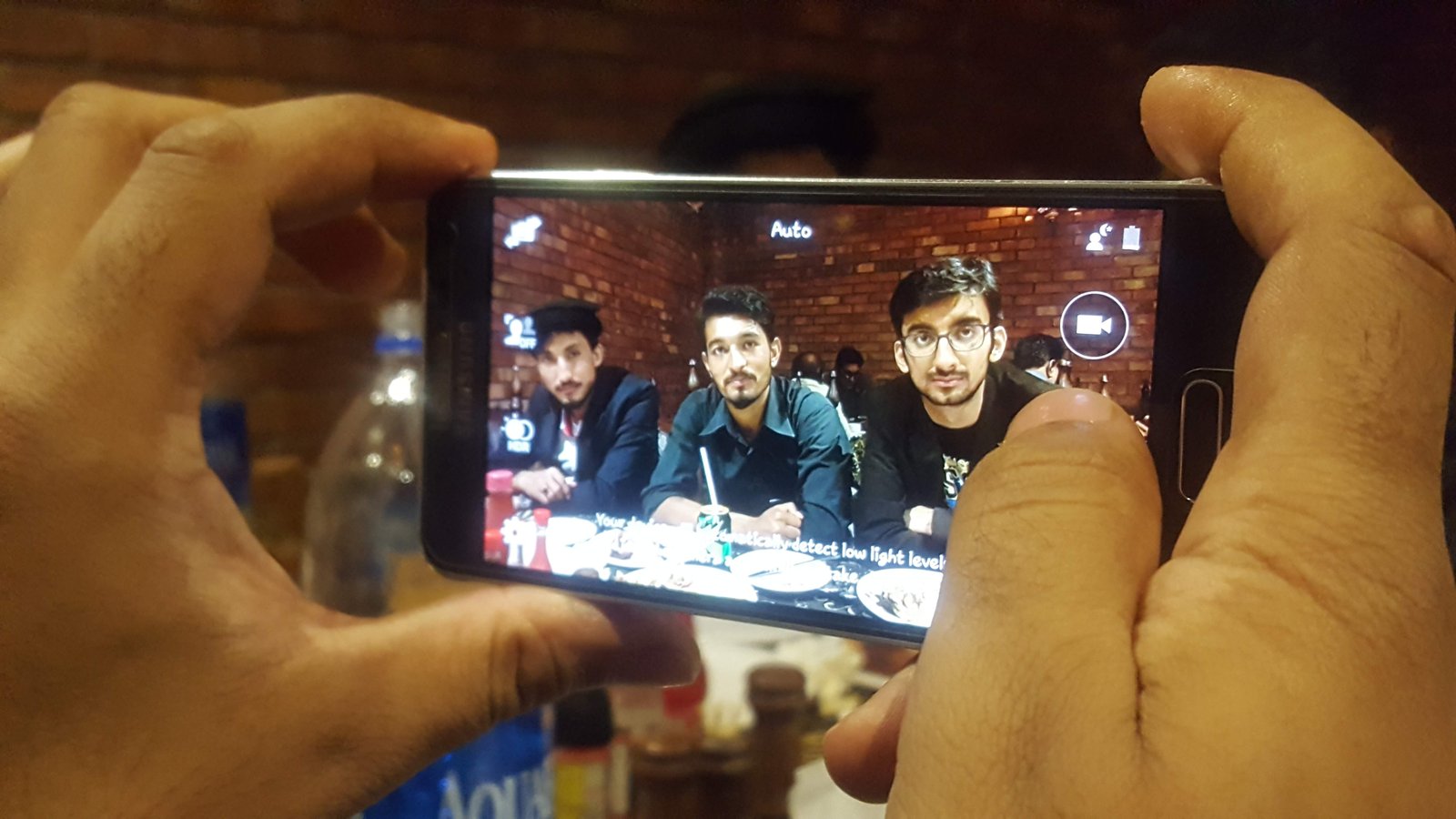
    Smartphone being used for photography in a real-world setting
  • Travel Tech Kit Guide: Power Bank, eSIM, Tracker, Cables, Adapter, and Offline Backup

    Travel Tech Kit Guide: Power Bank, eSIM, Tracker, Cables, Adapter, and Offline Backup

    A good travel tech kit should make a trip easier without turning your bag into a box of chargers and spare gadgets. The most useful items solve predictable problems: keeping your phone powered, getting mobile data, finding luggage, connecting to local outlets, protecting accounts, and keeping important information available when the internet fails.

    Smartphone charging setup for a compact travel technology kit

    The goal is not to pack every accessory you own. It is to create a small system with fewer points of failure. This guide walks through the pieces worth considering and shows how to test them before departure.

    Start with the devices you will actually carry

    Make a list: phone, laptop, tablet, smartwatch, earbuds, camera, e-reader, portable game console, or medical device. Then write the charging port and power requirement beside each one.

    This prevents duplicate cables and reveals whether one charger can cover several devices.

    Leave optional gadgets at home

    Every extra device needs power, security, storage, and attention. If you will not use it more than once, consider whether your phone can do the job.

    Standardize on USB-C where possible

    USB-C can simplify travel because many current phones, tablets, laptops, cameras, and power banks use the same connector.

    You may still need one proprietary watch cable or older USB-A accessory, but reducing cable types makes replacements easier.

    Carry one spare critical cable

    If your phone and laptop both depend on USB-C, two good USB-C cables create useful redundancy without much weight.

    Choose one multi-port charger

    A compact USB-C Power Delivery charger can often replace separate phone and laptop adapters.

    Choose enough total wattage for the devices you may charge simultaneously.

    Read the port allocation

    A charger marked 100W may offer 100 watts only with one port in use. When several devices are connected, the power may split. Make sure the laptop still receives enough power.

    GaN chargers are useful for packing light

    Modern gallium nitride chargers can deliver high output from a relatively small adapter.

    GaN is not a guarantee of quality. Buy from a reputable manufacturer and check the electrical specifications.

    Understand plug adapters versus voltage converters

    A plug adapter changes the physical plug shape so your charger fits a local outlet. A voltage converter changes electrical voltage.

    Many laptop and phone chargers accept 100–240V input and need only a plug adapter. Check the label on every power adapter.

    Never assume universal voltage

    Hair tools and other high-power appliances may not support the destination voltage even when your phone charger does.

    Choose a universal travel adapter carefully

    A universal adapter can be convenient for multi-country trips. Check supported plug types, AC maximum load, safety shutters, fuse design, and USB-C output if included.

    A built-in USB-C port may be too weak for a laptop even if it charges a phone.

    Carry a power bank sized for your day

    A power bank helps during long flights, train journeys, navigation-heavy days, festivals, and remote travel.

    Capacity is usually listed in milliamp-hours, but the actual energy delivered to your phone is lower because of voltage conversion and efficiency losses.

    Choose based on use, not the largest number

    A small pack is easier to carry daily. A larger pack can cover several devices but adds weight.

    Check airline battery rules before flying

    Lithium battery and power-bank restrictions vary by capacity and airline policy. Spare lithium batteries and power banks generally belong in carry-on baggage rather than checked luggage, but verify your airline’s current rules.

    Check guidance from your airline and aviation authority before travel.

    Capacity may be shown in watt-hours

    If the pack lists only mAh and voltage, the manufacturer may also provide the Wh rating needed for airline limits.

    Use a power bank with USB-C input and output

    This lets you recharge the bank with the same cable and charger used for other devices.

    For laptops, check whether the bank supports enough USB PD output.

    Test the power bank before the trip

    Charge it fully. Use it to charge your phone from a low battery. Confirm the cable stays connected and the bank does not shut off unexpectedly.

    An old battery pack may have lost significant capacity.

    Consider a magnetic battery pack for convenience

    Magnetic wireless packs can be useful while walking or waiting in airports because they attach without a cable.

    Wired charging is more efficient, so use a cable when you need maximum energy from the pack.

    Set up an eSIM before departure when practical

    An eSIM can provide local or regional mobile data without changing a physical SIM card. Availability depends on phone model and carrier.

    Install the eSIM while you still have reliable Wi-Fi and access to account verification.

    Do not activate too early without reading the plan

    Some travel eSIM plans begin their validity period at installation, while others begin on first network connection. Check the provider terms.

    Confirm your phone is unlocked

    A carrier-locked phone may reject a third-party travel eSIM.

    Check unlock status with your carrier before buying a plan.

    Keep your home number active if needed

    Dual-SIM phones can often keep a home line for calls and verification while using a travel eSIM for data.

    Review roaming settings so the home line does not create unexpected data charges.

    Turn off data roaming on the wrong line

    Label SIMs clearly in settings and choose the travel plan as the mobile-data line.

    Understand SMS verification abroad

    Some banks and accounts still send codes to your home number. Make sure you can receive them without expensive roaming.

    Where available, stronger authentication methods such as passkeys, authenticator apps, or security keys can reduce dependence on SMS.

    Download essential apps before leaving

    Install airline, train, hotel, map, rideshare, translation, banking, password-manager, and eSIM apps in advance.

    Sign in and complete account verification while at home.

    Do not install urgent apps from random airport links

    Use official app stores and the official provider website.

    Download offline maps

    Mobile service can disappear in subways, remote roads, border areas, and crowded events.

    Download destination maps in Google Maps or another navigation app that supports offline use.

    Save the hotel and transport hubs

    Mark your hotel, airport, train station, car-rental location, and important meeting points before you arrive.

    Save travel documents offline

    Keep local copies of boarding passes, booking confirmations, hotel addresses, insurance details, visa information, and emergency contacts.

    Do not rely on an email inbox that requires a data connection.

    Protect sensitive documents

    Use device encryption and a strong screen lock. Avoid leaving passport scans in an unprotected photo gallery if a secure document app is available.

    Use a password manager

    Travel creates more account logins on unfamiliar networks and devices. A password manager reduces password reuse and can help detect lookalike phishing domains through domain-aware autofill.

    Make sure you can unlock the vault offline if needed.

    Prepare account recovery

    If your phone is lost, can you access email, the password manager, airline accounts, and banking from another device?

    Store critical recovery codes securely and separately from the phone.

    Do not keep the only recovery code on the lost device

    A printed copy in secure luggage or another protected method can provide redundancy.

    Enable device tracking

    Turn on the manufacturer’s device-finding service before travel.

    Apple users can review Find My, while Android users can use Google’s current device-finding features where supported.

    Use luggage trackers thoughtfully

    Bluetooth network trackers can help locate bags, keys, or backpacks. They are not real-time GPS devices in every environment.

    Performance depends on nearby participating devices and network coverage.

    Do not use trackers to follow people without consent

    Use anti-stalking alerts and platform safety features as intended.

    Place a tracker inside checked luggage

    A tracker can help show whether your bag reached the destination or remained at another airport.

    Airline baggage systems remain the official process for lost-luggage handling.

    Do not attach your home address visibly to luggage

    Use a phone number or email contact and follow airline requirements. Avoid advertising that your home may be empty.

    Carry wired earbuds as a backup

    Bluetooth earbuds can run out of battery. A small wired pair or airline adapter can be useful for long flights.

    Check whether your phone requires a USB-C audio adapter.

    Download entertainment

    Save music, podcasts, books, and video before boarding. Streaming may be unavailable or expensive.

    Confirm downloads actually play offline.

    Bring only the adapters you need

    A bag full of HDMI, Ethernet, card readers, and dongles adds clutter.

    If you are presenting, bring the exact video adapter required by the venue or a known universal hub.

    Test the laptop hub

    Connect power, display output, storage, and any required accessories before the trip.

    Cheap hubs can fail under simultaneous load.

    Back up your devices before travel

    A lost or damaged phone should not mean losing the only copy of photos, contacts, documents, or authentication data.

    Run a current cloud or computer backup before departure.

    Verify the backup, do not just start it

    Check the last successful backup date and confirm important data is included.

    Plan photo backup during the trip

    If photography matters, decide how you will protect new images. Options include cloud upload on hotel Wi-Fi, a laptop copy, an external SSD, or a second memory card.

    Do not wait until the last day to discover your storage is full.

    Use hotel Wi-Fi carefully

    Confirm the network name with the hotel rather than connecting to a similar-looking hotspot.

    Keep your operating system and browser updated and prefer HTTPS services.

    A VPN can help in some situations

    A reputable VPN can protect traffic between your device and the VPN service on untrusted local networks, but it does not make phishing sites safe or replace HTTPS.

    Your mobile data connection may be simpler

    For banking or sensitive account work, using your own cellular connection can reduce exposure to an unknown local Wi-Fi network.

    Do not use public USB charging ports blindly

    Use your own wall charger or power bank when possible. If you must use an unfamiliar USB port, a charge-only cable or data blocker can reduce data-pin exposure.

    Modern phones ask for permission before many USB data connections, but controlling the hardware path is still simpler.

    Carry a compact extension only when needed

    Older hotels may have one inconvenient outlet. A compact multi-outlet travel strip can help, but it must support local voltage and power requirements.

    Keep cables organized by function

    Use a small pouch. Carry one short daily cable, one longer hotel cable, and any proprietary watch or camera cable.

    Label similar cables if their capabilities differ.

    High-speed cables are not always required

    A charging cable can be lighter and cheaper than a Thunderbolt cable. Bring high-speed data capability only if you need external SSD transfers, a monitor, or a dock.

    Pack a small microfiber cloth

    It protects screens and camera lenses without using random clothing that may contain grit.

    Consider a phone lanyard or secure grip

    Crowded transit and tourist areas can increase drop or theft risk. A case with a secure grip or tether can help.

    Do not attach the phone in a way that creates a safety hazard during cycling or driving.

    Use a privacy screen only if the tradeoff works for you

    A privacy protector can reduce side viewing on planes and trains but may reduce brightness and viewing angles.

    It does not stop someone directly behind you from seeing the display.

    Turn on automatic screen lock

    Use a short lock timeout and strong PIN or passcode. Biometric unlock adds convenience.

    Do not use a four-digit code that is easy to observe in a crowded place if stronger options are available.

    Protect notification content

    Hide message previews and one-time codes from the lock screen if you travel through crowded areas.

    Review emergency features

    Update medical ID and emergency contacts. Learn how to trigger emergency calling on your phone.

    If your device supports satellite emergency communication, review the supported regions and run the official demo before remote travel.

    Save local emergency numbers

    Do not assume every country uses the same number. Government travel resources can provide current information.

    Use an e-reader when battery endurance matters

    If you read for hours, an e-ink device can last far longer than a phone or tablet and reduces pressure on your main communication device.

    Download books before travel.

    Protect devices from heat

    Do not leave phones, power banks, or laptops on a car dashboard or in direct sun. High heat accelerates battery aging and can trigger shutdowns.

    Protect devices from cold

    Very low temperatures can reduce temporary battery performance. Keep electronics close to your body when not in use and follow manufacturer operating limits.

    Think about waterproofing

    A phone’s IP rating does not make an open charging port, power bank, laptop, and passport waterproof.

    A simple zip pouch or dry bag can protect a travel tech kit during rain or boat trips.

    Do not rely on one card stored in one phone wallet

    Mobile payments are convenient, but carry an alternative payment method if the phone dies or the terminal does not support your wallet.

    Carry a little redundancy, not duplicate everything

    Useful redundancy means two ways to charge the phone, offline copies of critical documents, and an alternative payment method.

    It does not mean carrying two laptops.

    Build a departure-night checklist

    Charge phone, laptop, earbuds, watch, and power bank. Confirm eSIM. Download maps and entertainment. Run backups. Save travel documents offline. Check cable pouch. Update device tracking. Verify flight battery rules.

    Build an arrival checklist

    Confirm mobile data works. Turn off unwanted roaming. Save the hotel location. Secure valuables. Test local transit and payment apps. Avoid immediately joining unknown Wi-Fi networks.

    A minimal travel tech kit

    For many travelers: one phone, one 45- to 65-watt USB-C charger, two USB-C cables, a plug adapter, a small power bank, earbuds, a luggage tracker, and offline maps.

    Add a laptop only if the trip needs it.

    A work-travel kit

    Add a laptop, higher-power multi-port charger, USB-C hub, display adapter, hardware security key if used, and a backup method for presentation files.

    A photography-travel kit

    Add camera batteries, memory cards, a card reader, an external SSD, and a clear photo-backup workflow.

    A practical travel tech checklist

    List devices. Standardize cables. Choose a safe multi-port charger. Check destination plugs and voltage. Carry a tested power bank. Verify airline rules. Set up eSIM. Download maps and documents. Protect accounts. Enable device tracking. Back up before leaving. Plan photo backup. Keep an alternative payment method. Protect electronics from weather. Carry only useful redundancy.

    Conclusion

    The best travel tech kit is not the one with the most gadgets. It is the one that keeps your essential devices powered, connected, recoverable, and secure with the least clutter.

    Standardize charging where possible. Test your power bank and adapter. Set up connectivity before arrival. Download maps and documents for offline use. Protect accounts with strong authentication and make sure a lost phone does not become a lost trip.

    A small amount of preparation at home solves most travel technology problems before they happen. Pack for the failures that matter—dead battery, no data, lost bag, weak Wi-Fi, or damaged phone—and leave the rest of the gadget drawer behind.

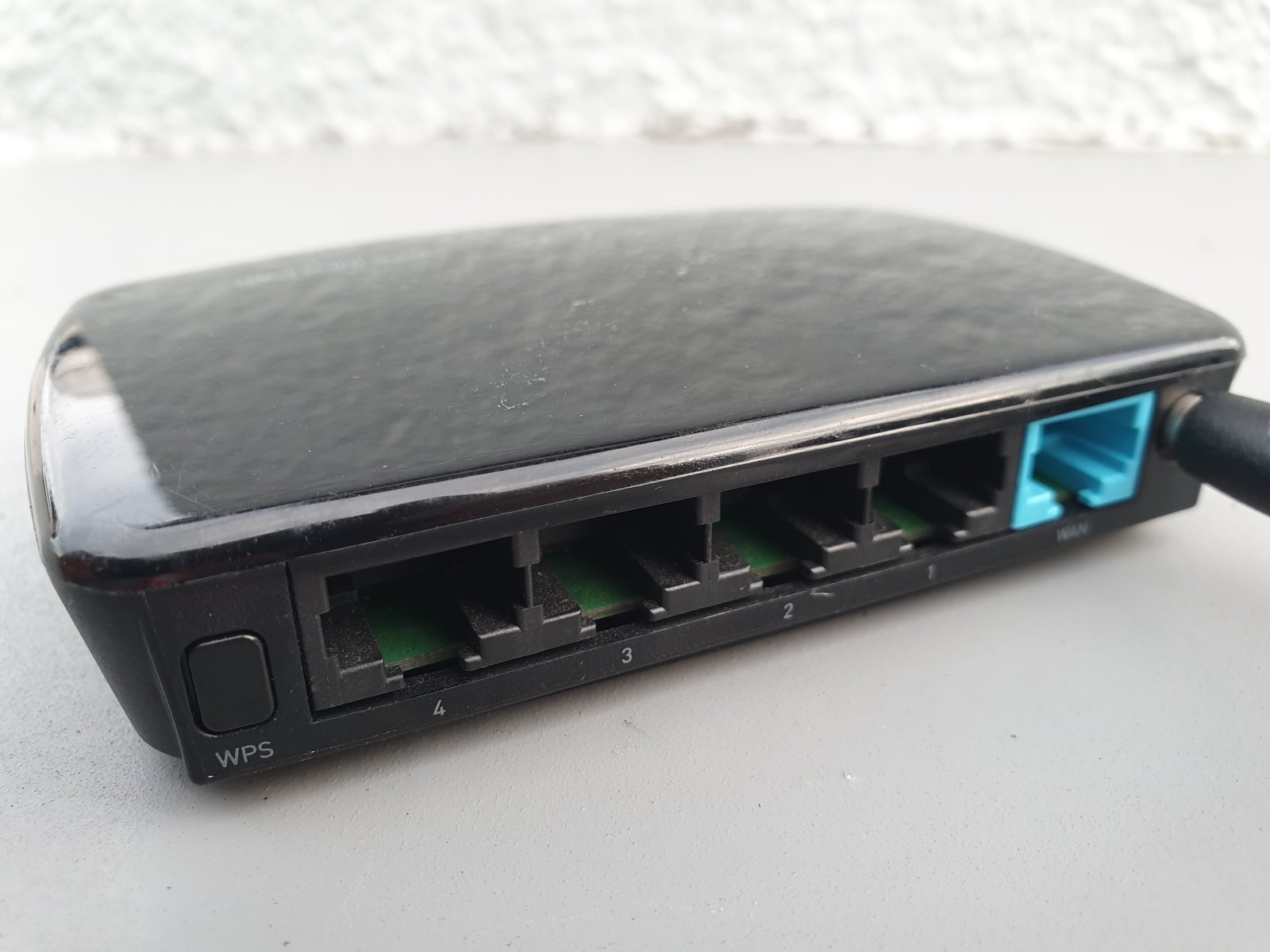
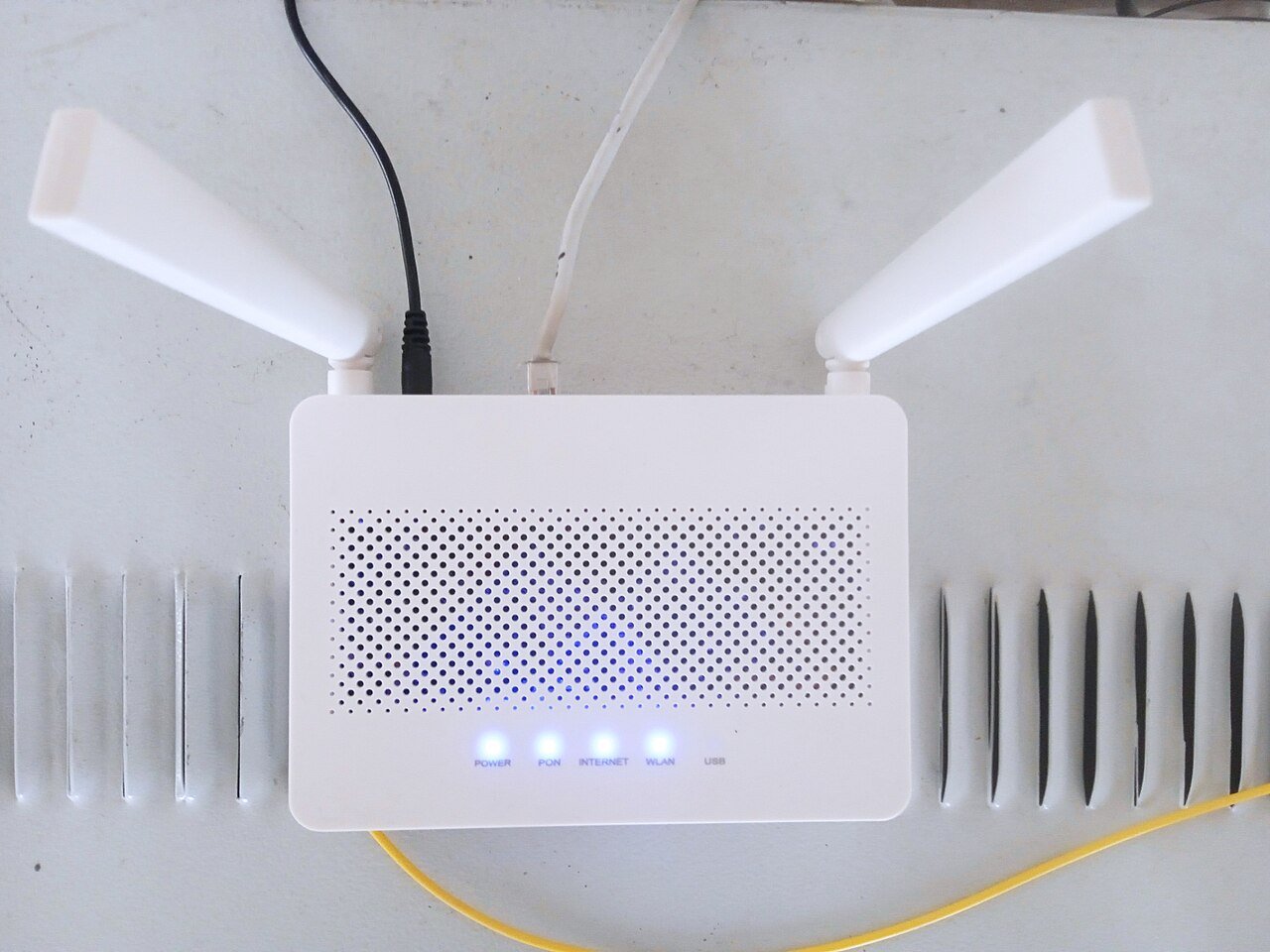
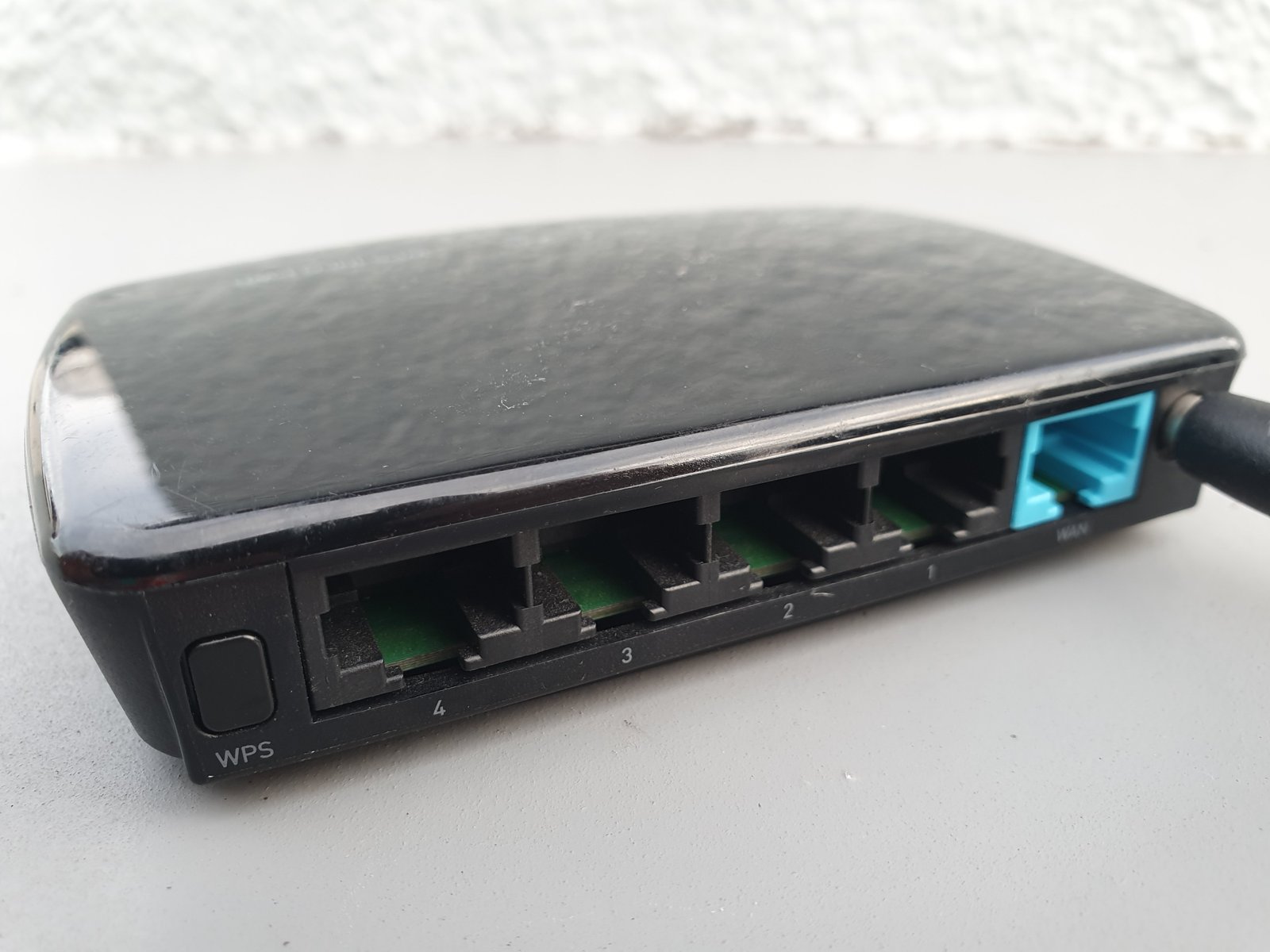
    Wireless network equipment representing travel connectivity and mobile data planning
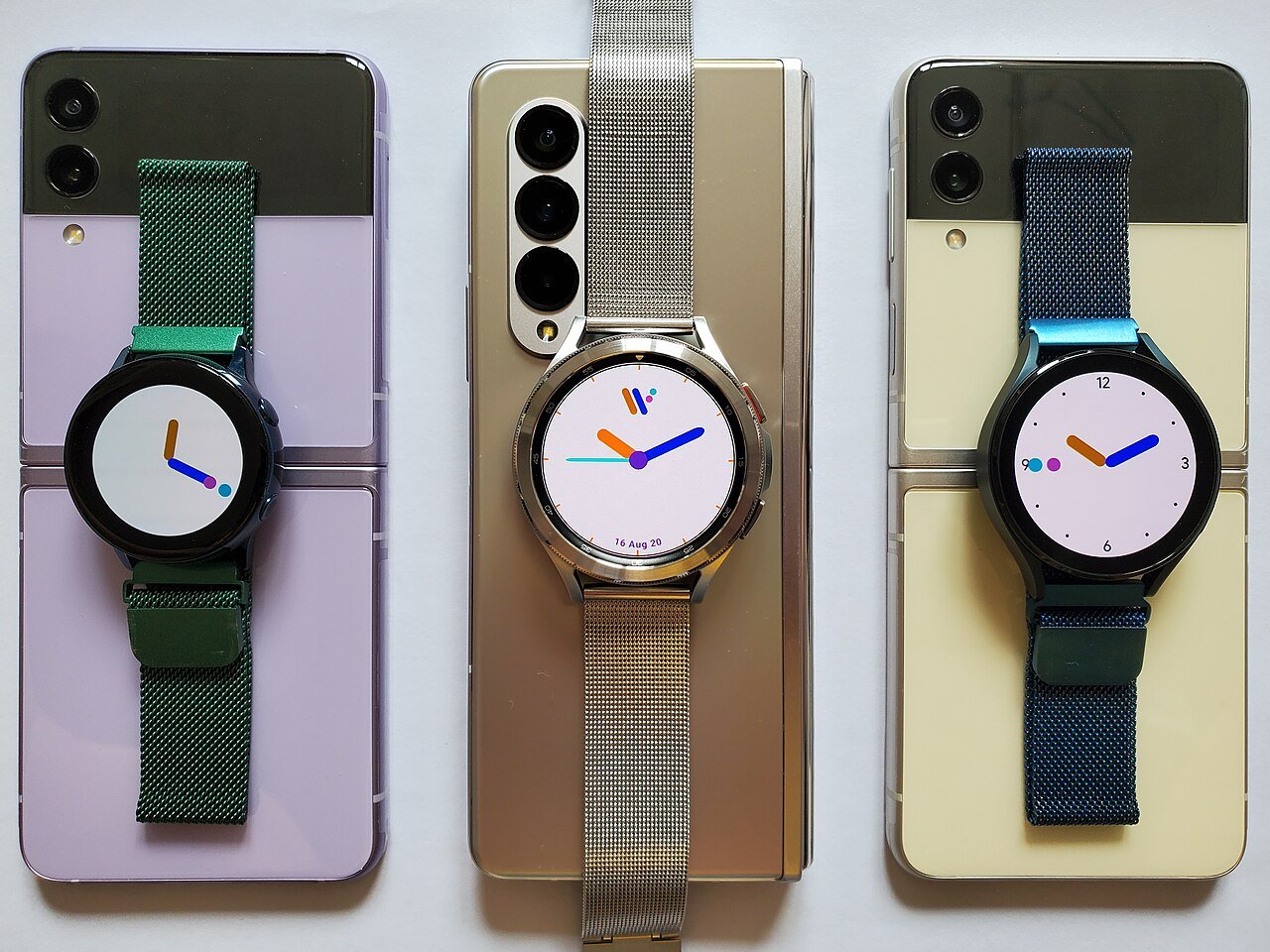
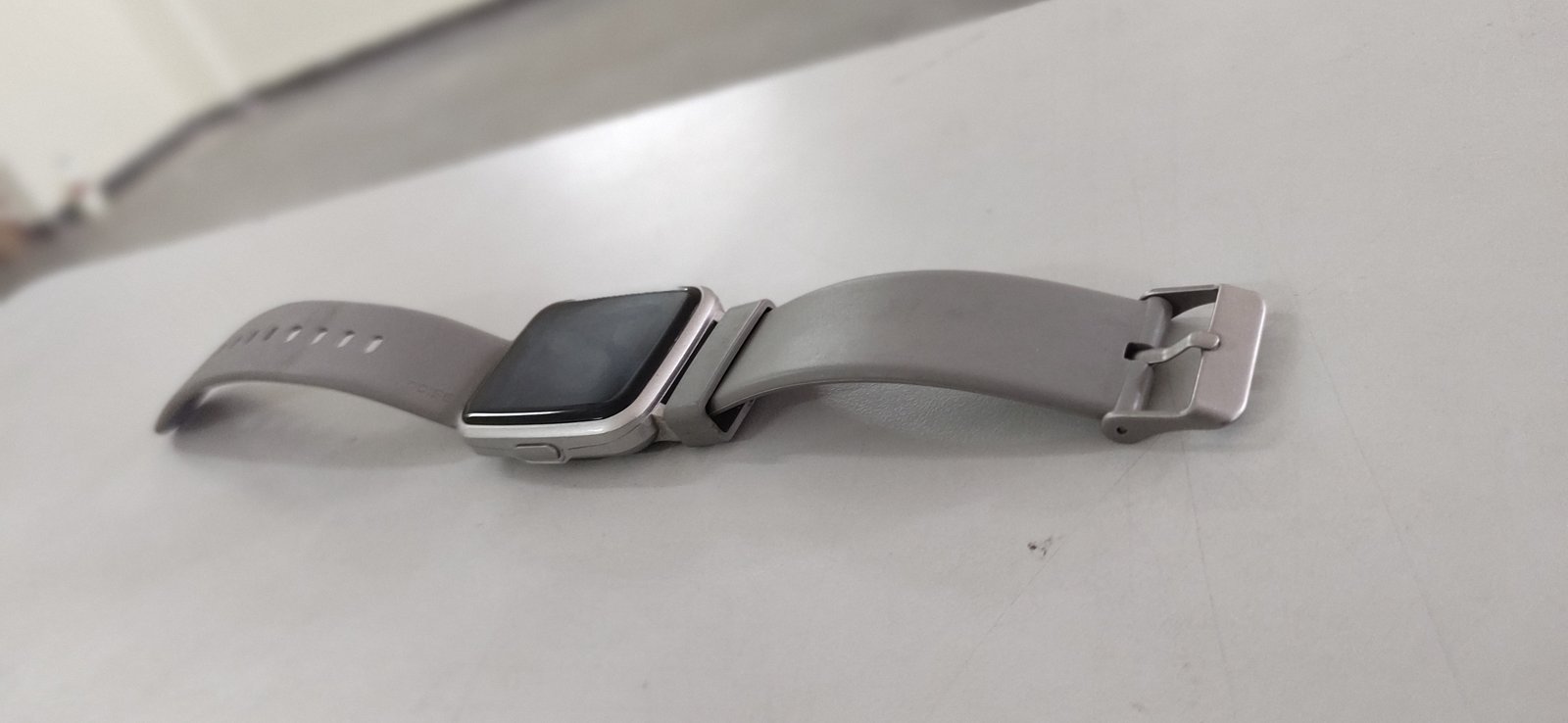
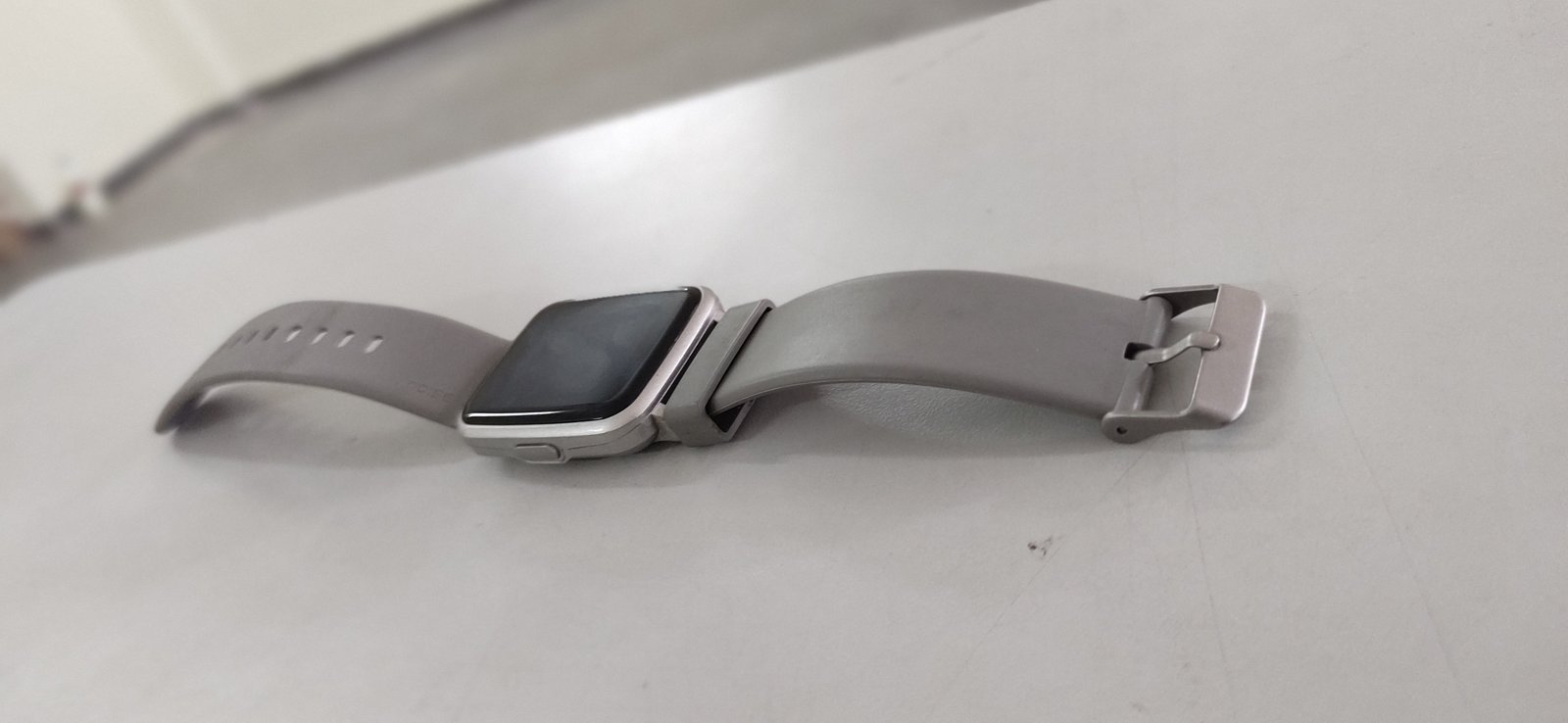
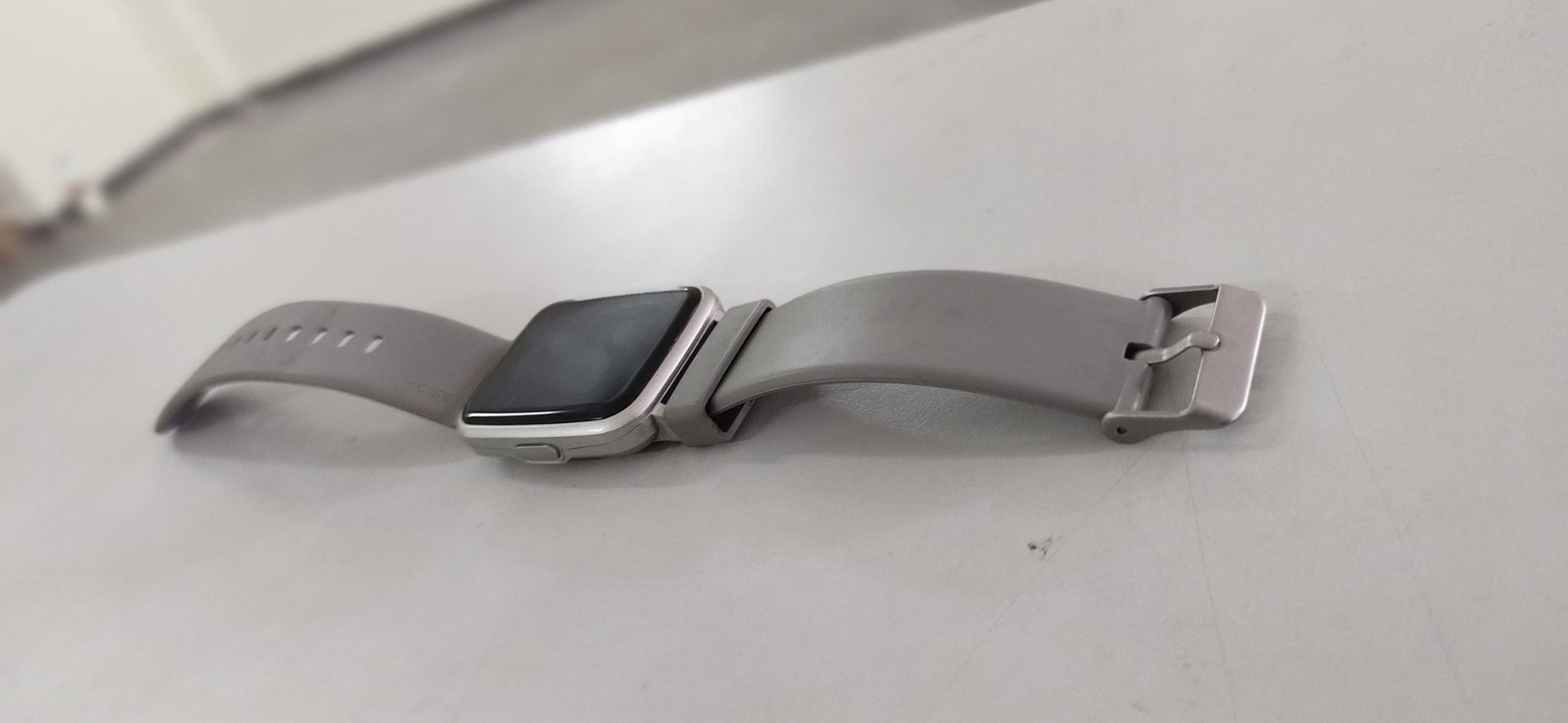
    Smartwatch included in a lightweight travel gadget setup
    Travel planning notes and laptop used to save offline documents and backups
  • Smartphone Camera File Formats Explained: JPEG, HEIF, HEIC, RAW, DNG, and ProRAW

    Smartphone Camera File Formats Explained: JPEG, HEIF, HEIC, RAW, DNG, and ProRAW

    Modern smartphones can save the same scene in very different file formats. One format may be small and easy to share. Another may preserve more editing information but use several times more storage. A third may look great on your phone but create compatibility problems when you send it to an older computer or website.

    Smartphone camera used to capture JPEG HEIF and RAW photo formats

    You do not need to become a photography expert to choose the right format. You only need to understand what each format is designed to preserve and what you plan to do with the photo afterward.

    This guide explains JPEG, HEIF, HEIC, RAW, DNG, and ProRAW in practical terms, with examples for everyday photos, editing, social media, printing, and long-term storage.

    Start with the job the photo needs to do

    Before changing camera settings, ask what happens after you take the picture. If you want to send family photos quickly, compatibility matters. If you want to edit a landscape heavily, RAW data can help. If you shoot hundreds of travel photos, storage efficiency becomes important.

    One format does not need to cover every situation

    You can use a normal efficient format for daily photos and switch to RAW only when a scene deserves more editing control.

    What JPEG is

    JPEG is one of the most widely supported photo formats. Phones, computers, browsers, printers, editing apps, websites, and messaging services can usually open it without trouble.

    JPEG uses lossy compression. It reduces file size by discarding some image information in a way designed to keep the photo looking good.

    JPEG is a strong default for compatibility

    If you regularly send files to different people, upload images to older software, or want the fewest surprises, JPEG remains practical.

    What “lossy” compression means

    Lossy compression permanently removes some detail to reduce file size. At a reasonable quality setting, the missing information may be difficult to notice.

    Problems become more visible after heavy compression or repeated saving.

    Avoid repeatedly re-saving JPEG files

    Each lossy export can reduce quality. Keep the original and create new copies for web or social use.

    What HEIF and HEIC are

    HEIF means High Efficiency Image File Format. HEIC is a common file extension used for images stored with HEIF-based technology, especially in Apple ecosystems.

    The format can achieve smaller file sizes than JPEG at similar visual quality and can support features such as image sequences or additional metadata.

    Efficiency is the main benefit

    If your phone takes thousands of photos, smaller files can save meaningful storage without making every image visibly worse.

    HEIC compatibility has improved

    Modern operating systems and many applications can open HEIC files, but compatibility is still not as universal as JPEG.

    Older Windows software, websites, printers, or third-party tools may reject the file.

    Test your real workflow

    Take a HEIC photo and try opening it on the computer, editing app, cloud service, website, and printer you normally use. If everything works, compatibility may not be a problem.

    Phones can convert automatically when sharing

    Some systems convert HEIC photos to JPEG when you send them to an incompatible destination.

    This improves convenience but can make file management confusing because the original and shared copy may use different formats.

    Check the camera compatibility setting

    On iPhone, Apple Support documents camera format settings such as High Efficiency and Most Compatible. Menu names can change across software versions.

    Android manufacturers also use different file-format options in their camera apps.

    What RAW means

    A RAW photo stores much more of the sensor data before the phone applies a final compressed look.

    RAW is designed for editing flexibility rather than easy sharing.

    RAW is not automatically a better-looking photo

    A RAW image can initially look flatter or less processed than the phone’s normal JPEG or HEIF. Its value appears when you adjust exposure, white balance, shadows, highlights, color, and noise in an editor.

    Why RAW files are larger

    They preserve more image information and use less aggressive processing or compression.

    A phone that can store many thousands of normal photos may fill quickly if every image is RAW.

    Use RAW selectively

    Turn it on for difficult lighting, important landscapes, architecture, product shots, or photos you know you will edit. Leave it off for receipts, casual snapshots, and quick social images unless you have a reason.

    What DNG is

    DNG, or Digital Negative, is a RAW file format developed by Adobe. Many Android camera apps and phones can save RAW captures as DNG.

    DNG files can be opened by many photo-editing applications.

    DNG does not mean every phone captures identical data

    The sensor, camera pipeline, lens, metadata, and manufacturer implementation still affect what is stored.

    What Apple ProRAW is

    Apple ProRAW combines RAW-style editing flexibility with parts of Apple’s computational photography pipeline on supported iPhone models.

    It can preserve more adjustment range while still benefiting from multi-frame processing.

    ProRAW files can be very large

    Use them for images where editing control matters, not automatically for every photo.
    Computational photography changes the RAW comparison

    Smartphones do not behave exactly like traditional cameras. A normal phone photo may combine several frames for noise reduction, HDR, sharpening, and motion handling.

    A basic RAW capture can preserve sensor information but may lose some of the polished multi-frame look of the standard camera mode.

    Compare the actual outputs

    Photograph the same scene in normal and RAW modes. Edit the RAW file and decide whether the extra flexibility produces a result you prefer.

    JPEG and HEIF often win for people photos

    Modern phone processing can handle skin tones, faces, HDR, and motion quickly. The normal processed format may look better immediately than an unedited RAW file.

    For family and event photos, speed and consistency can matter more than maximum editing latitude.

    RAW can help with difficult highlights

    A bright sky and dark foreground can challenge the camera. RAW may preserve more information that lets you recover highlight or shadow detail.

    It cannot recover areas where the sensor captured no usable information at all.

    RAW can help with white balance

    Indoor mixed lighting can create color casts. RAW gives more freedom to change white balance after capture.

    JPEG and HEIF can also be adjusted, but large corrections may degrade faster.

    Night photography is complicated

    Phone Night modes often combine many frames to produce a clean image. A single RAW frame may contain more noise.

    Some advanced RAW modes also use computational processing, so test the specific phone.

    Zoom can change file-format behavior

    When you use digital zoom, the phone may crop, merge, or process data differently. Some RAW modes are limited to specific physical cameras.

    Check whether RAW works on ultrawide, main, and telephoto lenses individually.

    Portrait mode may not produce normal RAW depth effects

    Portrait blur often depends on computational depth maps and image processing.

    A RAW file may not include the final portrait effect in the same way as the processed photo.
    Live Photos and motion features add complexity

    Some photo modes save a still image plus short motion or audio information. The container and sharing behavior can differ from a simple JPEG.

    Exporting a single frame may create a new file.

    Metadata matters

    Photos can include date, time, camera model, lens information, exposure settings, and location.

    RAW formats often contain detailed camera metadata useful during editing.

    Location metadata can be sensitive

    Before sharing a photo publicly, consider whether the location reveals your home, workplace, school, or another private place.

    Social platforms often recompress uploads

    Uploading a huge RAW file directly to a social platform rarely preserves all that information. The service may convert and compress the image.

    Edit the RAW file first, then export a high-quality JPEG or other supported web format.

    Websites prefer efficient delivery formats

    For a website article, uploading a 30 MB RAW file is unnecessary. Export the finished image at the actual display size.

    JPEG, WebP, or AVIF may be better for web delivery depending on your CMS and browser support.

    Keep RAW as the master file

    Store the original separately if you may re-edit it later.

    Printing benefits from a good master file

    A print lab usually wants a finished image in a supported color space and file type, not your unedited phone RAW file.

    Edit first and follow the lab’s upload requirements.

    Large prints reveal editing mistakes

    Noise, over-sharpening, halos, and missed focus become more visible in large prints. Review at full size before export.

    Storage planning becomes important with RAW

    If one RAW photo is many times larger than one HEIC photo, a holiday with 1,000 images can consume a large amount of space.

    Check free storage before a long trip or event.

    Do not fill the phone completely

    Operating systems and apps need working space. Leave enough free storage for updates, temporary files, and normal operation.

    Cloud photo libraries may count original file size

    Services such as iCloud, Google Photos, and other backup systems can store original files, but plan limits and settings vary.

    RAW libraries can increase monthly storage requirements.

    Check whether your cloud service preserves RAW originals

    Do not assume every sync or social backup stores the exact master file. Review upload quality and original-file settings.

    Back up important RAW files independently

    If you spend time editing important images, keep more than one copy.

    A practical setup can include the phone or computer working copy, an external backup, and an off-site or cloud copy.

    File names can become confusing

    Some camera modes save a processed JPEG or HEIF beside a RAW file with nearly the same name.

    Photo-management software can group these pairs or display them separately.

    Understand before deleting duplicates

    The two files may contain different image information. Do not delete the RAW copy because it looks like a duplicate until you know which file you want to keep.

    Editing apps handle formats differently

    Adobe Lightroom, Apple Photos, Google Photos, Snapseed, manufacturer gallery apps, and desktop editors have different RAW and HEIF support.

    Test the exact format before committing your entire library.

    Older computers may need codecs

    Windows versions and older applications may require additional support to open HEIC or some RAW formats.

    Use official extensions or reputable software rather than random format-converter downloads.

    Online converters create a privacy question

    Uploading a private photo to an unknown conversion website sends that image to a third party.

    For sensitive images, convert locally with trusted software.

    Conversion does not restore lost information

    Turning a JPEG into DNG does not recreate the original RAW sensor data. Changing the file extension is not the same as changing the underlying image information.

    Choose the normal format for family sharing

    If grandparents, schools, printers, and messaging apps need to open the file, JPEG is the safest compatibility choice.

    HEIC can still be efficient inside a modern ecosystem with automatic conversion when needed.

    Choose HEIF/HEIC for efficient everyday storage

    If all your devices support it and you take many photos, High Efficiency formats can reduce storage pressure.

    Keep a conversion option for older destinations.

    Choose RAW for serious editing

    Use RAW when exposure and color adjustments matter, when the scene is difficult, or when you want a stronger editing master.

    Expect larger files and extra workflow.

    Choose ProRAW or computational RAW when you want both

    On supported devices, these modes can combine more editing flexibility with smartphone processing.

    The storage cost is the main practical tradeoff.

    Do not confuse resolution with format

    A 48-megapixel photo can be JPEG, HEIF, RAW, or another format depending on the phone.

    Resolution describes pixel dimensions. File format describes how the image data is stored.

    Higher megapixels also increase storage

    A full-resolution image can be much larger than a binned 12-megapixel photo.

    Use maximum resolution when the extra detail helps cropping or printing.

    Check camera settings after software updates

    Major operating-system updates can add formats, change defaults, or reset camera preferences.

    Before an important event, confirm your preferred settings.

    Example: everyday family photos

    Use JPEG or HEIF/HEIC. Let the phone perform its normal processing. Keep location sharing under control. Back up automatically.

    Example: sunset landscape

    Capture both a normal processed photo and RAW if your phone allows it. Use RAW for highlight and color editing, but keep the normal image as a quick reference.

    Example: product photography

    Use RAW when you need careful white balance and controlled editing. Keep the product’s real color accurate. Export a compressed web image after editing.

    Example: travel

    Use HEIF or a normal efficient format for most shots. Switch to RAW for special scenes. Monitor storage and back up during the trip.

    A practical format checklist

    Check what formats your phone supports. Test compatibility with your computer and editor. Decide whether you need maximum sharing compatibility or storage efficiency. Use RAW selectively for important editing. Keep master files. Export separate web or social copies. Review location metadata. Back up originals. Monitor storage.

    Conclusion

    JPEG, HEIF, HEIC, RAW, DNG, and ProRAW exist because photographers need different balances of size, compatibility, processing, and editing flexibility. There is no single best format for every photo.

    For most daily photography, a phone’s normal JPEG or HEIF mode is fast, efficient, and polished. RAW becomes valuable when you need more control over exposure, color, and detail. Computational RAW modes can offer a useful middle ground at the cost of larger files.

    Choose the format based on what you will do after the shutter press. A good file workflow is not about saving the most data every time. It is about saving enough information for the result you actually need.

    Smartphone prepared for a long mobile photography session
    Laptop workflow used to organize and edit smartphone image files
    Computer used to check image format compatibility and photo software support
  • How to Buy a Refurbished Smartphone Safely: Battery Health, IMEI, Locks, Warranty, and Returns

    How to Buy a Refurbished Smartphone Safely: Battery Health, IMEI, Locks, Warranty, and Returns

    A refurbished smartphone can save a meaningful amount of money and keep a capable device in use for longer. It can also be a bad purchase if the battery is worn, the phone is still locked to another account, replacement parts are poor quality, or the seller’s “refurbished” label means little more than wiping the screen.

    Smartphone charging test used to check a refurbished phone battery and charging system
    Test charging before the return window closes. Use a known-good cable and charger, then check the port for a loose connection, unusual heat, or charging that stops when the phone moves. If the phone supports wireless charging, test that too. A device can look clean while still having a worn battery or damaged charging hardware. Compare battery health information with real use over a full day instead of trusting only one percentage shown by the operating system.

    The safest way to buy refurbished is to treat the purchase like a technical inspection rather than a bargain hunt. This guide explains what to check before ordering, what to test during the return window, and which warning signs should make you walk away.

    Understand what “refurbished” actually means

    Refurbished usually means a used device has been inspected, tested, cleaned, repaired if needed, reset, and resold. The exact process varies dramatically by seller.

    One company may replace a worn battery and damaged screen. Another may only verify that the phone turns on.

    Look for a written refurbishment standard

    A trustworthy seller should explain what is tested, which parts may be replaced, how cosmetic grades work, and what warranty is included.

    Refurbished is different from simply used

    A normal used phone may come directly from a previous owner with no professional inspection or warranty. That can be fine when the price is right, but the buyer takes more responsibility.

    A refurbished phone should offer a more structured process and some form of seller accountability.

    Start with the seller, not the phone

    The same model can be a safe purchase from one seller and a risky purchase from another.

    Check the company’s history, return policy, warranty, contact information, grading rules, and customer-service process.

    Prefer sellers that describe specific testing

    Useful checks include battery, cameras, microphones, speakers, buttons, charging, biometric sensors, display, cellular radio, Wi-Fi, Bluetooth, and account locks.

    Manufacturer refurbishment is usually the easiest benchmark

    When available, official refurbishment programs from companies such as Apple provide clear processes and warranty terms.

    Manufacturer-refurbished devices may cost more than marketplace options, but the standards and support are easier to verify.

    Carrier and large-retailer programs can also be useful

    Major carriers and established retailers may sell certified pre-owned or refurbished devices with defined testing and return policies.

    Read the exact terms because “certified” is not a universal technical standard.

    Marketplace sellers require more checking

    A large marketplace may host many independent refurbishers. The marketplace brand does not mean every seller follows the same quality level.

    Review the individual seller, not only the product listing.

    Check recent reviews for the exact refurbisher

    Look for patterns involving battery health, fake parts, activation problems, cosmetic grading, and return handling.

    Choose the right cosmetic grade

    Grades such as Excellent, Very Good, Good, Grade A, or Grade B are seller-defined.

    One seller’s “excellent” may allow small scratches while another’s may look nearly new.

    Read the grading description

    Do not pay extra for a grade name without knowing what defects are allowed.

    Cosmetic wear is less important than functional condition

    A small frame scratch may be harmless. A dim display, weak battery, loose charging port, damaged camera stabilization, or unreliable Face ID can affect daily use much more.

    Prioritize functionality over perfect appearance when value matters.

    Check the exact model number

    A phone name can include several regional variants. Different versions may support different cellular bands, SIM configurations, eSIM features, or warranties.

    Ask for the exact model number before buying when network compatibility matters.

    Imported phones can create support problems

    A phone built for another market may work on your network but lack certain bands, carrier features, or local service coverage.

    Verify network compatibility

    Check that the phone supports your carrier’s LTE and 5G bands and important features such as VoLTE or Wi-Fi calling where required.

    Use the carrier’s official compatibility checker when available.

    Check whether the phone is carrier locked

    A locked device may accept SIM cards only from one network until it meets the carrier’s unlocking requirements.

    “Unlocked” should be stated clearly in the listing if that is what you need.

    Test with your SIM or eSIM during the return window

    Do not assume activation is fine because Wi-Fi works.

    IMEI status matters

    The IMEI identifies the phone on cellular networks. A device reported lost, stolen, or tied to unresolved financing can be blocked.

    Use a carrier or reputable official checking process where available.

    Do not publish your IMEI publicly

    Share it only with trusted carrier or support channels when required.

    Activation locks must be removed

    Apple devices can remain tied to a previous owner’s Apple Account through Activation Lock. Android devices can have factory-reset protection or manufacturer account locks.

    A properly refurbished phone should arrive ready for a new owner to activate.

    Never pay for a phone that asks for the previous owner’s credentials

    Return it. Do not use bypass services or unofficial unlock tools.

    Battery health is one of the biggest value factors

    Lithium-ion batteries lose capacity over time. A three-year-old phone with its original battery may have much less runtime than when new.

    Ask the seller whether it guarantees a minimum battery health or replaces batteries below a threshold.

    Check battery health after arrival

    On iPhone, review the Battery Health section where supported. Android battery diagnostics vary by manufacturer. You can also observe real runtime and unexpected shutdowns.

    A replaced battery can be good

    A properly installed high-quality replacement can make an older phone much more useful.

    The important questions are who installed it, whether the part is genuine or reputable, and whether battery-health features work normally.

    Beware of very cheap unknown batteries

    Poor battery cells can have inaccurate capacity claims, rapid degradation, swelling, or thermal risk.

    If the seller cannot explain its parts policy, consider another source.

    Screen replacement quality matters

    A replacement display may look fine at first but have lower brightness, poor color, weak touch response, missing high-refresh support, or unreliable fingerprint sensing.

    Check whether the seller uses original, manufacturer-authorized, or aftermarket screens.

    Test brightness outdoors

    A low-quality display may be difficult to see in sunlight even if it looks normal indoors.

    Check touch response across the entire panel

    Open a drawing or notes app and drag your finger across every part of the screen.

    Look for dead zones, ghost touches, and inconsistent response near the edges.

    Inspect for burn-in

    OLED screens can develop persistent image retention after long use.

    Display solid gray, white, red, green, and blue backgrounds and look for faint navigation bars, keyboards, or icons.

    Test biometric authentication

    Face recognition and fingerprint sensors can be affected by poor repairs.

    Set up your own biometric profile and test it repeatedly.

    Missing biometric functions are a major warning sign

    Do not accept “Face ID doesn’t work but everything else is fine” unless you knowingly bought a damaged phone at a price that reflects it.

    Test every camera

    Switch between main, ultrawide, telephoto, selfie, and macro cameras if present.

    Take photos and video in bright and low light. Check autofocus, stabilization, lens haze, scratches, and unusual vibration.

    Listen for camera rattling only in context

    Some optical stabilization modules can make a small sound when the phone is moved. Violent shaking or blurry focus is different.

    Test microphones and speakers

    Record a voice memo, make a call, use speakerphone, and play music.

    Check earpiece volume, bottom speakers, microphones, and noise during recording.

    Check the charging port

    Insert a known-good cable. It should fit securely without disconnecting when moved gently.

    Wireless charging should also be tested if the phone supports it.

    Lint can imitate a damaged port

    A seller should clean ports, but do not dig into a connector with metal tools yourself.

    Test buttons and vibration

    Power, volume, mute switches, action buttons, and haptic feedback should work consistently.

    Sticky or unusually loose buttons can indicate impact or poor repair.

    Check proximity and ambient-light sensors

    During a call, the screen should turn off when held to your ear. Automatic brightness should respond to different lighting.

    Sensor problems can be caused by badly fitted replacement screens.

    Check Wi-Fi and Bluetooth

    Connect to your normal Wi-Fi network and pair headphones or another Bluetooth accessory.

    Weak range can indicate antenna damage.

    Test GPS outdoors

    Open a trusted map app and check whether location locks quickly and follows movement accurately.

    GPS problems can be easy to miss during an indoor inspection.

    Check NFC and payments if important

    If you depend on contactless payment or NFC tags, confirm the hardware works before the return period ends.

    Payment setup may require normal security verification.

    Water resistance is difficult to guarantee after repair

    Opening a phone can affect adhesive seals. Even a professionally resealed device may not have the same real-world resistance as a new factory-sealed unit.

    Do not deliberately submerge a refurbished phone to test it.

    Treat water resistance as reduced confidence

    Use normal care around pools, rain, and bathrooms even if the original model carried an IP rating.

    Inspect the frame for signs of heavy impact

    Dents near corners, gaps between frame and screen, bent chassis sections, and uneven back panels can indicate a serious drop.

    Cosmetic scratches are different from structural deformation.

    Check for battery swelling

    A raised screen, separated back panel, or unusual gap can indicate a swollen battery.

    Stop using the phone and return it or seek qualified service. Do not press the panel back into place.

    Check storage capacity

    Make sure the settings show the storage size you paid for.

    A listing mistake between 128 GB and 256 GB is easy to catch on day one.

    Verify RAM only when variants differ

    Some Android models have the same name with different RAM configurations. Check the exact variant if multitasking performance matters.

    Run all software updates

    Install current official updates after setup. This confirms the phone can still communicate with the manufacturer’s update system.

    A device on an unsupported operating-system version may have limited remaining life.

    Check remaining software-support years before buying

    An older flagship can be fast but close to the end of security support.

    Compare the purchase price with how many useful supported years remain.

    A newer mid-range phone may be a better long-term value

    Do not choose an old flagship only because its original launch price was high.

    Factory-reset the phone yourself after inspection

    Even if the refurbisher says the phone was wiped, perform a proper reset and set it up with your own account.

    This gives you a clean starting point.

    Do not restore every old app immediately

    Test the phone in a clean state first. That makes it easier to separate hardware problems from issues caused by old apps or settings.

    Check accessories in the box

    A refurbished phone may not include the original charger, cable, box, or SIM tool.

    Read the listing and budget for a safe charger and cable if needed.

    A generic charger can be fine if it is standards-compliant

    You do not need original packaging for a good experience, but electrical accessories should be reputable and compatible.

    Warranty length tells you something about seller confidence

    A longer warranty is useful, but read what it covers.

    Battery degradation, accidental damage, water, cosmetic defects, and third-party repair may have exclusions.

    Return policy can be more important than warranty

    A 14- or 30-day return window lets you discover problems that are hard to test in five minutes.

    Check whether return shipping or restocking fees apply.

    Test hard during the return window

    Use the phone as your main device for several days. Calls, camera, GPS, charging, sleep, work apps, gaming, and travel can reveal different issues.

    Document the condition when it arrives

    Take photos or video while opening the package, especially for expensive devices.

    This can help if the seller disputes an existing crack or dent.

    Keep the packaging until you decide

    Do not throw away seller labels, accessories, or return materials on the first day.

    Watch for fake “new” condition

    A phone described as new should not have a used battery, replacement screen, or previous activation without clear disclosure.

    If the listing language is misleading, return it.

    Check whether replacement parts trigger warnings

    Some phones display service history or messages when the battery, screen, or camera has been replaced.

    A warning does not always mean the phone is unsafe, but it tells you to investigate the repair.

    Ask for repair history when buying locally

    A private seller may know whether the phone was dropped, opened, or repaired.

    Use the answer as one piece of evidence, not the only evidence.

    Meet local sellers safely

    Use a public place with reliable connectivity. Do not carry unnecessary cash. Test account locks and cellular activation before completing the sale.

    Do not send deposits to unknown private sellers

    Scammers may copy legitimate phone photos and request a holding payment.

    Use a platform with buyer protection or an in-person process you can verify.

    Compare the refurbished price with a new mid-range phone

    A discounted old flagship may compete with a new mid-range device that includes a fresh battery, longer warranty, and more years of updates.

    Compare the complete ownership value.

    Calculate likely battery replacement cost

    If the refurbisher guarantees only 80 percent battery health, include the possibility of service during your ownership period.

    Consider trade-in value

    A well-known flagship may retain more trade-in value than a budget phone, but condition matters.

    Do not overpay today based on an uncertain future resale price.

    Be cautious with financing

    A second-hand phone linked to unpaid financing can create problems in some markets.

    Buy from sellers that guarantee a clear device status.

    Check dual-SIM and eSIM features

    If you travel or use two numbers, verify the exact SIM configuration for the regional model.

    Physical SIM slots and eSIM support can differ between countries.

    Check repair availability in your location

    A rare imported phone may be difficult to repair even if its purchase price is attractive.

    Search for battery and screen availability before buying.

    A one-hour arrival test

    Inspect the frame and display. Check model and storage. Set up your account. Test battery health. Test cameras, speakers, microphones, buttons, charging, Wi-Fi, Bluetooth, GPS, biometric unlock, and cellular service. Check for software updates and activation locks.

    A three-day real-life test

    Use normal apps, take photos, make calls, navigate, stream video, charge overnight, and observe battery drain and heat.

    Write down unexpected behavior while the return option is still open.

    A practical refurbished-phone checklist

    Choose a reputable seller. Read the refurbishment standard. Confirm exact model and network support. Verify unlocked status and IMEI. Ensure previous-account locks are removed. Check battery-health guarantee. Review screen and parts policy. Read warranty and return terms. Inspect and test every major hardware function. Update software. Calculate remaining support years and total cost.

    Conclusion

    A refurbished phone can be an excellent value when the seller is trustworthy and the device passes a real inspection. The biggest risks are not cosmetic scratches. They are account locks, bad batteries, poor replacement parts, unsupported regional models, hidden structural damage, and weak return protection.

    Start with the seller. Verify the exact model and network status. Test the battery, display, cameras, radios, sensors, charging, and biometric features during the return window. Check how many years of software support remain.

    If the phone passes those checks, a refurbished flagship can deliver years of useful service for much less than its original price. If the seller makes basic facts difficult to verify, the discount is not worth the uncertainty.

    Wearable device used to test Bluetooth pairing with a refurbished smartphone
    Check the radios and accessories you actually use. Pair Bluetooth earbuds or a wearable, join both 2.4 GHz and 5 GHz Wi-Fi if available, test NFC or contactless features, and confirm cellular service on your carrier. A refurbished phone may pass a basic screen test but still have a weak antenna, damaged Bluetooth behavior, or a previous repair that affects sensors. Run these checks while the seller’s return period is still active.
    Checklist used to record refurbished phone condition warranty and test results
    Keep a short inspection record when the phone arrives. Note the IMEI or serial number, advertised grade, battery condition, storage capacity, cosmetic damage, included accessories, and warranty terms. Photograph the device before heavy use. If you need to return it, this record helps show the condition in which it arrived. Also confirm that the seller’s invoice matches the device you received and that the return process does not require removing important evidence.
    Computer used to verify a refurbished phone seller warranty and device status
    Before buying, verify the seller as carefully as the phone. Read the warranty terms, return window, battery standard, grading policy, and whether parts may be aftermarket. Check that the device is not activation-locked and that its IMEI or serial status can be verified through the appropriate official service. A slightly higher price from a seller with clear testing and a real warranty can be a better value than the cheapest listing with vague condition claims.
  • Smart Rings vs Smartwatches: Which Wearable Fits Your Sleep, Fitness, Battery, and Privacy Needs?

    Smart Rings vs Smartwatches: Which Wearable Fits Your Sleep, Fitness, Battery, and Privacy Needs?

    Smart rings and smartwatches can both track health and activity, but they feel very different in daily life. A watch puts a screen, notifications, apps, maps, timers, and workout controls on your wrist. A smart ring is smaller, quieter, and often built around passive tracking rather than constant interaction.

    Smartwatch used for sleep, fitness, notifications, and health tracking

    Neither format is automatically better. The right choice depends on whether you want a tiny sensor you can mostly forget about or a wearable computer that can replace some phone tasks. This guide compares the two formats from the perspective of real use: sleep, exercise, battery life, comfort, accuracy, subscriptions, durability, and privacy.

    Start with the main job you want the wearable to do

    Write down the three things you want most. Common goals include sleep tracking, step counts, running, gym workouts, recovery, heart-rate trends, notifications, contactless payments, navigation, timers, or reducing phone use.

    If your list is mostly passive health tracking, a ring deserves serious consideration. If your list includes interaction and live workout controls, a watch is usually stronger.

    Do not buy based on the longest feature list

    A device with fifty features you ignore is less useful than one that does five important things comfortably.

    Smart rings are designed to disappear into your routine

    A ring has no large display competing for attention. You wear it, sync it, and review the information later in an app.

    This can be attractive for people who want health trends without another screen.

    Quiet tracking is the main experience

    A ring will not normally replace a phone or smartwatch for messages, maps, music controls, or calls. Its strength is collecting data with minimal interaction.

    Smartwatches are interactive devices

    A smartwatch can show notifications, start timers, display navigation, control music, take calls on some models, run apps, and provide live workout data.

    Products from Apple Watch, Samsung, Garmin, and other manufacturers differ widely in focus.

    The screen is both a benefit and a distraction

    If you are trying to look at your phone less, a watch can help by handling small tasks. It can also create a new stream of wrist notifications if you enable everything.

    Sleep comfort favors smaller devices for many people

    A ring can be easier to wear overnight because it is smaller and has no bright screen. Some users dislike the feeling of any ring in bed, while others forget it is there.

    A watch can feel bulky under blankets or against a pillow, especially with a large case or stiff band.

    Try the device before committing

    Comfort is personal. A narrow lightweight watch may bother you less than a thick ring, and finger swelling can change ring comfort overnight.

    Ring sizing is more important than normal jewelry sizing

    Smart rings contain sensors that need good skin contact. Manufacturers often provide a sizing kit because the fit may differ from ordinary jewelry.

    Your finger size also changes with temperature, exercise, hydration, and time of day.

    Wear the sizing sample for several days

    Test sleeping, washing hands, typing, exercising, and normal daily activities before ordering the final ring.

    Watches are easier to adjust

    A watch strap can usually be tightened or loosened quickly. You can also change bands for sports, work, or sleep.

    This flexibility can improve sensor contact during workouts.

    Passive heart-rate tracking works well on both formats

    Both rings and watches can use optical sensors to estimate heart rate and related trends. Accuracy varies by device, fit, movement, skin contact, and activity.

    Resting measurements are generally easier than fast-changing exercise data.

    Do not treat consumer wearables as medical diagnosis tools

    Some devices have regulated health features in supported countries, but a wearable should not replace professional medical evaluation when you have symptoms or health concerns.

    Exercise tracking usually favors watches

    A smartwatch can display live pace, distance, heart rate, zones, interval timers, lap data, and navigation while you move.

    A ring may record activity, but the lack of a screen makes live coaching and workout control more limited.

    Serious runners often benefit from physical controls

    Touchscreens can be difficult in rain or with gloves. Sports watches with buttons can be easier during training.

    Strength training can be uncomfortable with a ring

    Gripping barbells, dumbbells, kettlebells, or pull-up bars can press a ring into the finger and scratch the device.

    Many users remove rings during heavy lifting.

    A watch can also get in the way

    Wrist wraps, gloves, and certain movements can interfere with a watch. The difference is that removing and reattaching a watch is often simpler than keeping track of a tiny ring in a gym.

    Swimming requires model-specific checking

    Water resistance ratings vary. Check the manufacturer rating and whether pool or open-water workouts are officially supported.

    Water resistance can also change with age and damage.

    Step counting can differ between devices

    A ring on the hand and a watch on the wrist interpret movement differently. Pushing a stroller, carrying a bag, typing, or cooking can affect motion-based estimates.

    Use step counts as trends rather than assuming every device produces identical numbers.

    Sleep staging is an estimate

    Wearables infer sleep phases from motion, heart rate, temperature, and other signals. They are not the same as a clinical sleep study.

    The most useful information is often consistency: bedtime, total sleep duration, wake periods, resting heart-rate trends, and how your behavior changes over weeks.

    Do not chase a perfect sleep score

    If a score makes you anxious despite feeling rested, use the data less often. A wearable should support better habits, not create a new source of stress.

    Recovery scores simplify multiple signals

    Some devices combine sleep, heart-rate variability, resting heart rate, temperature, activity, and recent load into a readiness or recovery score.

    The score is a model, not a direct measurement of whether you should train.

    Use your own condition as an input

    Illness, soreness, stress, travel, and motivation matter too. Treat recovery scores as context, not commands.

    Battery life often favors rings

    Without a large display, rings can often run for several days between charges. Exact runtime depends on model, battery age, enabled features, and sensor use.

    Many full-featured smartwatches need more frequent charging, although endurance-focused watches can last much longer.

    Battery routine affects data completeness

    A device that is always on the charger while you sleep cannot record sleep. Choose a charging routine that fits your priorities.

    Charging a ring is easy to forget

    Because you may not interact with it often, a ring can reach low battery without attracting attention.

    Set a reminder or charge during showers, desk work, or another repeatable activity.

    Watch charging can become part of a routine

    Short charging sessions during breakfast or a shower can keep many watches running without losing overnight data.

    Faster charging can matter more than total battery capacity if your schedule is predictable.

    Notifications strongly favor watches

    A watch can display caller names, messages, calendar alerts, navigation turns, and app notifications.

    A ring generally cannot show text without a display.

    Disable low-value alerts

    If you choose a watch, turn off shopping promotions, social noise, and other alerts that do not deserve a wrist vibration.

    Payments are more common on watches

    Many smartwatches support contactless payment through platform services. Support depends on country, bank, and model.

    Payment features are much less common on health-focused rings.

    Navigation favors a display

    Walking directions and turn prompts are useful on a smartwatch when you do not want to hold a phone.

    A ring cannot give the same visual map experience.

    Music control favors a watch

    A watch can pause music, change tracks, adjust volume, or control earbuds during exercise.

    Some watches can store offline music or stream directly with cellular connectivity.

    Cellular watches can reduce phone dependence

    Selected smartwatch models can use cellular service for calls, messaging, music, and emergency features without the phone nearby.

    This usually requires carrier support and an additional plan.

    Battery use increases

    Standalone cellular use can drain a watch faster than normal Bluetooth operation.

    Rings are more discreet at work

    A ring can collect data without lighting up during meetings or appearing like another screen.

    For people who prefer traditional watches, a smart ring lets them keep their normal watch while adding health tracking.

    Watches offer more accessibility features

    A screen, speaker, microphone, vibration motor, and apps can support timers, medication reminders, fall detection, communication, and other accessibility functions depending on the model.

    Check individual features and regional availability.

    Durability depends on how you use your hands

    Rings touch door handles, gym equipment, tools, desks, and metal objects throughout the day. Cosmetic scratches are likely on some finishes.

    Watches are exposed to impacts on the wrist but can use replaceable cases or protectors.

    Do not expect jewelry to stay perfect

    If cosmetic condition matters, review long-term user photos rather than only polished product images.

    Repairability is limited on tiny wearables

    Smart rings are tightly sealed devices with very small batteries. Repair options can be limited.

    Smartwatches are also compact, but some manufacturers offer battery or screen service.

    Battery aging matters over several years

    All rechargeable batteries lose capacity. A wearable with modest battery life when new can become inconvenient later.

    Check warranty and service options.

    Subscriptions can change total cost

    Some wearable platforms require a membership for advanced trends, recommendations, or historical analysis. Others include most features with the hardware purchase.

    Calculate the cost over two or three years.

    A cheap device can become expensive with a monthly fee

    Compare total ownership cost, not only the purchase price.

    Phone compatibility matters

    Some watches work only with one phone ecosystem. Others support Android and iPhone with different feature sets.

    Rings may also require specific app versions or operating systems.

    Check the exact feature set

    A wearable may pair with your phone but lose advanced features such as replies, payments, ECG, or device-finding.

    Data export matters if you care about long-term records

    Before committing to a platform, check whether you can export health data or sync it with Apple Health, Health Connect, Strava, or another service you use.

    Easy export reduces platform lock-in.

    Privacy deserves careful review

    Wearables can collect sleep schedules, heart rate, location, exercise, temperature trends, and other sensitive information.

    Review account security, data sharing, advertising settings, research participation, retention, and third-party integrations.

    Disable connections you do not use

    A fitness app connected years ago does not need permanent access if you stopped using it.

    Protect the account with strong authentication

    Use a unique password or passkey and multi-factor authentication where available.

    A lost wearable should not become easy access to your broader account ecosystem.

    Location tracking is not necessary for every feature

    GPS improves route and distance tracking, but continuous location creates more sensitive data.

    Use permission controls and understand which workouts require location.

    Consider whether you need both

    Some people wear a sports watch for workouts and a ring for sleep or recovery. This can provide flexibility but also duplicates cost and data.

    Before buying two devices, identify what the first one fails to do.

    More sensors do not automatically create better decisions

    If two dashboards give different recovery scores, you may end up with more confusion rather than more insight.

    Who should choose a smart ring

    A ring is a strong fit for someone who values sleep tracking, long battery life, minimal distraction, compact size, and passive health trends.

    It can also suit someone who wants to keep wearing a traditional watch.

    Who should choose a smartwatch

    A watch is better for live workouts, notifications, navigation, payments, apps, music controls, calls, and quick interaction.

    It is closer to a small computer on the wrist.

    Who may need a sports watch instead

    Serious endurance athletes may prefer a GPS-focused sports watch with long battery life, physical buttons, route navigation, training load, and specialized sensors.

    That category overlaps with smartwatches but has different priorities.

    Try a simple two-week experiment

    During the return period, wear the device during sleep, work, exercise, travel, and normal weekends.

    Track which features you actually use and which notifications or scores you ignore.

    Judge behavior change

    The best wearable is one that helps you make useful decisions, not merely one that records the most data.

    A practical wearable checklist

    Define your top three goals. Decide whether you need a screen. Test sleep comfort. Check workout controls. Compare real battery life. Review phone compatibility. Calculate subscription cost. Check water resistance and durability. Review export options. Read privacy settings. Protect the account. Use the return window to test your real routine.

    Conclusion

    Smart rings and smartwatches collect some of the same health signals, but the products serve different daily experiences. Rings are quiet, compact, and well suited to passive tracking. Watches are interactive and stronger for exercise feedback, notifications, navigation, payments, and phone-like tasks.

    Choose based on the behavior you want, not the newest sensor. If sleep and recovery trends matter more than screen features, a ring can be comfortable and simple. If you want live workout data and useful wrist interactions, a smartwatch offers much more.

    Whichever format you choose, remember that wearable metrics are estimates. Use them to notice patterns and support healthy habits, not as a substitute for medical care or your own judgment.

    Smartphone used to review wearable health and fitness data
    Charging setup illustrating battery routines for wearable devices
    Notes used to compare smart ring and smartwatch priorities
  • USB-C Charger Buying Guide: USB PD, PPS, Watts, Cables, and Safe Charging for Phones and Laptops

    USB-C Charger Buying Guide: USB PD, PPS, Watts, Cables, and Safe Charging for Phones and Laptops

    USB-C makes charging look simple because many phones, tablets, laptops, earbuds, cameras, and power banks now use the same connector. The connector is the easy part. The power standards behind it are where confusion begins.

    Smartphone charging setup used to compare USB-C charging choices

    Two chargers can have the same USB-C port and deliver very different power. A 20-watt phone charger may be perfect for a smartphone but painfully slow for a laptop. A 100-watt adapter may still charge a phone safely because the device negotiates the power it needs. A cable can also become the limiting part of the system.

    This guide explains how to choose a USB-C charger without relying on marketing claims alone.

    USB-C describes the connector, not the power

    USB-C is the physical reversible connector. It does not automatically mean fast charging, high-speed data, video output, or laptop-level power.

    The actual charging behavior depends on the charger, cable, and device.

    Do not judge by the port shape

    A cheap USB-C adapter may deliver only basic power while another similarly sized adapter supports high-wattage USB Power Delivery.

    What USB Power Delivery means

    USB Power Delivery, often called USB PD, is a standard that lets compatible devices and chargers negotiate voltage and current.

    Instead of forcing one fixed output, the charger and device agree on a supported power level.

    Negotiation is why a high-wattage charger can be safe for a phone

    A reputable 100-watt USB PD charger does not normally push 100 watts into a phone. The phone requests a power profile it supports.

    What PPS means

    Programmable Power Supply, or PPS, is an optional part of USB PD that allows the charger to adjust voltage in smaller steps.

    Some smartphones use PPS for their fastest supported charging modes and better power management.

    Check phone-specific requirements

    Some Samsung and other Android devices may need a PPS-capable adapter and suitable cable for their highest advertised USB-C charging speed.

    Start with the device’s required wattage

    Find the official charging specification for the device. A phone may peak around a modest wattage while a thin laptop may expect 45, 65, 90, or more watts.

    Use manufacturer documentation as the reference.

    Higher wattage does not always mean faster charging

    If a phone accepts 27 watts, connecting it to a 140-watt charger will not necessarily make it charge faster than a good 30-watt compatible charger.

    Laptops need more attention

    A laptop can sometimes run on a lower-power charger but still discharge slowly while under heavy load.

    If the original adapter is 65 watts, a 30-watt charger may be useful for light emergency charging but not for demanding work.

    Match or exceed the recommended USB-C power

    Using a reputable charger with equal or higher available wattage is usually the most flexible choice, provided the laptop supports USB-C PD charging.

    Not every USB-C laptop can charge through every USB-C port

    A laptop may have several USB-C ports but support charging on only specific ones.

    Look for charging symbols or check the manual.

    Cables have power ratings too

    A high-power charger is only part of the chain. The cable must safely carry the required current and support the needed standard.

    For higher-power USB PD modes, an electronically marked cable may be required.

    Do not use an unknown thin cable for a high-power laptop

    Use a cable from a reputable manufacturer with a clear wattage or current rating.

    A cable rated for data is not automatically ideal for charging

    USB-C cables can emphasize different features. Some are designed for high-speed data, some for charging, and some support both.

    Read the specification instead of assuming every USB-C cable is equivalent.

    Charging-only cables can be useful but limited

    A cable that carries power but little or no data can reduce cost for simple charging. It will not be useful when you need file transfer, a monitor, or a docking station.

    Understand 3-amp and 5-amp cables

    Higher-power USB-C charging can require a cable that supports up to 5 amps. Lower-power cables may be limited.

    Modern compliant cables identify their capabilities electronically where required.

    Multi-port chargers share power

    A charger advertised as 100 watts may provide 100 watts only when one specific port is used alone. When you connect a laptop and phone together, the power may split.

    Read the port allocation table.

    Example

    A 100-watt charger might provide 100 watts from port one alone, but 65 watts to the laptop and 30 watts to the phone when two devices are connected. Another design may allocate power differently.

    Port order can matter

    On many multi-port chargers, the first USB-C port supports the highest output. Secondary ports may have lower limits.

    Put the laptop on the highest-power port.

    Plugging in another device may interrupt charging briefly

    Some chargers renegotiate power when a new device is connected. A laptop may show a brief charging disconnect.

    This is normal on many multi-port designs but can be annoying for sensitive accessories.

    GaN chargers can be smaller

    Gallium nitride power electronics allow many modern chargers to deliver high output in a compact package.

    “GaN” describes a technology used in the charger, not a guarantee of quality.

    Do not buy only because GaN is printed on the box

    Safety design, thermal management, certification, component quality, and power negotiation still matter.

    Compact chargers can run warm

    High-power adapters convert significant energy in a small space. Warmth is expected.

    A charger that becomes extremely hot, smells unusual, buzzes loudly, or repeatedly stops should be disconnected and inspected.

    Fast charging can create phone heat

    Charging speed is managed by the device. The phone may reduce power when the battery is hot, nearly full, or under heavy use.

    A cooler phone may charge faster than one running navigation or gaming.

    Charging while gaming is harder on temperature

    Gaming produces processor heat while charging produces battery and power-conversion heat.

    If the phone becomes very hot, reduce load or pause fast charging.

    Use the right wall plug for travel

    Many modern USB-C chargers accept a wide input range such as 100–240 volts, but verify the label.

    You may need only a plug adapter when traveling internationally, not a voltage converter.

    Check the input specification

    Never assume universal voltage from the USB-C connector alone.

    Travel adapters and chargers are different

    A universal travel adapter changes the physical plug format. Some models also include USB charging electronics.

    Check whether its USB-C ports provide enough PD power for your devices.

    Do not overload low-quality travel adapters

    High-power hair dryers, heaters, and kettles are very different loads from phone chargers. Follow the travel adapter’s maximum AC rating.

    Power strips need safety certification too

    A good USB-C charger connected through a poor power strip still creates risk.

    Use reputable electrical accessories that meet local standards.

    A charger can be too weak without being dangerous

    A compliant low-power charger may simply charge slowly. A laptop may display “slow charger” or “not charging” under load.

    The solution is more available power, not a special software setting.

    Check charger protocols for non-USB-PD fast charging

    Some phone brands use proprietary charging methods for their highest speeds.

    A generic PD charger may still charge the phone safely but not at the maximum proprietary rate.

    Decide whether maximum speed matters

    If normal PD charging fills the phone comfortably overnight, you may prefer one universal charger over a brand-specific fast charger.

    One charger can replace several adapters

    A 65- to 100-watt multi-port USB-C PD charger can often cover a laptop, phone, earbuds, and power bank for travel.

    Calculate the simultaneous power you need.

    Travel example

    If your laptop needs 65 watts and your phone charges well at 25 watts, a charger capable of around 100 watts with a 65+30 split can reduce luggage.

    Desk charging benefits from spare capacity

    A charger with more total output than your current devices need can handle future accessories and simultaneous charging.

    Do not overspend on extreme wattage if you never use it.

    Charging a power bank requires input support

    A 100-watt power bank may output 100 watts but accept much less when recharging itself.

    Check both input and output specifications.

    Pass-through charging varies

    Some power banks and hubs can charge themselves while powering another device. Others cannot or reduce output heavily.

    Use only supported configurations.

    USB-C hubs can change power delivery

    A dock may reserve some incoming power for itself and connected accessories.

    If a 65-watt charger feeds a hub, the laptop may receive less than 65 watts.

    Use a larger adapter for a power-hungry dock

    Check the dock’s recommended input and downstream laptop power.

    Monitor USB-C charging can simplify a desk

    Some monitors provide video, USB data, and laptop power through one cable.

    Verify the monitor’s USB-C power output. A 45-watt monitor may be enough for an ultrabook but not a high-performance laptop.

    Thunderbolt does not automatically define charging wattage

    A Thunderbolt-capable USB-C cable may support high-speed data and display functions, but check its specific power rating for charging.

    Standards overlap but are not identical.

    Apple, Android, and Windows devices can share many chargers

    Modern USB PD allows a good charger to work across ecosystems.

    For exact fast-charging behavior, check documentation from Apple, your Android phone maker, and your laptop manufacturer.

    Do not buy counterfeit branded chargers

    A fake charger may copy the logo and housing of a trusted product without matching its safety design.

    Buy from the manufacturer, authorized sellers, or reputable retailers.

    Look for clear specifications

    A trustworthy charger should list input voltage, output profiles, maximum current, total wattage, and manufacturer information.

    Be cautious when the product page uses only vague claims such as “super fast” without electrical details.

    Check local safety marks

    Electrical certification systems differ by country. Look for legitimate compliance markings relevant to your region.

    A printed logo alone is not absolute proof, but missing basic safety information is a warning sign.

    Do not use damaged cables

    Replace cables with exposed wires, loose connectors, melted plastic, bent contacts, or repeated charging interruptions.

    A cable is a consumable accessory, not something to keep forever after visible damage.

    Keep USB-C ports clean

    Pocket lint can prevent the connector from seating properly. Do not dig into a port with metal objects.

    If cleaning is needed, power down the device and follow manufacturer guidance.

    Loose ports can imitate charger problems

    If several known-good cables disconnect when moved, the device port may need service.

    Do not keep forcing a damaged connector.

    Charge limits can protect long-term battery health

    Some laptops and phones let you stop routine charging around 80 percent. This can reduce time spent at a high state of charge when the device remains plugged in for long periods.

    Use full charge when you need the runtime.

    Overnight charging is managed by modern devices

    Reputable phones and laptops stop or reduce charging as the battery fills. Optimized charging can delay the final portion based on your routine.

    The bigger practical issue is heat, not the clock time alone.

    Do not put chargers under blankets

    Adapters need airflow. Avoid covering them with bedding, clothing, or thick cushions while delivering high power.

    Check warranty before using unusual accessories

    Using a standards-compliant charger is normally expected, but damage from unsafe accessories may not be covered.

    Follow device guidance for charging specifications.

    A phone-only buying example

    If your phone supports around 25 to 30 watts through USB PD or PPS, a reputable 30- or 45-watt charger can be enough. Choose a compatible cable and keep the adapter for several phone generations.

    A laptop-and-phone example

    If your laptop needs 65 watts and your phone needs 25 watts, choose a multi-port charger that can deliver those levels simultaneously, not merely a “100W” charger whose two-port split falls to 45+30.

    A creator travel example

    A photographer may need a laptop, camera, phone, and power bank. A 100- to 140-watt multi-port charger can reduce the number of adapters, but the total port allocation and cable ratings become important.

    A practical USB-C charger checklist

    Check each device’s official charging wattage. Confirm USB PD and PPS needs. Choose enough total power for simultaneous devices. Read the per-port allocation table. Use correctly rated USB-C cables. Verify input voltage for travel. Buy from a reputable source. Look for local safety compliance. Avoid damaged cables and adapters. Manage heat. Test the charger with your real devices before the return period ends.

    Conclusion

    Choosing a USB-C charger becomes much easier when you stop treating USB-C as one universal charging speed. The connector is shared, but power depends on USB PD profiles, PPS support, the device’s own limits, the cable, and multi-port allocation.

    Start with the highest-power device you need to charge. Add the simultaneous power required for other devices. Choose a reputable adapter with clear specifications and cables rated for the job.

    A good USB-C setup can replace several chargers and last across multiple devices. The goal is not the largest wattage printed on a box. It is reliable, standards-based power that matches the equipment you actually use.

    Modern smartphone that can charge through a USB-C power adapter
    Wearable device charged alongside phones and laptops with modern adapters
    Device service illustrating the importance of safe charging hardware and cables
  • Qi2 and Magnetic Wireless Charging: Compatibility, Heat, Cases, Stands, and Safe Everyday Use

    Qi2 and Magnetic Wireless Charging: Compatibility, Heat, Cases, Stands, and Safe Everyday Use

    Magnetic wireless charging is becoming easier to use because newer standards improve how a phone aligns with the charging coil. Qi2 builds on the familiar Qi wireless-charging idea while adding a magnetic alignment system for compatible devices and accessories.

    Smartphone aligned on a wireless charging pad for Qi2-style charging

    The benefit is simple: better alignment can make charging more consistent and can support useful magnetic stands, mounts, wallets, and power banks. But a magnetic ring does not guarantee maximum speed, low heat, or compatibility with every phone and case.

    This guide explains what to check before buying Qi2 accessories and how to use magnetic wireless charging without wasting money on the wrong charger.

    What Qi2 is

    Qi2 is a wireless-charging standard from the Wireless Power Consortium. It is designed to improve interoperability and alignment between compatible devices and chargers.

    One important part of the standard is the Magnetic Power Profile, which uses magnets to align the phone with the charging coil.

    Alignment is a practical improvement

    Traditional flat Qi pads can charge slowly or stop if the phone is placed slightly off-center. A magnetic system helps place the coils in the correct position every time.

    Qi2 is not the same as “any magnetic charger”

    Many accessories use magnets without being certified for the Qi2 standard. A magnetic mount may hold the phone but provide only basic Qi charging or no charging at all.

    Look for clear Qi2 certification or compatibility information rather than relying on the presence of a magnetic ring.

    Certification matters

    A certified product has been tested against the relevant standard. That does not guarantee perfect quality, but it is more useful than an unverified “Qi2-style” description.

    Check whether your phone supports Qi2 directly

    Some phones include the required magnetic alignment system. Others may support wireless charging but need a compatible magnetic case to attach securely to a Qi2 charger.

    Read the phone manufacturer’s support documentation for the exact model.

    Do not assume all phones in a series are identical

    Regional models, budget versions, and older generations may have different charging hardware.

    A magnetic case can change compatibility

    Cases with a properly positioned magnetic ring can make a non-magnetic phone work better with magnetic accessories if the phone already supports compatible wireless charging.

    The ring must align with the phone’s charging coil.

    Cheap cases can place the ring incorrectly

    Poor alignment can reduce speed, increase heat, or cause charging to start and stop. Choose a case designed for the exact phone model.

    Case thickness affects charging

    Wireless power must cross the gap between charger and phone. Very thick cases, rugged layers, metal plates, pop grips, and certain wallets can interfere.

    A normal thin compatible case is usually easier.

    Remove metal objects

    Do not place loose metal between the phone and charger. Coins, keys, magnetic plates, and some card holders can heat up or prevent charging.

    Magnetic wallets should usually be removed while charging

    A wallet sitting between the phone and charging surface can increase distance and may contain cards or materials that should not be heated.

    Detach the wallet before charging unless the manufacturer explicitly designs the combination for simultaneous use.

    Charging speed depends on more than the charger label

    The phone, wireless charger, power adapter, cable, temperature, battery state, and software all affect real charging speed.

    A stand advertised with a high wattage cannot force a phone to accept more wireless power than the phone supports.

    Check the full power chain

    A 15-watt wireless charger connected to a weak USB adapter may charge below its rated speed. Use the power adapter and cable specification recommended by the charger maker.

    USB Power Delivery often matters behind the charger

    Many modern wireless chargers use a USB-C input and expect a power adapter that supports USB Power Delivery.

    Check the charger’s input requirements, not only its output claim.

    Heat is normal within limits

    Wireless charging is less efficient than a direct cable because energy crosses an air gap and some becomes heat. A phone and charger can feel warm during use.

    Warm is different from unusually hot. If the phone repeatedly becomes very hot, charging may slow to protect the battery.

    Alignment can reduce unnecessary heat

    Better coil alignment helps efficiency. This is one practical reason magnetic charging can be more consistent than placing a phone loosely on a pad.

    Avoid charging in hot environments

    Do not place the phone on a wireless charger in direct summer sun, inside a hot car, or under thick bedding.

    Heat from the environment plus heat from charging can raise battery temperature more than necessary.

    Do not cover the charger vents

    Some fast wireless stands include fans or ventilation. Keep those openings clear.

    Dust buildup can also reduce cooling over time.

    Charging slows near a full battery

    Phones manage charging speed to control heat and battery stress. Wireless charging may be fastest at lower states of charge and slower near full.

    Do not judge a charger only by how quickly it moves from 90 to 100 percent.

    Optimized charging can pause the final part

    Many phones learn your routine or provide a charge limit. They may hold the battery below full and complete charging later.

    This is a battery-management feature, not necessarily a charger problem.

    Magnetic stands are useful at a desk

    A stand can keep the phone visible for notifications, timers, calls, music, or a standby display while charging.

    Choose an angle that remains stable when tapping the screen.

    Check portrait and landscape rotation

    If you watch video or use a desk clock, a stand that rotates smoothly can be more useful than a fixed mount.

    Bedside charging needs a stable base

    A lightweight stand can move when you pull the phone away. Look for a weighted base, strong adhesive, or a secure design.

    Also consider fan noise if the charger has active cooling.

    Magnetic car mounts solve alignment problems

    A magnetic charging mount can hold a phone and keep the coil aligned while driving.

    Installation matters. A vent mount may be unstable on weak vents. A dashboard mount may be more secure but can expose the phone to sunlight.

    Keep the phone out of direct heat

    Navigation already uses GPS, screen brightness, and mobile data. Adding wireless charging in a hot car can create significant heat. Use air conditioning and reduce screen brightness when practical.

    Magnetic battery packs are convenient

    A magnetic power bank attaches directly to the phone without a cable. It is useful for travel, queues, events, and light top-ups.

    Wireless transfer wastes more energy than a cable, so the usable charge delivered to the phone may be lower than the power bank’s battery capacity suggests.

    Use a cable when efficiency matters

    If you need maximum runtime from a power bank during a long trip, wired charging usually gives you more usable energy.

    Power-bank heat deserves attention

    A battery pack creates its own heat while charging the phone. Keeping two batteries pressed together can feel warm.

    Remove the pack if the combination becomes unusually hot.

    Wireless charging is not automatically better for battery health

    Battery aging depends on temperature, charge level, time, and usage. Wireless charging can be perfectly practical, but extra heat is worth managing.

    Use the method that fits your routine and keeps the device at a reasonable temperature.

    Wired charging is still faster on many phones

    Many smartphones support higher power through USB-C than through wireless charging.

    If you have fifteen minutes before leaving, a cable may add more charge than a wireless pad.

    Use wireless for convenience, wired for speed

    A common routine is wireless charging at a desk or bedside and wired fast charging when time is limited.

    Wireless charging reduces port wear

    If you charge several times a day, using a magnetic charger means fewer physical cable insertions.

    This can be useful on a phone whose charging port also handles data and accessories.

    But you still need the USB port

    Data transfer, wired Android Auto or CarPlay, recovery, external storage, microphones, and some accessories still rely on the physical port.

    Keep it clean and protected from debris.

    Do not use damaged chargers

    Stop using a wireless charger with a damaged cable, cracked housing, exposed wire, burnt smell, or unstable connection.

    Choose products from reputable manufacturers and retailers.

    Check electrical certification

    A safe wireless charger still depends on a safe wall adapter. Use adapters that meet the electrical standards required in your country.

    Unknown ultra-cheap adapters can create more risk than the charging pad itself.

    Do not stack multiple chargers

    Place the phone directly on the intended charging surface. Do not put one wireless battery pack on another wireless charger unless the product explicitly supports pass-through behavior.

    Watch for foreign-object detection

    Certified wireless systems can detect certain metal objects and stop power transfer, but users should still keep keys, coins, and other metal away from the charging surface.

    Magnetic accessories can affect cards

    Modern payment cards are generally resilient to normal magnetic accessories, but hotel keys, older magnetic-stripe cards, and specialized cards can be affected by magnets.

    Follow the card issuer’s guidance and avoid storing vulnerable cards directly against strong magnets.

    Medical-device users should follow official advice

    Magnets and wireless chargers can interfere with some implanted medical devices if placed too close.

    People with pacemakers or other implanted electronics should follow guidance from their medical-device manufacturer and healthcare professional. Phone makers also publish separation recommendations.

    Check phone-camera clearance

    Large camera bumps can stop some flat magnetic accessories from sitting flush.

    Verify compatibility with the exact phone and case, especially for compact battery packs and wallets.

    Choose a charger for the place you use it

    A bedside charger benefits from quiet operation and a dim status light. A desk charger benefits from an adjustable angle. A travel charger should fold flat and use a common USB-C adapter.

    The best design depends on the location, not only maximum wattage.

    Travel chargers can reduce cable clutter

    Multi-device magnetic chargers can charge a phone, watch, and earbuds from one power adapter.

    Check total output. Some travel stations reduce phone charging speed when all devices are connected.

    Verify smartwatch compatibility separately

    Many watches use proprietary magnetic charging even when the phone uses Qi2. One magnetic puck does not automatically charge every watch.

    Read the exact accessory specification.

    Earbuds may use standard Qi charging

    Wireless-charging earbud cases can often charge on a flat Qi or compatible multi-device pad. Magnetic alignment depends on the case design.

    Clean both surfaces

    Dust and grit trapped between phone and charger can scratch the case or back glass.

    Wipe the charging surface occasionally with a dry soft cloth.

    Remove thick attachments

    Phone grips, metal kickstands, ring holders, and decorative plates can interfere with charging even if the case itself is compatible.

    Choose accessories designed to sit outside the magnetic charging area.

    Do not expect magnets to make a weak charger fast

    Magnets solve alignment. They do not replace a good power adapter, efficient electronics, thermal management, or phone support.

    Check firmware updates for advanced chargers

    Some premium charging accessories can receive firmware updates through an app or USB connection. Updates may improve compatibility or charging behavior.

    Use official software only.

    Example: desk setup

    Use a stable Qi2 stand connected to the recommended USB-C PD adapter. Keep the phone in a thin compatible case. Position the stand away from direct sunlight. Use the phone normally and let optimized charging manage the battery.

    Example: travel setup

    Pack a compact magnetic charger, a USB-C PD wall adapter, one high-quality cable, and a power bank. Use wired charging when you need maximum speed or efficiency and magnetic charging when convenience matters.

    Example: car setup

    Mount the charger where it does not block your view. Connect it to an adapter with enough output. Keep the phone cool with cabin airflow. If navigation and wireless charging cause excessive heat, switch to a cable.

    A practical Qi2 buying checklist

    Confirm phone compatibility. Check whether a magnetic case is required. Look for Qi2 certification. Verify charging wattage supported by your phone. Check required adapter power. Choose a case with correct ring alignment. Consider stand stability and cooling. Remove wallets and metal objects during charging. Buy from a reputable brand. Test charging before the return window ends.

    Conclusion

    Qi2 and magnetic wireless charging make wireless power more convenient by improving alignment and creating a common foundation for magnetic accessories. The biggest everyday benefit is consistency: the phone is easier to place correctly on a stand, mount, or power bank.

    Wireless charging still has tradeoffs. It can create more heat and waste more energy than a cable, and real speed depends on the phone, charger, adapter, case, and temperature.

    Use magnetic charging where convenience matters. Use wired charging when you need maximum speed or battery-pack efficiency. Check certification and compatibility, manage heat, and choose accessories for the situation in which you will actually use them.

    Wearable device showing another everyday wireless charging use case
    Modern smartphone used with magnetic charging accessories
    Phone service illustrating why charging heat and hardware condition matter
  • Satellite Connectivity on Smartphones: Emergency SOS, Messaging, Coverage, and Real Limits

    Satellite Connectivity on Smartphones: Emergency SOS, Messaging, Coverage, and Real Limits

    Smartphones are beginning to connect directly to satellites for tasks that used to require a dedicated satellite phone or emergency beacon. The feature is useful, but the name can create unrealistic expectations. A phone with satellite connectivity does not automatically become a normal high-speed satellite phone that works everywhere with every app.

    Smartphone used in a remote area where satellite connectivity can provide backup communication

    Most current phone-based satellite services focus on emergency communication, limited messaging, location sharing, or narrow data functions when cellular and Wi-Fi networks are unavailable. This guide explains how the technology works, when it can help, what conditions it needs, and what travelers should do before relying on it.

    Why smartphone satellite features exist

    Cellular networks depend on nearby towers. Remote roads, mountains, deserts, oceans, and disaster areas may have no usable signal. Satellite connectivity gives a phone another path for limited communication when terrestrial networks are missing.

    The strongest use case is not replacing normal mobile service. It is giving people a way to request help or send a basic message when no conventional connection exists.

    Think of it as a backup layer

    For most users, satellite service should sit behind cellular and Wi-Fi rather than replacing them. When regular networks are available, they are faster and more practical.

    Emergency SOS is different from normal messaging

    Some phone systems allow a user to contact emergency services through a satellite workflow. The phone may ask a series of questions, compress the answers, and transmit a small data packet through a satellite connection.

    This is different from opening a normal messaging app and having a full conversation.

    Follow the phone’s guided prompts

    Emergency satellite systems often guide you to point the phone toward a part of the sky and keep the device oriented while a message is sent. Read your manufacturer’s instructions before a trip.

    Satellite messaging is expanding

    Some newer devices and networks support non-emergency text messaging over satellite in selected countries and plans. Availability depends on the phone model, carrier, satellite partner, software version, and region.

    Do not assume that because one phone in a product family supports satellite messaging, every version sold worldwide does.

    Check the exact combination

    Verify the exact phone model, carrier, country, and subscription using official documentation from your manufacturer and mobile network.

    Why the connection can feel slow

    A satellite is much farther away than a cell tower. Phones also have small antennas and limited transmit power. The system is designed to send compact information rather than large streams of data.

    A message may take longer to send than a normal SMS, especially when satellite visibility is poor.

    Patience is part of the workflow

    Do not repeatedly cancel and restart a transmission because it is not instant. Follow the device guidance and allow the connection to complete.

    Clear sky visibility matters

    Satellite phone features work best when the device has a broad, unobstructed view of the sky. Buildings, dense trees, cliffs, deep valleys, tunnels, and indoor spaces can block or weaken the signal.

    Move to an open area when it is safe to do so.

    A window may not be enough

    Satellite communication often needs more sky than ordinary GPS reception. If the phone cannot connect indoors, step outside or move away from large obstructions if conditions allow.

    Your body can affect the signal

    The phone may ask you to hold it in a particular orientation. Do not cover the antenna area unnecessarily or place the device deep inside a bag while trying to transmit.

    Use the onscreen direction indicator if the system provides one.

    Weather can affect real-world performance

    Many satellite systems are designed to work in a range of weather, but heavy precipitation, dense obstruction, and environmental conditions can affect link quality.

    Do not treat satellite service as a guaranteed connection under every circumstance.

    Coverage is not the same as the whole planet

    A satellite network may have broad technical coverage while the consumer service is enabled only in certain countries. Emergency integration can also depend on local authorities and relay centers.

    Before international travel, check supported regions.

    Regulations can differ

    Some countries restrict satellite communication equipment or services. Review destination rules if you plan to depend on satellite features in remote travel.

    Not every satellite feature works while roaming

    A phone bought in one country may support the hardware but lose certain satellite services when used elsewhere. Carrier-based services may also have roaming limitations.

    Read the service terms before leaving home.

    Satellite service may require activation

    Some features work automatically when needed. Others require account setup, a carrier plan, an operating-system update, or accepted terms.

    Do the setup before you enter an area without coverage.

    Run the demo if your phone offers one

    Manufacturers may include a satellite connection demonstration that lets you practice without contacting emergency services. Use it while you still have normal connectivity.

    Keep emergency information updated

    If your phone can share medical ID, emergency contacts, or location details during an SOS, review that information before travel.

    Outdated emergency contacts reduce the value of the system.

    Location sharing can be useful

    Some systems allow a person to share their location through satellite when normal networks are unavailable. This can help family or trip partners understand your position.

    Do not confuse location sharing with active emergency rescue. A shared location only helps if the intended person receives and acts on it.

    Satellite features do not replace a trip plan

    If you are hiking, boating, driving through remote regions, or traveling off-grid, tell someone your route and expected return time.

    Technology can fail, batteries can die, and devices can be lost.

    Use multiple layers of safety

    A route plan, offline maps, weather awareness, appropriate supplies, and a communication device work together. Do not let one phone feature create false confidence.

    Dedicated emergency beacons still have a role

    For serious backcountry travel, a dedicated personal locator beacon or satellite messenger may provide stronger antennas, longer battery life, rugged design, two-way tracking, or emergency services built specifically for remote use.

    A smartphone satellite feature is convenient because you already carry the phone. Dedicated hardware may be better when communication is mission-critical.

    Match the device to the risk

    A short drive through a rural area is different from a multi-day expedition with no cellular coverage.

    Battery life matters more off-grid

    Searching for weak cellular signals and using satellite communication can consume battery. Cold weather can also reduce usable battery capacity.

    Start remote travel with a full charge and carry an appropriate power bank.

    Use Airplane Mode carefully

    Airplane Mode can reduce unnecessary radio use, but exact satellite behavior varies by device. Follow manufacturer instructions instead of assuming every radio mode works the same way.

    Keep the phone warm in cold environments

    Very low temperatures can reduce battery performance. Keep the phone in an inside pocket when not in use, but move it to an open position when attempting satellite communication.

    Download offline maps

    Satellite messaging does not mean full map tiles will stream instantly. Download maps, trail data, tickets, and important documents before leaving coverage.

    Apps such as Google Maps and other navigation tools provide offline features in many regions.

    Carry a backup navigation method

    For serious outdoor travel, a paper map, dedicated GPS unit, or known route can still be useful if the phone is damaged.

    Do not expect normal voice calls unless explicitly supported

    Many direct-to-phone satellite services begin with text or narrow data because voice requires more continuous bandwidth and reliable connection.

    Read the exact service description. “Satellite connectivity” can describe very different capabilities.

    Do not expect normal internet browsing

    A system built for emergency packets or text messages may not support browsing, video, app downloads, or social media.

    Even when satellite data expands, performance may remain different from terrestrial 4G or 5G.

    Carrier satellite services are different from manufacturer services

    Some phone makers build satellite features into their devices and account systems. Mobile carriers may also partner with satellite providers to extend messaging or coverage.

    The user experience, pricing, supported phones, and regions can differ.

    Use official sources

    Check your phone manufacturer and carrier directly. Apple, Android device makers, and mobile networks publish current compatibility details.

    Cost can change over time

    A feature may be included free for a limited period, bundled with a premium plan, or charged separately later.

    Do not assume a service remains free because it was included at launch.

    Emergency use may be treated differently from casual use

    In some systems, emergency messaging can remain available under conditions where general satellite messaging requires a subscription. The exact policy varies.

    Review pricing and emergency terms before relying on them.

    Privacy deserves attention

    Emergency services may need your location, account information, and the details you provide about the incident. That sharing can be necessary to coordinate help.

    For normal satellite messaging, review how the provider handles message data, location, retention, and account information.

    Use the feature for its intended purpose

    Do not send unnecessary sensitive information in a satellite message when a short description is enough.

    Know what happens after an SOS is sent

    Sending the first message may be only the beginning. The system may ask follow-up questions, tell you to remain available, or connect you to an emergency relay center.

    Stay with the device and conserve battery unless safety requires you to move.

    Give clear, concise information

    In an emergency, include the type of incident, number of people affected, immediate hazards, your condition, and whether you can move safely.

    Short factual information is easier to transmit and act on than a long story.

    Do not trigger emergency features for testing

    Use an official demo mode if one is provided. Do not contact emergency services simply to see whether the satellite connection works.

    False emergency calls can waste resources and may have legal consequences.

    Check software updates before travel

    Satellite features may depend on current operating-system components, carrier settings, and regional support files.

    Update the phone through official channels several days before a major trip so you have time to identify any problems.

    Test your power equipment

    A power bank that has been sitting in a drawer for a year may no longer hold the expected charge. Recharge it and test your cable.

    Bring a cable that fits both the phone and the battery pack.

    Use a protective case that does not interfere

    Most normal cases should not block satellite service, but unusually thick metal accessories or attachments can affect radio performance.

    If the phone repeatedly fails to connect, remove questionable accessories and follow device guidance.

    Prepare for a roadside scenario

    Imagine your car breaks down on a remote road without cellular coverage. First move to a safe location. Check whether normal emergency calling works. If not, use the phone’s satellite workflow if supported.

    Share your location and the nature of the problem. Preserve battery while waiting.

    Roadside assistance is not always emergency service

    Some systems integrate roadside help separately from emergency SOS. Check whether your region and plan support it.

    Prepare for a hiking scenario

    Before leaving, download the route, tell someone your expected return time, charge the phone, and test the satellite demo.

    If someone is injured and normal networks are unavailable, move to open sky when safe, start the emergency workflow, answer questions accurately, and follow instructions.

    Prepare for a disaster scenario

    A storm, earthquake, or fire can damage cellular infrastructure even in a city. Satellite communication can become useful outside traditional wilderness situations.

    Keep the phone charged and know the emergency feature before a crisis.

    What to check before buying a phone for satellite features

    Verify the exact model, supported countries, carrier requirements, emergency functions, normal messaging functions, subscription price, trial period, operating-system requirements, and whether the service works while traveling internationally.

    Do not buy based only on a “satellite ready” label.

    A practical satellite-phone checklist

    Confirm compatibility. Activate required services. Update software. Run the official demo. Save emergency contacts. Download offline maps. Charge the phone. Pack a tested power bank. Check destination support. Tell someone your route. Understand the difference between emergency SOS and normal messaging. Keep expectations realistic about voice and internet access.

    Conclusion

    Smartphone satellite connectivity is a meaningful safety improvement because it can provide a communication path when cell towers and Wi-Fi are unavailable. Its strongest value is as a backup, especially for emergencies and basic messaging.

    The technology still has limits. It may need open sky, supported regions, specific hardware, current software, and patience while messages transmit. It does not automatically provide normal calls or broadband internet.

    Learn the feature before you need it. Check coverage and cost, practice with a demo, carry power, download offline information, and keep a real travel plan. Satellite connectivity can be a powerful extra layer of safety, but it works best when it is part of good preparation rather than the only preparation.

    Wi-Fi router showing the normal terrestrial connection that satellite service can back up
    Charging a smartphone before remote travel and emergency satellite use
    Travel planning notes used to prepare emergency contacts and offline information
  • Foldable Phones in 2026: Who Should Buy One and What to Check Before Spending More

    Foldable Phones in 2026: Who Should Buy One and What to Check Before Spending More

    Foldable phones are no longer experimental curiosities. They have become a real premium-phone category with book-style models that open into small tablets and compact flip phones that fold into a smaller pocket shape. The format can be useful, but it also introduces tradeoffs that normal slab phones do not have.

    Smartphone camera used to compare foldable phone camera quality

    If you are considering a foldable, the important question is not whether folding screens look impressive. It is whether the extra screen flexibility solves a real problem for you and whether you are comfortable with the durability, repair, battery, and cost differences that come with it.

    This guide explains how to evaluate a foldable phone in 2026 without getting distracted by launch-day hype.

    Start by choosing the foldable style

    Most foldables fall into two broad groups. Book-style phones open sideways into a larger inner screen. Flip-style phones fold vertically and become more compact when closed.

    Book-style models are aimed at people who want more screen area for reading, multitasking, video, documents, maps, or creative work. Flip-style models focus more on portability and quick access from a cover screen.

    Do not compare them as if they solve the same problem

    A book-style foldable may replace some tablet use. A flip phone usually does not. A flip model may fit in a small pocket or bag more easily, while a book-style device may be thicker and heavier than a normal phone.

    Ask what you will do on the inner screen

    The larger display is the main reason to pay for a book-style foldable. List the tasks you would genuinely do there.

    Useful examples include reading long documents, running two apps side by side, editing spreadsheets, viewing desktop-like websites, reviewing photos, watching video while messaging, or keeping maps and travel details visible together.

    If you cannot name three uses, reconsider the premium

    A normal flagship phone may give you better cameras, battery, durability, or lower cost if you rarely use the large inner display.

    Try the device in person if possible

    Foldables feel different from normal phones. Thickness, weight distribution, hinge resistance, outer-screen width, and one-handed comfort are difficult to understand from specifications.

    Open and close the phone several times. Type on the cover screen. Hold it for a few minutes. Check whether the inner display feels natural for reading.

    Pay attention to the outer screen

    You may use the cover display more often than the inner screen for short tasks. A narrow outer display can make typing uncomfortable. A wider one may feel more like a normal phone but increase the overall size.

    Understand the screen crease

    Most folding displays still have a visible or touchable crease where the screen bends. How noticeable it is depends on the model, lighting, viewing angle, and content.

    A crease may disappear from your attention during normal use, but it can be obvious on bright solid backgrounds or when your finger crosses the fold.

    Do not judge from promotional photos

    Try a display unit under real lighting. Product renders often hide reflections and crease visibility.

    Folding screens need different care

    The inner display is flexible and usually covered by a factory-installed protective layer. It can be softer than the glass on a normal phone.

    Do not remove or replace the inner protector unless the manufacturer specifically says it is user-serviceable. Avoid pressing sharp objects into the display and keep debris away from the hinge area.

    Read the care instructions before purchase

    Manufacturers such as Samsung, Google, and other foldable makers publish device-specific care and warranty information. The exact instructions vary.

    Check the hinge design

    The hinge is one of the most important mechanical parts. It affects how flat the phone closes, whether it can remain open at intermediate angles, how dust is handled, and how thick the device feels.

    Look for a smooth action without unusual grinding, uneven resistance, or side-to-side movement.

    Intermediate-angle use can be practical

    Some foldables can sit half open on a table for video calls, photos, or watching video without a stand. If that matters to you, test whether the software supports useful controls in that position.

    Check water and dust resistance separately

    A foldable may have a water-resistance rating without having the same dust protection as a traditional flagship phone. Hinges and moving parts make dust management harder.

    Read the exact IP rating and the manufacturer explanation. Do not assume “water resistant” means beach sand, construction dust, or fine debris is harmless.

    Think about your environment

    If you work around dust, sand, metal filings, or outdoor debris, a conventional rugged phone may be a safer choice.

    Repair cost should affect your decision

    A foldable’s inner screen and hinge system can be expensive to repair outside warranty. Check official repair pricing or protection-plan terms before buying.

    Also check whether repair service is available where you live or travel.

    Insurance may be more valuable for foldables

    Device protection can make sense when the replacement cost of the folding display is high. Compare the plan price, deductible, accidental-damage limits, replacement conditions, and exclusions.

    Do not assume the warranty covers every display issue

    Standard warranty usually covers manufacturing defects, not every type of accidental damage. Damage caused by impact, pressure, liquid outside rated conditions, or improper protector removal may be excluded.

    Read the actual warranty instead of relying on a retailer’s summary.

    Battery capacity can be a compromise

    Foldables need space for hinges and multiple display sections, which can limit battery design. The large inner display can also use more power when active.

    Compare real battery tests, not only capacity numbers.

    Test your likely use pattern

    If you use the inner display for several hours of navigation, multitasking, or video, battery behavior may differ from a reviewer who mostly uses the cover screen.

    Charging speed matters differently on a foldable

    If battery life is only average, fast wired charging can be useful. Check which charging standard the phone supports and whether the required adapter is included.

    Wireless charging adds convenience but can produce more heat, especially during heavy use.

    Cameras may not match a normal flagship at the same price

    A foldable can cost as much as a top camera phone while using smaller sensors or fewer premium lenses because internal space is limited.

    If photography is a top priority, compare camera samples against a conventional flagship in the same price range.

    Foldables do have unique camera advantages

    You may be able to use the main cameras for selfies while previewing on the cover screen or place the half-open phone on a surface as its own tripod.

    Software quality is critical

    A large folding screen only helps when apps and the operating system use it well.

    Check split-screen support, taskbar or app dock behavior, drag-and-drop, app continuity when opening and closing, keyboard layout, and whether your important apps scale correctly.

    Some apps still behave like stretched phone apps

    A large canvas is not useful if the app simply enlarges the same narrow interface. Test the apps you use for work, banking, media, and communication.

    Multitasking can justify a book-style foldable

    Running two apps side by side is one of the strongest practical advantages. You can read an email while checking a calendar, compare a map with a booking, or watch a training video beside notes.

    Three-app layouts are possible on some devices, but more windows are not always more productive.

    Use saved app pairs when supported

    If you often open the same combination, such as calendar and email, saving the pair can make the foldable feel more purposeful.

    Check stylus support if you take notes

    Some book-style foldables support a pen on the inner display. This can be useful for annotation, sketches, signatures, and handwritten notes.

    Confirm which stylus is compatible and whether there is built-in storage. Some devices require a special pen designed for a softer folding screen.

    The cover screen should handle quick tasks well

    You should not need to unfold a phone to check every message, scan a code, change music, answer a call, or open a map.

    On flip phones, the usefulness of the cover screen can make a major difference in daily convenience.

    Check which apps run on the cover display

    Some systems allow full apps. Others limit you to widgets and selected functions.

    Thickness is more noticeable in pockets than on spec sheets

    A folded book-style phone can be roughly twice the thickness of one display section. Cases add more bulk.

    Compare the folded thickness with your current phone plus case.

    Weight affects long reading sessions

    A large-screen foldable can be heavier than a normal phone. Holding it one-handed for twenty minutes may feel different from a short store demo.

    If you plan to read or watch video often, consider whether you will use a stand.

    Cases are more complicated

    A foldable case may use adhesive strips, separate front and back sections, hinge protection, or bulky bumpers.

    Check whether the case interferes with gestures, wireless charging, cover-screen access, or the hinge.

    Hinge-protection cases add bulk

    They can reduce impact risk but make an already thick device larger. Decide based on your drop history and work environment.

    Screen protectors are not normal accessories

    The inner screen may require a specific manufacturer-approved protector. Do not install a random rigid glass protector over a folding panel.

    The cover screen is usually more conventional and may support normal protectors.

    Check long-term software support

    A premium foldable should remain supported for years. Verify the manufacturer’s update policy for the exact model.

    Long support matters because the phone may cost more and be expensive to replace.

    Consider resale value carefully

    Foldables can depreciate differently from mainstream flagships. Buyers of used devices may worry about hinge wear, screen condition, and repair cost.

    If you upgrade frequently, check current trade-in programs and used-market prices rather than assuming high resale value.

    Buying refurbished requires extra checks

    Inspect the hinge, inner screen, protector edges, crease area, frame gaps, cameras, outer screen, battery health, and warranty status.

    A cheap foldable with an unknown repair history can become expensive quickly.

    Ask about replaced screens and hinges

    Professional replacement is not automatically bad, but you should know what was changed and whether the repair has coverage.

    Who benefits most from a book-style foldable

    People who read, multitask, work with documents, travel with maps and bookings, review images, or want a tablet-like screen without carrying a second device can benefit.

    The value is highest when the large display replaces another device or changes how you work.

    Who benefits most from a flip foldable

    People who want a compact pocket shape, enjoy hands-free half-open use, or want quick cover-screen access may like flip models.

    The main advantage is portability rather than productivity.

    Who should probably buy a normal phone

    If you prioritize maximum durability, best camera for the price, longest battery life, lowest repair risk, or simple one-handed use, a traditional flagship may be better.

    A foldable is not an automatic upgrade simply because it has more display area.

    Use a three-year cost comparison

    Compare purchase price, case, insurance, likely battery service, potential screen repair, and resale value.

    A foldable that replaces a tablet may justify the premium. A foldable bought mainly for novelty may not.

    Test your important apps before the return window ends

    Install banking, work, media, navigation, camera, password manager, and communication apps. Use split screen. Rotate the inner display. Open and close the phone during tasks.

    Return policies are most useful when you test real behavior instead of admiring the hardware for a few days.

    A practical foldable buying checklist

    Choose book or flip style. Test cover-screen comfort. Inspect crease visibility. Check hinge feel. Verify IP ratings. Read warranty and repair pricing. Compare real battery tests. Check cameras. Test multitasking and app scaling. Confirm software-support length. Price a suitable case and protection plan. Calculate total ownership cost.

    Conclusion

    Foldable phones are useful when the folding design solves a specific problem. Book-style models can give you a genuinely larger workspace in a pocketable device. Flip models can make a large phone much smaller when carried.

    The premium brings tradeoffs: more moving parts, softer inner screens, potentially higher repair cost, thicker cases, and sometimes compromises in battery or cameras. Evaluate those differences before you focus on the novelty of the hinge.

    If you can name the daily tasks that improve because the phone folds, the format may be worth it. If not, a conventional flagship can still offer better value and fewer compromises.

    Wireless charging setup for a modern foldable smartphone
    Phone repair illustrating foldable device service and repair costs
    Wireless network used by foldable phones for connected apps and updates