 by
Windows 11 Clipboard History: Use It Faster Without Exposing Private Data
If you copy and paste all day, a small Windows feature can save time. But it also deserves a privacy check. This step-by-step guide shows how to enable clipboard history, use it for real work, and clear it when you are done.
Why clipboard history is useful but easy to overlook
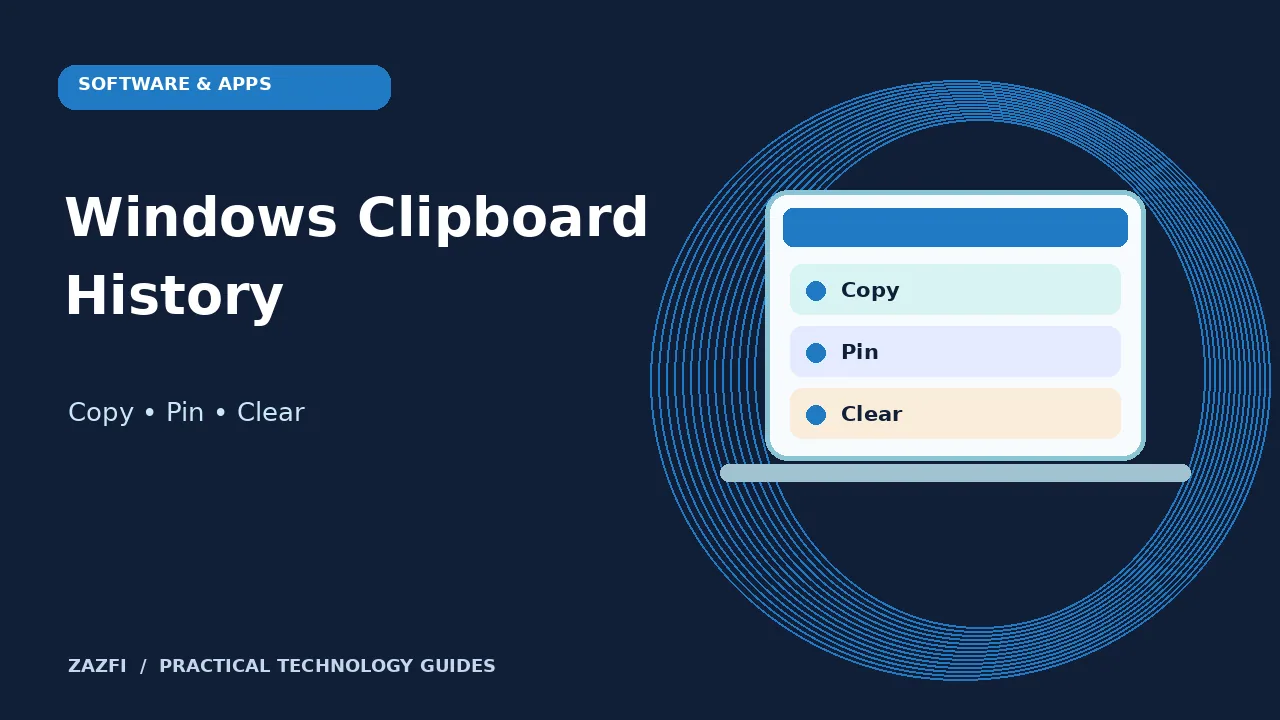
Copying text is a small act, but a long work day can involve hundreds of copies. You may move a ticket number from a support chat, paste a file name into a folder, and carry a link into a report. A normal clipboard holds the latest item. Windows clipboard history can hold several recent items so you do not need to copy the same text twice. The gain is simple: less switching between windows and less rework.
The trade-off is privacy. A password, address, private note, or customer detail may stay in clipboard history longer than you expect. This guide explains how to use the feature without treating it as a safe place to store secrets.
Open clipboard history for the first time
On Windows 11, press the Windows key and V at the same time. If the feature is off, Windows offers an option to turn it on. Once enabled, copy two harmless pieces of text from a test note. Press Windows plus V again and select the item you want to paste into an open document.
This small test helps you learn how the list looks on your computer. It also shows that clipboard history is not a complete record of everything you do. It has limits, and some apps may not allow an item to appear. If you manage a shared or work computer, check company policy before changing settings.
Know the entry limits before you rely on it
According to Microsoft Support, Windows clipboard history can hold up to 25 entries. A single entry is limited to 4 MB. Text, HTML, and bitmap formats are supported. Older entries move out as the list fills, unless they are pinned.
That means it is a short-term work aid, not a notebook or archive. Do not copy a quote in the morning and expect it to remain there after hours of other work. If a piece of text matters, save it in the right project file. For a source quote, record the page title and where you found it as well.
Pin reusable text with care
Pinning is helpful for short phrases you type often, such as a polite support greeting or a public office address. Open the history panel, find the item, use its menu, and choose Pin. The item can remain in history after a restart. Use this only for content you are comfortable keeping on that device.
Avoid pinning passwords, card details, login codes, or private client records. A pinned item creates a longer-lived copy of data that other people using the same session may be able to see. If you no longer need a pinned item, unpin and delete it. A reusable sentence belongs in a note or approved template when several people need access.
Keep clipboard sync off unless you need it
Windows can sync some copied text between devices signed in with a compatible Microsoft or work account. To review the option, open Settings, System, then Clipboard. Look for the section about history across devices. If your workflow never moves copied text between computers, leave syncing off.
This is not about treating all cloud features as unsafe. It is about limiting the places where data can appear. A personal laptop and a shared office desktop have different risks. If sync is useful, confirm which account is signed in and whether your employer allows it. Microsoft describes the settings in its Windows 11 clipboard guide.
Clear copied data after a sensitive task
Suppose you copied a private account number into a form. When the work is done, open Windows plus V and delete that entry. You can also use Settings, System, Clipboard, then Clear clipboard data. Microsoft notes that clearing does not remove pinned entries. Check those separately.
Do this after work that involves personal records, financial details, or customer information. If a private string was copied into an unrelated app by mistake, clearing history does not undo the paste. Open the destination app and remove the accidental copy too. If it was sent to another person, follow the relevant privacy or incident process.
Use history while preparing a report
Imagine you are comparing notes from three public research pages. You copy one source title, a date, and a short fact from each page. Clipboard history helps you paste the items into a draft without reopening every tab. This can save several small steps and reduce typos.
The important part is to keep sources attached to facts. When you paste a statistic, add the publisher and date in the document right away. A number sitting alone in a clipboard list is easy to mislabel. If a claim seems important, reopen its source and check whether the context changes the meaning.
Choose safe items to store
Public links, short headings, document labels, and non-sensitive repeated replies can work well in clipboard history. Private passwords, medical details, customer identifiers, and recovery codes should not. Use a password manager or another approved tool for the latter.
For example, a support worker can pin “Thanks for your note. I will check this and get back to you.” There is little value in pinning a customer’s private address. If you are not sure whether an item is sensitive, treat it as private and avoid keeping a pinned copy.
Troubleshoot a missing copied item
If an entry does not appear, first confirm that clipboard history is enabled. Copy a short line of plain text from Notepad and press Windows plus V. If that works, the issue may relate to the original app, file format, or item size. Some applications restrict copying or handle the clipboard in their own way.
Restarting can remove regular history items, so do not use it as a fix when you need to preserve a temporary entry. A work administrator may also disable the feature. Ask the right support team instead of trying to bypass a policy. Keep the troubleshooting test free of private data.
Keep shared computers and remote sessions separate
A family computer, school device, or remote desktop can change who might view copied material. Before pasting, check which window is active. If you copy a private item while connected to a remote session, confirm which machine receives it. Clipboard sharing can be controlled by remote access settings.
This matters for help-desk staff, freelancers, and people who work across several client systems. Use an approved remote tool and avoid moving sensitive information through a personal clipboard just to save time. Where possible, keep each customer’s data in its own secure workspace.
Clipboard history versus a snippets app
A dedicated text snippet app may be better if you maintain a library of approved replies, code samples, or writing templates. Clipboard history is best for short-lived work. A snippet app may offer folders, shared templates, and better search, but it also introduces another place where data is stored.
Before adding a new tool, check privacy settings and your team’s rules. If you only need two or three recent copied items, the built-in Windows feature may be enough. If you manage hundreds of standard replies, a reviewed team tool may reduce errors. Do not choose either tool as a secret vault.
Make a five-minute clipboard routine
At the start of a task, open Windows plus V and check that history works. Copy only the public material you need. Pin a harmless repeated phrase if it genuinely helps. When the work includes a private value, clear that entry as soon as you finish. Before you leave a shared computer, review the history panel again.
You can repeat this routine when finishing an invoice, logging out of a remote machine, or handing a laptop to someone else. The point is to turn a small feature into a predictable habit. It works better than remembering privacy rules only after a mistake.
Frequently asked questions
Does Windows save every copied item forever?
No. Standard clipboard history is limited, and unpinned items normally clear after a restart. Pinned items can remain.
Can I sync it between computers?
Supported devices and accounts can sync copied text when the setting is enabled. Check which account and devices are involved.
Is it safe for passwords?
Do not use it to store passwords. Use a dedicated password manager and remove sensitive copied entries when possible.
Can I delete just one item?
Yes. Open the panel, use that item’s menu, and choose Delete. You can also clear unpinned history in settings.
Clipboard history is useful because it reduces repeated copying. It becomes a risk when you forget what is stored there. Use the feature for short-lived, non-sensitive work, keep sync settings intentional, and clear private items when the task ends.
Quick privacy checklist
- Keep private codes out of pinned entries.
- Review clipboard sync.
- Remove sensitive text after use.
- Use a proper file or note for facts you must retain.
- Follow organization rules on shared devices.