 by
by Android Theft Protection Settings: Secure Your Phone Before It Goes Missing
Most people set up phone security after something goes wrong. It is much easier to prepare when the device is still in your hand. This guide shows how to check Android theft protection, prepare account recovery, and act if a phone is lost. It is written for readers worldwide; features and emergency procedures vary by device and country.
What Android theft protection can and cannot do
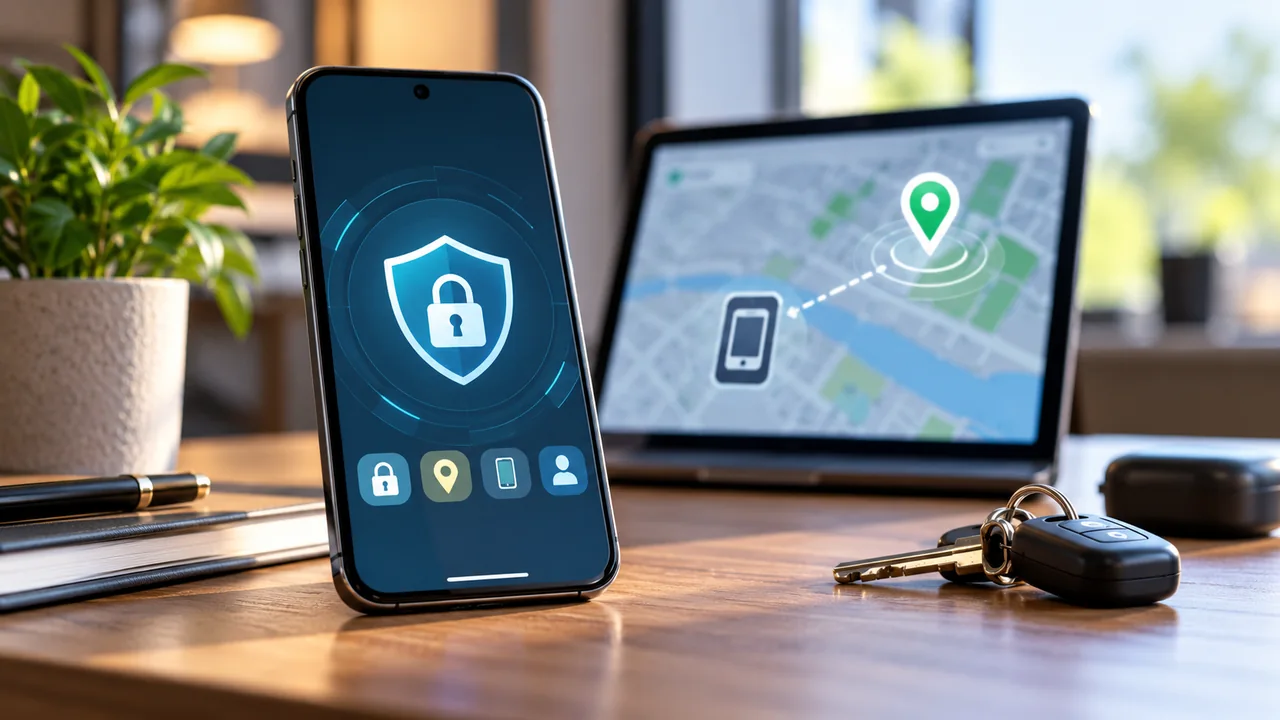
A stolen phone can be more than a lost gadget. It can hold photos, messages, saved sign-ins, and access to money. A screen lock is still your first line of defense, but some Android phones now offer extra steps that make it harder for a thief to reach private data. The key is to set them up before the phone goes missing. This guide focuses on practical controls you can check today. Menus and features differ by Android version and device maker. If your phone lacks a feature, use the basic steps that work on nearly every phone.
Think of theft protection as layers, not one magic switch. A strong lock helps stop casual access. Theft Detection Lock may lock a phone after it senses movement linked to theft. Offline Device Lock can act when a device stays offline in certain conditions. Identity Check asks for a fingerprint or face scan for some sensitive tasks outside trusted places. Each layer solves a different problem. None replaces regular backups or account recovery planning.
Start with a screen lock you will actually use
Open your phone settings and check the screen lock. Choose a strong PIN or password rather than a simple pattern or a short, easy code. A fingerprint or face unlock may make daily use easier, but keep the underlying PIN private. Do not share it with friends, coworkers, or people who offer to repair the phone.
Avoid typing your PIN while someone can watch the screen. In a busy train or café, a person may learn your code before they try to take the device. If you feel someone has watched it, change it in a private place. Also turn off lock-screen previews for sensitive messages. That will help keep verification codes and private conversations away from a stranger who picks up your phone.
Find Android’s theft protection menu
On many recent Android phones, open Settings, then Google, then All services. Under Personal and device safety, choose Theft protection. Google documents this path in its official Android theft protection guide. Your phone may use different labels. Use Settings search for “theft protection” if you cannot find the menu.
Some tools need Android 10 or later. Certain Identity Check features need Android 15 or later and a supported device. Android Go phones, tablets, and watches may not offer the same options. If a switch is absent, it does not mean your phone is unsafe. Keep the screen lock, account security, and recovery tools current while you check what the maker supports.
Enable Theft Detection Lock with realistic expectations
Theft Detection Lock is meant to respond to motion patterns that can suggest someone grabbed a phone and ran. On a supported phone, turn it on in the Theft protection menu. Treat it as a backup to a secure lock, not as proof that theft will always be spotted. Detection is not perfect, and the feature does not stop a person from physically taking the device.
Imagine using a map on a busy street. Someone grabs your phone while the screen is open. An extra automatic lock may reduce the time the thief can use the unlocked phone. But you should not rely on the sensor to react in every case. Keep payment apps protected, and do not leave key accounts signed in without their own safeguards.
Use Offline Device Lock and remote protection
A thief may try to disconnect a phone from the internet. Where available, Offline Device Lock can help lock the screen after certain offline conditions. Review its settings and keep it enabled if it fits your use. The exact trigger and timing can differ by software release, so do not assume it will lock at once.
Also prepare the phone-finding service tied to your Google account. Check that you can locate the phone from another trusted device and that you understand the options to secure or erase it. Try opening the official Google device-finding page while you still have the phone. You do not need to erase anything during this test. The goal is to learn the recovery steps before a stressful event.
Understand Identity Check and trusted places
Identity Check adds biometric checks to sensitive tasks when you are outside the places you choose as trusted. Google says these checks can cover access to saved passwords and changes to the screen lock on supported phones. This makes a stolen PIN less useful for those actions. Enable it under Theft protection if the setting appears.
To set it up, sign in to a Google account, add a lock screen and fingerprint or face unlock, then choose trusted places such as home or work. Use places you control and visit often. Do not mark a public café or transit station as trusted just to save a few taps. If the feature is not listed, your device may not support it yet.
Why your Google account needs separate care
Your phone is often a key to your online life. It can receive sign-in prompts and hold recovery information. Open the security settings for your Google account and check your recovery phone, recovery email, signed-in devices, and two-step verification. Keep recovery details up to date. A lost phone is a poor time to discover that your only recovery method was stored on that same phone.
Where possible, add a passkey or another strong sign-in method and store recovery details safely outside the device. Do not keep backup codes as an unprotected screenshot in the same photo library. If you use a password manager, know how you will sign in on a new device and how to reach its support pages without using the stolen phone.
Make a recovery plan before leaving home
Set aside ten minutes to write a short phone recovery plan. Record the device model and any proof of purchase in a safe place. Save your mobile provider’s official support channel. Confirm that important photos and documents are backed up. Then think through how you would contact your bank, your workplace, and your family if the phone went missing.
This plan matters while traveling. You may not have a spare SIM, a second phone, or access to your usual computer. If your account recovery uses only text messages, ask your provider what happens when a SIM is lost. Carrying a printed emergency contact number can help if you cannot use your apps.
What to do in the first hour after losing a phone
First move to a safe place. If the phone was taken by force, do not chase the thief. Use a trusted device to open your phone-finding service, check the last known location, and secure the device. If the screen shows a location, share it with authorities when appropriate rather than trying to recover the phone yourself.
Next, contact your mobile provider to protect your number or SIM. Review recent account activity and change credentials if you believe someone gained access. If banking or payment services were exposed, use the official bank app or phone support. Tell your employer if the lost phone had work access. Keep a written record of when you took each step.
When remote erase is the right choice
Remote erase can protect data when recovery seems unlikely. It is also a major step: it may stop you from tracking the phone afterward, and data that was never backed up may be lost. Read the device-finding service’s current guidance before choosing it. Do not erase just because a map briefly shows an unfamiliar place.
Think through risk and value. A phone with client data and live work sessions may need a fast decision. A phone that slipped behind your sofa needs a call or sound alert first. If you are unsure, secure the device and accounts while you gather reliable information. Document the choice for work devices so others know what happened.
Simple habits that lower everyday risk
Make a habit of locking the screen before handing the phone to someone. Keep operating system and app updates installed. Review whether sensitive apps can show content on the lock screen. Avoid saving a plain-text list of PINs. Check that the phone-finding service is working after major account or device changes.
These steps take little time but they reduce the damage from common mistakes. A repair shop does not need your main Google password to replace a battery. A buyer does not need access to your photos to inspect a used phone. Before repair or sale, use the official preparation steps offered by the maker.
A practical test you can do without losing your phone
At home, lock your phone and check whether notifications reveal sensitive details. Open settings and confirm which theft features appear. Make sure your account recovery email works on another device. Then check the device-finding page and identify the secure-device and erase options without pressing erase.
If you share devices with a family member, explain what to do if one is lost. The goal is not to memorize every menu. It is to know which accounts matter, which trusted device to use, and which support channels are genuine. A short written plan is often more helpful than a long set of screenshots.
Answers to common questions
Does Theft Detection Lock work on every Android phone?
No. Support depends on device model and Android version. Use the official Google help page and your phone maker’s guide to confirm which features you have.
Can Identity Check replace a strong PIN?
No. It adds protection for selected sensitive actions on supported phones. Keep your screen lock strong and avoid sharing it.
Should I erase a phone right after I lose it?
Not always. First make sure you are safe and secure the device. Consider the chance of recovery, whether data is backed up, and the risk from exposed accounts.
Is a phone safe if it is powered off?
Powering off may make live location and remote actions harder. Your account and SIM protections still matter. Follow your maker’s recovery guidance.
A secure phone is not just a phone with many switches turned on. It is one you can lock, locate, recover, and replace without losing control of your accounts. Start with a strong PIN and working backup. Enable supported theft controls next. Finish by making sure you can reach your accounts from another device.
Quick setup checklist
- Use a strong lock-screen PIN.
- Turn on supported theft protection switches.
- Review Identity Check if the phone offers it.
- Check account recovery details on another device.
- Confirm phone-finding and backup services work.